1. הקדמה
The Canon PowerShot S110 is a compact digital camera designed for high-quality imaging and versatile shooting. It features a 12.1 Megapixel High-Sensitivity CMOS sensor, a DIGIC 5 Image Processor, and a bright f/2.0 lens with 5x Optical Zoom. This camera also includes built-in Wi-Fi for convenient image sharing and a capacitive touch panel LCD for intuitive operation. This manual provides essential information for setting up, operating, and maintaining your PowerShot S110 camera.

איור 1.1: חֲזִית view of the Canon PowerShot S110 Digital Camera. This image displays the camera's lens, flash, and overall compact design.
2. מה בקופסה
ודא שכל הפריטים הבאים כלולים בחבילה שלך:
- Canon PowerShot S110 Digital Camera
- חבילת סוללות
- מטען סוללה
- כבל USB
- כבל HDMI
- רצועת יד
- Software CD-ROM (for bundled software)
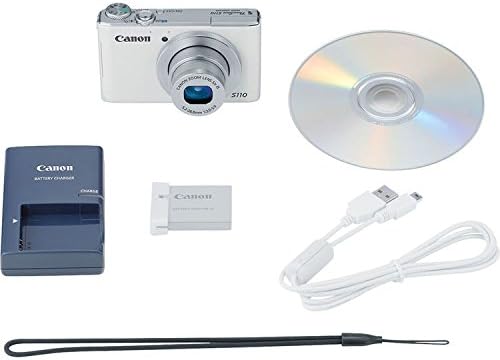
איור 2.1: The Canon PowerShot S110 camera alongside its standard accessories, including the battery, charger, cables, and software disc.
3. התקנה
3.1. טעינת הסוללה
- הכנס את ערכת הסוללות למטען הסוללות המצורף.
- חבר את המטען לשקע חשמל. נורית חיווי הטעינה תידלק.
- לאחר השלמת הטעינה, נורית החיווי תשתנה או תכבה. הסר את הסוללה.
3.2. הכנסת הסוללה וכרטיס הזיכרון
- פתח את מכסה תא הסוללה/כרטיס הזיכרון בתחתית המצלמה.
- הכנס את חבילת הסוללה הטעונה בחוזקה עד שתיכנס למקומה בנקישה.
- Insert an SD/SDHC/SDXC memory card into the card slot with the label facing the correct direction, pushing until it clicks.
- סגור היטב את מכסה התא.
3.3. הגדרות ראשוניות
Upon first power-on, you will be prompted to set the date, time, and language. Follow the on-screen instructions using the camera's controls or touch screen.
3.4. התחברות ל-Wi-Fi
The PowerShot S110 features built-in Wi-Fi for image transfer. To connect:
- הקש על תַפרִיט button and navigate to the Wi-Fi settings.
- Select your desired connection method (e.g., connect to a smartphone, computer, or Wi-Fi printer).
- Follow the on-screen prompts to establish a connection. For smartphone connectivity, download the free Canon CameraWindow app.
4. תפעול
4.1. צילום בסיסי
כדי לצלם תמונה:
- הפעל את המצלמה על ידי לחיצה על כּוֹחַ לַחְצָן.
- צלם את התמונה שלך באמצעות מסך LCD בגודל 3.0 אינץ'.
- לחץ על לחצן הצילום עד חצי הדרך כדי להתמקד. מסגרת המיקוד תהפוך לירוקה כאשר המיקוד יושג.
- לחץ על לחצן הצילום במלואו כדי ללכוד את התמונה.
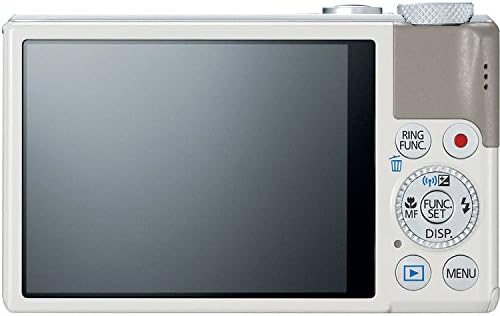
איור 4.1: אֲחוֹרִי view of the Canon PowerShot S110, showing the LCD screen, control buttons, and the control ring.
4.2. מצבי צילום
The PowerShot S110 offers various shooting modes accessible via the mode dial or menu:
- חכם אוטומטי: The camera automatically selects optimal settings based on the scene.
- תוכנית AE (P): The camera sets aperture and shutter speed, while you control other settings like ISO and white balance.
- עדיפות תריס AE (טלוויזיה): You set the shutter speed, and the camera adjusts the aperture. Ideal for controlling motion blur.
- AE בעדיפות צמצם (Av): You set the aperture, and the camera adjusts the shutter speed. Useful for controlling depth of field.
- ידני (M): שליטה מלאה על צמצם, מהירות תריס ו-ISO.
- מותאם אישית (C): Save and recall your preferred settings.
- מצבי סצנה מיוחדים (SCN): Includes modes like Portrait, Smooth Skin, Handheld Night Scene, Snow, and Fireworks for specific situations.
- מסנני קריאייטיב: Apply effects such as Toy Camera Effect, Miniature Effect, Super Vivid, and Color Accent.
- Movie Digest: Records a short video clip before each still image and compiles them into a daily video.
4.3. הקלטת וידאו
To record Full HD (1080p) video:
- לחץ על הלחצן הייעודי סֶרֶט button (red dot icon) located on the rear of the camera.
- לחץ שוב על הלחצן כדי להפסיק את ההקלטה.
The camera supports zooming during video recording, and audio is captured in stereo. Videos can be viewed on an HDTV via the HDMI output.
4.4. Image Stabilization (Intelligent IS)
The Intelligent IS system automatically selects the optimal image stabilization mode for your shooting conditions:
- Normal IS: Corrects general camera movement for stills.
- Panning IS: Disables vertical shake correction when panning horizontally.
- Macro (Hybrid) IS: Corrects shift-type shake common in close-up photography.
- Dynamic IS: Effective for video shooting at wide-angle, reducing shake while walking.
- Powered IS: Compensates for hand movement during telephoto video recording.
- Tripod IS: Automatically disables IS when a tripod is detected.
4.5. Touch Panel LCD and Control Ring
The 3.0-inch capacitive touch panel allows for intuitive control:
- תריס מגע: הקש על המסך כדי להתמקד ולצלם תמונה.
- Playback Gestures: Use pinch-to-zoom and swipe gestures to navigate images.
- התאמת הגדרות: Quickly select camera settings by tapping.
The control ring around the lens barrel can be customized to adjust settings such as focus, aperture, shutter speed, ISO, or exposure compensation. Use the dedicated RING FUNC. button to select its function.
4.6. RAW+JPEG Recording
The camera supports simultaneous recording of RAW and JPEG images, providing maximum flexibility for post-processing. RAW files capture all sensor data, while JPEG files are processed in-camera for immediate use.
4.7. GPS Tagג'ינג
Utilize the Canon CameraWindow app on your smartphone to record GPS data. This data can then be wirelessly transferred to your camera to tag images with location information, aiding in organization.
4.8. Image Transfer and Printing
Images and videos can be transferred wirelessly to social networking sites via CANON iMAGE GATEWAY, to a PC, or to iOS/Android devices using the Canon CameraWindow app. You can also print directly to Wi-Fi compatible printers.
5. תחזוקה
5.1. ניקוי המצלמה
- גוף המצלמה: נגבו עם מטלית רכה ויבשה. עבור לכלוך עיקש, השתמשו במטלית רכה קלות.ampשטוף במים ולאחר מכן יבש היטב.
- עֲדָשָׁה: השתמשו במפוח עדשות כדי להסיר אבק, ולאחר מכן נגבו בעדינות בעזרת מטלית לניקוי עדשות. הימנעו מלגעת במשטח העדשה עם האצבעות.
- מסך LCD: השתמשו במטלית רכה ויבשה. עבור כתמים, השתמשו בחומר ניקוי למסכים המיועד במיוחד למכשירים אלקטרוניים.
Do not use organic solvents such as alcohol, benzene, or paint thinner, as these can damage the camera finish.
5.2. טיפול בסוללה
- אחסן סוללות במקום קריר ויבש כאשר אינן בשימוש.
- הימנעו מפריקה מלאה של הסוללה לעתים קרובות כדי להאריך את חייה.
- אם המצלמה לא תהיה בשימוש למשך תקופה ממושכת, הוציאו את הסוללה.
5.3. אחסון
Store the camera in a dry, well-ventilated area, away from direct sunlight, high temperatures, and humidity. Consider using a desiccant to prevent mold growth, especially in humid environments.
6. פתרון תקלות
6.1. המצלמה לא נדלקת
- ודא שהסוללה טעונה במלואה ומוכנסת כהלכה.
- ודא שמכסה תא הסוללה סגור היטב.
6.2. Lens Error / Lens Not Extending
- Check for any obstructions around the lens barrel.
- Turn the camera off and then on again. If the error persists, contact customer support.
6.3. תמונות מטושטשות
- ודא שהעדשה נקייה.
- Confirm that the camera has focused correctly (focus frame turns green).
- In low light, use a higher ISO setting or enable flash.
- Hold the camera steady or use a tripod, especially with slower shutter speeds.
6.4. בעיות חיבור Wi-Fi
- Ensure your smartphone or computer's Wi-Fi is enabled and within range.
- Verify that the correct password or network settings are entered.
- Restart both the camera and the connecting device.
- Ensure the Canon CameraWindow app is updated to the latest version.
7. מפרטים
| שם הדגם | Canon PowerShot S110 |
| רזולוציית חיישן תמונה | 12.1 מגה פיקסל |
| סוג חיישן תמונה | CMOS |
| זום אופטי | 5x |
| אורך מוקד מינימלי | 24 מ"מ |
| אורך מוקד מרבי | 120 מ"מ |
| צמצם מקסימלי | f/2.0 |
| ייצוב תמונה | אוֹפּטִי |
| סוג תצוגה | מסך מגע LCD בגודל 3.0 אינץ' |
| רזולוציית וידאו | Full HD 1000p |
| קישוריות | HDMI, USB, Wi-Fi |
| נתמך File פוּרמָט | JPEG, RAW |
| סוג זיכרון פלאש | SD/SDHC/SDXC |
| משקל פריט | 6.98 אונקיות |
8. אחריות ותמיכה
8.1. מידע על אחריות
מצלמת ה-Canon PowerShot S110 הדיגיטלית מגיעה עם אחריות מוגבלת לשנה. This warranty covers defects in materials and workmanship under normal use. For full terms and conditions, please refer to the warranty card included with your product or visit the official Canon webאֲתַר.
8.2. תמיכת לקוחות
For technical assistance, service, or additional information, please contact Canon customer support. You can find contact details and support resources on the official Canon webאֲתַר: www.usa.canon.com/support.
Before contacting support, please have your camera's model name (PowerShot S110) and serial number ready.


