מָבוֹא
This instruction manual provides comprehensive guidance for the installation, operation, maintenance, and troubleshooting of your Intel Classic DH61CR Desktop Motherboard. Please read this manual thoroughly before proceeding with installation or operation to ensure proper functionality and to prevent damage to the product or other components.
The Intel DH61CR motherboard is designed to support Intel LGA 1155 socket processors and DDR3 memory, offering a reliable foundation for personal computer systems.
התקנה והתקנה
1. Unpacking and Component Overview
Carefully remove the motherboard from its packaging. Inspect all components for any signs of damage. Ensure all accessories listed in the product documentation are present.
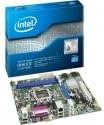
Image: The Intel DH61CR Desktop Motherboard shown alongside its retail packaging. This image provides a visual reference for the product and its initial presentation.
Familiarize yourself with the layout of the motherboard, including the CPU socket, RAM slots, expansion slots, and various connectors.
2. התקנת מעבד (שקע LGA 1155)
- אתר את שקע המעבד LGA 1155 בלוח האם.
- לחץ בעדינות את ידית הטעינה כלפי מטה ומשוך אותה הצידה כדי לפתוח את מסגרת החזקת שקע המעבד.
- יישר את הסימן המשולש שעל המעבד עם הסימן המתאים שעל השקע. הכנס בזהירות את המעבד לתוך השקע מבלי להפעיל אותו בכוח.
- Close the retention frame and secure it by pushing the load lever back into its locked position.
- Apply a thin, even layer of thermal paste to the top of the CPU (if not pre-applied to the cooler).
- Install the CPU cooler according to its manufacturer's instructions, ensuring it is securely fastened and making good contact with the CPU.
3. התקנת זיכרון RAM (DDR3)
- Identify the DDR3 memory slots. The Intel DH61CR supports DDR3 RAM.
- פתחו את הקליפסים בשני קצוות חריץ הזיכרון.
- יישר את החריץ במודול זיכרון DDR3 עם המפתח בחריץ הזיכרון.
- Press down firmly on both ends of the memory module until the clips snap into place, securing the module.
4. התקנת התקן אחסון
Connect your SATA hard drives or solid-state drives to the SATA ports on the motherboard using SATA data cables. Ensure the power cables from your power supply are also connected to these devices.
5. חיבורי ספק כוח
- חבר את מחבר החשמל ATX בעל 24 הפינים מספק הכוח שלך לשקע החשמל הראשי בלוח האם.
- Connect the 4-pin (or 8-pin, if applicable) ATX 12V power connector to the CPU power socket.
- ודא שכל חיבורי החשמל מאובטחים.
6. חיבורי לוח קדמי
Connect the front panel cables from your computer case (power button, reset button, HDD LED, power LED, USB ports, audio jacks) to the corresponding headers on the motherboard. Refer to the motherboard's silkscreen labels for correct pin assignments.
7. כרטיסי הרחבה
Install any necessary expansion cards (e.g., graphics card, network card) into the appropriate PCIe x16 or PCIe x1 slots. Secure them with the case's retention mechanism.
הוראות הפעלה
1. אתחול ראשון
After all components are installed and connected, connect your monitor, keyboard, and mouse. Power on the system. The system should display the BIOS POST screen. If not, refer to the Troubleshooting section.
2. גישת BIOS/UEFI
כדי לגשת לכלי ההתקנה של BIOS/UEFI, לחצו על המקש הייעודי (בדרך כלל דל, F2, או F10) during the initial boot sequence. The exact key is usually displayed on the screen during POST.
Within the BIOS/UEFI, you can configure boot order, system time, hardware settings, and other advanced options. Save changes before exiting.
תַחזוּקָה
1. ניקיון
Regularly clean the interior of your computer case to prevent dust buildup, which can lead to overheating. Use compressed air to remove dust from fans, heatsinks, and motherboard components. Ensure the system is powered off and unplugged before cleaning.
2. עדכוני BIOS
בדוק מעת לעת את תמיכת אינטל website for BIOS updates for your DH61CR motherboard. BIOS updates can improve system stability, add support for new hardware, or fix bugs. Follow the instructions provided by Intel carefully when performing a BIOS update to avoid system damage.
פתרון בעיות
If you encounter issues, review שלבי פתרון הבעיות הנפוצים הבאים:
- אין כוח: Ensure all power cables (24-pin ATX, 4-pin CPU) are securely connected. Check the power supply unit (PSU) switch and wall outlet.
- אין תצוגה: Verify the monitor is connected and powered on. Ensure the graphics card (if dedicated) is properly seated and powered. If using integrated graphics, confirm the monitor is connected to the motherboard's video output.
- צפצופים של המערכת: A series of beeps during startup usually indicates a hardware issue. Consult the motherboard's beep code guide (often found on the manufacturer's support website) to diagnose the specific problem (e.g., RAM error, graphics card issue).
- חוסר יציבות/קריסות מערכת: Check for proper CPU cooler installation and thermal paste application. Ensure RAM modules are correctly seated. Test memory with diagnostic tools. Update drivers and BIOS.
- מערכת הפעלה לא נטענת: Verify the boot order in BIOS/UEFI. Check SATA cable connections to storage devices. Ensure the operating system is correctly installed on a bootable drive.
For persistent issues, consult the Intel support webאתר או צור קשר עם התמיכה הטכנית שלהם.
מפרט טכני
| תכונה | מִפרָט |
|---|---|
| מותג | אינטל |
| שם הדגם | DH61CRB3 |
| שקע מעבד | LGA 1155 |
| מעבדים תואמים | Intel Core i3-2100, Intel Core i5-2400, Intel Core i7-2600, Pentium |
| סוג ערכת שבבים | Intel H61 Express |
| טכנולוגיית זיכרון RAM | DDR3 |
| מקסימום זיכרון RAM | 8 ג'יגה-בייט |
| מהירות שעון זיכרון | 1333 מגה-הרץ |
| מכשירים תואמים | מחשב אישי |
| ממשק אחסון | Serial ATA/300 |
| חריצי הרחבה | 1 חריץ PCIe x16 |
| פלט וידאו | CPU Dependent Video |
| פּלַטפוֹרמָה | Windows 7, Windows Vista Ultimate |
| מידות המוצר | 10.5 x 8.5 x 2 אינץ' |
| משקל פריט | 1.9 פאונד |
| יַצרָן | INTEL |
| תאריך ראשון זמין | 30 באפריל, 2012 |
אחריות ותמיכה
Warranty information for the Intel Classic DH61CR Desktop Motherboard is typically provided with the product at the time of purchase or can be found on the official Intel webאתר. אנא שמור את הוכחת הרכישה שלך לצורך תביעות אחריות.
For technical support, driver downloads, and additional documentation, please visit the official Intel support website. You can often find detailed FAQs and community forums there to assist with common issues.
Note: Intel's official support channels are the primary resource for product-specific assistance.


