מָבוֹא
This manual provides essential instructions for the setup, operation, and maintenance of your Logitech Stereo Headset H110. Please read this guide thoroughly before using the product to ensure optimal performance and longevity.
תוכן החבילה
The Logitech Stereo Headset H110 package typically includes:
- Logitech Stereo Headset H110
- תיעוד למשתמש (מדריך זה)
המוצר נגמרview
The Logitech Stereo Headset H110 is designed for clear audio communication and listening. It features a comfortable over-the-head design with an adjustable microphone.

תמונה 1: The Logitech Stereo Headset H110, showing the adjustable headband, earcups with foam padding, and the flexible microphone boom.
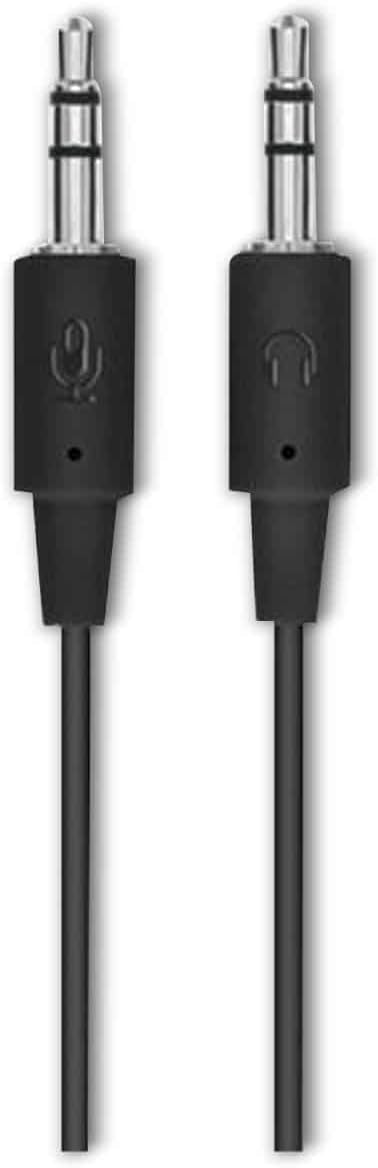
תמונה 2: The two 3.5mm audio jacks for the Logitech H110 headset. One jack is for audio output (headphones), and the other is for microphone input.
הגדרה
- חבר את האוזניות:
The Logitech H110 headset uses two 3.5mm audio jacks. One jack is typically green for audio output (headphones), and the other is pink for microphone input. Connect the green jack to your computer's audio output port and the pink jack to your computer's microphone input port.
פֶּתֶק: Some devices, such as laptops or smartphones, may use a single combined 3.5mm jack for both audio and microphone. An adapter (not included) may be required for compatibility with such devices.
- Adjust the Headset:
Adjust the headband for a comfortable fit on your head. The earcups should rest gently over your ears.
- מקם את המיקרופון:
Position the flexible microphone boom so that the microphone is approximately 1-2 inches (2.5-5 cm) from your mouth for optimal voice clarity.
הוראות הפעלה
- השמעת אודיו:
Once connected, your computer should automatically detect the headset as an audio output device. Play any audio (music, video, calls) to test the sound. Adjust the volume using your computer's system volume controls.
- שימוש במיקרופון:
For voice communication (e.g., video calls, online gaming), ensure the headset microphone is selected as the input device in your computer's sound settings or within the application you are using. Speak clearly into the microphone.
תַחזוּקָה
- ניקוי:
Wipe the headset surfaces with a soft, dry cloth. Do not use liquid cleaners or abrasive materials. For the foam earpads, gently dab with a slightly damp מטלית במידת הצורך, ותנו לה להתייבש לחלוטין באוויר לפני השימוש.
- אִחסוּן:
יש לאחסן את האוזניות במקום נקי ויבש, הרחק מטמפרטורות קיצוניות ואור שמש ישיר. יש להימנע מסבך הכבל.
- טיפול בכבלים:
Do not pull on the cable to disconnect the headset. Always grasp the plug firmly. Avoid sharp bends or kinks in the cable to prevent internal damage.
פתרון בעיות
| בְּעָיָה | פתרון אפשרי |
|---|---|
| אין קול מהאוזניות |
|
| המיקרופון לא עובד |
|
| איכות שמע ירודה |
|
מפרטים
- דֶגֶם: H110
- מספר חלק (P/N): 981-000271
- קישוריות: Dual 3.5mm audio jacks (one for audio, one for microphone)
- מידות (H x W x D): בערך 5.91 x 2.36 x 0.79 אינץ' (15 x 6 x 2 ס"מ)
- מִשׁקָל: בערך 5.3 אונקיות (150 גרם)
- מִיקרוֹפוֹן: Adjustable, noise-cancelling (typical for basic headsets)
- כוסות אוזניים: Foam padded
אחריות ותמיכה
Specific warranty information for the Logitech Stereo Headset H110 is typically provided with the product packaging or available on the official Logitech website. For technical support, product registration, or further assistance, please visit the official Logitech support page:
פֶּתֶק: תנאי האחריות עשויים להשתנות בהתאם לאזור ולתאריך הרכישה. אנא שמור את הוכחת הרכישה שלך לצורך תביעות אחריות.


