1. הקדמה
This manual provides detailed instructions for the safe and efficient operation of your Samsung Glyde U940 mobile phone. Please read this manual thoroughly before using your device to ensure proper functionality and to understand all features.
2. תכולת החבילה
ודא שחבילת המוצר שלך מכילה את הפריטים הבאים:
- Samsung Glyde U940 Mobile Phone
- סוללה רגילה
- Travel Adapter/Charger
- מדריך למשתמש (מסמך זה)
- Note: Specific accessories may vary by region or retailer.
3. המכשיר נגמרview
The Samsung Glyde U940 features a large touch-sensitive display and a slide-out QWERTY keyboard for versatile input.
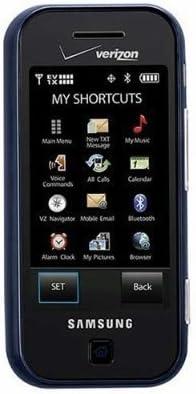
איור 3.1: חֲזִית view of the Samsung Glyde U940, showing the 2.8-inch display and navigation buttons. The screen displays "MY SHORTCUTS" with icons for various functions like Main Menu, New TXT Message, My Music, Voice Commands, All Calls, Calendar, Mobile Email, Bluetooth, Alarm Clock, My Pictures, and Browser. "SET" and "Back" buttons are visible below the screen.
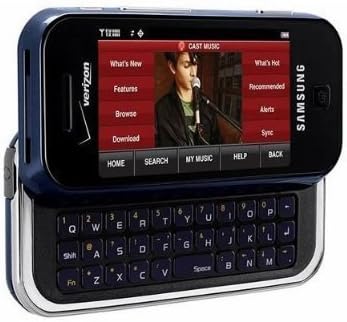
איור 3.2: Samsung Glyde U940 with its full QWERTY keyboard extended. The phone is oriented horizontally, displaying a media interface on the screen with options like "What's New", "Features", "Browse", "Download", "What's Hot", "Recommended", "Alerts", and "Sync". Navigation buttons for "HOME", "SEARCH", "MY MUSIC", "HELP", and "BACK" are visible below the screen.
תכונות עיקריות:
- Large 2.8" Display
- Slide-out QWERTY Keyboard
- ממשק מסך מגע
- Full HTML Browser
- 2.0 MP Camera and Camcorder
4. התקנה
4.1. התקנת הסוללה
- אתר את מכסה הסוללה בגב הטלפון.
- Gently remove the battery cover by sliding or lifting it.
- Align the battery's gold contacts with the contacts in the battery compartment.
- Insert the battery firmly into place.
- Replace the battery cover, ensuring it clicks securely.
4.2. טעינת הסוללה
- Connect the travel adapter to the charging port on your phone.
- Plug the other end of the travel adapter into a standard electrical outlet.
- יש לאפשר לטלפון להיטען לחלוטין לפני השימוש הראשון. מחוון הסוללה על המסך יציג את מצב הטעינה.
- נתק את המטען לאחר שהסוללה טעונה במלואה.
4.3. הפעלה / כיבוי
- כדי להפעיל: Press and hold the Power/End key until the screen lights up.
- כדי לכבות: Press and hold the Power/End key until the power-off options appear, then select "Power off".
5. הוראות הפעלה
5.1. שימוש במסך המגע
The Samsung Glyde U940 features a resistive touch screen. Use your fingertip or a stylus (if provided) to interact with the display.
- בֶּרֶז: Lightly touch the screen once to select an item or open an application.
- גרור: געו והחזיקו פריט, ולאחר מכן הזיזו את האצבע על פני המסך כדי למקם אותו מחדש.
- גְלִילָה: Slide your finger up or down on the screen to navigate through lists or web דפים.
5.2. Using the QWERTY Keyboard
Slide the screen horizontally to reveal the full QWERTY keyboard. This keyboard is ideal for typing messages, emails, and web כתובות.
- Press individual keys to input characters.
- השתמש ב- מִשׁמֶרֶת מקש לאותיות גדולות וסמלים.
- ה Fn key provides access to additional functions or symbols.
5.3. ביצוע וקבלת שיחות
- להתקשר: From the home screen, tap the Phone icon or dial the number using the keypad and press the Call key.
- קבלת שיחה: When a call comes in, tap the "Answer" button on the screen.
- סיום שיחה: Tap the "End" button on the screen or press the Power/End key.
5.4. הודעות (SMS/MMS)
To send a text or multimedia message:
- From the main menu, select "Messages" or "New TXT Message".
- הזן את מספר הטלפון של הנמען או בחר מתוך אנשי הקשר שלך.
- Type your message using either the touch screen or the QWERTY keyboard.
- To add multimedia (pictures, videos, audio), select the attachment option.
- הקש על "שלח".
5.5. Camera and Camcorder Functions
The Glyde U940 is equipped with a 2.0 MP camera.
- מצלם: Open the Camera application, frame your shot, and press the dedicated camera button or tap the capture icon on the screen.
- הקלטת סרטונים: Switch to camcorder mode within the Camera application, press the record button to start, and press again to stop.
- Access your captured media in the "My Pictures" or "Gallery" application.
5.6. Web דפדפן
Utilize the full HTML browser to access the internet.
- From the main menu, select "Browser".
- הזן את הרצוי web כתובת ב- URL בַּר.
- Use the touch screen to navigate pages, zoom in/out, and click links.
6. תחזוקה
6.1. טיפול בסוללה
- הימנע מחשיפת הסוללה לטמפרטורות קיצוניות.
- אין לנקב או לגרום נזק לסוללה.
- For optimal battery life, avoid frequent partial discharges and charges.
- אם לא ייעשה שימוש בטלפון למשך תקופה ממושכת, אחסנו אותו עם סוללה טעונה חלקית.
6.2. ניקוי המכשיר
- Use a soft, lint-free cloth to clean the screen and exterior of the phone.
- אין להשתמש בכימיקלים חזקים, תרסיסי ניקוי או חומרים שוחקים.
- Ensure no moisture enters openings such as the charging port or headphone jack.
6.3. עדכוני תוכנה
Periodically check for available software updates to improve performance and add new features. Consult your service provider or the Samsung webאתר להליכי עדכון.
7. פתרון תקלות
This section addresses common issues you might encounter with your Samsung Glyde U940.
| בְּעָיָה | פתרון אפשרי |
|---|---|
| הטלפון לא נדלק. | Ensure the battery is correctly installed and fully charged. Connect the charger and attempt to power on. |
| Touch screen is unresponsive or erratic. |
|
| הסוללה מתרוקנת במהירות. |
|
| לא ניתן לבצע או לקבל שיחות. | Check network signal strength. Ensure "Airplane Mode" is not enabled. Contact your service provider if network issues persist. |
| QWERTY keyboard input is incorrect. | Ensure the keyboard is fully extended and locked into position. Restart the device if keys are unresponsive. |
8. מפרטים
| תכונה | פְּרָט |
|---|---|
| מספר דגם | U940 |
| לְהַצִיג | 2.8 Inches, Touch Screen |
| שיטת קלט | Touch Screen, Slide-out QWERTY Keyboard |
| מַצלֵמָה | 2.0 MP (Camera and Camcorder) |
| דפדפן | Full HTML Browser |
| משקל פריט | 11.2 אונקיות |
| מידות | 8.1 x 5.4 x 2.2 אינץ' (מידות חבילה) |
| קישוריות | Wireless, USB 2.0 |
| יַצרָן | סמסונג |
9. אחריות ותמיכה
למידע על אחריות, אנא עיינו בכרטיס האחריות המצורף למוצר שלכם או בקרו באתר הרשמי של סמסונג website. For technical support, contact your service provider or Samsung customer service.
שירות לקוחות של סמסונג: www.samsung.com/us/support/


