
מָבוֹא
This user guide provides essential information for the HP OfficeJet Pro 8125e printer. It covers initial setup, connecting to networks, performing print, scan, and copy functions, routine maintenance, and troubleshooting common issues. Follow these instructions to ensure optimal performance and longevity of your device.
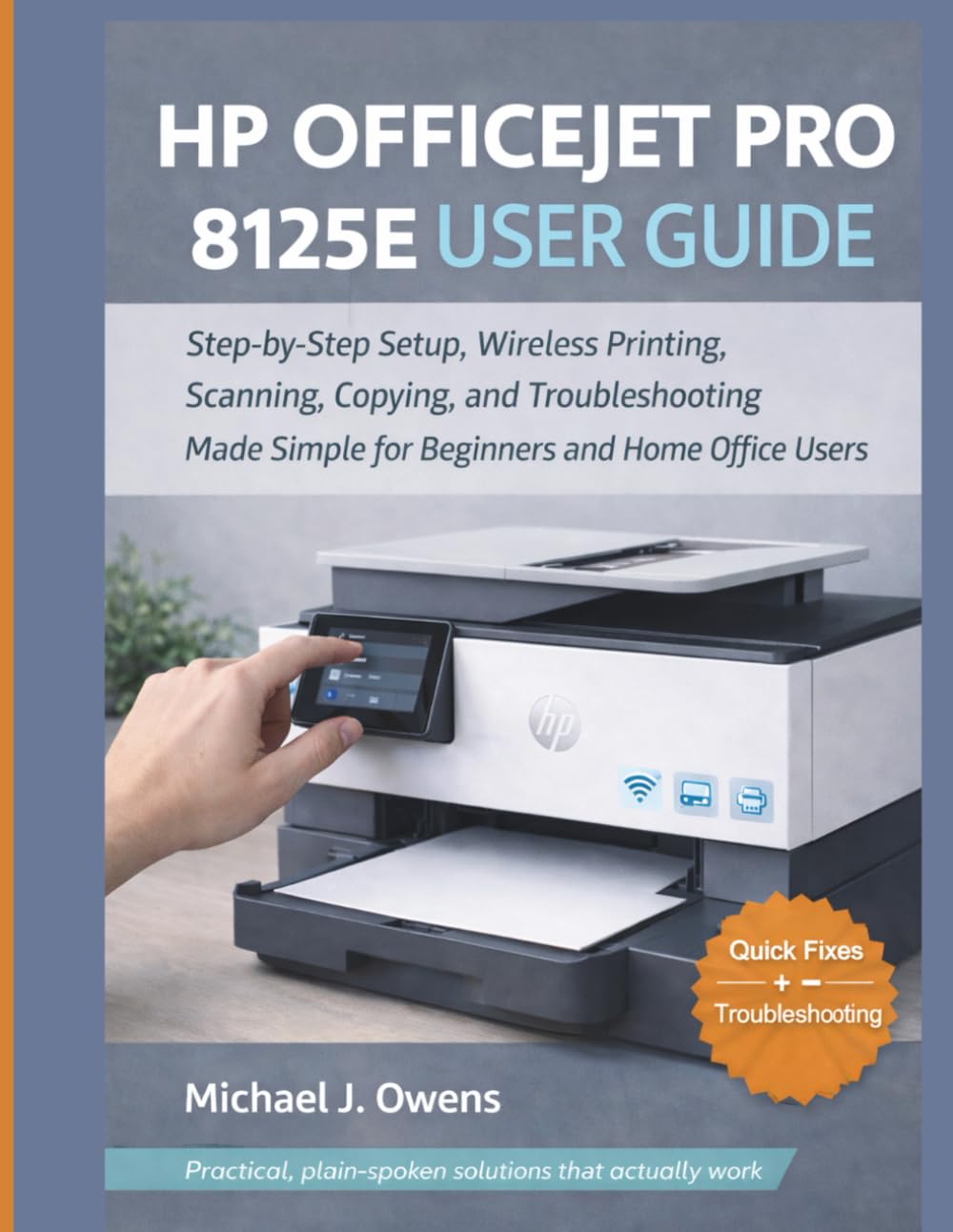
Image: Front cover of the HP OfficeJet Pro 8125e User Guide. This image represents the manual itself, designed to assist users with their printer.
1. התקנה
1.1 פתיחת האריזה והדלקה ראשונית
- הוצא בזהירות את המדפסת מאריזתה.
- הסר את כל סרטי המגן וחומרי האריזה מהחלק החיצוני והפנימי של המדפסת.
- חבר את כבל החשמל למדפסת ולאחר מכן לשקע בקיר.
- לחץ על לחצן ההפעלה כדי להפעיל את המדפסת.
- Follow the on-screen prompts on the printer's control panel to select your language and region.
1.2 התקנת מחסניות דיו
- פתח את דלת הגישה למחסנית הדיו.
- המתן עד שגררת ההדפסה תנוע למרכז.
- הוצא את מחסניות הדיו החדשות מהאריזה.
- הכנס כל מחסנית לחריץ המתאים לה, וודא שהיא תיכנס למקומה בנקישה.
- סגור את דלת הגישה למחסנית הדיו.
1.3 טעינת נייר
- משוך החוצה את מגש ההזנה.
- כוונן את מכווני הנייר לגודל הנייר הנכון.
- טען ערימת נייר לבן רגיל לתוך המגש, כאשר הצד המיועד להדפסה כלפי מטה.
- דחף את מגש הקלט בחזרה לתוך המדפסת.
- Confirm paper type and size on the printer's control panel if prompted.
1.4 התחברות ל-Wi-Fi
- בלוח הבקרה של המדפסת, נווט אל אשף הגדרת האלחוט.
- בחר את רשת ה-Wi-Fi שלך מרשימת הרשתות הזמינות.
- Enter the Wi-Fi password (WPA key) when prompted.
- אשר את החיבור. נורית האלחוט במדפסת אמורה להידלק בכחול קבוע.
1.5 התקנת דרייבר
For Windows and Mac computers, download the latest drivers and HP Smart software from the official HP support webאתר. פעל לפי ההוראות שעל המסך במהלך ההתקנה.
2. הפעלת המדפסת
2.1 הדפסת מסמכים
- ממחשב: Open the document, select "Print," choose your HP OfficeJet Pro 8125e, and adjust settings as needed before printing.
- ממכשירים ניידים (אפליקציית HP Smart): Install the HP Smart app, add your printer, and use the app to print photos or documents directly from your smartphone or tablet.
- Email Print: If enabled, send documents to your printer's unique email address.
2.2 סריקת מסמכים
- הנח את המסמך כשפניו כלפי מטה על משטח הזכוכית של הסורק או כשפניו כלפי מעלה במזין המסמכים האוטומטי (ADF).
- On the printer's control panel or via the HP Smart app/software on your computer, select "Scan."
- Choose scan settings (e.g., color, resolution, destination).
- התחל את הסריקה.
2.3 העתקת מסמכים
- הנח את המסמך המקורי על משטח הזכוכית של הסורק או במזין המסמכים האוטומטי (ADF).
- On the printer's control panel, select "Copy."
- Adjust settings such as number of copies, color/black & white, and size.
- לחץ על כפתור "התחל העתקה".
3. תחזוקה
3.1 ניקוי ראשי ההדפסה
If print quality degrades (streaks, faded colors), perform a print head cleaning from the printer's control panel or the HP Smart software. This process uses ink, so only perform it when necessary.
3.2 החלפת מחסניות דיו
When an ink cartridge is low or empty, the printer will notify you. Follow the steps in Section 1.2 to replace cartridges. Use genuine HP ink cartridges for best results.
3.3 ניקיון כללי
נגבו את החלק החיצוני של המדפסת בעזרת מטלית רכהamp, lint-free cloth. Clean the scanner glass regularly with a glass cleaner applied to a cloth (not directly to the glass) to prevent smudges from affecting scan quality.
4. פתרון תקלות
| בְּעָיָה | פִּתָרוֹן |
|---|---|
| הודעת מדפסת לא מקוונת |
|
| חסימות נייר |
|
| איכות הדפסה ירודה |
|
| HP Smart App Issues |
|
5. מפרטים
Note: The following specifications are typical for the HP OfficeJet Pro 8125e printer. For precise details, refer to the official HP product page or documentation.
- פונקציות: Print, Copy, Scan, Fax (optional, depending on region/model)
- טכנולוגיית הדפסה: הזרקת דיו תרמית של HP
- מהירות הדפסה (שחור): עד 22 עמודים לדקה (ISO)
- מהירות הדפסה (צבע): עד 18 עמודים לדקה (ISO)
- Print Resolution (Best): צבע אופטימלי של עד 4800 x 1200 dpi
- רזולוציית סריקה (אופטית): עד 1200 dpi
- קישוריות: Wi-Fi 802.11a/b/g/n, Ethernet, USB 2.0
- טיפול בנייר: 250-sheet input tray, 60-sheet output tray, 35-sheet ADF
- הדפסה דו - צדדית: אוטומטי (סטנדרטי)
- לְהַצִיג: מסך מגע צבעוני
6. אחריות ותמיכה
For warranty information, please refer to the documentation included with your printer or visit the official HP support website. HP provides various support resources, including online FAQs, driver downloads, and contact options for technical assistance.
Image: Back cover of the HP OfficeJet Pro 8125e User Guide. This image provides additional information and ISBN details for the manual.