
מָבוֹא
The Roku Hiro 32-inch 720p HD Smart TV offers an integrated Roku streaming experience. This television features an HD display for clear picture quality and speakers with enhanced audio. It supports Bluetooth for private listening with headphones and includes Wi-Fi for internet connectivity. The Roku operating system provides a customizable home screen, access to numerous streaming channels, and automatic updates, making it suitable for various living spaces.
מה יש בקופסה
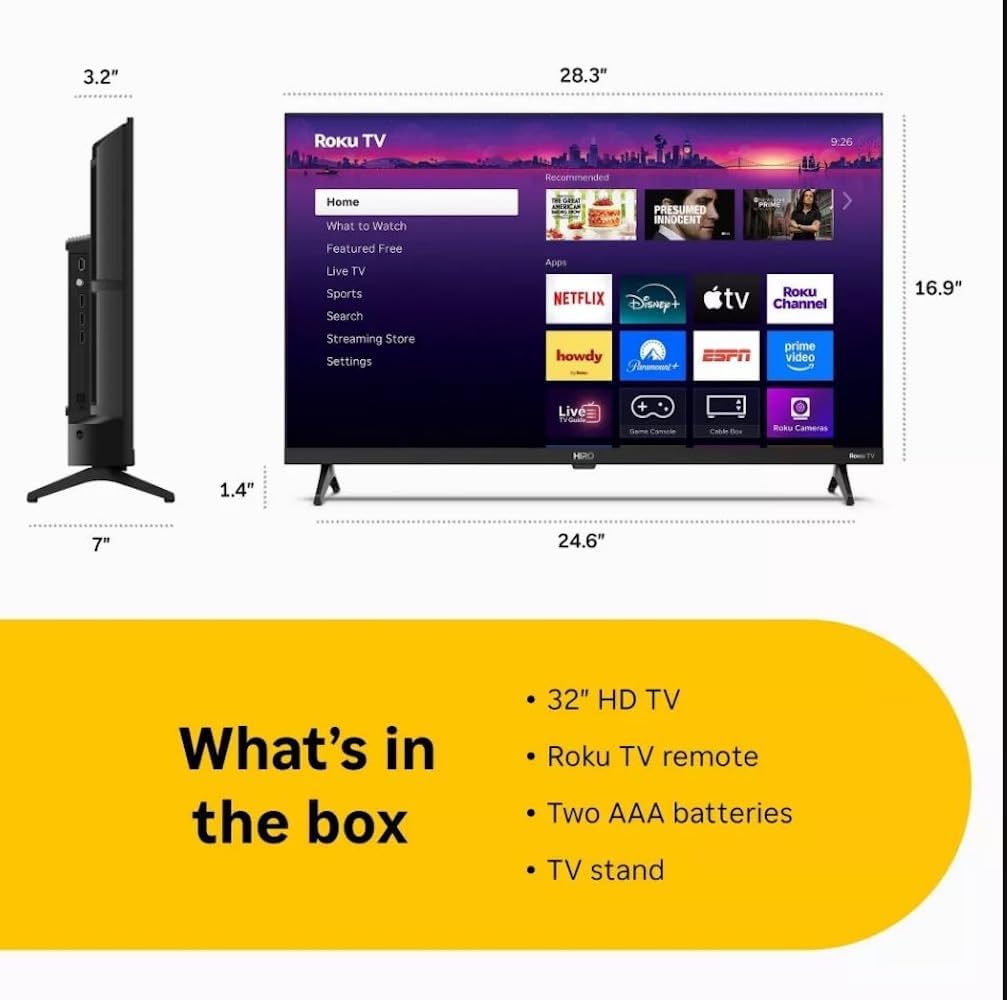
Diagram showing the dimensions of the Roku Hiro 32-inch TV and a list of included accessories: 32-inch HD TV, Roku TV remote, two AAA batteries, and TV stand.
- Hiro 32" 720p HD Smart TV Flat Screen LED Television with Roku TV
- שְׁלַט רָחוֹק
- מעמד טלוויזיה
- כבל חשמל
- מדריך למשתמש
הגדרה
1. התקנת מעמד
Carefully place the TV screen-down on a soft, clean surface to prevent damage. Align the TV stand with the designated slots on the bottom of the TV. Secure the stand using the provided screws. Ensure the stand is firmly attached before proceeding.
2. התקני חיבור

אֲחוֹרִי view of the Roku Hiro TV, showing the input/output ports including USB, HDMI, and antenna connections.
- כּוֹחַ: חבר את כבל החשמל לכניסת החשמל של הטלוויזיה ולאחר מכן לשקע בקיר.
- HDMI: Connect external devices such as Blu-ray players, game consoles, or cable boxes to the HDMI ports. This TV features 3 HDMI ports.
- USB: השתמש ביציאת ה-USB להפעלת מדיה מדיסק און קי.
- אודיו אופטי: Connect an external sound system using an optical audio cable for enhanced sound.
- אנטנה/כבל: חבר אנטנה או הזנת טלוויזיה בכבלים לכניסת RF עבור ערוצי כבלים או דרך האוויר.
3. הגדרה ראשונית
After connecting all necessary cables, power on the TV. Follow the on-screen instructions to:
- בחר את השפה שלך.
- התחבר לרשת ה-Wi-Fi שלך.
- הפעל את חשבון Roku שלך (או צור חשבון חדש).
- Scan for available channels if an antenna is connected.
הוראות הפעלה
פונקציות שלט רחוק

Close-up of the Roku TV remote control, highlighting buttons for TV power, volume, mute, sleep timer, instant replay, options, and app shortcuts.
- לחצן הפעלה: מפעיל או מכבה את הטלוויזיה.
- משטח כיווני (D-Pad): ניווט בתפריטים ובחירת פריטים.
- לחצן אישור: מאשר בחירות.
- כפתור בית: חוזר למסך הבית של Roku.
- כפתור חזרה: חוזר למסך הקודם.
- עוצמת הקול מעלה/הנמכת: מכוונן את עוצמת הקול של הטלוויזיה.
- כפתור השתק: משתיק או מבטל את השתקת צליל הטלוויזיה.
- כפתורי קיצור דרך לאפליקציה: Direct access to popular streaming services (e.g., Netflix, Disney+, Apple TV+, Prime Video).
- טיימר שינה: מגדיר טיימר לכיבוי אוטומטי של הטלוויזיה.
- תגובה מיידית: Jumps back a few seconds in supported content.
- אפשרויות: Accesses additional settings or information for the current content.
Navigating the Roku OS

The Roku TV home screen interface, showing recommended content and various streaming applications.
The Roku home screen provides access to all your streaming channels, inputs, and settings. Use the D-Pad on your remote to navigate through the menu options on the left and the app grid on the right. You can customize the order of your channels by highlighting an app, pressing the * (Options) button, and selecting 'Move channel'.
הזרמת תוכן
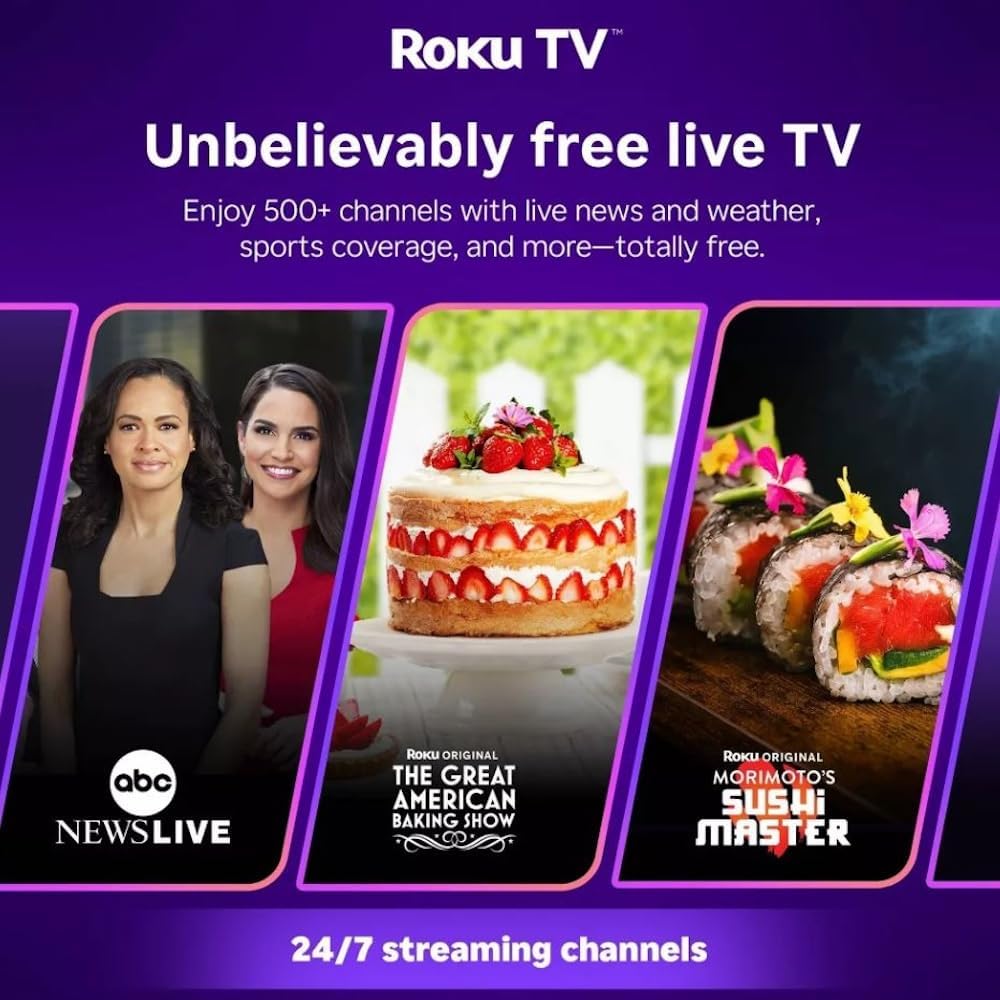
Roku TV interface promoting free live TV channels, featuring examples like ABC News Live, The Great American Baking Show, and Morimoto's Sushi Master.
Access a wide range of streaming services and free content through the Roku Channel Store. The Roku platform offers over 500 free channels, including live television, movies, and news. Use the 'Search' function on the home screen to find specific titles or channels.
תכונות אודיו

Roku Hiro TV displaying the home screen with various streaming apps, emphasizing enhanced audio quality.
The TV features enhanced audio quality. For private listening, you can pair Bluetooth headphones directly with the TV. Navigate to Settings > Remotes & devices > Bluetooth devices > Pair new device to connect your headphones.
תַחזוּקָה
ניקוי הטלוויזיה
- תמיד נתקו את הטלוויזיה מהחשמל לפני ניקוי.
- השתמש במטלית רכה ונטולת סיבים כדי לנגב בעדינות את המסך והמארז.
- עבור סימנים עקשניים, ליטוש קלותampשטפו את המטלית במים או בחומר ניקוי מסך עדין ולא שוחק. אין לרסס את חומר הניקוי ישירות על המסך.
- הימנעו משימוש בכימיקלים חזקים, רפידות שוחקות או ממסים.
עדכוני תוכנה
The Roku TV automatically checks for and installs software updates when connected to the internet. To manually check for updates, go to הגדרות > מערכת > עדכון תוכנה.
פתרון בעיות
| בְּעָיָה | פִּתָרוֹן |
|---|---|
| אין כוח | ודא שכבל החשמל מחובר היטב הן לטלוויזיה והן לשקע חשמלי תקין. נסה שקע אחר. |
| אין תמונה, אבל יש קול | בדוק את מקור הקלט. לחץ על בַּיִת button on the remote and select the correct input. Ensure all HDMI cables are securely connected. |
| אין קול, אבל יש תמונה | Check the volume level and ensure the TV is not muted. If using external audio, verify connections and settings. |
| לא ניתן להתחבר ל-Wi-Fi | אמת את סיסמת ה-Wi-Fi שלך. הפעל מחדש את הנתב והמודם. עבור אל הגדרות > רשת > הגדרת חיבור to reconfigure. |
| השלט רחוק לא עובד | החלף את הסוללות בשלט. ודא שאין חסימות בין השלט לחיישן ה-IR של הטלוויזיה. |
מפרטים
| שם הדגם | H32C2C4 |
| גודל מסך | 32 אינץ' |
| טכנולוגיית תצוגה | LED |
| הַחְלָטָה | 720p |
| קצב רענון | 60 הרץ |
| מַעֲרֶכֶת הַפעָלָה | Roku OS |
| טכנולוגיית קישוריות | Bluetooth, HDMI, Optical Audio, USB, Wi-Fi |
| Total Number of HDMI Ports | 3 |
| סך כל יציאות USB | 1 |
| מידות המוצר (D x W x H) | 3.2" D x 28.3" W x 16.9" H |
| משקל פריט | 7.5 פאונד |
| כרך ידtage | 120 וולט (AC) |
| סוג הרכבה | הר שולחן |
| צֶבַע | שָׁחוֹר |
מידע על אחריות
This Roku Hiro TV is covered by a 90-day Replacement Warranty. Please retain your proof of purchase for any warranty claims. For detailed terms and conditions, refer to the warranty documentation included with your product or visit the official Roku support webאֲתַר.
תְמִיכָה
For further assistance, troubleshooting guides, or to contact customer support, please visit the official Roku support website. You can find comprehensive FAQs and contact information there.