
1. הקדמה
This manual provides comprehensive instructions for the safe and efficient use of your HGFRTEE 27-inch 4K UHD 60Hz Monitor. Please read this manual thoroughly before operating the device and retain it for future reference.
The HGFRTEE 27-inch 4K UHD monitor features a 3840 x 2160 resolution IPS panel, 60Hz refresh rate, HDR10 support, 100% sRGB color gamut, and AMD FreeSync technology. It is designed for a wide range of applications, from professional work to casual entertainment.
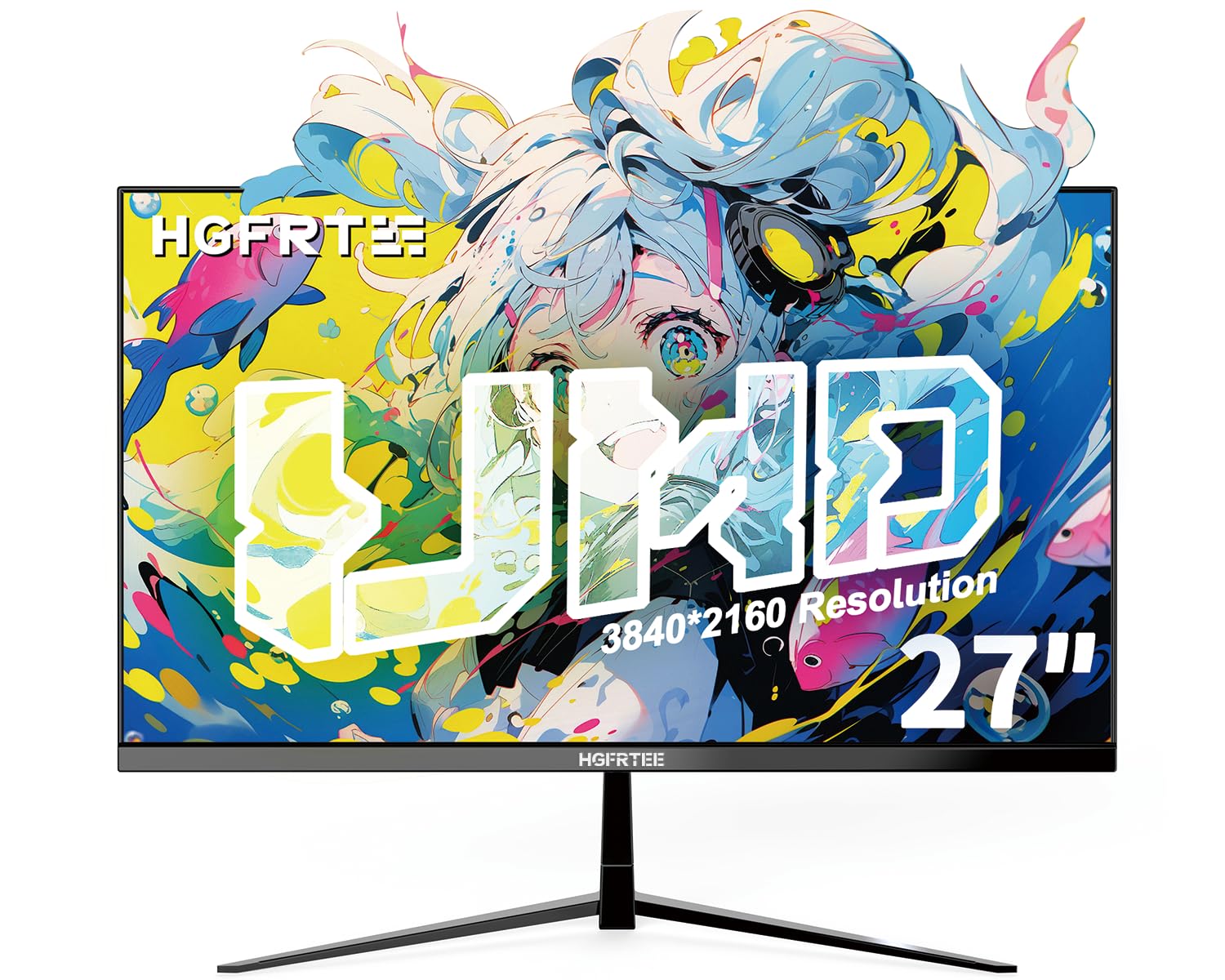
תמונה 1.1: חזית view of the HGFRTEE 27-inch 4K UHD Monitor.
2. מידע בטיחות
יש להקפיד תמיד על אמצעי הזהירות הבסיסיים הבאים כדי להפחית את הסיכון לשריפה, התחשמלות ופציעה:
- אין לחשוף את הצג לגשם או לחות.
- אל תפתח את הצג גasinז. הפנה את כל הטיפולים לצוות מוסמך.
- ודא אוורור נאות סביב הצג.
- השתמשו רק במתאם החשמל המצורף לצג.
- הימנע מהצבת הצג על משטחים לא יציבים.
- נקו את הצג בעזרת מטלית רכה ויבשה. אין להשתמש בחומרי ניקוי נוזליים או בחומרי ניקוי בתרסיס.
3. תכולת החבילה
ודא שכל הפריטים נמצאים בחבילה שלך:
- HGFRTEE 27-inch 4K UHD Monitor
- מעמד למוניטור (בסיס וצוואר)
- מתאם מתח
- כבל HDMI
- כבל DisplayPort
- מדריך למשתמש
4. התקנה
4.1 הרכבת המעמד
- הוציאו בזהירות את הצג מאריזתו, והניחו אותו על משטח רך.
- Attach the stand neck to the monitor's rear mounting point.
- אבטחו את בסיס המעמד לצוואר המעמד באמצעות הברגים המצורפים.
- הנח את הצג המורכב על משטח יציב ושטוח.

Image 4.1: Illustrated steps for monitor stand assembly.
4.2 הרכבה של VESA
הצג תומך בהרכבה על גבי VESA 100x100 מ"מ. כדי להרכיב את הצג על קיר או על מעמד חלופי:
- Remove the original stand if it is already attached.
- Attach your VESA-compatible mount to the four screw holes on the back of the monitor using M4 screws (not included with the monitor, typically supplied with the VESA mount).
- Ensure the mount is securely fastened before releasinהצג.
4.3 התחברות למכשיר
The monitor features multiple input ports for connectivity:
- HDMI 2.0: Connect to devices such as PCs, laptops, and gaming consoles.
- DisplayPort 1.4: Connect to PCs and graphics cards for high-resolution and refresh rate output.
- USB (Power): For powering external devices.
- יציאת קול: Connect external speakers or headphones (monitor does not have built-in speakers).
כדי להתחבר:
- Connect one end of the HDMI or DisplayPort cable to the corresponding port on your computer or device.
- חבר את הקצה השני של הכבל לכניסת HDMI או DisplayPort בצג.
- Connect the power adapter to the monitor's DC input and then plug it into a power outlet.

תמונה 4.2: אחורי view של הצג המציג יציאות קלט זמינות.
5. הפעלת המוניטור
5.1 הפעלה/כיבוי
לחץ על לחצן ההפעלה הממוקם בגב הצג כדי להפעיל או לכבות אותו.
5.2 ניווט בתפריט OSD
The monitor features a joystick control for navigating the On-Screen Display (OSD) menu. The controls are typically located on the back or bottom of the monitor.

Image 5.1: Diagram illustrating the monitor's control buttons and their functions.
- לחצן הפעלה: מפעיל או מכבה את הצג.
- 'E' Button: HDMI Port/DP Port Selection, Back/Exit Key.
- חץ המורה למעלה: Increase value, Up Key.
- חץ למטה: Decrease value, Down Key.
- כפתור 'M': Confirmation Key, Enter Submenu Key.
5.3 הגדרות תצוגה
גש לתפריט המסך כדי לכוונן הגדרות תצוגה שונות:
- ניגוד בהירות: כוונן את הבהירות והניגודיות הכוללת של התצוגה.
- הגדרות צבע: Fine-tune color temperature, gamma, and color space (e.g., sRGB).
- מקור קלט: בחירה ידנית בין כניסות HDMI ו-DisplayPort.
- מצב תמונה: Select from preset modes (e.g., Standard, Game, Movie, Text).
- FreeSync: Enable or disable AMD FreeSync for adaptive synchronization with compatible graphics cards.
- HDR: Enable or disable HDR10 support for enhanced dynamic range.
- טיפול עיניים: Activate features like flicker-free technology and blue light filter to reduce eye strain.
5.4 תכונות מתקדמות
- בהירות תנועה (MEMC): This feature enhances motion smoothness by inserting black frames and optimizing motion processing, which can improve clarity in fast-moving scenes.
- Gaming Crosshairs: For gaming, the monitor offers six types of on-screen crosshairs to assist with aiming.

Image 5.2: Demonstration of Motion Clarity feature.

תמונה 5.3: דוגמהamples of gaming crosshairs.
6. תחזוקה
6.1 ניקוי הצג
כדי לנקות את מסך הצג ו-casing:
- כבה את הצג ונתק את כבל החשמל.
- השתמשו במטלית רכה ונטולת סיבים כדי לנגב בעדינות את המסך. במקרה של סימנים עקשניים, נקו קלותampen the cloth with water or a specialized screen cleaner (ensure it is alcohol-free and ammonia-free).
- נגב את ה-casinנגבו בעזרת מטלית רכה ויבשה.
- Do not spray cleaners directly onto the screen or into any openings.
6.2 אחסון
אם מאחסנים את הצג לתקופה ממושכת, ודאו שהוא כבוי, מנותק מהחשמל ומאוחסן במקום קריר ויבש הרחק מאור שמש ישיר וטמפרטורות קיצוניות. יש להשתמש באריזה המקורית, אם קיימת, להגנה מיטבית.
7. פתרון תקלות
עיינו בטבלה הבאה לקבלת בעיות נפוצות ופתרונותיהן:
| בְּעָיָה | סיבה אפשרית | פִּתָרוֹן |
|---|---|---|
| אין תמונה על המסך | הצג אינו דולק; נבחרה קלט שגוי; כבל וידאו רופף. | Ensure power is connected and monitor is on; Select correct input source via OSD; Check video cable connections. |
| הבהוב או קריעה של התמונה | FreeSync not enabled or incompatible; Graphics driver issues; Cable quality. | Enable FreeSync in OSD and graphics card settings; Update graphics drivers; Try a different high-quality video cable. |
| צבעים נראים שגויים | Color settings misconfigured; Faulty cable. | Reset color settings in OSD; Adjust color temperature; Try a different video cable. |
| אין שמע מהאוזניות/רמקולים | כבל שמע לא מחובר; עוצמת קול נמוכה מדי; פלט שמע שגוי נבחר במחשב. | Ensure audio cable is securely connected to the monitor's audio out port; Adjust volume on connected device; Select monitor as audio output on your computer. |
אם הבעיה נמשכת לאחר ניסיון פתרונות אלה, אנא צור קשר עם תמיכת הלקוחות.
8. מפרטים
Below are the technical specifications for the HGFRTEE 27-inch 4K UHD Monitor (Model B270BZU06):
| תכונה | מִפרָט |
|---|---|
| מותג | HGFRTEE |
| מספר דגם | B270BZU06 |
| גודל מסך | 27 אינץ' |
| הַחְלָטָה | 4K UHD (3840 x 2160) |
| קצב רענון | 60 הרץ |
| זמן תגובה | מילישנייה אחת (MPRT) |
| סוג תצוגה | IPS LCD |
| יחס גובה-רוחב | 16:9 |
| סולם צבעים | 100% sRGB |
| תמיכה ב-HDR | HDR10 |
| סנכרון אדפטיבי | AMD FreeSync |
| Viewזווית | 178° (אופקי/אנכי) |
| קישוריות | HDMI 2.0 (x2), DisplayPort 1.4 (x1), USB (Power), Audio Out (3.5mm) |
| תאימות VESA | 100 x 100 מ"מ |
| ארגונומיה | Tilt Adjustment (-10° to 10°) |
| מידות (B x H x D) | כ-612 מ"מ x 452 מ"מ x 210 מ"מ (עם מעמד) |
| מִשׁקָל | משוער. 4 ק"ג / 8.81 פאונד |

Image 8.1: Monitor dimensions and key physical features.
9. מידע על אחריות
This HGFRTEE monitor is covered by a אחריות יצרן לשנתיים from the date of purchase. This warranty covers defects in materials and workmanship under normal use. It does not cover damage caused by misuse, accidents, unauthorized modifications, or external causes.
אנא שמור את הוכחת הרכישה שלך עבור תביעות אחריות.
10. תמיכת לקוחות
For technical assistance, warranty claims, or any questions regarding your HGFRTEE monitor, please contact our customer support team.
You can find more information and contact details on the official HGFRTEE store page: HGFRTEE Store on Amazon