
1. הקדמה
This manual provides essential information for setting up, operating, maintaining, and troubleshooting your Thunderobot Radiant 16S Gaming Laptop. Please read this guide thoroughly to ensure optimal performance and longevity of your device.
2. התקנה
2.1 פתיחת האריזה והדלקה ראשונית
Carefully remove the laptop and all accessories from the packaging. Connect the power adapter to the laptop and a power outlet. Press the power button to start the laptop. Follow the on-screen instructions for initial Windows 11 Home setup.
2.2 חיבור ציוד היקפי
Utilize the various ports available to connect your external devices such as a mouse, keyboard, external display, or headset.
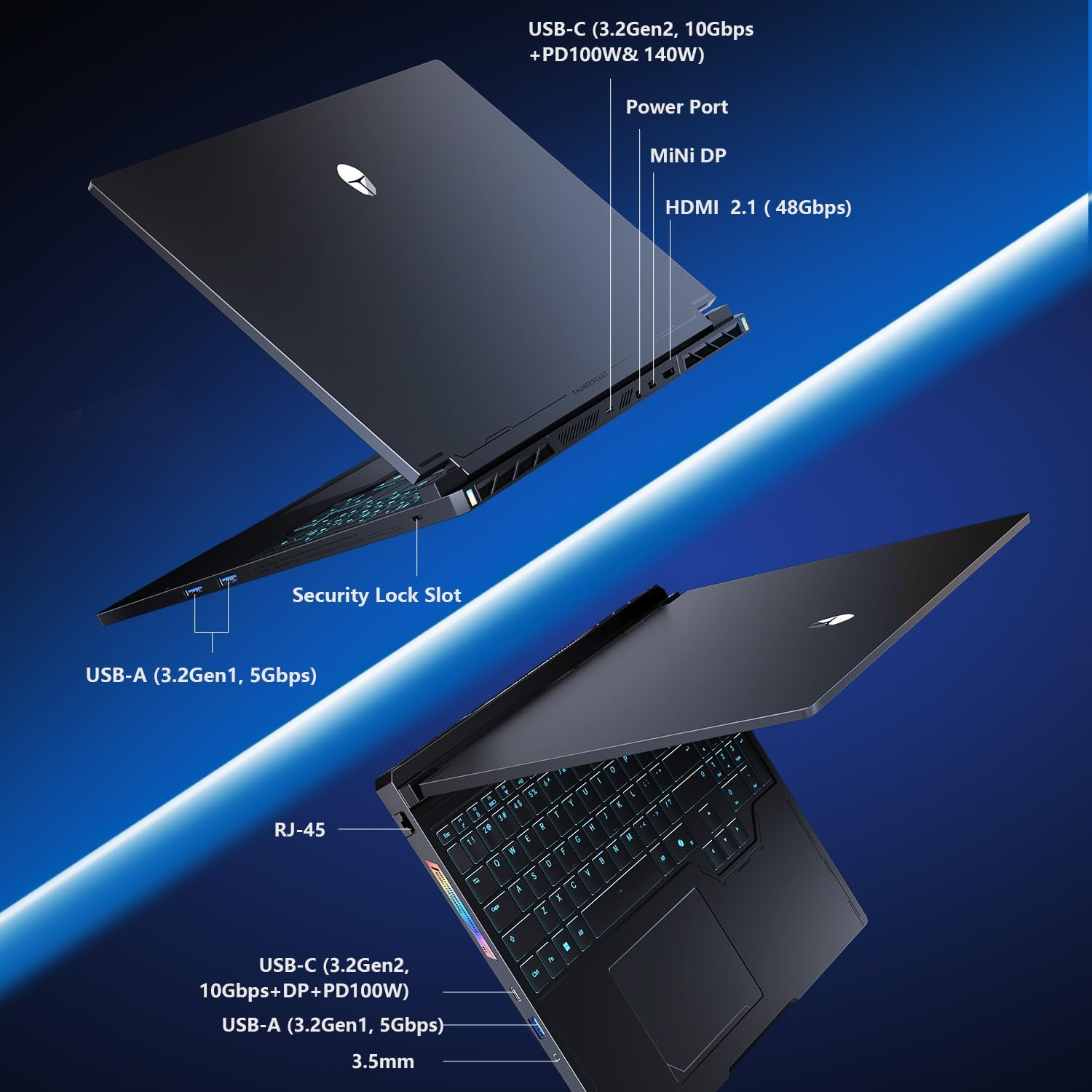
Figure 2.2: Connectivity options including USB-C, USB-A, HDMI, Mini DP, Ethernet, and audio jack.
3. הוראות הפעלה
3.1 מקלדת ומשטח מגע
The laptop features an RGB backlit keyboard and a responsive glass-like touchpad. Customize keyboard backlighting through the system's control center software.
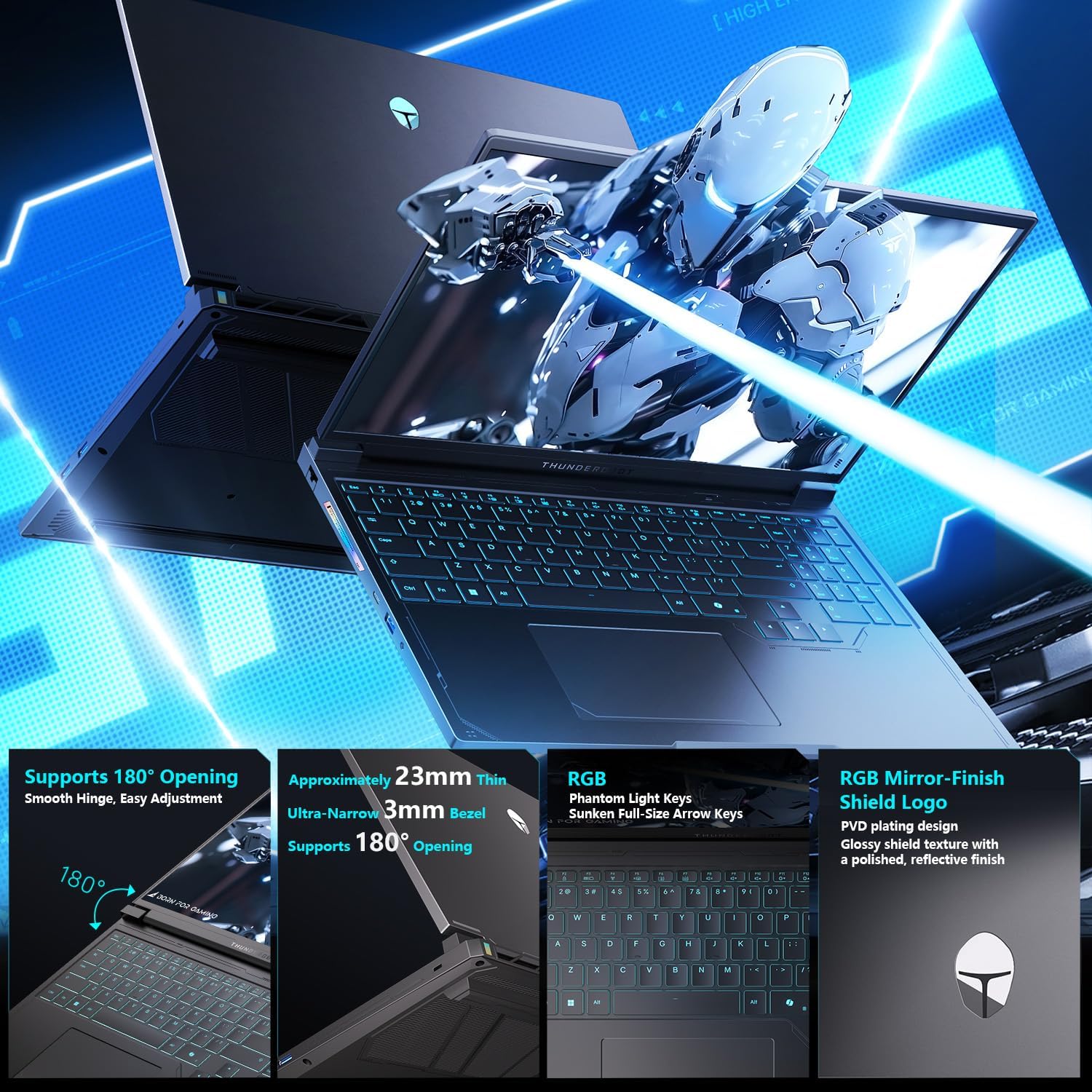
Figure 3.1: Keyboard layout with RGB backlighting and the integrated touchpad.
3.2 Control Center Modes
The integrated Control Center allows you to switch between different performance modes to optimize your laptop for various tasks. These modes include:
- מצב משרד: Optimized for power saving and quiet operation during productivity tasks.
- מצב משחק: Balances performance and cooling for a smooth gaming experience.
- מצב טורבו: Unleashes maximum performance for demanding applications and intense gaming.
Ensure the device is connected to a power source to enable GPU direct-output mode and unlock the full refresh rate in the control center.

Figure 3.2: Control Center interface for managing performance modes.
4. תכונות עיקריות
- Fast DDR5 Memory & NVMe Storage: Equipped with 32GB DDR5 RAM and a 1TB PCIe M.2 SSD for rapid multitasking and quick load times.
- Advanced Compute & Graphics Engine: Features an AMD Ryzen 9 7945HX processor and NVIDIA GeForce RTX 5060 Laptop GPU for high computational throughput and smooth graphics.
- 300Hz QHD+ High-Fidelity Display: A 16-inch 2560x1600 (2.5K) display with a 300Hz refresh rate, full DCI-P3 color reproduction, pro calibration, and 500-nit brightness for sharp visuals and reduced eye fatigue.
- Enhanced WindBlade Cooling Architecture: Dual ultra-thin low-noise fans, four heat pipes, and an improved 3D airflow structure deliver up to 200W of cooling performance while maintaining low noise levels (43dB).
- All-Around Connectivity Options: Includes dual USB-C, triple USB-A 3.X, HDMI, Ethernet, and an audio jack for comprehensive peripheral support.
- Wi-Fi 6: Ensures stable and fast wireless internet connectivity.

איור 4.1: מעלview of the GPU and CPU capabilities.

Figure 4.2: Features of the Hummingbird Eye-Care Display.

Figure 4.3: Illustration of the advanced cooling system.
5. מפרטים
| תכונה | פְּרָט |
|---|---|
| גודל מסך | 16 אינץ' |
| רזולוציית מסך מקסימלית | 2560x1600 Pixels (QHD+ 2.5K) |
| מעבד | AMD Ryzen 9 7945HX (5.4 GHz) |
| אַיִל | זיכרון DDR5 בנפח 32 ג'יגה-בייט (4800 מגה-הרץ) |
| כונן קשיח | 1 TB PCIe M.2 SSD |
| מעבד גרפי | כרטיס מסך למחשב נייד NVIDIA GeForce RTX 5060 (8GB GDDR6) |
| מַעֲרֶכֶת הַפעָלָה | Windows 11 Home |
| סוג אלחוטי | 802.11ax (Wi-Fi 6) |
| נמלים | Dual USB-C, Triple USB-A 3.X, HDMI 2.1, Ethernet, Audio Jack, Mini DP |
| תכונות מיוחדות | RGB Backlit Keyboard, Numeric Keypad, Hummingbird Eye-Care Panel |
| משקל פריט | 12 פאונד |
| מידות המוצר | 14.05 x 10.22 x 1.17 אינץ' |
6. תחזוקה
6.1 ניקוי
Regularly clean the screen with a soft, lint-free cloth and a screen-safe cleaning solution. Use compressed air to clear dust from the keyboard and cooling vents. Ensure the laptop is powered off before cleaning.
6.2 טיפול במערכת הקירור
The WindBlade Cooling Architecture is designed for efficient heat dissipation. To maintain optimal cooling performance, ensure that the air vents are not obstructed. Avoid placing the laptop on soft surfaces that can block airflow. Periodically check for dust buildup in the vents and clean as described above.
6.3 אורך חיי הסוללה
To maximize battery life, avoid fully discharging the battery frequently. For prolonged storage, charge the battery to about 50-60% and store the laptop in a cool, dry place.
7. פתרון תקלות
7.1 בעיות חשמל
- מחשב נייד לא נדלק: ודא שמתאם החשמל מחובר היטב הן למחשב הנייד והן לשקע חשמל תקין. בדוק אם שקע החשמל תקין.
- סוללה אינה נטענת: Verify the power adapter is correctly connected. Try a different power outlet.
7.2 בעיות תצוגה
- אין תצוגה: Connect an external monitor to check if the issue is with the laptop's internal display. Ensure the display cable is properly connected if using an external monitor.
- מסך מהבהב: עדכן את מנהלי ההתקן של הכרטיס המסך. התאם את הגדרות קצב רענון הצג ב-Windows.
7.3 בעיות ביצועים
- ביצועים איטיים: Close unnecessary applications. Check for background processes consuming high CPU/RAM. Ensure the cooling system is clean and functioning. Switch to a higher performance mode in the Control Center.
- התחממות יתר: Ensure vents are clear. Use the laptop on a hard, flat surface. Consider using a cooling pad.
8. אחריות ותמיכה
כל מחשב נייד של Thunderobot כולל אחריות ל-12 חודשים, offering expert support and thorough diagnostics. We also provide a אחריות ל-90 יום על כל חלקי החילוף במסגרת האחריות, ומבטיחים תיקונים ללא טרחה. שביעות רצונכם המלאה היא המחויבות שלנו.
For technical assistance, please visit the official Thunderobot support website or contact our customer service team. Keep your purchase receipt and product serial number handy for faster service.