
1. הקדמה
This manual provides detailed instructions for the safe and efficient operation of your NIIMBOT B1Pro Label Printer. The B1Pro is a high-resolution 300 DPI thermal label printer designed for various labeling needs, including text, barcodes, QR codes, and photo printing. It supports two-color printing (red and black) with compatible labels and connects wirelessly via Bluetooth to your smartphone or PC.
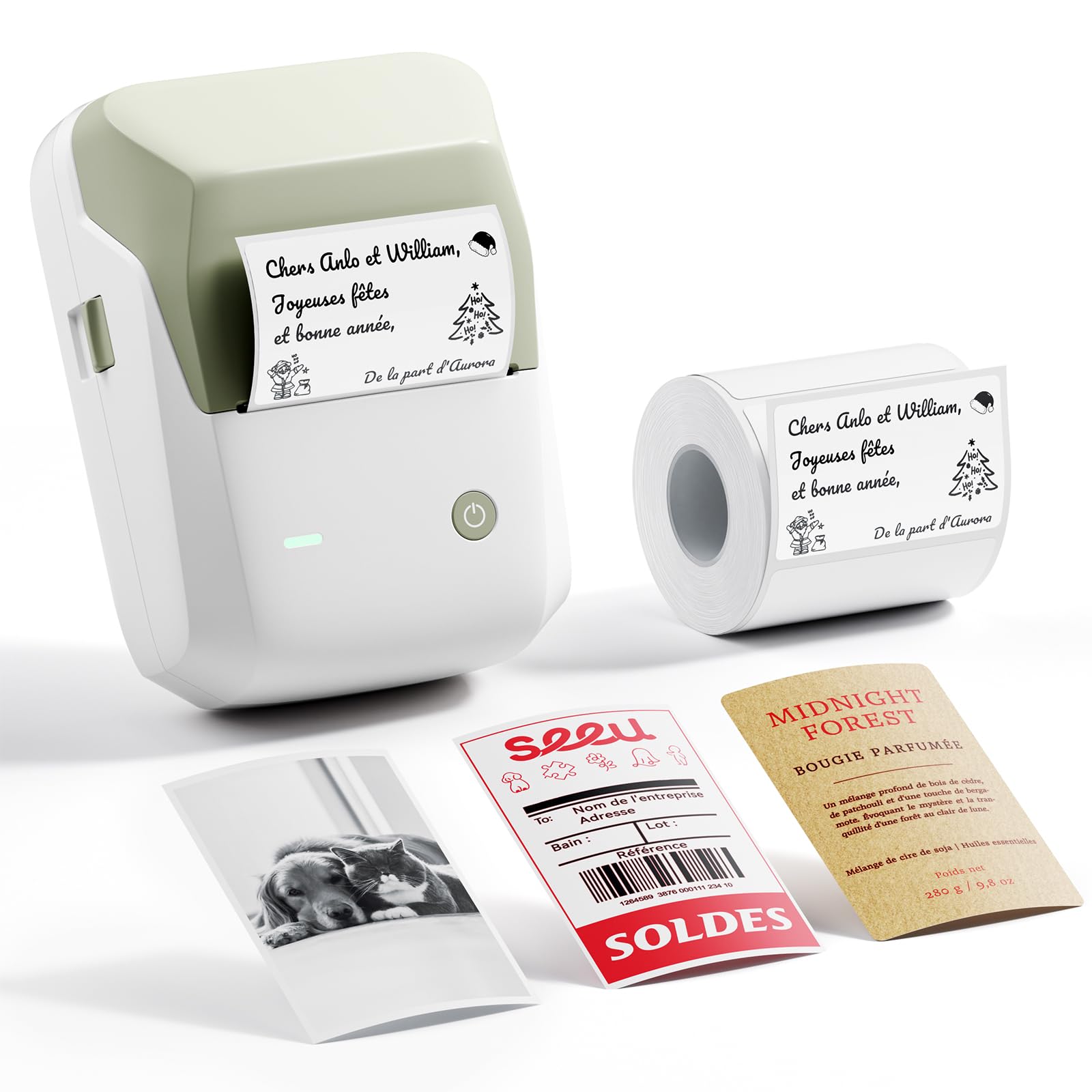
Image 1.1: The NIIMBOT B1Pro Label Printer, a compact and portable thermal printer.
2. מה בקופסה
ודא שכל הפריטים נמצאים בחבילה:
- NIIMBOT B1Pro Label Printer
- 1x White Label Roll (50 x 30 mm)
- כבל טעינה USB
- מדריך למשתמש (מסמך זה)
3. תכונות מוצר
The NIIMBOT B1Pro offers advanced features for versatile labeling:
- High Resolution (300 DPI): Produces sharp, clear text and detailed graphics, even at small sizes.
- הדפסה בשני צבעים: Supports printing in red and black simultaneously with special compatible labels, enhancing visibility and impact.
- Photo Printing Capability: Allows printing of photos on specialized photo labels, capturing moments with clarity.
- קישוריות אלחוטית: Connects via Bluetooth to smartphones (Android/iOS) and PCs for convenient printing.
- Intuitive App: The NIIMBOT app provides extensive customization options, including over 60 fonts, 100 borders, 1000 templates, and 1600 icons.
- הדפסה תרמית ללא דיו: Utilizes thermal technology, eliminating the need for ink cartridges and reducing operational costs.

Image 3.1: Comparison highlighting the B1Pro's superior 300 DPI resolution, photo printing, and two-color output compared to the standard B1 model.

Image 3.2: Visual demonstration of 300 DPI print clarity versus 203 DPI, showing sharper text and QR codes.
4. מדריך התקנה
4.1 טעינת המכשיר
Before first use, fully charge the NIIMBOT B1Pro using the provided USB cable. Connect the cable to the printer's charging port and a standard USB power adapter (not included). The indicator light will show charging status.
4.2 התקנת גליל התוויות
- Open the printer cover by gently pushing the release button or lifting the designated area.
- Insert the label roll into the compartment, ensuring the labels face upwards and the leading edge is aligned with the print head.
- Close the printer cover firmly until it clicks into place. The printer will automatically detect the label type and size.

Image 4.1: Proper installation of the label roll, with an automatic self-tightening guide to prevent printing misalignment.
4.3 הורדת האפליקציה וחיבורה
- Download the official NIIMBOT app from the App Store (iOS) or Google Play Store (Android). For PC, download the NIIMBOT software from the official webאֲתַר.
- Ensure your printer is powered on and Bluetooth is enabled on your smartphone or PC.
- Open the NIIMBOT app and follow the on-screen instructions to connect to your B1Pro printer via Bluetooth. The app will typically detect nearby NIIMBOT devices.

Image 4.2: The NIIMBOT B1Pro supports wireless Bluetooth connection with both smartphones and PCs, allowing simultaneous connections.
5. הוראות הפעלה
5.1 יצירה והדפסה של תוויות
The NIIMBOT app provides a user-friendly interface for label creation:
- Open the NIIMBOT app and select a template or start a new blank label.
- Add text, numbers, dates, barcodes, or QR codes using the app's editing tools.
- Customize fonts, sizes, styles, and alignment.
- מִרֹאשׁview התווית שלך כדי לוודא שהיא תיראה כרצוי.
- Tap the print button. Adjust the number of copies if necessary, then confirm to print.
5.2 הדפסת תמונות
To print photos, ensure you are using special photo-compatible labels:
- Load a photo label roll into the printer.
- In the NIIMBOT app, select the photo printing option.
- Choose an image from your device's gallery.
- Adjust the image as needed within the label boundaries.
- Print the photo label.

תמונה 5.1: דוגמהamples of photo labels for memos, notes, and personal images, demonstrating the B1Pro's photo printing capability.
5.3 Two-Color Printing
The B1Pro supports two-color printing (red and black) with specific label types. When using these labels, the app will automatically detect the capability and allow you to assign elements to either red or black ink.

Image 5.2: Various applications of two-color red and black labels, including bakery pricing, reminder tags, product prices, and date labels.
5.4 Using the NIIMBOT App
The NIIMBOT app is a powerful tool for label customization:
- תבניות: Access a library of over 1000 pre-designed templates for various uses.
- גופנים: Choose from over 60 fonts to personalize your text.
- סמלים וגבולות: Enhance your labels with over 1600 icons and 100 decorative borders.
- התאמה אישית: Adjust text size, alignment, add images, and integrate QR/barcodes.

Image 5.3: The NIIMBOT app offers extensive customization options, including a wide selection of icons, templates, fonts, and borders.
6. Label Types and Applications
The NIIMBOT B1Pro supports a wide range of label types and is suitable for numerous applications:
- Standard Thermal Labels: Rectangular, round, white, colored, transparent.
- Photo Labels: For printing images and graphics.
- Two-Color Labels: For red and black printing.
- Specialty Labels: Including Kraft paper, double-row, and various sizes.
יישומים נפוצים כוללים:
- Home organization (spice jars, storage boxes)
- Office organization (files, documents, asset tags)
- Retail (price tags, product information, expiration dates)
- עבודות יד ופרויקטים של עשה זאת בעצמך
- School supplies and study notes
- Medicine labeling

Image 6.1: A selection of available label styles, including standard thermal, photo-compatible, and two-color options.

Image 6.2: The B1Pro supports a diverse range of label types for different needs, from basic text to photo and specialty labels.
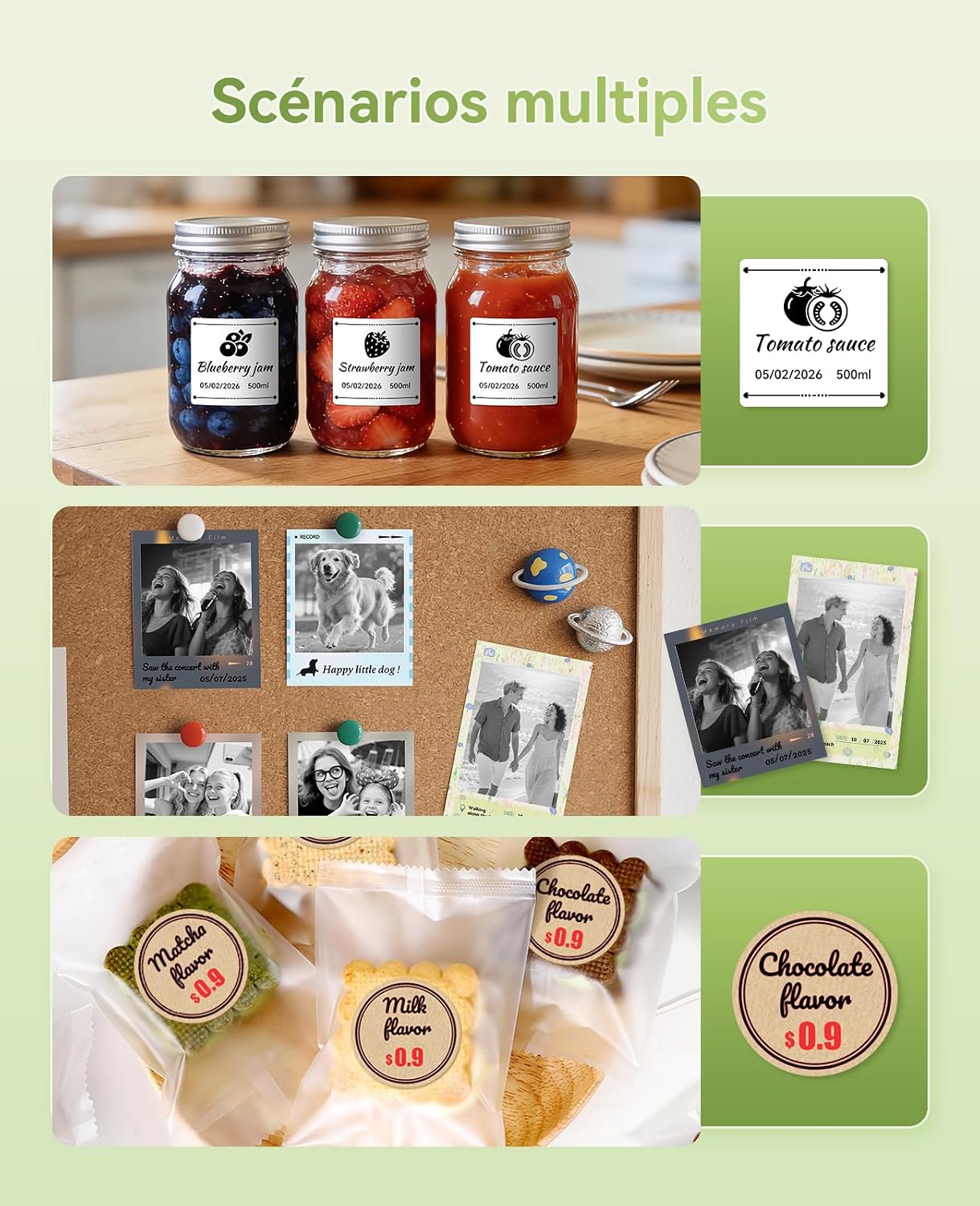
תמונה 6.3: דוגמהamples of the B1Pro in various settings, including kitchen organization, personal photo displays, and small business product labeling.
7. תחזוקה
To ensure optimal performance and longevity of your NIIMBOT B1Pro printer:
- ניקוי: נקו את ראש ההדפסה באופן קבוע בעזרת מטלית רכה ונטולת סיבים רטובה באלכוהול איזופרופילי. ודאו שהמדפסת כבויה וקרירה לפני הניקוי.
- אִחסוּן: אחסנו את המדפסת במקום קריר ויבש, הרחק מאור שמש ישיר וטמפרטורות קיצוניות.
- גלילי תווית: Use only genuine NIIMBOT label rolls to prevent damage to the print head and ensure optimal print quality.
- טיפול בסוללה: For prolonged storage, charge the battery to about 50% every three months to maintain battery health.
8. פתרון תקלות
If you encounter issues with your NIIMBOT B1Pro, refer to the following common solutions:
| בְּעָיָה | סיבה אפשרית | פִּתָרוֹן |
|---|---|---|
| המדפסת לא נדלקת | סוללה חלשה; כפתור ההפעלה לא נלחץ נכון | טען את המדפסת; לחץ והחזק את לחצן ההפעלה למשך מספר שניות |
| איכות הדפסה ירודה | Print head dirty; Incorrect label type; Low battery | Clean the print head; Ensure correct NIIMBOT labels are used; Charge the printer |
| לא ניתן להתחבר באמצעות Bluetooth | בלוטות' כבוי; המדפסת אינה ניתנת לגילוי; בעיה באפליקציה | Ensure Bluetooth is on for both devices; Restart printer and app; Reinstall app |
| תוויות לא מוזנות כראוי | Label roll improperly installed; Labels jammed | Reinstall label roll, ensuring it's straight; Clear any jammed labels carefully |
| Two-color printing not working | Not using two-color compatible labels | Ensure you are using NIIMBOT BR series (red and black) labels |
If the problem persists, please contact NIIMBOT customer support for further assistance.
9. מפרטים
| תכונה | פְּרָט |
|---|---|
| מותג | NIIMBOT |
| שם הדגם | B1Pro |
| טכנולוגיית קישוריות | בלוטות' |
| טכנולוגיית הדפסה | תֶרמִי |
| רזולוציית הדפסה | 300 DPI (נקודות לאינץ') |
| סוג פלט | Color (with compatible labels) |
| צבע דיו | Red, Black (with compatible labels) |
| מידות המוצר | 6P x 9l x 13H סנטימטרים |
| גודל מדיה מקסימלי | 50 x 30 mm (included roll) |
| סוג מדיה | תוויות |
| הדפסה דופלקס | לא (סימפלקס) |
| תכונות מיוחדות | High-resolution printing, color and photo printing, Bluetooth connectivity, customizable app |
| ארץ מוצא | סִין |
10. אחריות ותמיכה
The NIIMBOT B1Pro Label Printer comes with a limited warranty. For specific warranty terms and conditions, please refer to the documentation included with your purchase or visit the official NIIMBOT webאֲתַר.
For technical support, product inquiries, or warranty claims, please contact NIIMBOT customer service through their official webאתר או פרטי הקשר המופיעים באריזת המוצר.