
1. הקדמה
Welcome to the user manual for your new ASUS TUF A18 Gaming Laptop. This document provides essential information to help you set up, operate, and maintain your device. Please read this manual thoroughly to ensure optimal performance and longevity of your laptop.
2. תכולת החבילה
Carefully unpack your ASUS TUF A18 Gaming Laptop and verify that all items listed below are present and in good condition. If any item is missing or damaged, please contact your retailer.
- מחשב נייד לגיימינג ASUS TUF A18
- מתאם חשמל וכבל
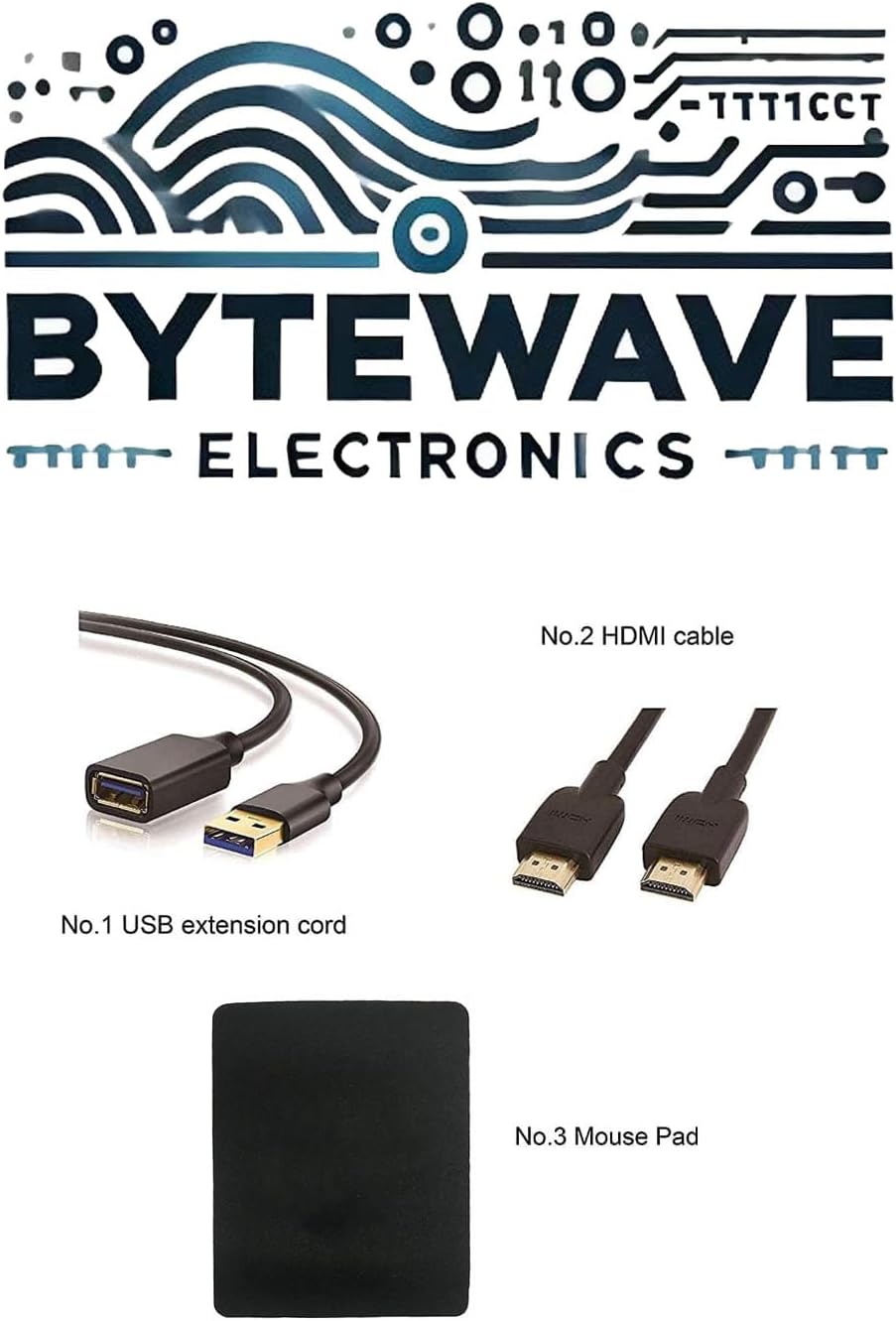
- USB Extension Cord
- כבל HDMI
- משטח עכבר
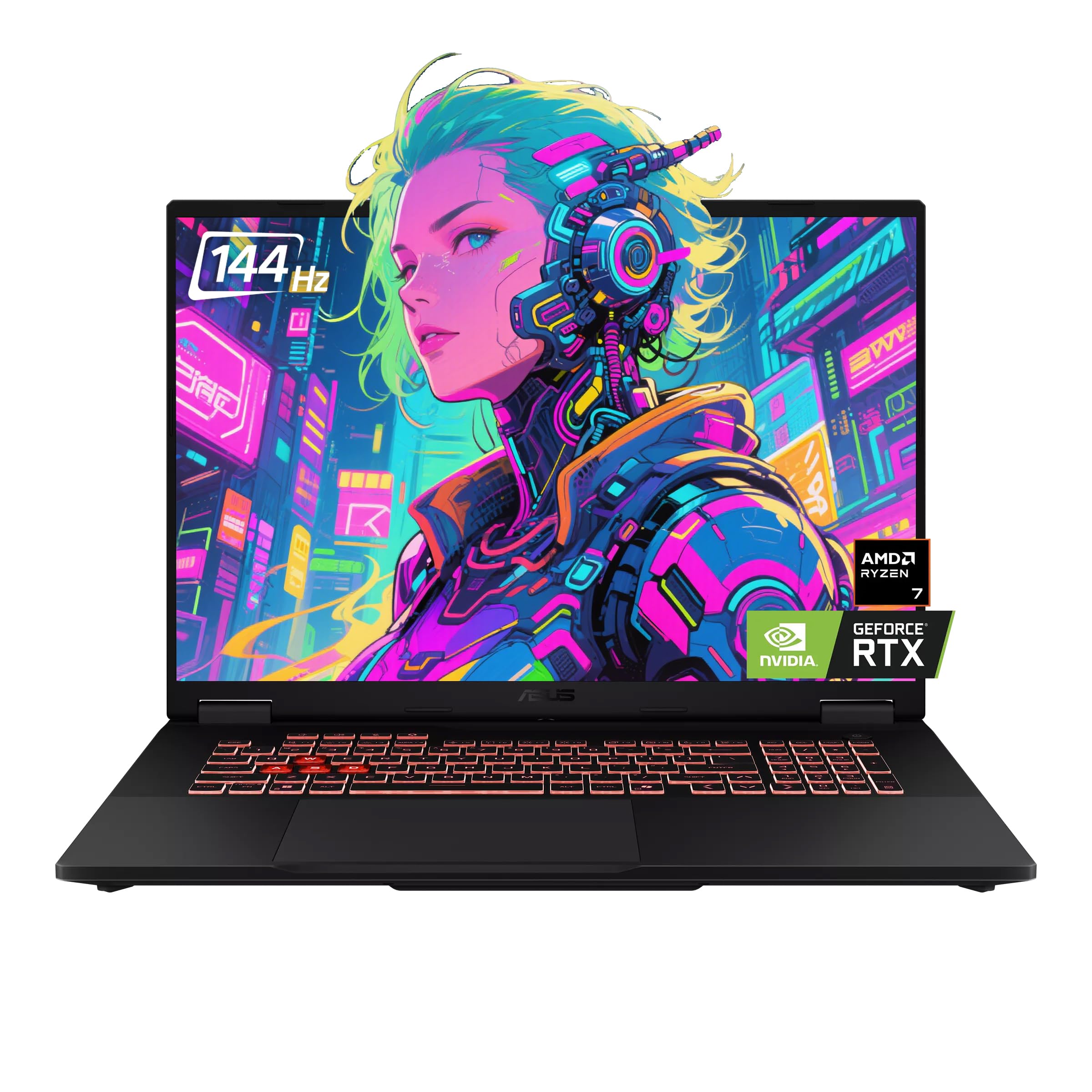
3. המוצר נגמרview
Familiarize yourself with the physical features and components of your ASUS TUF A18 Gaming Laptop.
3.1. Front and Keyboard View
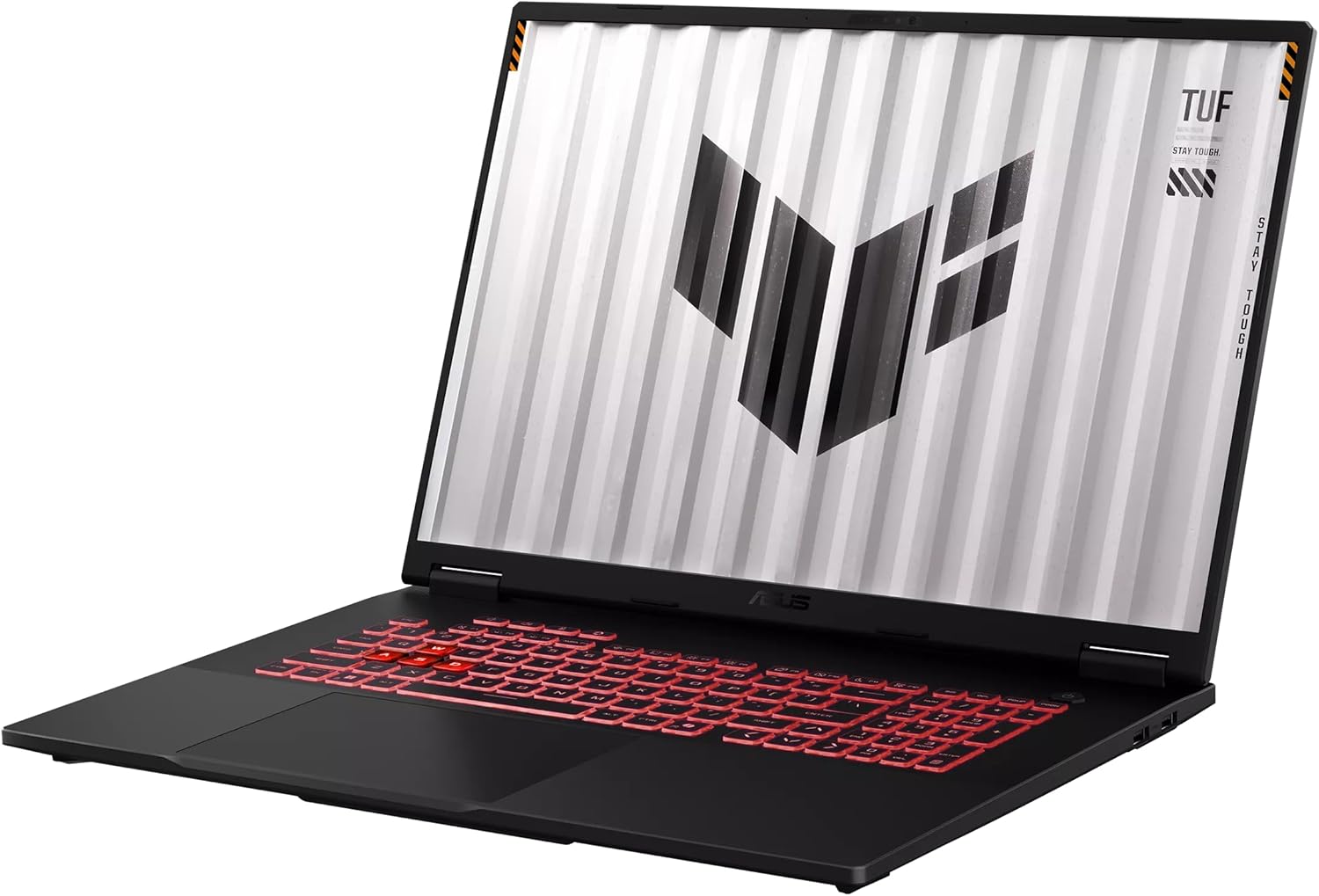
3.2. צד Views ויציאות
The laptop features various ports for connectivity. Refer to the image below for port locations.

- צד שמאל: 1 x 3.5mm Combo Audio Jack, 1 x HDMI 2.1 FRL, 2 x USB 3.2 Gen 2 Type-A, 1 x USB 3.2 Gen 2 Type-C with DisplayPort / power delivery / G-SYNC, 1 x Type-C USB 4 with DisplayPort, 1 x RJ45 LAN port.
- יָמִין: 1 x USB 2.0 Type-A.
3.3. אחורי View

4. התקנה
Follow these steps for the initial setup of your ASUS TUF A18 Gaming Laptop.
- חבר חשמל: Plug the power adapter into the laptop's power input port and then into a wall outlet. Ensure the power indicator light illuminates.
- אתחול ראשון: Open the laptop lid and press the power button. The laptop will automatically power on.
- התקנת Windows 11 Pro: Follow the on-screen instructions to complete the Windows 11 Pro operating system setup. This includes selecting your region, connecting to a Wi-Fi network, and creating a user account.
- Initial Updates: After setup, it is recommended to check for and install any available Windows updates and driver updates to ensure system stability and performance.
5. הוראות הפעלה
This section covers basic operation of your ASUS TUF A18 Gaming Laptop.
5.1. מקלדת ומשטח מגע
- מִקלֶדֶת: The laptop features a backlit chiclet keyboard with 1-Zone RGB lighting. Use the function keys (Fn) in combination with other keys to control backlight brightness, volume, screen brightness, and other system functions.
- לוח מגע: The integrated touchpad supports multi-touch gestures for navigation. Refer to Windows settings for customizing touchpad sensitivity and gestures.
5.2. הגדרות תצוגה
- Your 18-inch FHD+ (1920 x 1200) display has a 144Hz refresh rate and supports G-Sync. To adjust display settings, right-click on the desktop and select 'Display settings' or 'NVIDIA Control Panel'.
- Ensure the refresh rate is set to 144Hz for the smoothest visual experience, especially during gaming.
5.3. קישוריות
- Wi-Fi: The laptop supports Wi-Fi 6E (802.11ax). Connect to your wireless network via the Windows network settings.
- בלוטות': Bluetooth 5.3 is integrated for connecting wireless peripherals such as mice, keyboards, and headphones. Pair devices through Windows Bluetooth settings.
- צגים חיצוניים: Use the HDMI 2.1 FRL port or the USB-C ports with DisplayPort support to connect external monitors.
6. תחזוקה
תחזוקה נכונה מבטיחה את אורך החיים והביצועים האופטימליים של המחשב הנייד שלכם.
- ניקוי: השתמשו במטלית רכה ונטולת סיבים כדי לנקות את המסך והשלדה. במקרה של כתמים עקשניים,ampen the cloth slightly with water or a screen-safe cleaning solution. Avoid harsh chemicals.
- אוורור: Ensure the laptop's ventilation openings are clear and unobstructed to prevent overheating. Avoid using the laptop on soft surfaces like beds or couches that can block airflow.
- טיפול בסוללה: For optimal battery life, avoid frequently discharging the battery completely. If storing the laptop for an extended period, charge it to about 50-60% and store it in a cool, dry place.
- עדכוני תוכנה: Regularly update your operating system, drivers, and applications to benefit from performance improvements, security patches, and new features.
7. פתרון תקלות
This section addresses common issues you might encounter with your ASUS TUF A18 Gaming Laptop.
7.1. System Crashes or Unexpected Shutdowns
- התחממות יתר: Ensure ventilation vents are clear. Consider using a cooling pad during intensive tasks.
- בעיות בנהגים: Update graphics drivers (NVIDIA GeForce RTX 5060) and chipset drivers from the ASUS support website. Outdated or corrupted drivers can cause instability.
- התנגשויות תוכנה: Identify recently installed software that might be causing conflicts. Try uninstalling recent applications or performing a system restore to an earlier point.
- Operating System Corruption: If issues persist, consider reinstalling Windows 11 Pro. Back up your data before proceeding.
7.2. בעיות תצוגה
- אין תצוגה: Ensure the laptop is powered on. Try connecting an external monitor to check if the issue is with the laptop's internal display.
- רזולוציה/קצב רענון שגויים: Adjust display settings in Windows or NVIDIA Control Panel to the native 1920x1200 resolution and 144Hz refresh rate.
7.3. בעיות קישוריות
- Wi-Fi/Bluetooth לא עובד: Check if Wi-Fi and Bluetooth are enabled in Windows settings. Update wireless adapter drivers. Restart your router for Wi-Fi issues.
- התקני USB לא מזוהים: Try connecting the device to a different USB port. Update USB controller drivers.
8. מפרטים
Detailed technical specifications for the ASUS TUF A18 Gaming Laptop.
| תכונה | מִפרָט |
|---|---|
| מותג | ASUS |
| שם הדגם | TUF A18 |
| מעבד | AMD Ryzen 7 260 (8 Cores, 16 Threads, 3.8GHz base, up to 5.1 GHz boost) |
| גרָפִיקָה | כרטיס מסך למחשב נייד NVIDIA GeForce RTX 5060 (8GB GDDR7) |
| לְהַצִיג | 18-inch FHD+ (1920 x 1200) IPS-level, Anti-glare, 144Hz Refresh Rate, 3ms Response Time, G-Sync, MUX Switch + NVIDIA Advanced Optimus |
| אַיִל | זיכרון RAM של 32GB DDR5 |
| אִחסוּן | 2TB NVMe SSD (PCI-e x 4) |
| מַעֲרֶכֶת הַפעָלָה | Windows 11 Pro |
| יציאות I/O | 1x 3.5mm Combo Audio Jack, 1x HDMI 2.1 FRL, 2x USB 3.2 Gen 2 Type-A, 1x USB 3.2 Gen 2 Type-C (DP/PD/G-SYNC), 1x USB 2.0 Type-A, 1x Type-C USB 4 (DP), 1x RJ45 LAN port |
| מִקלֶדֶת | מקלדת Chiclet עם תאורה אחורית, אזור אחד RGB |
| מַצלֵמָה | מצלמת אינפרא אדום 1080P FHD עבור Windows Hello |
| Network & Communication | Wi-Fi 6E(802.11ax) (Triple band) 2*2, Bluetooth 5.3 |
| מידות (ב x D x H) | 15.71" x 11.14" x 0.74" ~ 1.05" |
| מִשׁקָל | 5.73 פאונד |
| צֶבַע | יגר גריי |
9. אחריות ותמיכה
Your ASUS TUF A18 Gaming Laptop comes with a manufacturer's warranty. For specific warranty terms and conditions, please refer to the warranty card included with your product or visit the official ASUS support webאֲתַר.
- החזרות: This product typically has a 30-day return policy from the date of purchase. Please check with your retailer for their specific return guidelines.
- תמיכה טכנית: לסיוע טכני, הורדות מנהלי התקנים או שאלות בנוגע לשירות, אנא בקרו באתר התמיכה הרשמי של ASUS webאֲתַר: www.asus.com/support/
- משאבים מקוונים: The ASUS support website provides FAQs, troubleshooting guides, and contact information for customer service.