
1. הקדמה
Thank you for choosing the Gawfolk 32-inch 4K 144Hz Gaming Monitor. This monitor is designed to provide an immersive visual experience with its 4K UHD resolution, high refresh rate, and adaptive synchronization technology. This manual provides essential information for setting up, operating, maintaining, and troubleshooting your monitor to ensure optimal performance and longevity.
2. מידע בטיחות
- קרא בעיון את כל ההוראות לפני השימוש בצג.
- הרחק את הצג ממים, לחות וטמפרטורות קיצוניות.
- אל תחסום פתחי אוורור.
- השתמש רק במתאם החשמל המצורף לצג.
- הימנע מהנחת חפצים כבדים על כבל החשמל.
- נתק את תקע החשמל מהשקע אם לא תשתמש בצג למשך תקופה ממושכת.
- הפנה כל טיפול לצוות שירות מוסמך.
3. התקנה
3.1 פתיחת האריזה ותכולת האריזה
הוציאו בזהירות את כל הרכיבים מהאריזה. ודאו שכל הפריטים המפורטים להלן נמצאים:
- Gawfolk 32-inch 4K 144Hz Monitor
- מעמד למוניטור (בסיס וצוואר)
- מתאם מתח
- כבל HDMI
- כבל DisplayPort
- מדריך למשתמש
3.2 הרכבת המעמד
- הנח את הצג כשפניו כלפי מטה על משטח רך ונקי כדי למנוע שריטות.
- Attach the stand neck to the back of the monitor using the provided screws. Ensure it is securely fastened.
- Attach the stand base to the stand neck, tightening the screw at the bottom of the base.
3.3 חיבור הצג
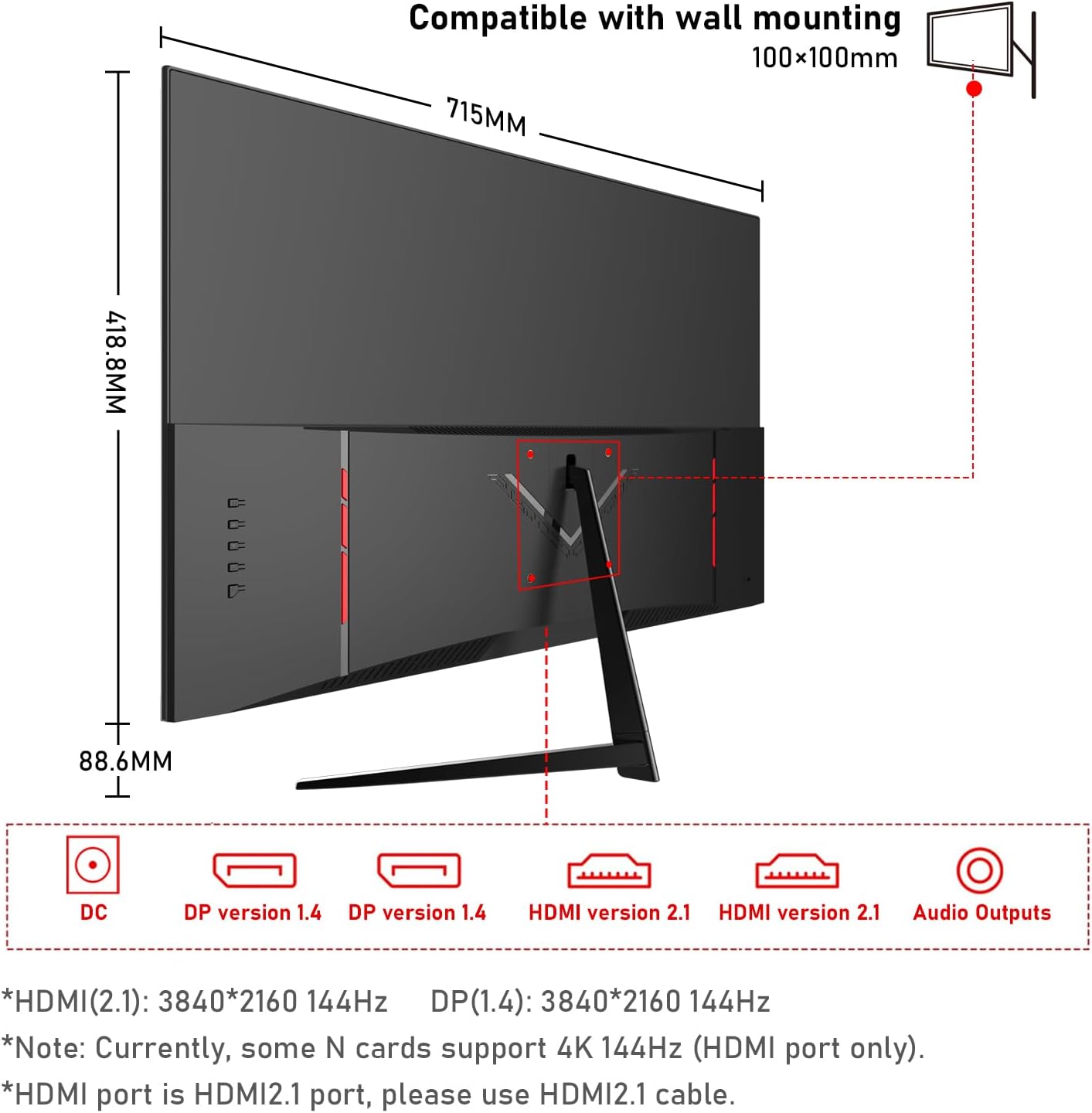
חבר את הצג למחשב שלך או להתקנים אחרים באמצעות הכבלים המתאימים.
- חיבור חשמל: Connect the power adapter to the monitor's DC input port, then plug the adapter into a power outlet.
- חיבור וידאו:
- For 4K@144Hz, use an HDMI 2.1 cable (if your graphics card supports it) or a DisplayPort 1.4 cable.
- Connect one end of the HDMI or DisplayPort cable to the corresponding port on your monitor and the other end to your computer's graphics card.
- חיבור אודיו: If you wish to use external speakers or headphones, connect them to the 3.5mm audio output port on the monitor.
3.4 הפעלה ראשונית
Press the power button on the monitor. The monitor should display the Gawfolk logo and then your computer's desktop. If no image appears, ensure all cables are securely connected and the correct input source is selected in the monitor's On-Screen Display (OSD) menu.
4. הפעלת המוניטור
4.1 תפריט תצוגה על המסך (OSD).
The OSD menu allows you to adjust various monitor settings. Typically, buttons are located on the back or bottom edge of the monitor. Use these buttons to navigate the menu and select options.
4.2 הגדרות תצוגה
- הַחְלָטָה: The monitor supports 4K UHD (3840 x 2160) resolution. Ensure your computer's display settings are configured to this resolution for the sharpest image.
- קצב רענון: For smooth visuals, especially in gaming, set the refresh rate to 144Hz in your computer's display settings.
- הגדרות צבע: This monitor offers 100% sRGB coverage and 16.7 million colors for vibrant and accurate color reproduction. Adjust brightness, contrast, and color temperature via the OSD menu to suit your preference.

4.3 תכונות משחקים
- זמן תגובה של 1ms: The monitor features a 1ms response time (GTG), minimizing motion blur and ghosting for a more responsive gaming experience.
- סנכרון אדפטיבי (FreeSync): This technology synchronizes the monitor's refresh rate with your GPU's frame rate, eliminating screen tearing and stuttering. Enable FreeSync in your graphics card settings and the monitor's OSD menu.

4.4 טכנולוגיית טיפוח עיניים
The monitor incorporates low blue light and flicker-free technology to reduce eye strain during prolonged use. These features are designed to enhance viewנוחות.
4.5 Built-in Dual Speakers
The monitor includes built-in dual speakers, providing convenient audio without the need for external speakers. You can adjust the volume through your computer's audio settings or the monitor's OSD menu.

5. תחזוקה
- ניקוי המסך: השתמש במטלית רכה נטולת מוך מעט דampשטפו במים או בחומר ניקוי מיוחד למסכים. אין לרסס את חומר הניקוי ישירות על המסך.
- ניקוי ה-Casing: השתמשו במטלית רכה ויבשה כדי לנגב את הצג.asinז. הימנעו משימוש בחומרי ניקוי שוחקים או ממסים.
- אוורור: Ensure the ventilation openings on the monitor are clear and not obstructed to prevent overheating.
6. פתרון תקלות
- אין כוח: בדוק אם כבל החשמל מחובר היטב הן לצג והן לשקע החשמל. ודא שמתאם החשמל פועל כראוי.
- אין תמונה: Verify that the video cable (HDMI/DisplayPort) is correctly connected to both the monitor and the computer. Ensure the correct input source is selected in the OSD menu.
- מסך מהבהב: Check the video cable connection. Ensure the refresh rate is set correctly in your computer's display settings. Enable Adaptive Sync if supported by your graphics card.
- איכות תמונה ירודה: Adjust resolution, brightness, contrast, and color settings via the OSD menu. Ensure the video cable is not damaged.
- אין צליל: Check the audio cable connection (if using external speakers/headphones). Adjust volume settings on both the monitor and your computer. Ensure the correct audio output device is selected on your computer.
7. מפרטים
| תכונה | מִפרָט |
|---|---|
| מותג | גאפולק |
| מספר דגם | GF320L |
| גודל מסך | 32 אינץ' |
| הַחְלָטָה | 4K UHD 2160p (3840 x 2160 פיקסלים) |
| קצב רענון | 144 הרץ |
| זמן תגובה | מילישנייה אחת (GTG) |
| יחס גובה-רוחב | 16:9 |
| סוג תצוגה | LED (VA Technology) |
| תיאור משטח המסך | מַברִיק |
| תכונה מיוחדת | מְעוּקָל |
| Viewזווית | 178 מעלות |
| בְּהִירוּת | 320 תקליטורים/מ"ר |
| צבע Gamut ערך | 120% sRGB |
| שיפור איכות התמונה | Eye-Care + Adaptive Sync |
| קישוריות חומרה | 2x HDMI, 2x DisplayPort, 3.5mm Audio |
| Adaptive Synchronization | FreeSync |
| צֶבַע | שָׁחוֹר |
| משקל פריט | 6.34 קילוגרם |
| מידות פריט (D x W x H) | 50.7 x 71.5 x 19 סנטימטרים |
8. אחריות ותמיכה
Gawfolk provides a 12-month after-sales service for this monitor. If you encounter any issues during use, please do not hesitate to contact our customer support for assistance. Our team is dedicated to ensuring your satisfaction.