
1. הקדמה
This manual provides instructions for the proper use and maintenance of your plplaaoo SC12022D wired 1D and 2D barcode scanner. This device is designed for fast and accurate scanning of both printed and screen-based barcodes, suitable for various retail, warehouse, and office environments.
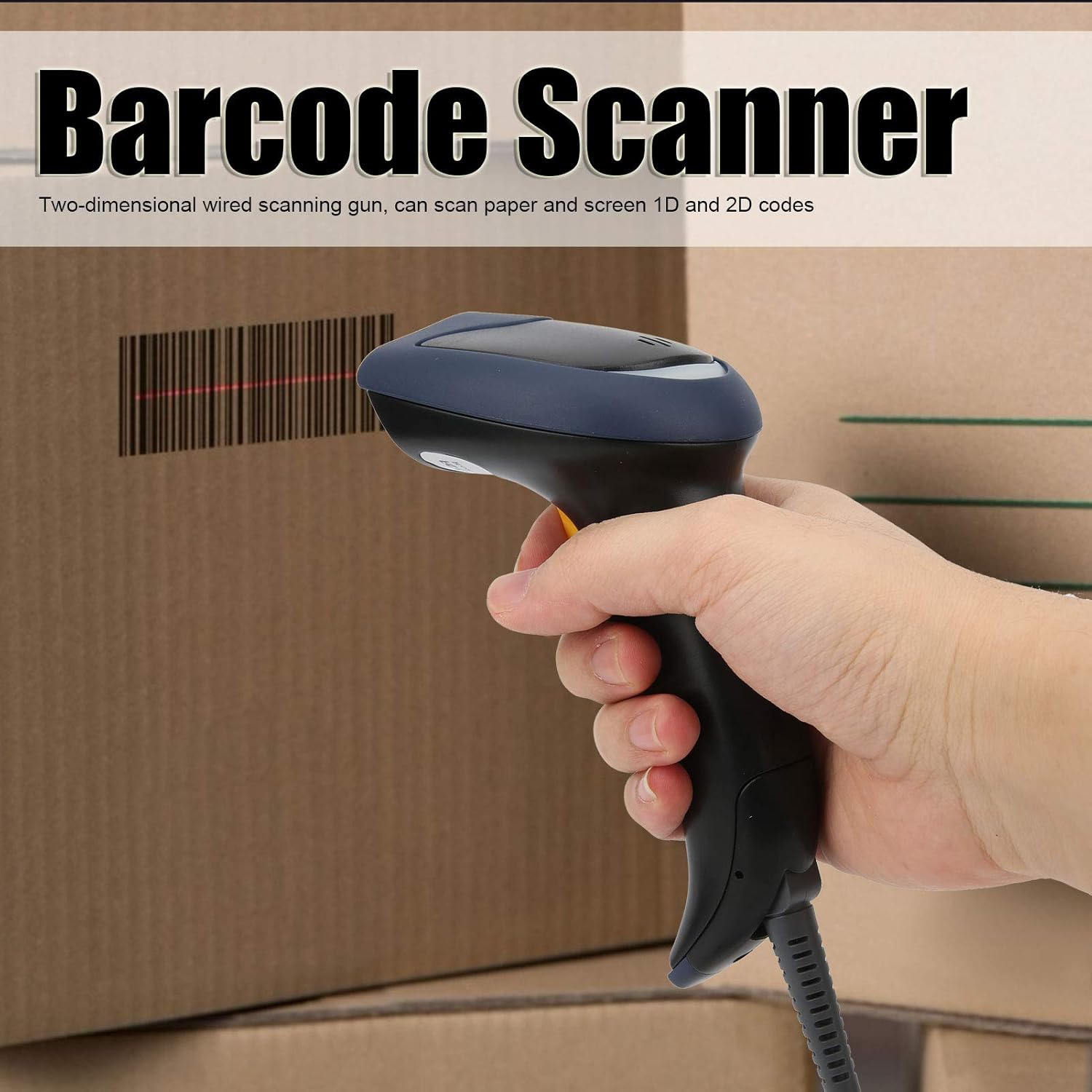
Image 1.1: The plplaaoo SC12022D barcode scanner in operation, held by a user scanning a package. This illustrates the ergonomic design and typical use case of the device.
2. מידע בטיחות
Please read and follow these safety guidelines to ensure safe operation and to prevent damage to the device or injury to yourself.
- בטיחות לייזר: Do not stare directly into the scanning window or point the laser beam at eyes. This device uses a visible light laser.
- תנאים סביבתיים: Operate the scanner within the specified temperature range of 20℃ to +60℃. Avoid exposure to extreme temperatures, humidity, or dust.
- טיפול: טפלו במכשיר בזהירות. הימנעו מהפלתו או מחשיפתו לפגיעות חזקות.
- ניקוי: השתמש במטלית רכה ויבשה לניקוי. אין להשתמש בחומרי ניקוי שוחקים או ממסים.
3. תכולת החבילה
ודא שכל הפריטים נמצאים בחבילה:
- plplaaoo SC12022D Barcode Scanner
- USB Cable (attached or separate)
- מדריך למשתמש (מסמך זה)
4. המוצר נגמרview
The plplaaoo SC12022D is a handheld, gun-style barcode scanner designed for comfortable and efficient use. It features a high-resolution sensor for precise reading of various barcode types.
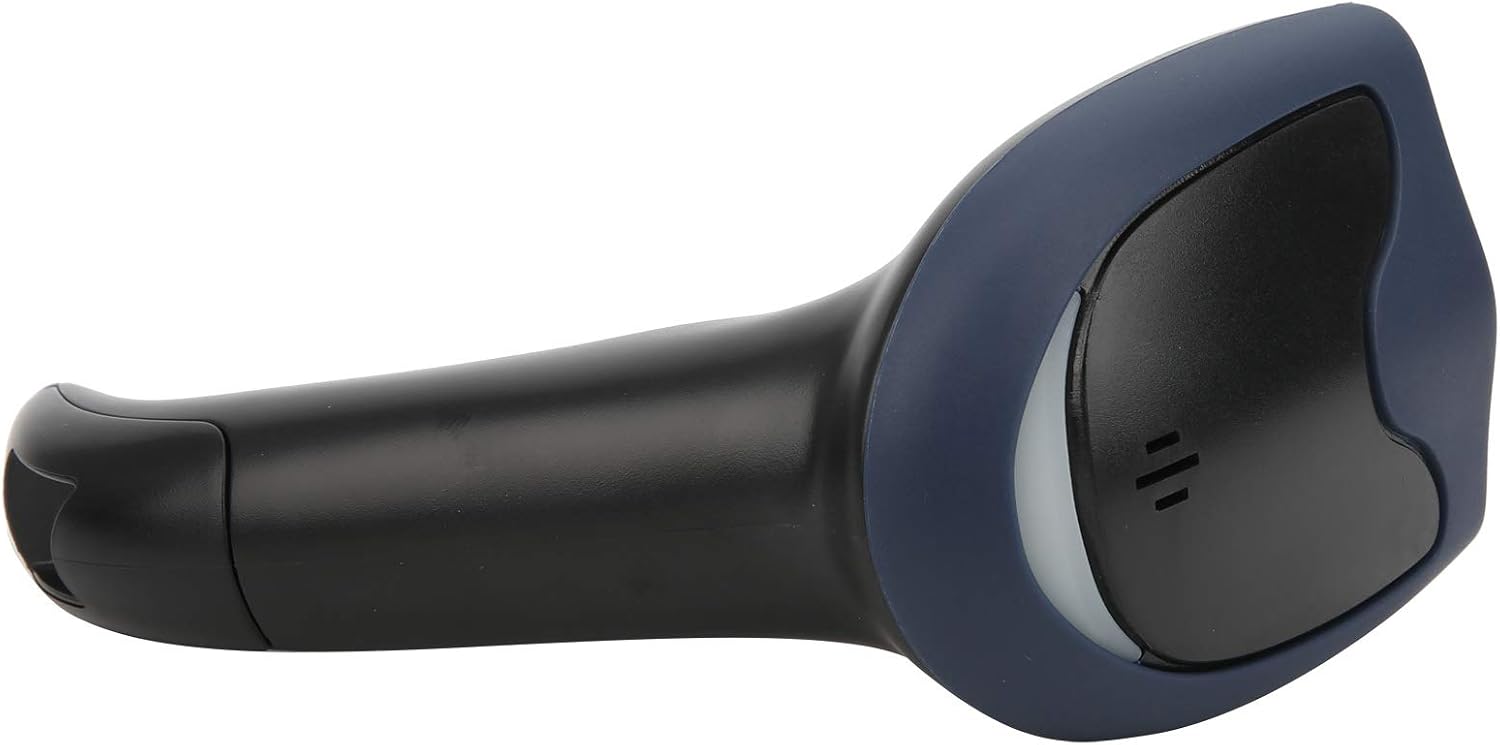
תמונה 4.1: חזית view of the barcode scanner, highlighting the scanning window and the comfortable grip design.

תמונה 4.2: צד view of the barcode scanner, illustrating its contoured shape and the placement of the trigger button.

תמונה 4.3: תיאור מפורט view of the scanning window, where the laser beam is emitted and barcodes are read.
5. התקנה
The plplaaoo SC12022D barcode scanner is designed for plug-and-play convenience. No driver installation is typically required for most operating systems.
- חבר את כבל ה-USB: Locate the USB cable. If it is detachable, connect the smaller end to the port on the base of the scanner.
- Plug into Computer/POS System: Insert the standard USB-A end of the cable into an available USB port on your computer or Point-of-Sale (POS) system.
- זיהוי מערכת: Your operating system should automatically detect and install the necessary generic drivers. The scanner will typically emit a beep or flash an indicator light to confirm it is ready for use.

Image 5.1: The USB cable provided with the scanner, featuring a USB-A connector for the host device and a proprietary connector for the scanner.

Image 5.2: The USB cable securely connected to the port on the underside of the scanner's handle.
6. הוראות הפעלה
Once connected, the scanner functions as a keyboard wedge, inputting scanned data directly into any active text field.
- מַטָרָה: כוון את חלון הסריקה אל הברקוד שברצונך לקרוא.
- לִסְרוֹק: Press and hold the trigger button. A red laser line or aiming pattern will appear. Position the laser line across the entire barcode.
- אִשׁוּר: Upon successful scan, the scanner will emit a beep and/or the indicator light will flash. The barcode data will then appear in your active application.
- Scanning Performance: The scanner is capable of reading both 1D and 2D barcodes from paper and digital screens, even if they are poorly printed or slightly damaged.
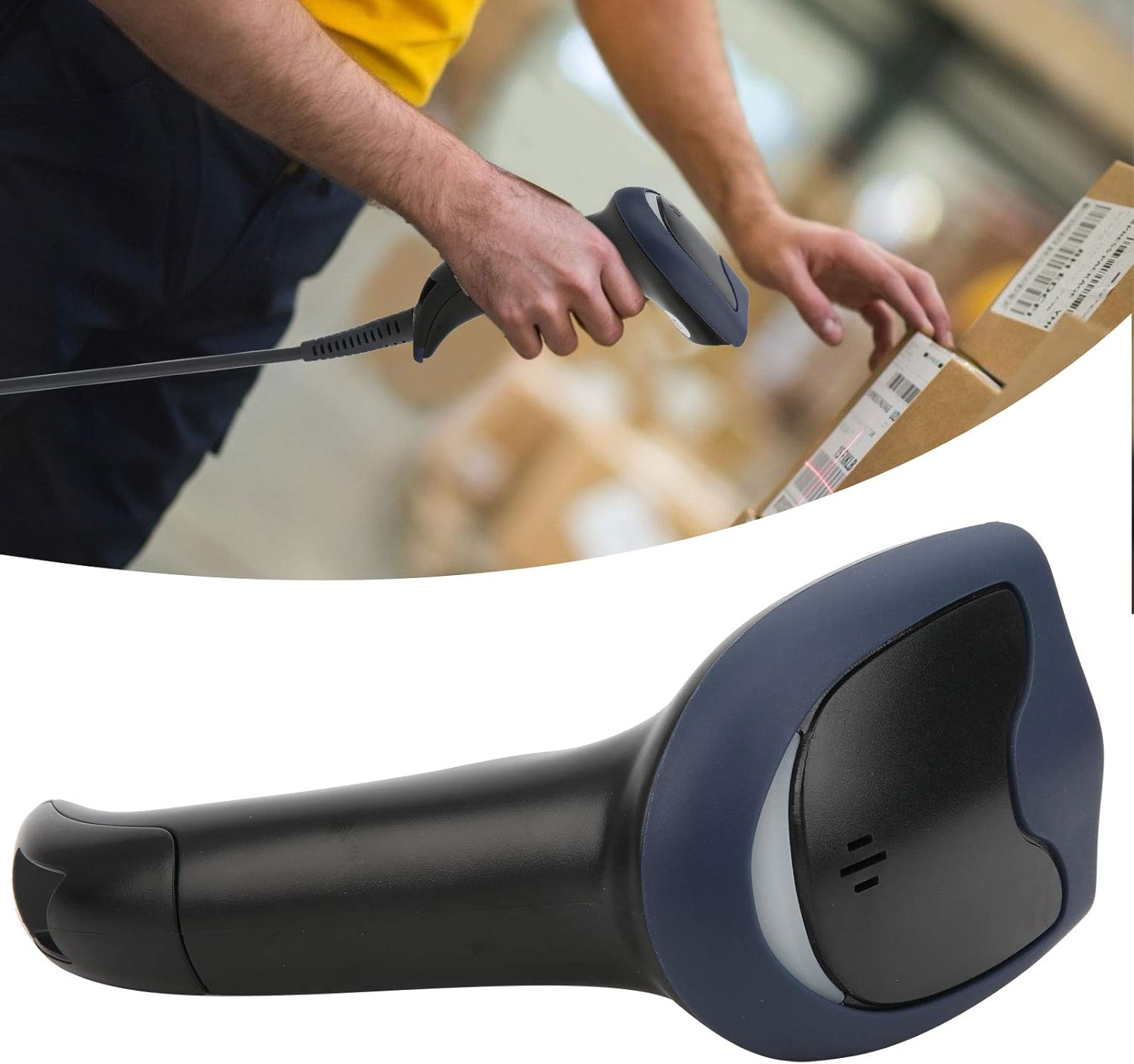
Image 6.1: A user actively scanning a barcode on a box, demonstrating the scanner's application in a typical work environment.

Image 6.2: The barcode scanner displayed alongside icons representing diverse environments such as retail, logistics, and office settings, illustrating its broad compatibility.
7. תחזוקה
תחזוקה נאותה מבטיחה את אורך החיים והביצועים האופטימליים של סורק הברקודים שלך.
- ניקוי חלון הסריקה: נקו באופן קבוע את חלון הסריקה בעזרת מטלית רכה ונטולת סיבים. במקרה של כתמים עקשניים, נגבו מעטampen the cloth with water or a mild, non-abrasive cleaner. Ensure the window is dry before use.
- ניקיון כללי: Wipe the exterior of the scanner with a soft, dry cloth. Avoid using harsh chemicals or solvents that could damage the plastic.
- אִחסוּן: כאשר אינו בשימוש, יש לאחסן את הסורק בסביבה נקייה ויבשה הרחק מאור שמש ישיר וטמפרטורות קיצוניות.
8. פתרון תקלות
אם נתקלת בבעיות עם הסורק שלך, עיין בבעיות הנפוצות ובפתרונות הבאים:
| בְּעָיָה | סיבה אפשרית | פִּתָרוֹן |
|---|---|---|
| הסורק לא נדלק או מגיב. | כבל ה-USB אינו מחובר כראוי או יציאת ה-USB פגומה. | Ensure the USB cable is securely connected to both the scanner and the computer. Try a different USB port or computer. |
| הסורק מצפצף אך לא משודרים נתונים. | No active text field or incorrect keyboard layout. | Ensure a text input field is active (e.g., Notepad, Word document, browser search bar). Check your computer's keyboard language settings. |
| Unable to scan certain barcodes. | Barcode type not supported, damaged barcode, or poor lighting. | Refer to the Specifications section for supported symbologies. Try scanning a different, known-good barcode. Ensure adequate lighting and proper aiming. |
| Scanner is slow or inconsistent. | Dirty scanning window or interference. | Clean the scanning window as described in the Maintenance section. Ensure no obstructions are near the scanning area. |
9. מפרטים
- דֶגֶם: SC12022D
- טכנולוגיית סריקה: 1D/2D Wired
- מִמְשָׁק: USB
- סימבוליות נתמכות: QR, Micro QR, PDF417, Maxicode, Data Matrix, AztecCode, UPC, EAN, Code 128, and more than 20 other types.
- טמפרטורת הפעלה: 20℃ עד +60℃
- הגנה מפני פריקה אלקטרוסטטית (ESD): Up to ±15 KV
- לְעַצֵב: Ergonomic handheld gun style
10. מידע על אחריות
This product comes with a standard manufacturer's warranty. Please retain your proof of purchase for warranty claims. The warranty typically covers defects in materials and workmanship under normal use. It does not cover damage caused by misuse, accidents, unauthorized modifications, or operation outside the specified environmental conditions.
11. תמיכה
For technical assistance, troubleshooting beyond this manual, or warranty inquiries, please contact your retailer or the manufacturer directly. Refer to the product packaging or the manufacturer's official webהאתר לפרטי יצירת קשר.