
1. הקדמה
The ASUS ROG Raikiri II is a versatile tri-mode gaming controller designed for use with Xbox Series X|S, PC, and the ROG Ally. It offers flexible connectivity options including wired USB-C, low-latency 2.4GHz RF, and Bluetooth. Key features include anti-drift TMR joysticks, dual-mode triggers, micro-switch buttons for tactile feedback, and a long-lasting battery. This manual provides essential information for setting up, operating, and maintaining your controller.

Image 1.1: The ASUS ROG Raikiri II Xbox Wireless Gaming Controller.
2. תכולת החבילה
ודא שכל הפריטים נמצאים בחבילה שלך:
- ROG Raikiri II Wireless Gaming Controller
- כבל USB-C ל-USB-A
- 2.4GHz RF Dongle
- Portable Protective Charging Case
- Charging Stand with Feet
- Extra High-Profile Joystick Caps (2)
- מדריך להתחלה מהירה (מסמך זה)

Image 2.1: Included accessories: portable case, charging stand, and two detachable joystick caps.
3. התקנה
3.1 טעינה ראשונית
Before first use, fully charge the controller. Connect the USB-C cable to the controller and the USB-A end to a power source (e.g., PC, USB wall adapter). The LED indicator will show charging status.
3.2 קישוריות תלת-מצבית
The ROG Raikiri II supports three connection modes:
- חיבור USB-C קווי: Connect the controller directly to your device using the provided USB-C cable. This mode is compatible with Xbox Series X|S, PC, and ROG Ally.
- 2.4GHz RF Wireless: Insert the 2.4GHz RF dongle into an available USB port on your PC, Xbox Series X|S, or ROG Ally. The controller will automatically pair. This mode offers ultra-low latency.
- בלוטות': For Bluetooth connectivity, ensure your device has Bluetooth enabled. Put the controller into Bluetooth pairing mode (refer to the controller's specific button combination for pairing, usually a dedicated Bluetooth button or a combination of buttons). Select the controller from your device's Bluetooth settings to pair. This mode is compatible with PC and ROG Ally.
Note: Xbox consoles support USB-C and 2.4GHz RF connectivity only.

Image 3.1: Tri-mode connectivity options for the ROG Raikiri II controller.
4. הפעלת הבקר
4.1 TMR Joysticks
The controller features anti-drift TMR (Tunnel Magnetoresistance) joysticks, providing enhanced accuracy and reduced power consumption compared to traditional Hall Effect joysticks. These joysticks are designed for long-term reliability and precision.
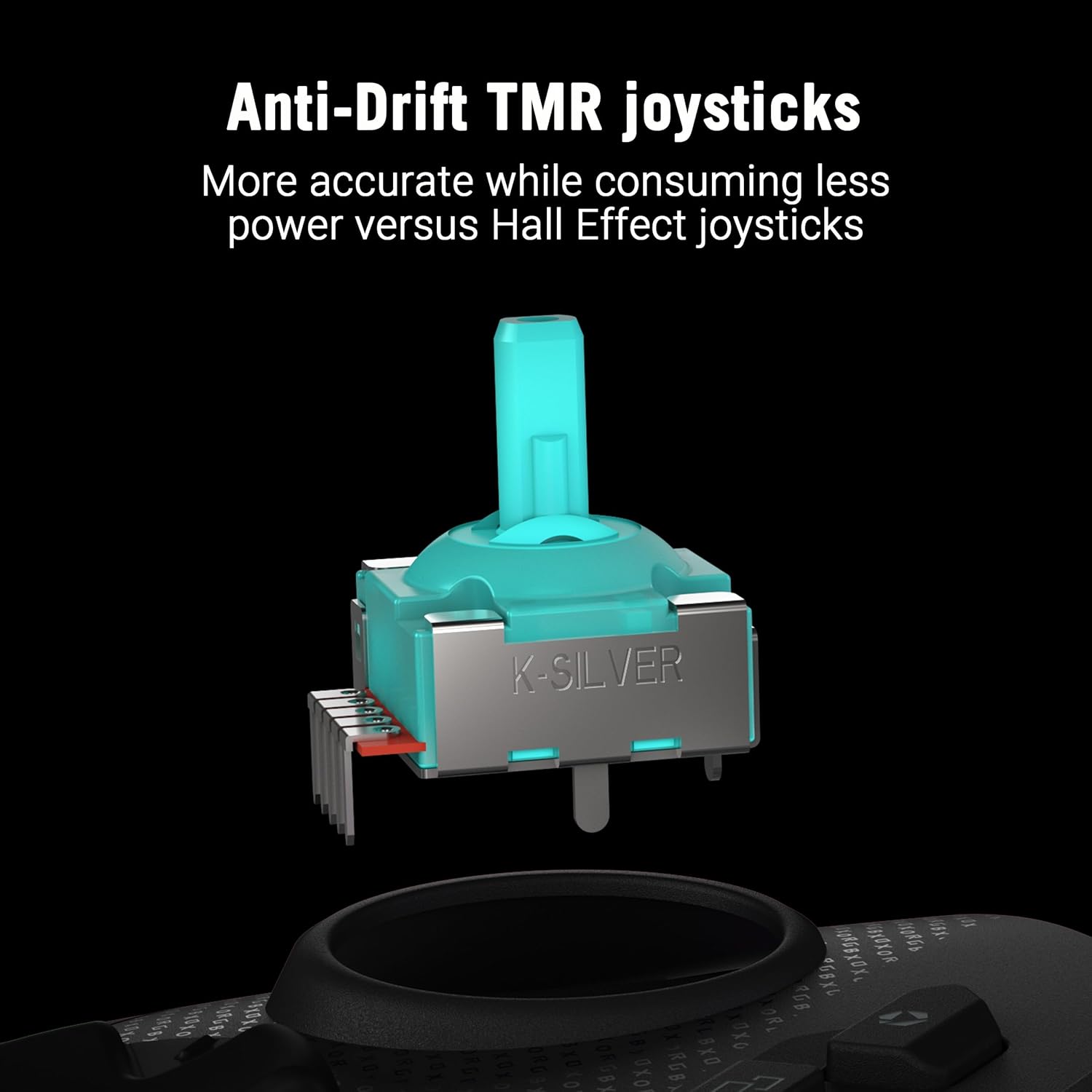
תמונה 4.1: מפורט view of an anti-drift TMR joystick module.
4.2 Dual-Mode Triggers
The triggers offer dual-mode functionality, allowing you to switch between short-travel micro-switch actuation and full-travel TMR sensor actuation. This provides flexibility for different game genres, such as quick shots in FPS games or precise acceleration control in racing games.

Image 4.2: The dual-mode triggers can be switched between short micro-switch and full TMR sensor modes.
4.3 Micro-Switch Buttons
The D-Pad, ABXY buttons, rear buttons, and bumpers utilize micro-switches for instant actuation and crisp, tactile feedback, ensuring every command is registered precisely.
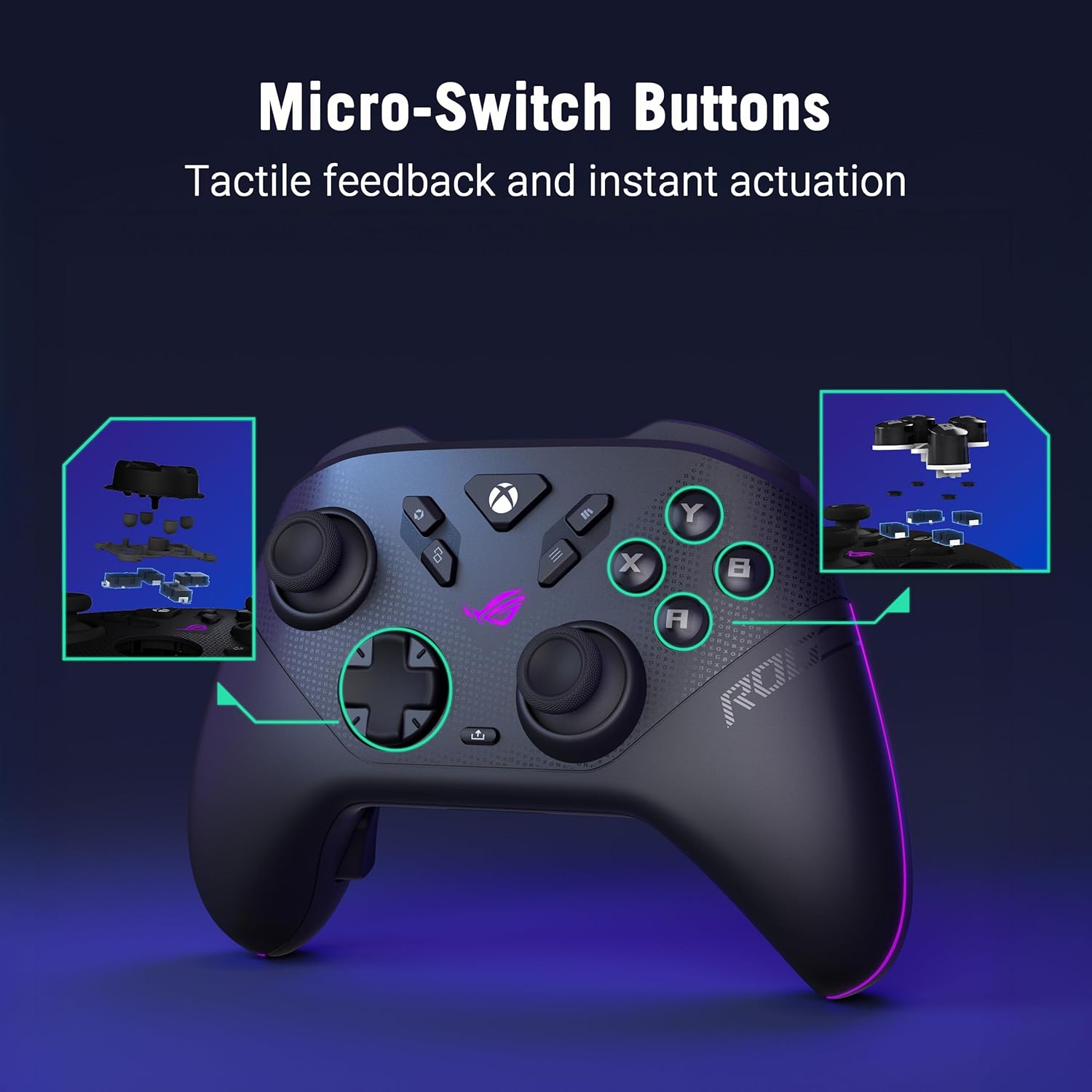
תמונה 4.3: פנימי view highlighting the micro-switch buttons for tactile feedback.
4.4 Programmable Rear Buttons
The controller features four fully programmable rear buttons. These can be customized to perform various functions, allowing for advanced control and personalized gameplay. Refer to the web-based configuration tool for programming instructions.

Image 4.4: The four programmable rear buttons on the underside of the controller.
4.5 Web-Based Configuration (Gear Link)
Customize your controller settings, including button mapping, joystick dead zones, trigger sensitivity, and vibration intensity, using the web-based Gear Link configuration tool. Access this tool via a compatible web browser (e.g., Google Chrome, Microsoft Edge) on your PC. No software downloads are required.
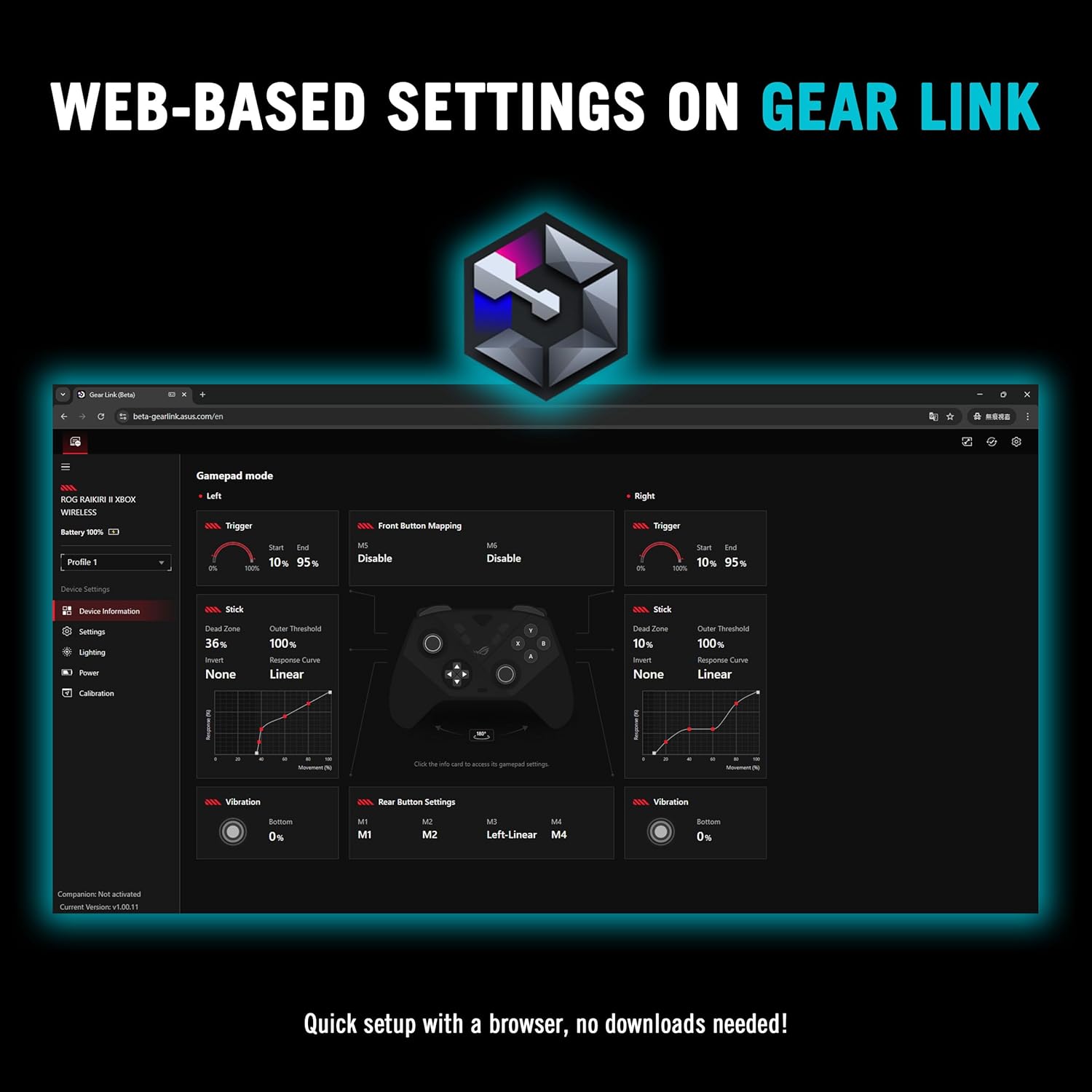
תמונה 4.5: ה- web-based Gear Link interface for controller customization.
5. תחזוקה
5.1 ניקוי
לניקוי הבקר, השתמשו במטלית רכה ויבשה. במקרה של לכלוך עיקש, נגבו מעטampשטפו את המטלית במים. הימנעו משימוש בכימיקלים חזקים, ממסים או חומרים שוחקים, מכיוון שאלה עלולים לפגוע בגימור הבקר וברכיבים הפנימיים.
5.2 טיפול בסוללה
The controller features an integrated rechargeable battery providing up to 50 hours of wireless play (with RGB, audio, and vibration off). To prolong battery life:
- הימנעו מפריקת הסוללה באופן מלא לעתים קרובות.
- אחסן את הבקר במקום קריר ויבש כאשר אינו בשימוש.
- אם מאחסנים את הסוללה למשך תקופה ממושכת, יש לטעון אותה עד לכ-50% קיבולת.

Image 5.1: The controller on its charging stand, highlighting its extended battery life.
5.3 אחסון
Use the provided portable protective charging case to store the controller and its accessories when traveling or not in use. This protects the controller from dust, scratches, and impacts.

Image 5.2: The controller fits securely within its protective travel case.
6. פתרון תקלות
6.1 הבקר לא מתחבר
- קווית: Ensure the USB-C cable is securely connected to both the controller and your device. Try a different USB port or cable.
- 2.4 GHz RF: Verify the RF dongle is fully inserted into a USB port. Ensure the controller is powered on and within range. Re-pair if necessary by pressing the pairing button on the dongle and controller.
- בלוטות': Confirm Bluetooth is enabled on your device. Put the controller into pairing mode and select it from your device's Bluetooth list. Ensure no other devices are interfering with the Bluetooth signal.
6.2 Web-Based Configuration (Gear Link) Issues
- ודא שאתה משתמש במכשיר תואם web browser such as Google Chrome or Microsoft Edge.
- ודא שחיבור האינטרנט שלך יציב.
- Clear your browser's cache and cookies, or try accessing Gear Link in an incognito/private browsing window.
- Ensure JavaScript is enabled in your browser settings for the Gear Link webאֲתַר.
6.3 Stick Drift or Clicking Noise
- While TMR joysticks are designed to prevent drift, minor clicking noises can sometimes occur. If performance is affected, ensure the joystick caps are properly seated.
- If you experience significant stick drift or unresponsive movement, try recalibrating the joysticks through the Gear Link web מִמְשָׁק.
6.4 כשלים בעדכון קושחה
- Ensure the controller is connected via USB-C to your PC during firmware updates.
- Maintain a stable internet connection.
- השבת זמנית כל תוכנת אנטי-וירוס או חומת אש שעלולה להפריע לתהליך העדכון.
- If an update fails, restart your PC and the controller, then attempt the update again.
7. מפרטים
| תכונה | פְּרָט |
|---|---|
| מותג | ASUS |
| דֶגֶם | ROG Raikiri II |
| קישוריות | USB-C, 2.4GHz RF, Bluetooth |
| תְאִימוּת | Xbox Series X|S, PC, ROG Ally |
| ג'ויסטיקים | Anti-Drift TMR |
| טריגרים | Dual-Mode (Micro-Switch / TMR Sensor) |
| כפתורים | Micro-Switch D-Pad, ABXY, Rear Buttons, Bumpers |
| כפתורים ניתנים לתכנות | 4 Rear Buttons |
| שיעור סקרים | 1000Hz (PC mode with ROG SpeedNova) |
| חיי סוללה | Up to 50 hours (2.4GHz wireless, RGB/audio/vibration off) |
| צֶבַע | שָׁחוֹר |
| משקל פריט | 9.6 אונקיות |
| מידות | 6.1 x 4.1 x 2.6 אינץ' |
| UPC | 199291150201 |
8. מידע על אחריות
The ASUS ROG Raikiri II Wireless Gaming Controller comes with a אחריות מוגבלת לשנה מתאריך הרכישה. אחריות זו מכסה פגמי ייצור וביצוע תחת שימוש רגיל. היא אינה מכסה נזק שנגרם כתוצאה משימוש לרעה, תאונות, שינויים לא מורשים או אסונות טבע. אנא שמור את הוכחת הרכישה שלך לצורך תביעות אחריות.
9. תמיכה
For further assistance, technical support, or to download the latest drivers and firmware updates, please visit the official ASUS support webאתר. תוכלו למצוא שם שאלות נפוצות מפורטות ופרטי יצירת קשר עם שירות הלקוחות.
תמיכה של ASUS Webאֲתַר: www.asus.com/support/