
1. הקדמה
This manual provides essential information for the safe and efficient use of your HP 17.3 Inch FHD Business Laptop. Please read this guide thoroughly before operating your device to ensure optimal performance and longevity. This laptop is designed for business and everyday computing tasks, offering a large display, robust performance, and portability.
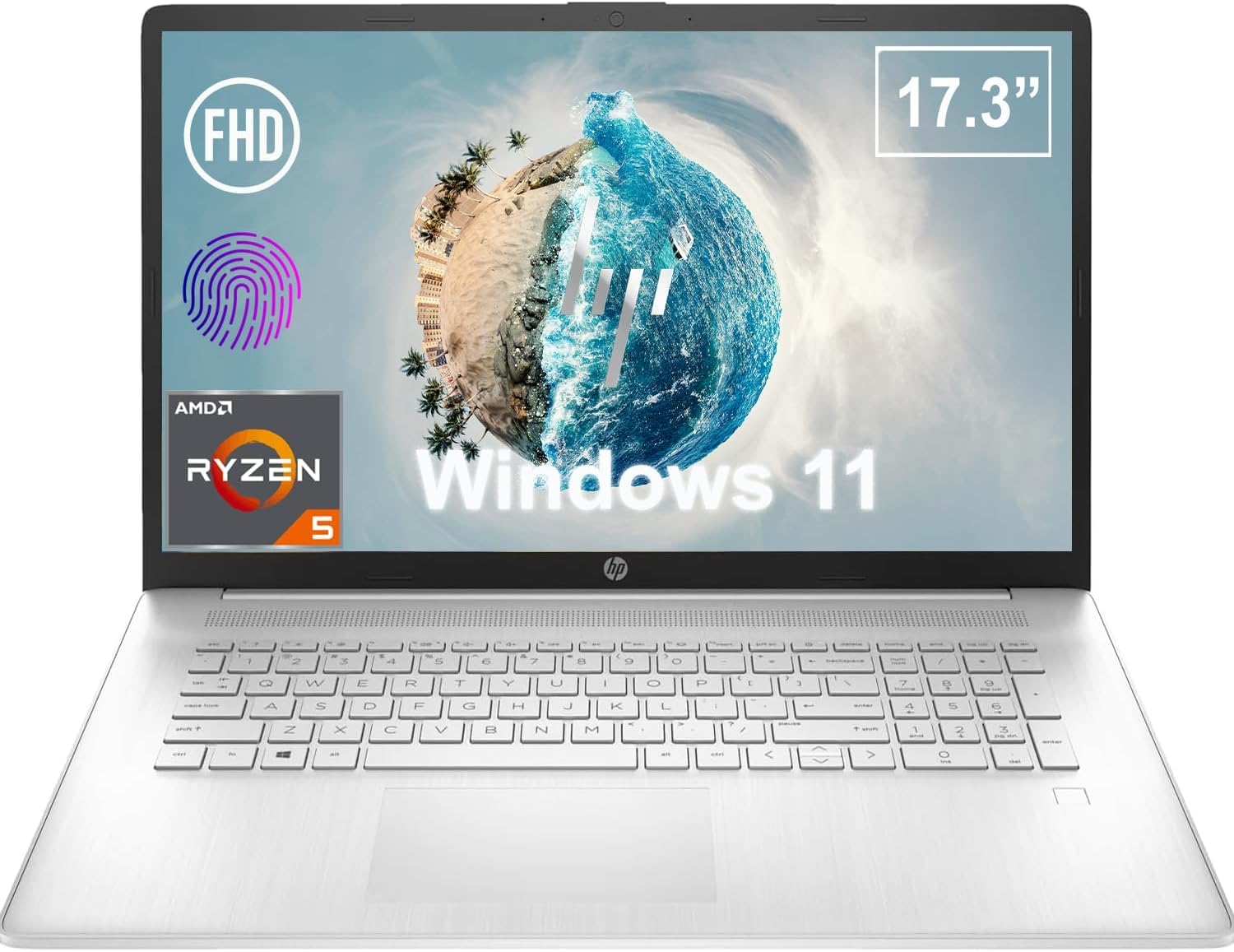
איור 1.1: חזית view of the HP 17.3 Inch FHD Business Laptop, showcasinהתצוגה והמקלדת הגדולים.
2. התקנה
2.1 פתיחת הקופסה ובדיקה ראשונית
הוציאו בזהירות את כל הרכיבים מהאריזה. ודאו שהפריטים הבאים קיימים:
- HP 17.3 Inch FHD Business Laptop
- Power Adapter (45 W Smart AC Power Adapter)
- תיעוד (מדריך זה, מידע על אחריות)
Inspect the laptop and accessories for any signs of damage. If any items are missing or damaged, contact your retailer or HP support immediately.
2.2 חיבור ספק הכוח
Before first use, ensure the laptop is fully charged. Connect the power adapter to the AC smart pin port on the side of the laptop and then plug the adapter into a power outlet.
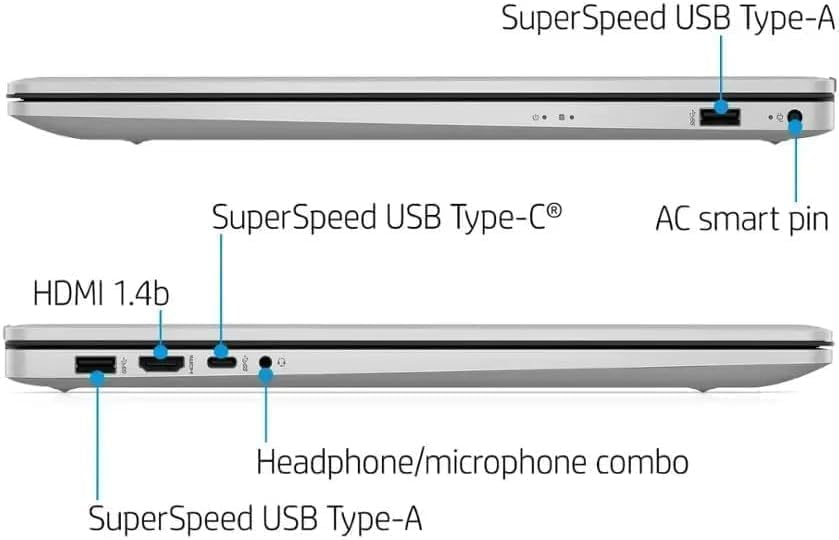
איור 2.1: צד view illustrating the location of the AC smart pin and other ports.
2.3 הפעלה ראשונית והגדרת Windows
Press the power button to turn on the laptop. Follow the on-screen instructions to complete the Windows 11 Home setup process. This includes setting up your user account, network connection, and initial preferences.
3. הפעלת המחשב הנייד
3.1 מקלדת ומשטח מגע
The laptop features a full-size QWERTY keyboard with a 10-key number pad for efficient data entry. The integrated touchpad provides precise cursor control. Refer to the operating system's settings for customizing touchpad gestures and keyboard shortcuts.
3.2 קורא טביעות אצבע
For enhanced security and convenient login, utilize the integrated fingerprint reader. Set up your fingerprints through Windows Hello in the Windows 11 settings.
3.3 Webcam and Microphones
The HP True Vision 720p HD Camera and integrated dual array digital microphones are located at the top of the display. These are suitable for video conferencing and online communication.
3.4 קישוריות
- Wi-Fi: The laptop supports 802.11a/b/g/n/ac Wi-Fi for wireless internet access. Connect to available networks via the Windows network settings.
- בלוטות': Bluetooth 5 allows for wireless connection to compatible devices such as headphones, mice, and keyboards. Enable and manage Bluetooth devices through Windows settings.
3.5 יציאות והתקנים חיצוניים
המחשב הנייד מצויד במגוון יציאות לחיבור התקנים חיצוניים:
- 1 x USB Type-C (5Gbps, Data Only): For connecting USB-C compatible devices and data transfer.
- 2 x USB Type-A (5Gbps): For connecting standard USB devices like external drives, mice, or keyboards.
- 1 x HDMI 1.4b: For connecting to external displays or projectors.
- 1 x Headphone/Microphone Combo: For connecting a headset with a single 3.5mm jack.
- 1 x AC Smart Pin: For connecting the power adapter.

איור 3.1: פתוח view of the laptop, highlighting the keyboard and touchpad area.
3.6 ניהול סוללה
The laptop is powered by a 3-Cell, 41 Wh Li-ion battery, offering up to 8 hours and 30 minutes of video playback. Use the provided 45 W Smart AC Power Adapter for charging. HP Fast Charge technology allows for quicker charging times.
4. תחזוקה
4.1 ניקוי המחשב הנייד
To maintain the laptop's appearance and functionality:
- השתמש במטלית רכה נטולת מוך דampנשטפו במים או בחומר ניקוי מיוחד למסך.
- עבור המקלדת והמארז, השתמשו במטלית רכה ויבשה. הימנעו מכימיקלים חזקים או מחומרים שוחקים.
- ודא שהמחשב הנייד כבוי ומנותק מהחשמל לפני הניקוי.
4.2 עדכוני תוכנה
Regularly update your Windows operating system and drivers to ensure optimal performance, security, and compatibility. Windows Update can be accessed through the Settings menu.
4.3 Security Software
The laptop comes preloaded with McAfee LiveSafe for security. Ensure this software is active and updated to protect against viruses and other threats.
5. פתרון תקלות
סעיף זה מטפל בבעיות נפוצות שאתה עשוי להיתקל בהן במחשב הנייד של HP שלך.
5.1 בעיות חשמל
- המחשב הנייד לא נדלק: Ensure the power adapter is securely connected to both the laptop and a working power outlet. Verify the battery is charged.
- סוללה אינה נטענת: בדוק את מתאם החשמל ואת הכבל לאיתור נזקים. נסה שקע חשמל אחר.
5.2 בעיות תצוגה
- אין תמונה על המסך: חבר צג חיצוני כדי לבדוק אם הבעיה היא בתצוגה של המחשב הנייד. הפעל מחדש את המחשב הנייד.
- תמונה מהבהבת או מעוותת: עדכן מנהלי התקנים של הגרפיקה. התאם את רזולוציית התצוגה וקצב הרענון בהגדרות Windows.
5.3 בעיות קישוריות
- Wi-Fi לא מתחבר: Ensure Wi-Fi is enabled. Restart your router and the laptop. Check network settings for correct password and configuration.
- מכשיר בלוטות' לא מתחבר: ודא ש-Bluetooth מופעל בשני המכשירים. ודא שהמכשיר נמצא במצב צימוד ובטווח קליטה.
עבור בעיות מורכבות יותר, פנו לתמיכה של HP webאתר או צור קשר עם שירות הלקוחות.
6. מפרטים
| תכונה | פְּרָט |
|---|---|
| מותג | HP |
| שם הדגם | HP17 |
| מספר דגם | i5-1135G7 |
| גודל מסך | 17.3 אינץ' |
| סוג תצוגה | IPS, Anti-Glare, LED |
| הַחְלָטָה | 1920 x 1080 (FHD) |
| קצב רענון | 60 הרץ |
| מעבד | AMD Ryzen 5 5500U (6 Cores, 12 Threads, up to 4.0 GHz Max Boost Clock) |
| גרָפִיקָה | גרפיקה משולבת של AMD Radeon |
| זיכרון RAM | 32 GB DDR4-3200 MHz (Max 64 GB) |
| אִחסוּן | כונן SSD PCIe NVMe M.2 בנפח 1 טרה-בייט |
| מַעֲרֶכֶת הַפעָלָה | Windows 11 Home, 64-bit, English |
| קישוריות אלחוטית | רשת אלחוטית 802.11a/b/g/n/ac, בלוטות' 5 |
| נמלים | 1x USB Type-C (5Gbps), 2x USB Type-A (5Gbps), 1x HDMI 1.4b, 1x Headphone/Microphone Combo, 1x AC Smart Pin |
| Webפִּקָה | מצלמת HP True Vision 720p HD |
| שֶׁמַע | Dual Speakers, Integrated Dual Array Digital Microphones |
| סוֹלְלָה | 3-Cell, 41 Wh Li-ion (Up to 8.5 hours video playback) |
| מתאם מתח | 45 W Smart AC Power Adapter |
| מידות (ב x D x H) | 40.07 x 25.78 x 2.06 cm (14.14"L x 9.31"W x 0.78"Th) |
| מִשׁקָל | החל מ- 2.07 ק"ג |
| תכונות מיוחדות | Fingerprint Reader, Lightweight Design, HP Fast Charge |
7. אחריות ותמיכה
7.1 מידע אחריות
This HP laptop comes with a 1-year manufacturer's limited warranty. For detailed terms and conditions, please refer to the warranty documentation included with your product or visit the official HP support webאֲתַר.
7.2 תמיכת לקוחות
If you encounter issues that cannot be resolved using the troubleshooting steps in this manual, please contact HP customer support. You can find contact information and additional resources on the official HP webאֲתַר:
- תמיכה של HP Webאֲתַר: support.hp.com
- חנות HP: חנות HP באמזון