
מָבוֹא
This manual provides comprehensive instructions for the setup, operation, and maintenance of your ASUS ROG Strix 27” 5K HDR Gaming Monitor (Model: XG27JCG). Please read this manual thoroughly before using the monitor to ensure proper functionality and to maximize your user experience.
The ROG Strix XG27JCG is a 27-inch 5K (5120 x 2880) Fast IPS display designed for high-performance gaming and detailed visual tasks. It features a 180Hz (overclocked) refresh rate, 0.3ms GTG response time, and a Dual Mode function allowing switching between 5K 180Hz and QHD 330Hz. Advanced features include G-SYNC Compatible technology, VESA DisplayHDR 600, and ROG Gaming A.I. Technology.
וִידֵאוֹ: מֵעַלview of the ASUS ROG Strix XG27JCG 27-inch 5K monitor, highlighting its key features and design.
מה יש בקופסה
ודא שכל הרכיבים נמצאים באריזה לפני שתמשיך בהתקנה.
- ASUS ROG Strix XG27JCG Monitor
- כבל DisplayPort
- מדריך להתחלה מהירה
- נרתיק ROG
- מדבקת ROG
- ROG tripod stand
- תעודת אחריות
- כבל חשמל
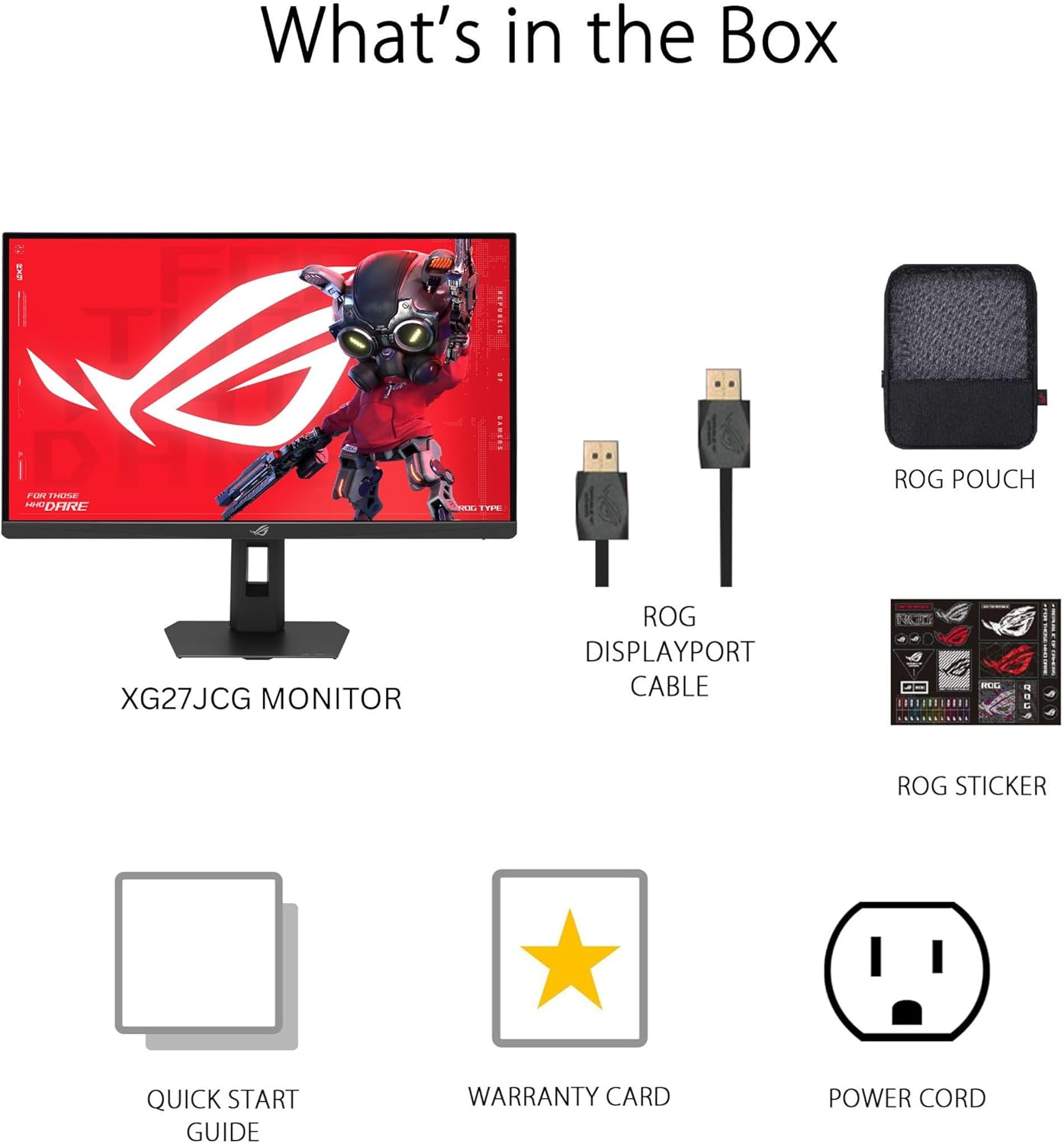
תְמוּנָה: Contents of the monitor packaging, showing the monitor, DisplayPort cable, ROG pouch, ROG sticker, Quick Start Guide, Warranty Card, and Power Cord.
הוראות התקנה
1. הרכבת המעמד
Carefully remove the monitor from its packaging. Attach the stand base to the stand neck, securing it with the provided screw. Then, attach the assembled stand to the back of the monitor until it clicks into place. Ensure all connections are firm.
2. חיבור למחשב
The monitor supports DisplayPort 1.4 (DSC), HDMI 2.1, and USB-C connectivity. Choose the appropriate cable for your system.
- DisplayPort: Connect one end of the DisplayPort cable to the monitor's DisplayPort input and the other end to your computer's DisplayPort output.
- HDMI: Connect one end of an HDMI 2.1 cable to the monitor's HDMI input and the other end to your computer's HDMI output.
- USB-C: Connect a USB-C cable to the monitor's USB-C port and to a compatible USB-C port on your computer. This connection also supports 15W power delivery.

תְמוּנָה: אֲחוֹרִי view of the monitor's connectivity ports, including HDMI 2.1, DisplayPort 1.4, USB Type-C, and a Headphone Jack.
3. חיבור חשמל
חבר את כבל החשמל לכניסת החשמל של הצג, ולאחר מכן חבר את הקצה השני לשקע חשמל.
4. הפעלה ראשונית
Press the power button located on the monitor to turn it on. The monitor will automatically detect the input source. If no image appears, ensure all cables are securely connected and the computer is powered on.
הוראות הפעלה
תפריט תצוגה על המסך (OSD).
Use the joystick and buttons on the back of the monitor to navigate the OSD menu. The OSD allows you to adjust various settings such as brightness, contrast, color, input source, and gaming features.
Display Modes and Refresh Rate
The monitor features a Dual Mode function, allowing you to switch between two primary display configurations:
- 5K (5120 x 2880) at 180Hz (OC): Provides ultra-sharp, immersive visuals suitable for cinematic content and detailed work.
- QHD (2560 x 1440) at 330Hz: Offers extremely high frame rates and responsive gaming action, ideal for competitive esports.
Switching between modes can be done via the OSD menu or a dedicated hotkey, if configured.

תְמוּנָה: Visual representation of the monitor's Dual Mode, allowing users to switch between 5K 180Hz and QHD 330Hz for different gaming experiences.
ROG Gaming A.I. Technology
This monitor includes AI-powered features designed to enhance your gaming experience:
- הגברת צל דינמית: Automatically brightens dark areas of the game world without overexposing bright areas, improving visibility of hidden enemies or details.
- צלב דינמי: Provides an on-screen crosshair that can adapt to the game environment, ensuring it remains visible against various backgrounds.
- בינה מלאכותית ויזואלית: Optimizes visual settings based on the game content for improved clarity and detail.

תְמוּנָה: Examples of Dynamic Crosshair and Dynamic Shadow Boost in action, showing how these features enhance visibility in games.
DisplayWidget Center
The DisplayWidget Center software provides seamless control over monitor settings directly from your Windows or macOS operating system. This utility allows for easy adjustment of GameVisual modes, MultiScreen configurations, and system settings without using the OSD buttons.

תְמוּנָה: Screenshot of the DisplayWidget Center software, demonstrating its user interface for adjusting monitor settings.
Ergonomics and Adjustments
The monitor stand offers multiple adjustment options to optimize your viewנוחות:
- הטיה: +20° עד -5°
- לְהִסְתוֹבֵב: +40° עד -40°
- צִיר: +90° to -90° (for portrait mode)
- התאמת גובה: 0 עד 110 מ"מ
Adjust the monitor to an ergonomic position that reduces strain on your neck and eyes. Ensure the top of the screen is at or slightly below eye level.

תְמוּנָה: Diagram illustrating the monitor's ergonomic adjustments, including tilt, swivel, pivot, and height.
תַחזוּקָה
ניקוי הצג
- יש לכבות תמיד את הצג ולנתק את כבל החשמל לפני הניקוי.
- השתמש במטלית רכה נטולת מוך מעט דampנשטפו במים או בחומר ניקוי מסך עדין ולא שוחק.
- אין לרסס חומר ניקוי ישירות על המסך. יש למרוח אותו תחילה על המטלית.
- הימנעו משימוש בחומרי ניקוי על בסיס אלכוהול, אמוניה או חומרים שוחקים, מכיוון שאלה עלולים לפגוע במשטח המסך.
טיפול כללי
- הרחק את הצג מאור שמש ישיר, מחום מוגזם ולחות.
- ודא אוורור נאות סביב הצג כדי למנוע התחממות יתר.
- הימנעו מהנחת חפצים כבדים על הצג או על הכבלים שלו.
פתרון בעיות
| בְּעָיָה | פתרון אפשרי |
|---|---|
| אין תמונה על המסך |
|
| התמונה מטושטשת או מעוותת |
|
| Screen flickers or shows artifacts |
|
| No sound from headphones (if connected to monitor) |
|
מפרטים
| תכונה | פְּרָט |
|---|---|
| מותג | ASUS |
| מספר דגם | XG27JCG |
| גודל מסך | 27 אינץ' |
| הַחְלָטָה | 5120 x 2880 (5K UHD) |
| סוג פאנל | IPS מהיר |
| קצב רענון | 180 Hz (OC) / QHD 330Hz (Dual Mode) |
| זמן תגובה | 0.3 אלפיות השנייה (GTG) |
| יחס גובה-רוחב | 16:9 |
| יחס ניגודיות | 600:1 |
| Viewזווית | 178 Degrees (H/V) |
| תמיכה ב-HDR | VESA DisplayHDR 600 |
| סולם צבעים | 97% DCI-P3 |
| סנכרון אדפטיבי | AMD FreeSync Premium Pro, G-SYNC Compatible |
| קישוריות | 1x DisplayPort 1.4 (DSC), 2x HDMI 2.1, 1x USB-C (with 15W PD), Headphone Jack |
| צריכת חשמל | 40 וואט |
| מידות פריט (D x W x H) | 8.59" D x 24.2" W x 20.1" H |
| משקל פריט | 6.9 פאונד |
| התאמות ארגונומיות | Tilt (+20° ~ -5°), Swivel (+40° ~ -40°), Pivot (+90° ~ -90°), Height (0~110mm) |
אחריות ותמיכה
This ASUS ROG Strix XG27JCG monitor comes with a אחריות לשנה. For warranty claims, technical support, or service inquiries, please contact ASUS customer support. Refer to the included Warranty Card for detailed terms and conditions.
You can find additional support resources, drivers, and FAQs on the official ASUS support webאֲתַר: www.asus.com/support/