
1. מידע בטיחות חשוב
Please read all instructions carefully before using this monitor. Keep this manual for future reference.
- אין לחשוף את הצג לגשם, לחות או טמפרטורות קיצוניות.
- ודא אוורור נאות סביב הצג כדי למנוע התחממות יתר.
- השתמש רק במתאם החשמל המצורף לצג.
- הימנעו מהנחת חפצים כבדים על כבל החשמל או הצג.
- נתק את תקע החשמל מהשקע אם לא תשתמש בצג למשך תקופה ממושכת.
- אל תנסה לטפל בצג בעצמך. יש לפנות לכל טיפול וטיפול באנשי מקצוע מוסמכים.
2. תכולת החבילה
ודא שכל הפריטים נמצאים בחבילה שלך:
- 27-inch QHD 210Hz Monitor (1 unit)
- Monitor Stand (1 unit)
- Quick Start Guide (QSG) (1 unit)
- DP Cable (1 unit)
- Power Adaptor (1 unit)
- כבל חשמל (יחידה אחת)
- Shielding Hood (2 units)

Video: KTC 27M1 27 Inch 210Hz Gaming Monitor. This video provides a visual overview of the monitor and its features.
3. הוראות התקנה
3.1 הרכבת מעמד הצג
- הוציאו בזהירות את רכיבי הצג והמעמד מהאריזה.
- Attach the stand base to the stand arm using the provided screw.
- Align the stand arm with the mounting slot on the back of the monitor and push until it clicks into place.
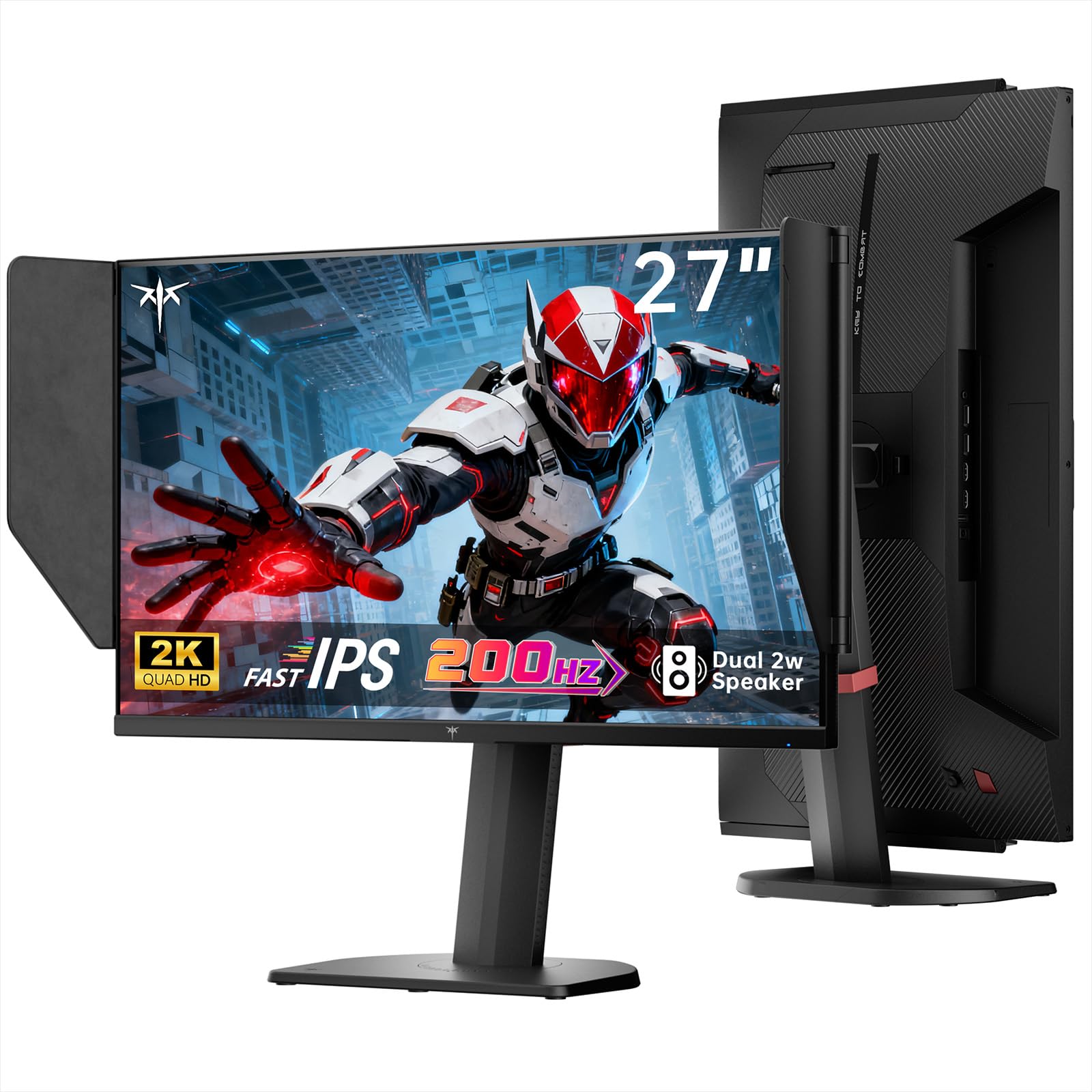
Image: The KTC 27M1 monitor with its stand fully assembled, ready for use.
3.2 Attaching the Shielding Hood
The shielding hood helps reduce glare and reflections for an optimal viewניסיון.
- Locate the two shielding hood pieces.
- Align each piece with the designated slots on the sides of the monitor and gently slide them into place until secure.

Image: The KTC 27M1 monitor shown with the shielding hood attached, designed to block reflected light.
3.3 כבלים חיבור
חבר את הצג למחשב שלך או להתקנים אחרים באמצעות הכבלים המתאימים:
- DisplayPort (DP): For 200Hz (overclockable to 210Hz) refresh rates, connect the DP cable from your graphics card to the monitor's DP 1.4 port.
- HDMI: For 144Hz refresh rates, connect an HDMI 2.0 cable from your device to one of the monitor's HDMI ports.
- כּוֹחַ: Connect the power adapter to the DC input on the monitor, then plug the power cord into a wall outlet.
- שֶׁמַע: Connect headphones or external speakers to the 3.5mm earphone jack if desired.

תמונה: תקריב view of the KTC 27M1 monitor's rear ports, including HDMI, DisplayPort, USB, and earphone jack.
4. הוראות הפעלה
4.1 הפעלה/כיבוי
Press the 5-way navigation joystick located on the back of the monitor to power it on or off.
4.2 ניווט בתפריט OSD
The 5-way navigation joystick is used to access and navigate the On-Screen Display (OSD) menu:
- לחץ על הג'ויסטיק כדי לפתוח את תפריט ה-OSD.
- Move the joystick Up/Down/Left/Right to navigate through menu options.
- לחץ שוב על הג'ויסטיק כדי לבחור אפשרות או לאשר הגדרה.
- Move the joystick Left to go back to the previous menu or exit the OSD.
4.3 התאמת הגדרות תצוגה
בתוך תפריט ה-OSD, ניתן לכוונן הגדרות תצוגה שונות:
- ניגוד בהירות: כוונן את רמות הבהירות והניגודיות הכוללות.
- הגדרות צבע: Modify color temperature (Warm, Cool, User), gamma, hue, and saturation. The monitor offers 130% sRGB color gamut and ΔE<2 for accurate color reproduction.
- הגדרת משחקים: Enable/disable Adaptive Sync (FreeSync/G-Sync Compatible), adjust Overdrive (Ultra Fast recommended for gaming), and activate Game Assist features.
- הגדרות מתקדמות: Toggle HDR (Auto/Off) and OverClock (to achieve 210Hz refresh rate).
- קֶלֶט: Manually select the input source (DP, HDMI1, HDMI2).
- סט מערכת: Change OSD language, LED indicator, audio volume, and other system preferences.
4.4 התאמות ארגונומיות
The monitor stand supports multiple ergonomic adjustments for comfortable viewing:
- התאמת גובה: Adjust the monitor height by 150±5mm.
- הטיה: Tilt the screen from -5° to 35°.
- לְהִסְתוֹבֵב: Swivel the monitor ±60°.
- צִיר: Pivot the screen from -5° to 90° for vertical orientation.

Image: Visual representation of the KTC 27M1 monitor's tilt, swivel, elevate, and pivot adjustments.
5. תכונות
- לְהַצִיג: 27-inch QHD (2560x1440) Fast IPS panel.
- קצב רענון: 200Hz, overclockable to 210Hz.
- זמן תגובה: 1ms (MPRT) for sharp visuals.
- דיוק צבע: 130% sRGB color gamut, 99% DCI-P3 coverage, ΔE<2, 450 cd/m² brightness, 1.07 Billion Colors, 1000:1 Contrast Ratio.
- סנכרון אדפטיבי: FreeSync and G-Sync Compatible to eliminate screen tearing.
- טיפול עיניים: Flicker-free and low blue light modes for extended comfortable viewing.
- שֶׁמַע: Built-in dual 2W speakers.
- קישוריות: 2x HDMI 2.0 ports, 1x DisplayPort 1.4 port, 1x USB 2.0 port, 1x Earphone jack.
- הַרכָּבָה: 100x100mm VESA mount compatible.
- לְעַצֵב: Includes a detachable shielding hood to block reflected light.

Image: The KTC 27M1 monitor displaying vibrant colors, highlighting its color accuracy and brightness features.
6. מפרטים
| תכונה | מִפרָט |
|---|---|
| מותג | CTC |
| מספר דגם | H27T8 (Marketed as 27M1) |
| גודל מסך | 27 אינץ' |
| רזולוציה מקורית | 2560x1440 (רזולוציה גבוהה במיוחד) |
| טכנולוגיית תצוגה | IPS מהיר |
| קצב רענון | 200 Hz (Overclockable to 210 Hz) |
| זמן תגובה | מילישנייה אחת (MPRT) |
| בְּהִירוּת | 450 קנדלה (cd/m²) |
| יחס ניגודיות | 1000:1 |
| סולם צבעים | 130% sRGB, 99% DCI-P3 |
| Viewזווית | 178 מעלות |
| תמיכה ב-HDR | כֵּן |
| סנכרון אדפטיבי | FreeSync, G-Sync Compatible |
| רמקולים מובנים | 2x 2W Speakers |
| קישוריות | 2x HDMI 2.0, 1x DisplayPort 1.4, 1x USB 2.0, 1x Earphone |
| הרכבה VESA | 100x100 מ"מ |
| ארגונומיה | כוונון גובה, הטיה, סיבוב, ציר |
| צריכת חשמל | 48 וואט |
7. תחזוקה וטיפול
- ניקוי המסך: נגבו בעדינות את המסך בעזרת מטלית רכה ונטולת סיבים. במקרה של סימנים עקשניים,ampen the cloth with a mild, non-abrasive screen cleaner.
- ניקוי ה-Casing: השתמשו במטלית רכה ויבשה לניקוי הצגasinז. הימנעו משימוש בחומרי ניקוי חזקים או שוחקים.
- אוורור: Ensure the ventilation openings on the monitor are clear and unobstructed to prevent overheating.
- אִחסוּן: If storing the monitor for an extended period, disconnect it from power and store it in a cool, dry place.
8. פתרון תקלות
8.1 אין כוח
- בדוק אם כבל החשמל מחובר היטב לצג ולשקע החשמל.
- ודא ששקע החשמל פועל כראוי על ידי חיבור מכשיר אחר.
- ודא שמתאם החשמל מחובר כהלכה.
8.2 No Signal/Blank Screen
- Confirm that the video cable (DP or HDMI) is securely connected to both the monitor and your computer/device.
- Press the OSD joystick to open the menu and manually select the correct input source.
- ודא שהמחשב/המכשיר שלך דלוק ואינו במצב שינה.
- Try using a different video cable or port to rule out cable/port issues.
8.3 Flickering/Distorted Image
- בדוק את כבל הווידאו עבור כל נזק או חיבורים רופפים.
- Adjust the refresh rate in your computer's display settings to match the monitor's native refresh rate (200Hz or 210Hz if overclocked).
- Enable Adaptive Sync (FreeSync/G-Sync Compatible) in the monitor's OSD menu and your graphics card settings.
- ודא שמנהלי ההתקן של כרטיס המסך שלך מעודכנים.
8.4 No Sound from Built-in Speakers/Earphone Jack
- Check the volume settings in the monitor's OSD menu and your computer's operating system.
- ודא שהתקן פלט השמע הנכון נבחר בהגדרות הקול של המחשב שלך.
- Verify that the audio cable (if using external speakers) or headphones are properly connected.
9. אחריות ותמיכה
KTC is committed to providing quality service and support for your monitor.
- אַחֲרָיוּת: This product comes with a 3-year quality guarantee.
- תמיכה טכנית: Lifetime technical support is available for all KTC products.
- צור קשר: If you have any questions or encounter issues, please contact KTC customer support. Solutions will be provided within 24 hours.