
1. הקדמה
Thank you for choosing the Pisichen 27-inch 4K UHD Touchscreen Monitor with Webcam. This manual provides essential information for the safe and efficient operation of your new monitor. Please read it thoroughly before use and retain it for future reference.
2. מידע בטיחות
- מקור כוח: Use only the power adapter supplied with the monitor. Ensure the power outlet meets the voltagדרישות ה.
- אוורור: אין לחסום פתחי אוורור. יש להשאיר מרווח מספיק סביב הצג לזרימת אוויר תקינה.
- חשיפה לנוזלים: הרחק את הצג מנוזלים. אין לחשוף אותו לגשם או לחות.
- ניקוי: Disconnect the power cable before cleaning. Use a soft, dry cloth. Avoid abrasive cleaners.
- מיקום: הנח את הצג על משטח יציב ושטוח כדי למנוע ממנו ליפול.
- שֵׁרוּת: אל תנסה לטפל בצג בעצמך. יש לפנות לכל טיפול וטיפול באנשי מקצוע מוסמכים.
3. תכולת החבילה
אנא בדקו את תוכן האריזה בעת הוצאת המוצר מהאריזה. אם חסרים פריטים או פריטים פגומים, צרו קשר עם הספק שלכם.
- Pisichen 27-inch 4K UHD Touchscreen Monitor
- מעמד למסך (בסיס וזרוע)
- מתאם מתח
- כבל HDMI
- USB-B to USB-A Cable (for Touch Function)
- מדריך למשתמש
4. המוצר נגמרview
4.1 תכונות עיקריות
- Ultra HD 4K Touchscreen Display: 27-inch 4K Ultra HD screen with vibrant colors, sharp details, and wide viewing angles. Features a responsive 10-point touchscreen for intuitive control.
- Built-in High-Definition Webפִּקָה: מְשׁוּלָב webcam for video calls, online meetings, and streaming, reducing desk clutter.
- קישוריות רב-תכליתית: Multiple ports including HDMI, DisplayPort, and USB-C for easy connections to various devices. Supports both touch and traditional input.
- Optimized for Productivity and Creativity: Large 4K touch display for precise control and streamlined workflows, ideal for graphic designers, content creators, and multitasking.
- Sleek and Functional Design: Modern design with an adjustable stand for optimal viewing angles and comfort during extended use.
4.2 יציאות צג
The monitor features various ports for connecting to your devices. Refer to the image below for port identification.
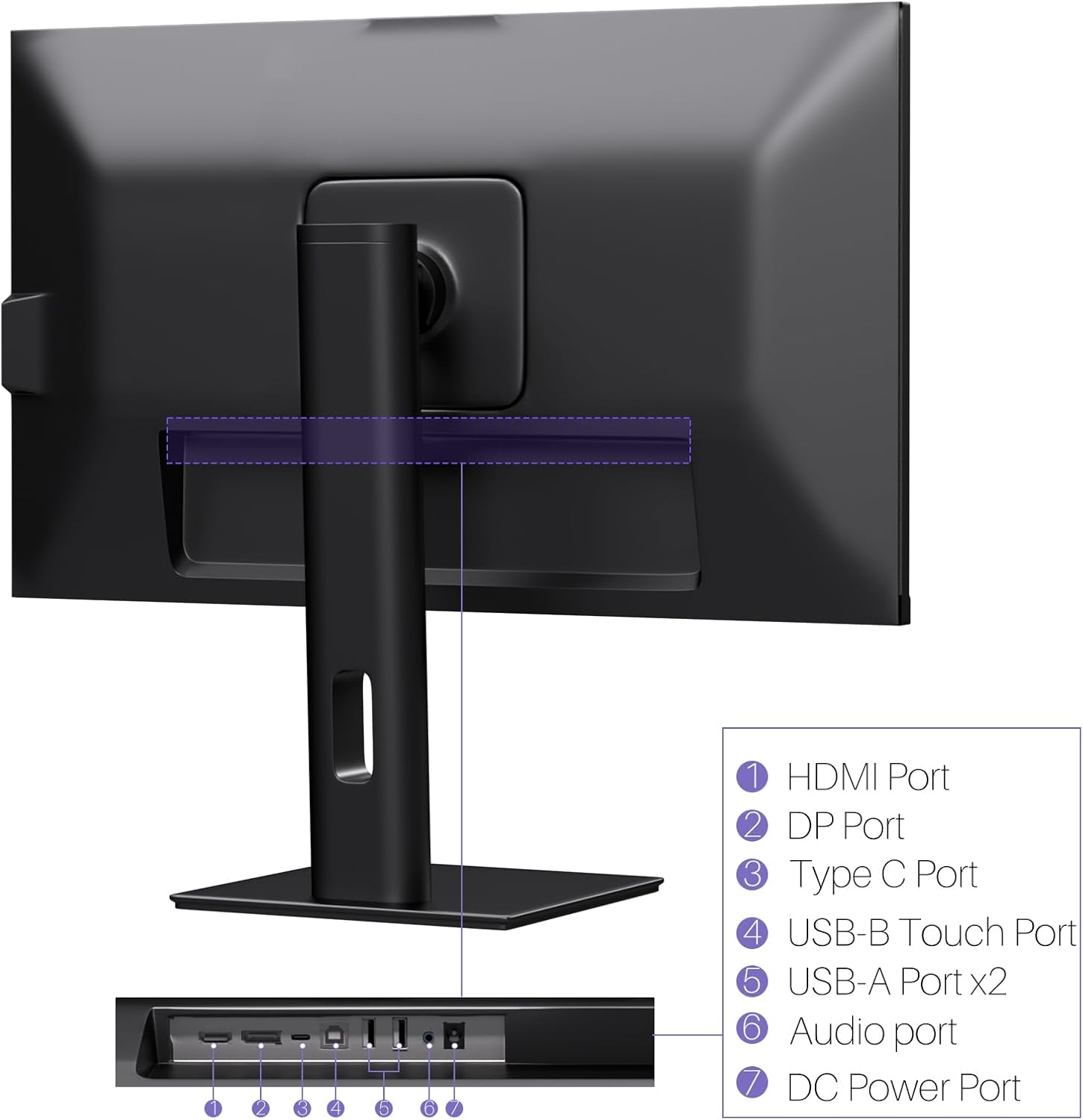
תמונה: אחורי view of the monitor displaying the HDMI, DP, Type-C, USB-B Touch, USB-A, Audio, and DC Power ports.
- יציאת HDMI: Connects to devices via HDMI cable for video and audio input.
- יציאת DP: Connects to devices via DisplayPort cable for video and audio input.
- סוג C נמל: Connects to devices via USB-C cable for video, audio, and power delivery. (Requires USB-C port on signal device to support DisplayPort Alternate Mode for touch functionality).
- USB-B Touch Port: Connects to your computer via USB-B to USB-A cable to enable touchscreen functionality.
- יציאת USB-A (x2): לחיבור ציוד היקפי מסוג USB.
- יציאת שמע: לחיבור התקני שמע חיצוניים.
- יציאת מתח DC: מתחבר למתאם החשמל.
5. הוראות התקנה
5.1 הרכבת המעמד
- הוציאו בזהירות את רכיבי הצג והמעמד מהאריזה.
- Attach the stand arm to the monitor's VESA mounting points.
- Secure the stand base to the arm using the provided screws.
- Ensure all connections are tight and the monitor is stable.
5.2 התחברות למכשיר
The monitor supports various connection types. Choose the appropriate cable for your device.

Image: Connection diagrams illustrating how to connect the monitor as a secondary display (HDMI/DP + DC), a touchscreen monitor (HDMI/DP + USB-B + DC), or via USB-C (USB-C + DC).
- For Video and Audio (Non-Touch): Connect an HDMI or DisplayPort cable from your computer to the corresponding port on the monitor.
- For Video, Audio, and Touch (Windows PC): Connect an HDMI or DisplayPort cable for video/audio. Additionally, connect the USB-B to USB-A cable from the monitor's USB-B Touch Port to a USB-A port on your computer.
- For Video, Audio, and Touch (USB-C Compatible Device): Connect a USB-C cable from your device to the monitor's Type-C port. Ensure your device's USB-C port supports DisplayPort Alternate Mode for touch functionality.
5.3 חיבור מתח
- Connect the power adapter to the monitor's DC Power Port.
- חבר את מתאם החשמל לשקע בקיר.
6. הוראות הפעלה
6.1 הפעלה/כיבוי
לחץ על לחצן ההפעלה הממוקם על הצג כדי להפעיל או לכבות אותו.
6.2 תפריט תצוגה על המסך (OSD).
Use the control buttons (typically located on the back or bottom of the monitor) to navigate the OSD menu. This menu allows you to adjust settings such as brightness, contrast, color temperature, input source, and other display parameters.
6.3 פונקציונליות מסך מגע
The monitor features a 10-point multi-touch screen. Ensure the USB-B to USB-A cable (or USB-C cable for compatible devices) is connected to enable touch functionality.

Image: A user's hand interacting with the monitor screen, highlighting the responsive 10-point touch experience.
- Basic Touch: Tap to click, swipe to scroll.
- Multi-Touch Gestures: Use two fingers to zoom in/out, rotate, or pan, depending on the application.
- Touch Calibration (Windows Only): If the cursor does not align with your touch, calibration may be required. Go to Control Panel > Hardware and Sound > Tablet PC Settings > Calibrate. Follow the on-screen prompts.
6.4 Using the Built-in Webפִּקָה
המשולב webcam is automatically detected by most operating systems and video conferencing applications. No additional drivers are typically required.

Image: The monitor displaying a video conference call, showcasing its integrated webcam for seamless communication.
- פתחו את תוכנת שיחות הווידאו המועדפת עליכם (למשל, זום, מיקרוסופט טימס, סקייפ).
- בחר את המשולב webcam as your video input device in the application's settings.
6.5 Adjusting Display Resolution
To set the resolution of the monitor (Windows):
- לחץ לחיצה ימנית על שולחן העבודה ובחר "הגדרות תצוגה".
- Find your monitor (if multiple displays are connected).
- Under "Display resolution," select the recommended resolution of 3840 x 2160.
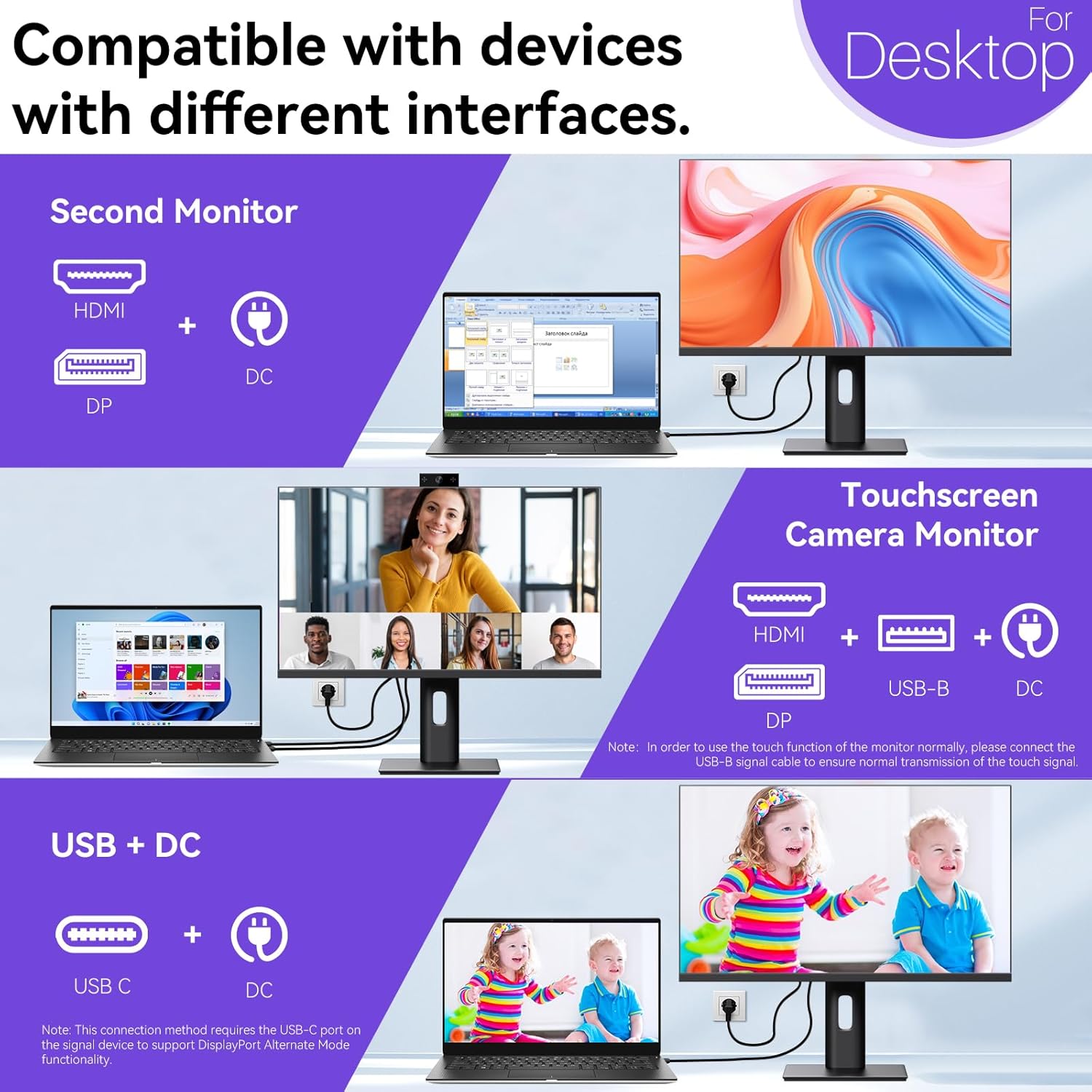
Image: A visual comparison demonstrating the superior clarity of 4K UHD (3840x2160) compared to FHD (1920x1080) and QHD (2560x1440) resolutions.
7. תחזוקה
- ניקוי המסך: נגבו בעדינות את המסך בעזרת מטלית רכה ונטולת סיבים. במקרה של סימנים עקשניים, נגבו קלותampשטפו את המטלית במים או בתמיסת ניקוי ייעודית למסך. אין לרסס נוזל ישירות על המסך.
- ניקוי ה-Casing: השתמשו במטלית רכה ויבשה לניקוי הצגasing.
- אִחסוּן: If storing the monitor for an extended period, disconnect it from power, pack it in its original packaging, and store it in a cool, dry place.
8. פתרון תקלות
If you encounter issues with your monitor, refer to the following troubleshooting guide. For problems not listed, please contact customer support.
| בְּעָיָה | סיבה אפשרית | פִּתָרוֹן |
|---|---|---|
| אין תמונה על המסך | כבל חשמל מנותק; כבל וידאו מנותק; נבחר מקור קלט שגוי. | Ensure power cable is securely connected. Check video cable (HDMI/DP/USB-C) connections. Select correct input source via OSD menu. |
| מסך מגע לא מגיב | USB-B cable not connected; USB-C port not supporting DisplayPort Alternate Mode; Device incompatibility (e.g., iPhone). | Ensure the USB-B to USB-A cable is connected from the monitor to your computer. If using USB-C, verify your device's USB-C port supports DisplayPort Alternate Mode. Note: Touch function is not supported when connected to an iPhone due to iOS system restrictions. |
| Cursor moves incorrectly (Windows) | Touchscreen calibration required. | Perform touchscreen calibration: Go to Control Panel > Hardware and Sound > Tablet PC Settings > Calibrate. |
| Webמצלמת לא זוהתה | USB connection issue; Software settings. | Ensure all necessary USB cables are connected. Check your application's settings to select the correct webפִּקָה. |
9. מפרטים
| תכונה | פְּרָט |
|---|---|
| מותג | פישין |
| מספר דגם | 27INTSCMR-4K |
| גודל מסך | 27 אינץ' |
| הַחְלָטָה | 3840 x 2160 פיקסלים (4K UHD 2160p) |
| יחס גובה-רוחב | 16:9 |
| בהירות תמונה | 400 קנדלה |
| תיאור משטח המסך | מַברִיק |
| מידות המוצר | 14.37 x 24.21 x 16.54 אינץ' |
| משקל פריט | 16.59 פאונד |
| יַצרָן | שנזן קונובה אלקטרוניקה בע"מ |
| קישוריות | HDMI, DisplayPort, USB-C, USB-B (for touch), USB-A (x2), Audio Port |
10. אחריות ותמיכה
This product comes with a manufacturer's warranty. Please refer to the warranty card included in your package for specific terms and conditions. For technical support or inquiries, please contact Pisichen customer service at support_2308@163.com. When contacting support, please provide your model number and a detailed description of the issue, including any relevant pictures or videos.