
1. הקדמה
The ASUS ROG Strix GS-BE12000 is a high-performance tri-band WiFi 7 router designed for demanding network environments, including gaming, streaming, and smart home integration. This manual provides essential information for setting up, operating, maintaining, and troubleshooting your router to ensure optimal performance and security.

תמונה: מעלview of the ASUS ROG Strix GS-BE12000 Router highlighting its design and key features.
2. תכולת החבילה
ודא שכל הפריטים נמצאים באריזת המוצר שלך:
- ASUS ROG Strix GS-BE12000 Tri-Band Gaming Router
- מתאם מתח
- כבל RJ-45
- מדריך להתחלה מהירה
- תעודת אחריות
3. התקנה
Follow these steps for initial setup of your ASUS ROG Strix GS-BE12000 router:
- חבר את הנתב:
- Connect the power adapter to the router's DC-in port and plug it into a power outlet.
- Connect one end of the provided RJ-45 cable to your modem's LAN port and the other end to the router's 2.5G WAN port.
- Optionally, connect your computer to one of the router's LAN ports using an Ethernet cable for initial configuration.
- הפעלה: Press the power button on the router. Wait for the indicator lights to stabilize, typically indicating a successful connection.
- תצורה ראשונית:
- פתח א web דפדפן במחשב או במכשיר הנייד המחובר שלך.
- Navigate to the router's default IP address (usually
router.asus.comor192.168.1.1). - Follow the on-screen instructions in the Quick Internet Setup wizard to configure your internet connection, Wi-Fi network name (SSID), and password.

תמונה: אחורי view of the router displaying the 2.5G WAN port and multiple 2.5G LAN ports for wired connections.
4. הוראות הפעלה
4.1. Wi-Fi 7 Tri-Band Connectivity
The GS-BE12000 supports Wi-Fi 7 (802.11be) with tri-band operation (2.4 GHz, 5 GHz, and 6 GHz) for maximum throughput and reduced latency. It features 320 MHz channels on the 6 GHz band, Multi-Link Operation (MLO), and 4K-QAM for enhanced performance.

Image: Visual representation of Wi-Fi 7 tri-band capabilities, including 6 GHz, 5 GHz, and 2.4 GHz speeds, MLO, and 4K-QAM.
4.2. קישוריות קווית
The router offers a robust wired capacity of up to 20G, featuring one 2.5G WAN port and seven 2.5G LAN ports. This allows for high-speed connections to multiple devices, ideal for gaming consoles, PCs, and network-attached storage (NAS).

Image: Diagram detailing the router's wired ports, including 2.5G WAN, 2.5G LAN, and dedicated gaming ports.
4.3. Game Acceleration and ROG Gaming Network
Utilize the ROG-exclusive Gaming Network for one-tap SSID game acceleration. This feature streamlines advanced network settings to prioritize gaming traffic, ensuring low ping and reduced lag. The Smart Home Master function allows for easy setup of subnetworks for IoT devices and VPNs.

Image: User interface showing options for ROG Exclusive Gaming Network and Smart Home Master for network management.
4.4. AiMesh Compatibility
The GS-BE12000 is AiMesh compatible, allowing you to create a seamless whole-home mesh Wi-Fi system by adding other AiMesh-compatible ASUS routers. This extends coverage and eliminates Wi-Fi dead zones.

Image: Diagram showing how AiMesh extends Wi-Fi coverage throughout a multi-room environment.
5. תחזוקה
תחזוקה שוטפת מבטיחה את אורך החיים והביצועים האופטימליים של הנתב שלך:
- עדכוני קושחה: בדוק באופן קבוע אם קיימים עדכוני קושחה והתקן אותם באמצעות אפליקציית הנתב של ASUS או web ממשק. עדכוני קושחה כוללים לעתים קרובות שיפורי ביצועים, תיקוני אבטחה ותכונות חדשות.
- ניקוי פיזי: Keep the router in a well-ventilated area. Periodically clean dust from the vents and surfaces using a soft, dry cloth. Avoid using liquid cleaners.
- הפעלה מחדש: אם אתם חווים בעיות רשת, נסו להפעיל מחדש את הנתב על ידי ניתוקו משקע החשמל למשך 30 שניות ולאחר מכן חיבורו מחדש.
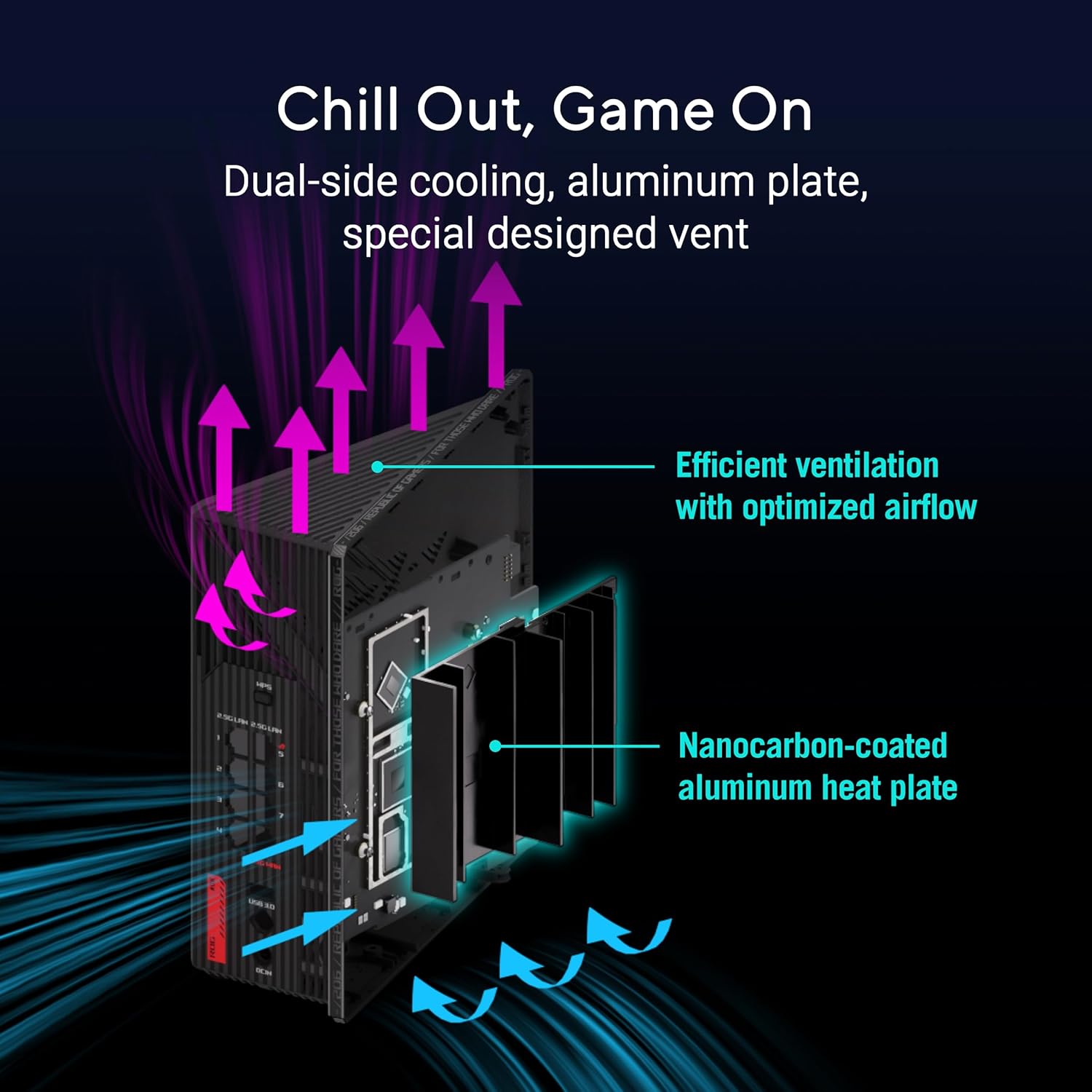
תמונה: פנימי view of the router highlighting its dual-side cooling and nanocarbon-coated aluminum heat plate for efficient heat dissipation.
6. פתרון תקלות
אם נתקלת בבעיות עם הנתב שלך, עיין בפתרונות הנפוצים הבאים:
- אין חיבור אינטרנט:
- בדוק את כל חיבורי הכבלים (חשמל, WAN, LAN) כדי לוודא שהם מאובטחים.
- הפעל מחדש את המודם והנתב.
- ודא את סטטוס החיבור של ספק שירותי האינטרנט (ISP) שלך.
- מהירות Wi-Fi איטית:
- ודאו שהמכשירים שלכם מחוברים לפס ה-Wi-Fi המתאים (6 GHz או 5 GHz למהירויות גבוהות יותר).
- הפחתת הפרעות על ידי הרחקת הנתב ממכשירים אלקטרוניים אחרים.
- עדכן את הקושחה ואת מנהלי ההתקנים של הנתב שלך.
- Wi-Fi Drops:
- Check for physical obstructions or distance from the router. Consider using AiMesh nodes for extended coverage.
- Ensure the router is placed centrally in your home.
For more detailed troubleshooting or advanced issues, consult the official ASUS support webאתר או צור קשר עם תמיכת הלקוחות.
7. מפרטים
| תכונה | תֵאוּר |
|---|---|
| מותג | ASUS |
| שם הדגם | GS-BE12000 |
| מחלקה להקת תדרים | תלת-תדר (2.4 גיגה-הרץ, 5 גיגה-הרץ, 6 גיגה-הרץ) |
| תקן אלחוטי | WiFi 7 (802.11be), WiFi 6 (802.11ax) |
| קצב העברת נתונים | עד 12000 Mbps |
| Wired Capacity | Up to 20G (1x 2.5G WAN, 7x 2.5G LAN) |
| מעבד | ארבע ליבות במעבד 2.0GHz |
| אַיִל | 2 ג'יגה-בייט |
| אנטנות | 8 אנטנות פנימיות |
| כיסוי | עד 3000 מ"ר. |
| פרוטוקול אבטחה | AiProtection Pro, WPA/WPA2/WPA3 Personal/Enterprise |
| שיטת בקרה | אפליקציה, לחצן לחיצה |
| מידות (L x W x H) | אורך 8.9 אינץ', רוחב 3.5 אינץ', גובה 8.9 אינץ' |
| משקל פריט | 2.04 פאונד |
8. אחריות ותמיכה
The ASUS ROG Strix GS-BE12000 comes with a אחריות לשנה from the manufacturer. For warranty claims, technical support, or additional product information, please visit the official ASUS support website or the ASUS Store.
חנות ASUS: בקרו בחנות ASUS באמזון