
1. המוצר נגמרview
The KEFEYA KX2 is a portable 14-inch Full HD 1080P IPS dual laptop monitor extender designed to enhance productivity by providing additional screen real estate. It features a lightweight, ultra-portable design with versatile connectivity options for a seamless multi-screen experience.
- נייד במיוחד וקל משקל: Weighing only 1.9lb, this screen extender is designed for easy transport, making it ideal for mobile workstations.
- Vibrant FHD IPS Display: Enjoy sharp, clear visuals with a 14-inch IPS panel, 1080P FHD resolution, 60Hz refresh rate, 300CD/M² brightness, and 1000:1 contrast ratio.
- Wide Compatibility & Plug-Play: Supports one-cable connectivity via USB-C and is compatible with Windows, MacBook, Switch, PS5, and more. Also supports HDMI + USB-A connections.
- Stable Clip-On Design: Features top dual clips and a side retractable clip for secure attachment to 13-17 inch laptops, preventing slippage.
- גָמִישׁ Viewing: The screen rotates 226° and the retractable stand adjusts 90° for ergonomic positioning. Supports Extended, Duplicated, and Portrait modes.

Image: The KEFEYA KX2 14-inch Dual Laptop Screen Extender attached to a laptop, showcasinפונקציונליות המסך הכפול שלו.
2. הוראות התקנה
2.1. פירוק ורכיבים
לפני ההתקנה, ודא שכל הרכיבים קיימים:
- KX2 Monitor (Item 1)
- USB-A to USB-C Cable (Item 2)
- USB-C to USB-C Cable (Item 3)
- HDMI to Mini HDMI Cable (Item 4)
- User Manual (Item 5)

Image: A visual representation of the KEFEYA KX2 packing list, detailing the monitor, cables, and documentation.
2.2. Attaching to Your Laptop
- Open the screen extender. The screen is facing up.
- Slide out the outrigger arms to fit your laptop's width (compatible with 13 to 17.3 inch laptops).
- Adjust the kickstand: First, open the support rod and stretch it to the appropriate size. The support rod only supports counter-clockwise rotation of 90 degrees. The maximum opening angle of the support rod is 90 degrees; excessive folding may damage it.
- Securely clip the extender onto the top edge of your laptop screen using the top dual clips and side retractable clip.
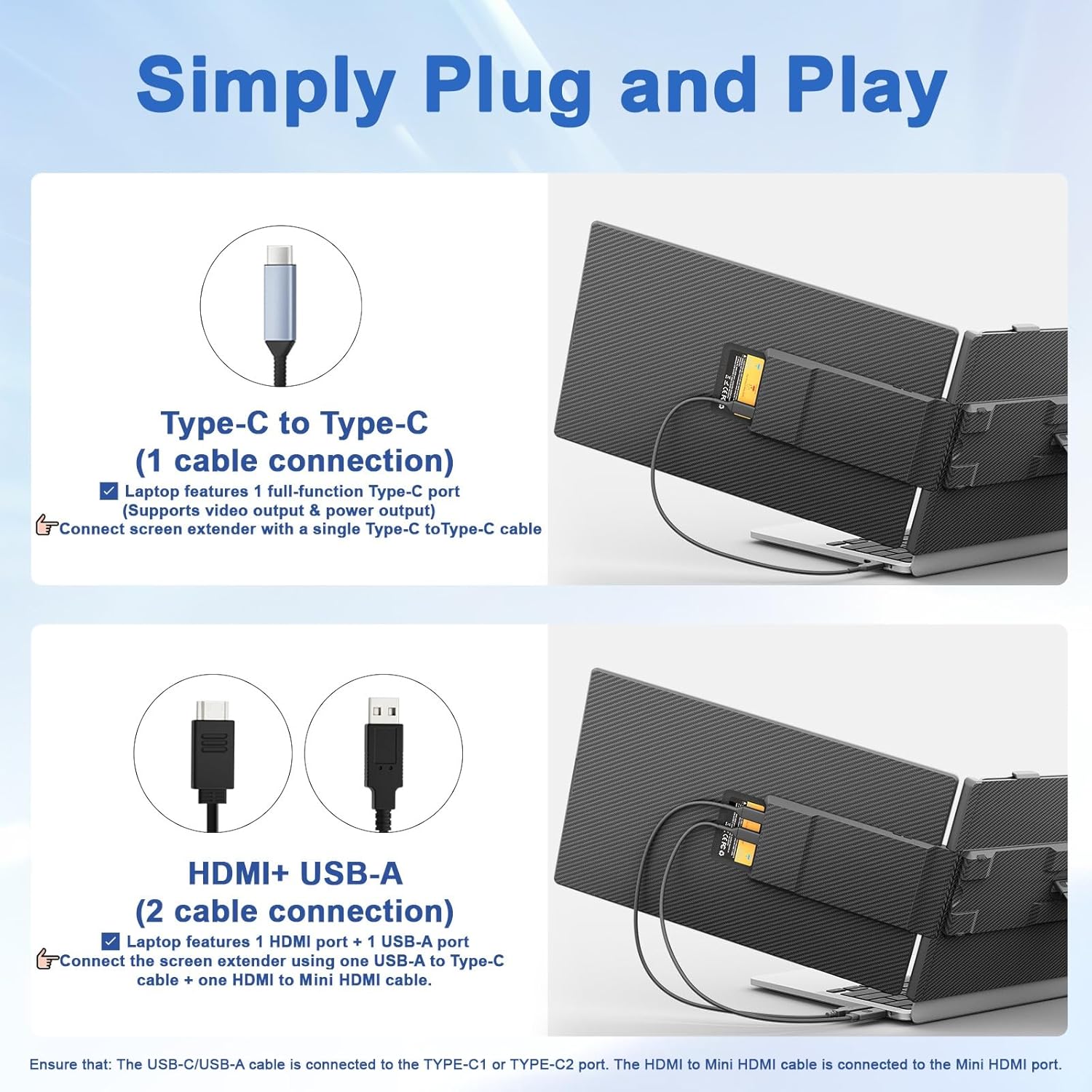
Image: The KEFEYA KX2 extender showcasing its ultra-portable design, including the wider and thicker kickstand with 0-90° adjustment and non-slip top clamps.
2.3. חיבור למחשב הנייד שלך
The KX2 offers flexible connection options:
- Type-C (1 cable connection): If your laptop has a full-functional Type-C port (supporting video output & power output), use one USB-C to USB-C cable to connect the product to your laptop. Connect the USB-C cable to the screen extender's port with "TYPE-C1" or "TYPE-C2" marked.
- HDMI + USB-A (2 cable connection): If your laptop has 1 HDMI port + 1 USB-A port, use two cables: one USB-A to USB-C cable to connect the screen extender using one USB-A to Type-C cable + one HDMI to Mini HDMI cable. The HDMI-to-Mini HDMI cable must be connected to the MINI HDMI port of the video screen extender. Please connect the USB-C cable to the screen extender's port with "TYPE-C1" or "TYPE-C2" marked.
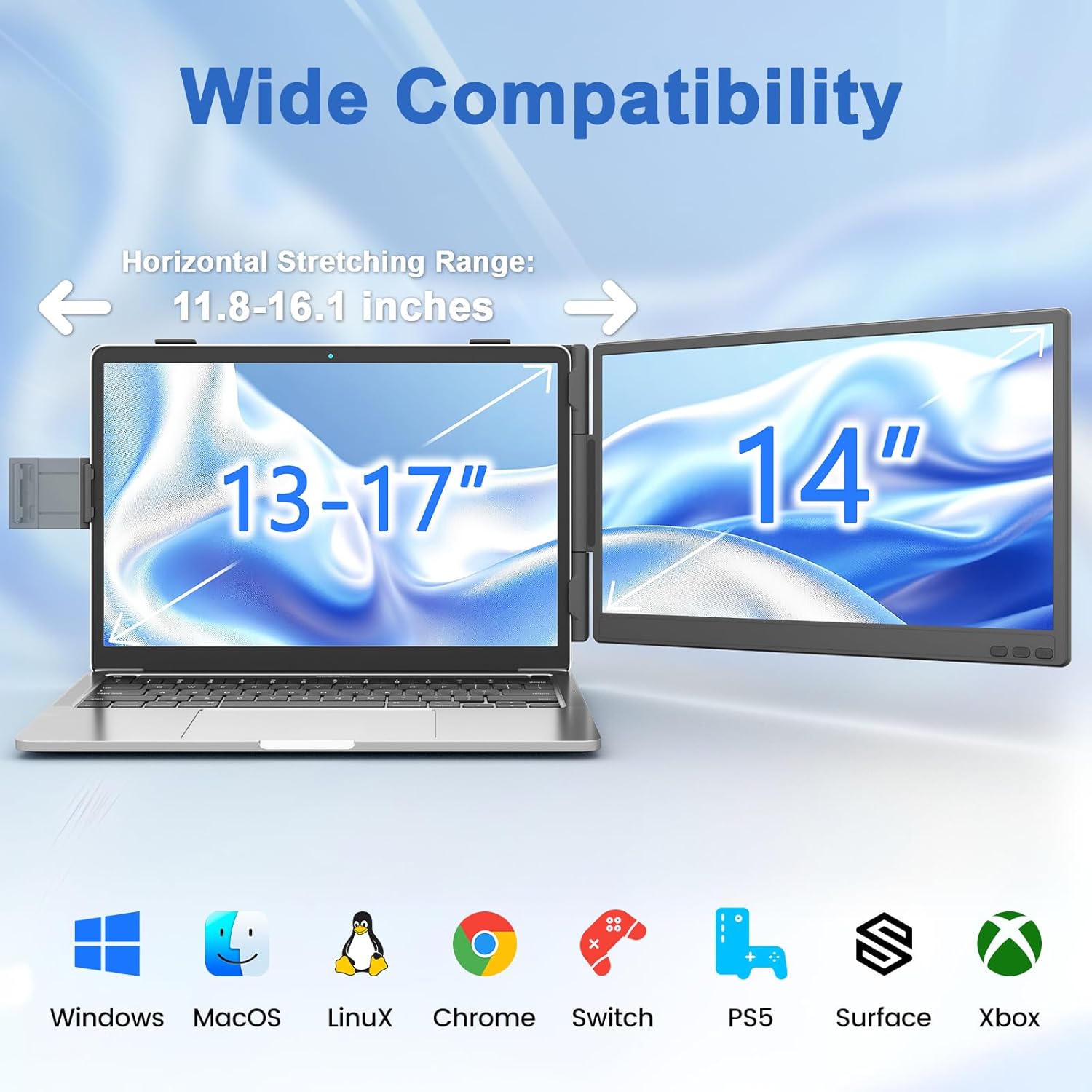
Image: Diagram illustrating the two primary connection methods for the KEFEYA KX2: a single USB-C cable or a combination of HDMI and USB-A cables.
פֶּתֶק:
- If power supply to the computer via the screen splitter is required, use a Type-C cable to connect the screen splitter to the computer. Meanwhile, the screen splitter must be connected to an external PD adapter with a power rating of 65W or higher, and the computer's Type-C port must support PD protocol for charging.
- If the display has no signal or the signal is unstable after connection, please connect an external 5V/2A power adapter to power the screen extender.
3. הוראות הפעלה
3.1. התאמת הגדרות תצוגה
The KX2 features buttons for menu navigation, volume adjustment, and backlight adjustment:
- לחצן תפריט/בחירה/אישור: לחץ והחזק למשך 2 שניות כדי לחזור. לחץ והחזק למשך 3 שניות כדי לכבות.
- "Plus" Button: התאמת עוצמת הקול.
- "Minus" Button: התאמת תאורה אחורית.
To adjust volume, press the "Plus" button first, then use either "Plus" or "Minus". To adjust backlight, press the "Minus" button first, then use either "Plus" or "Minus".
3.2. מצבי תצוגה
The screen extender supports various display modes to suit your workflow:
- מצב מורחב: Expands your desktop across multiple screens.
- Duplicated (Mirror) Mode: Duplicates your primary screen's content.
- מצב דיוקן: Rotates the display for vertical viewing, ideal for documents or code.

תמונה: דוגמה חזותיתamples of the KEFEYA KX2 operating in Portrait, Extend, and Mirror display modes.
3.3. תאימות
The KEFEYA KX2 is widely compatible with various operating systems and devices:
- מערכות הפעלה: Windows, MacOS, Linux, Chrome OS.
- מכשירים: Laptops (13-17 inches), Nintendo Switch, PS5, Surface, Xbox.

Image: The KEFEYA KX2 demonstrating wide compatibility with different laptop sizes and gaming consoles.
4. תחזוקה
To ensure the longevity and optimal performance of your KEFEYA KX2 screen extender, please follow these maintenance guidelines:
- ניקוי: Use a soft, dry cloth to gently wipe the screen and exterior. Avoid abrasive cleaners or solvents.
- טיפול: Always handle the device with care. Avoid dropping it or subjecting it to strong impacts.
- אִחסוּן: When not in use, ensure the small flap closes properly before storing the screen. Store in a cool, dry place away from direct sunlight and extreme temperatures.
- הימנע מחפצים חדים: Do not use sharp tools or objects near the screen, as this may cause scratches or damage.
- קלט כוח: Ensure the DC power input is suitable for the product to prevent damage.
5. פתרון תקלות
If you encounter issues with your KEFEYA KX2, refer to the following common problems and solutions:
- No Signal / Unstable Signal:
- Ensure all cables (USB-C, HDMI, USB-A) are securely connected to both the screen extender and your device.
- If using HDMI + USB-A, confirm the USB-A cable is connected to a power source (e.g., external 5V/2A adapter) to power the screen extender.
- Verify that your laptop's USB-C port is full-featured (supports video output and power delivery) if using a single USB-C cable.
- Try connecting to a different port on your laptop or another device to rule out port issues.
- Screen Does Not Light Up:
- Confirm the screen extender is receiving adequate power. Connect an external 5V/2A power adapter if your computer cannot provide enough power.
- Check the power button on the screen extender to ensure it's not accidentally turned off.
- Display Settings Issues (Resolution, Orientation):
- Adjust display settings directly on your computer's operating system (e.g., Windows Display Settings, MacOS Displays).
- Ensure the resolution is set to 1920x1080 for optimal clarity.
- For orientation, adjust in your computer's display settings to Extended, Duplicated, or Portrait mode as desired.
For further assistance, please consult the full user manual or contact KEFEYA customer support.
6. מפרטים
| תכונה | מִפרָט |
|---|---|
| מותג | KEFEYA |
| שם הדגם | KX2 |
| גודל מסך | 14 אינץ' |
| הַחְלָטָה | רזולוציית FHD 1080p (1920 x 1080 פיקסלים) |
| סוג תצוגה | IPS LCD |
| קצב רענון | 60 הרץ |
| בְּהִירוּת | 300 קנדלה למטר מרובע |
| יחס ניגודיות | 1000:1 |
| Viewזווית | 178 מעלות |
| זמן תגובה | 5 אלפיות שניות |
| טכנולוגיית קישוריות | USB-C, Mini HDMI, USB-A |
| משקל פריט | 0.88 קילוגרם (1.9 פאונד) |
| מידות פריט (D x W x H) | 1.1" D x 13.5" W x 8.15" H |
| צֶבַע | שָׁחוֹר |
7. אחריות ותמיכה
The KEFEYA KX2 Laptop Screen Extender comes with a אחריות לשנה מתאריך הרכישה. אחריות זו מכסה פגמי ייצור ומבטיחה שהמוצר שלך יתפקד כמתוכנן בשימוש רגיל.
For any issues, questions, or support needs, please contact the KEFEYA customer service team. Our team is dedicated to providing a hassle-free experience and will assist you with troubleshooting or warranty claims.
Please refer to the contact information provided in your user manual or on the official KEFEYA webאתר לערוצי התמיכה העדכניים ביותר.