1. הקדמה
תודה שבחרת ב- Viewedge 49" Curved DQHD 120Hz Gaming Monitor. This manual provides essential information for the proper installation, operation, and maintenance of your monitor. Please read it thoroughly before using the product and retain it for future reference.
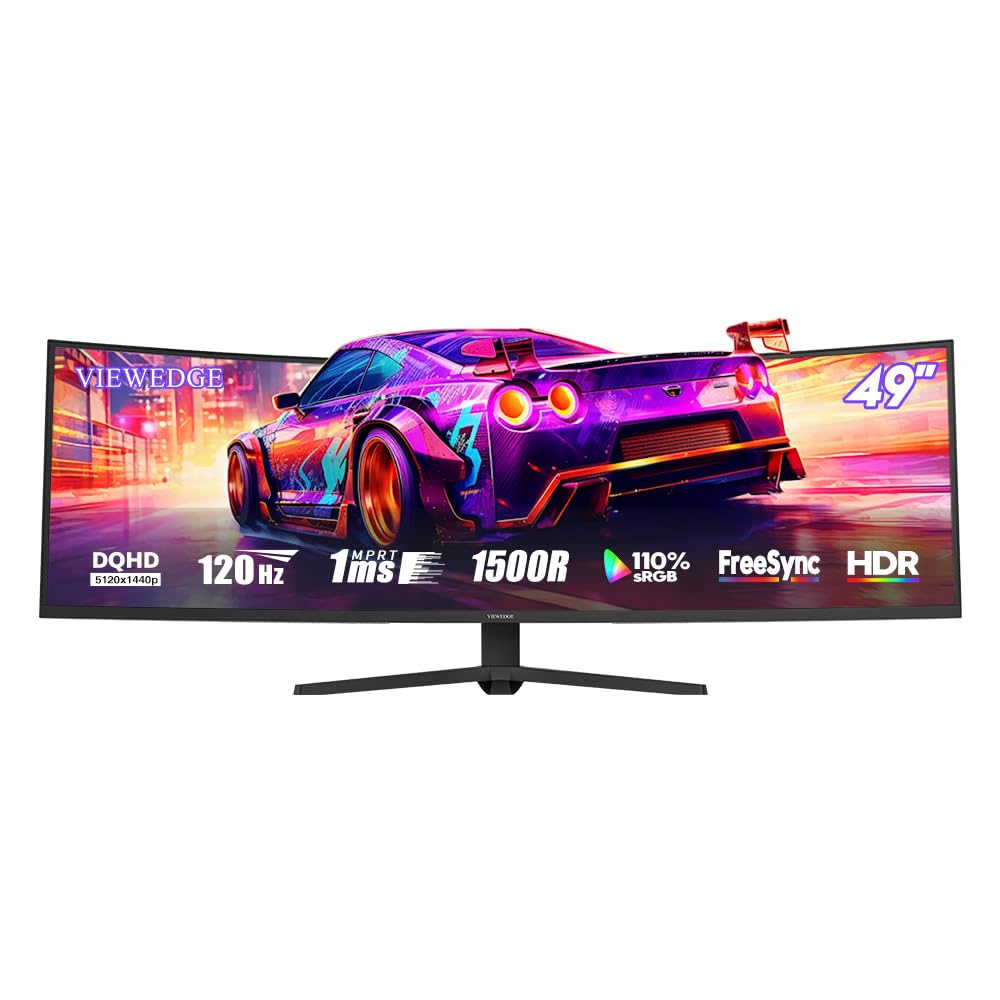
תמונה 1.1: ה- Viewedge 49-inch Curved DQHD 120Hz Gaming Monitor.
2. מידע בטיחות
To ensure safe and optimal performance, please observe the following safety precautions:
- אין לחשוף את הצג לגשם או לחות כדי למנוע שריפה או התחשמלות.
- אל תפתח את הצג גasinז. אין חלקים בפנים הניתנים לתיקון על ידי המשתמש. יש לפנות לכל טיפול וטיפול באנשי מקצוע מוסמכים.
- הנח את הצג על משטח יציב ושטוח כדי למנוע ממנו ליפול.
- ודא אוורור נאות סביב הצג. אין לחסום פתחי אוורור.
- השתמשו רק במתאם החשמל ובכבלים המסופקים על ידי היצרן.
- נתק את הצג משקע החשמל במהלך סופות ברקים או כאשר אינו בשימוש למשך תקופות ממושכות.
- Avoid placing heavy objects on the power cord or monitor cables.
- נקו את הצג בעזרת מטלית רכה ויבשה. אין להשתמש בחומרי ניקוי נוזליים או בחומרי ניקוי בתרסיס.
3. תכולת החבילה
אנא בדקו את תוכן האריזה בעת הוצאת המוצר מהאריזה. אם חסרים פריטים או פריטים פגומים, צרו קשר עם הספק שלכם.
- Viewedge 49" Curved DQHD 120Hz Gaming Monitor
- מעמד למוניטור (בסיס וצוואר)
- מתאם חשמל וכבל חשמל
- כבל DisplayPort (DP)
- כבל HDMI (עשוי להשתנות בהתאם לאזור)
- מדריך למשתמש (מסמך זה)
- תעודת אחריות (אם רלוונטי)
4. התקנה
4.1 הרכבת המעמד
- הוציאו בזהירות את הצג מאריזתו, והניחו אותו על משטח רך.
- Attach the stand neck to the monitor panel. Ensure it clicks securely into place or is fastened with screws as per the design.
- Attach the stand base to the stand neck. Tighten any screws firmly.
- Place the assembled monitor on a stable, level desk.
4.2 התקנה על הקיר (אופציונלי)
The monitor supports VESA 75x75mm wall mounting. Wall mount accessories are not included.
- הסר את המעמד מהצג אם הוא כבר מחובר.
- Secure the VESA-compatible wall mount bracket (not included) to the monitor using M4 (4mm diameter) screws.
- התקן את הצג לקיר בהתאם להוראות יצרן תושבת הקיר.

תמונה 4.1: אחורי view of the monitor showing 75x75mm VESA mounting points and tilt adjustment range.
4.3 חיבור למחשב
Connect the monitor to your computer using the provided DisplayPort (DP) cable or an HDMI cable.
- חיבור DisplayPort (DP): Connect one end of the DP cable to the DP port on your computer's graphics card and the other end to one of the DP 1.4 ports on the monitor. This connection supports the full DQHD resolution and 120Hz refresh rate.
- חיבור HDMI: Connect one end of an HDMI cable to the HDMI port on your computer's graphics card and the other end to one of the HDMI 2.0 ports on the monitor.
- פלט שמע: Connect headphones or external speakers to the 3.5mm audio output jack on the monitor if you wish to use the monitor's audio passthrough.
Image 4.2: Monitor rear panel showing available connectivity options: 2x DisplayPort 1.4, 2x HDMI 2.0, and 1x Earphone jack.
4.4 חיבור מתח
- Connect the power adapter to the monitor's power input jack.
- Plug the power cable into the power adapter, then into a grounded electrical outlet.
5. הוראות הפעלה
5.1 הפעלה/כיבוי
לחץ על לחצן ההפעלה הממוקם על הצג כדי להפעיל או לכבות אותו. נורית חיווי ההפעלה תידלק כאשר הצג דולק.
5.2 תפריט תצוגה על המסך (OSD).
The OSD menu allows you to adjust various monitor settings. Use the control buttons (usually located on the back or bottom right of the monitor) to navigate and select options.
Common OSD Menu Options include:
- הגדרות תמונה: בהירות, ניגודיות, חדות, טמפרטורת צבע.
- בחירת קלט: Choose between DP1, DP2, HDMI1, HDMI2.
- שֶׁמַע: Volume control for the earphone output.
- תכונות משחק: FreeSync/G-Sync, Crosshair, Response Time (Overdrive).
- הגדרות תצוגה: Aspect Ratio, HDR mode.
- הגדרות OSD: שפת OSD, שקיפות OSD, פסק זמן של OSD.
5.3 תכונות עיקריות
5.3.1 DQHD Resolution and 1500R Curvature
The 49-inch panel features a DQHD (5120x1440p) resolution, providing a vast workspace or immersive gaming experience. The 1500R curvature enhances the sense of depth and envelops the viewer, making the display feel more natural and reducing eye movement across the wide screen.

Image 5.1: Illustration of DQHD 5120x1440 pixel resolution, offering rich detail.
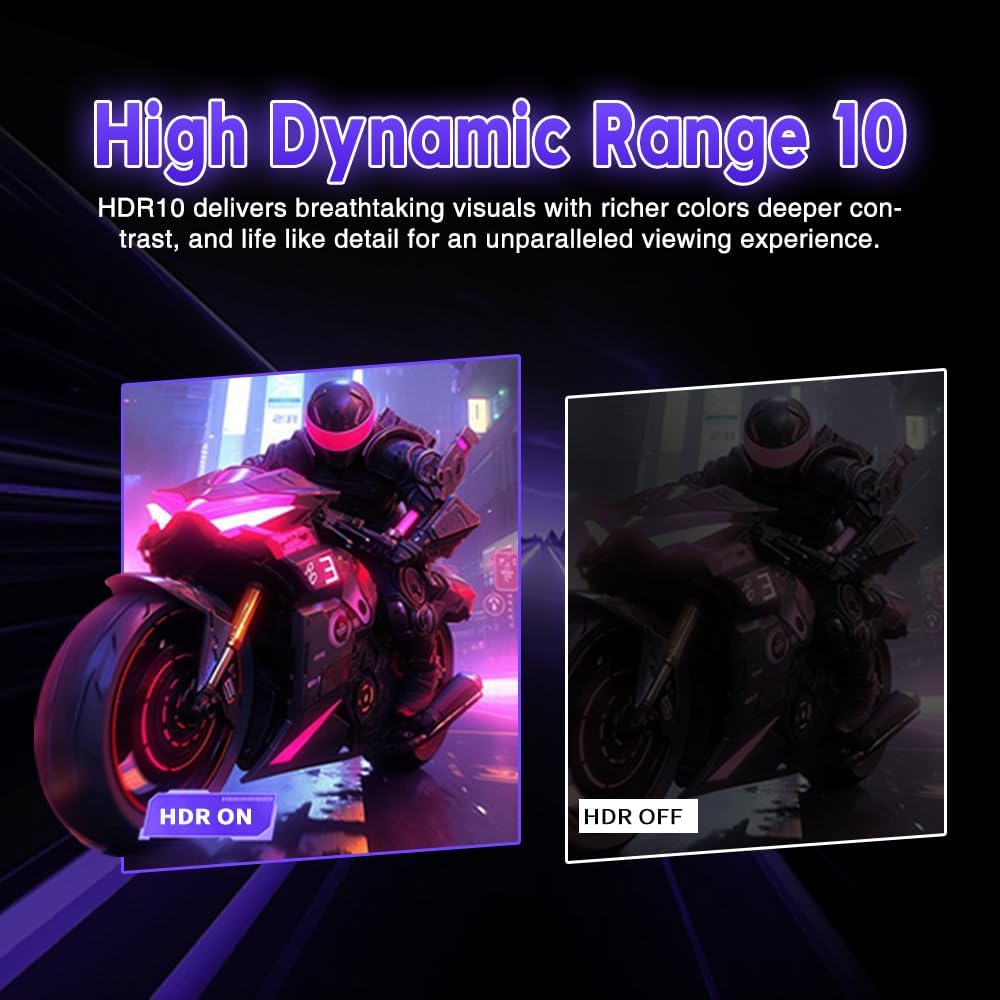
Image 5.2: Explanation of the 1500R curvature, enhancing immersive depth.
5.3.2 High Refresh Rate and Fast Response Time
With a 120Hz refresh rate and 1ms (MPRT) response time, the monitor delivers smooth motion and reduces ghosting, crucial for fast-paced gaming.

Image 5.3: Visual representation of 120Hz refresh rate and 1ms response time for gaming.
5.3.3 תמיכה ב-HDR10
High Dynamic Range 10 (HDR10) support provides richer colors, deeper contrast, and more lifelike detail in compatible content, enhancing the visual experience.

Image 5.4: Visual comparison demonstrating the enhanced detail and color with HDR10 enabled.
5.3.4 Adaptive Sync (FreeSync/G-Sync Compatible)
The monitor supports Adaptive Sync technology (FreeSync and G-Sync compatible), which synchronizes the monitor's refresh rate with your GPU's frame rate. This eliminates screen tearing and stuttering, providing a fluid gaming experience. Enable this feature in your graphics card settings and the monitor's OSD.

Image 5.5: Visual demonstration of FreeSync technology, preventing screen tearing.
5.3.5 GamePlus Features
The monitor includes GamePlus features such as Crosshair and Dark Balance functions. These can be accessed via the OSD menu to enhance your gaming experience.

Image 5.6: GamePlus features, including a customizable crosshair for improved aiming.
5.3.6 מאפייני הגנה לעיניים
The monitor incorporates flicker-free technology and a blue light filter to reduce eye strain during prolonged use. These features contribute to a more comfortable viewניסיון.
6. תחזוקה
6.1 ניקוי הצג
- נתק תמיד את הצג לפני הניקוי.
- השתמש במטלית רכה ונטולת סיבים כדי לנגב בעדינות את המסך והמשטחים החיצוניים.
- עבור סימנים עקשניים, ליטוש קלותampשטפו את המטלית במים או בחומר ניקוי מסך עדין ולא שוחק. אין לרסס את חומר הניקוי ישירות על המסך.
- הימנעו משימוש באלכוהול, אמוניה או חומרי ניקוי שוחקים, מכיוון שהם עלולים לפגוע במשטח המסך.
6.2 אחסון
אם מאחסנים את הצג לתקופה ממושכת, נתק את כל הכבלים ואחסן אותו במקום קריר ויבש, רצוי באריזתו המקורית כדי להגן עליו מפני אבק ונזקים פיזיים.
7. פתרון תקלות
| בְּעָיָה | סיבה אפשרית | פִּתָרוֹן |
|---|---|---|
| אין תמונה על המסך |
|
|
| התמונה מטושטשת או מעוותת |
|
|
| אין צליל משקע האוזניות |
|
|
| קריעת מסך או גמגום במשחקים |
|
|
8. מפרטים
| תכונה | פְּרָט |
|---|---|
| מותג | Viewקָצֶה |
| דֶגֶם | 49 inch DQHD 120Hz |
| גודל מסך | 49 אינץ' |
| סוג פאנל | VA |
| עַקמוּמִיוּת | 1500R |
| הַחְלָטָה | 5120 x 1440 (דירוג QHD) |
| יחס גובה-רוחב | 32:9 |
| קצב רענון | עד 120Hz |
| זמן תגובה | 1ms (MPRT) |
| סולם צבעים | 110% sRGB (אופייני) |
| תמיכה ב-HDR | HDR10 |
| סנכרון אדפטיבי | FreeSync / G-Sync Compatible |
| קישוריות | 2x DisplayPort 1.4, 2x HDMI 2.0, 1x 3.5mm Audio Out |
| הרכבה VESA | 75x75 מ"מ |
| התאמת הטיה | -5° to 20° (±3°) |
| הגנת עיניים | אור כחול חלש, ללא ריצוד |
9. אחריות ותמיכה
Viewedge monitors are manufactured with quality and performance in mind. This product comes with a standard manufacturer's warranty. Please refer to the warranty card included in your package for specific terms and conditions, including warranty duration and coverage details.
For technical support, troubleshooting assistance, or warranty claims, please contact Viewedge customer service through the contact information provided on your warranty card or the official Viewקָצֶה webאֲתַר.
משאבים מקוונים: For the latest drivers, firmware updates, and additional support resources, please visit the official Viewקָצֶה webאֲתַר.