
מָבוֹא
Thank you for choosing the Surfans F20 Pro Android Hi-Res Music Player. This manual provides essential information for setting up, operating, and maintaining your device. Please read it thoroughly to ensure optimal performance and longevity of your music player.
1. התקנה
1.1 פתיחת האריזה ותכולת האריזה
Carefully unpack your Surfans F20 Pro. Ensure all components are present.
החבילה צריכה להכיל:
- 1 x Surfans F20 Pro Music Player
- (Other accessories like USB cable, protective case, etc., may be included depending on the specific package.)
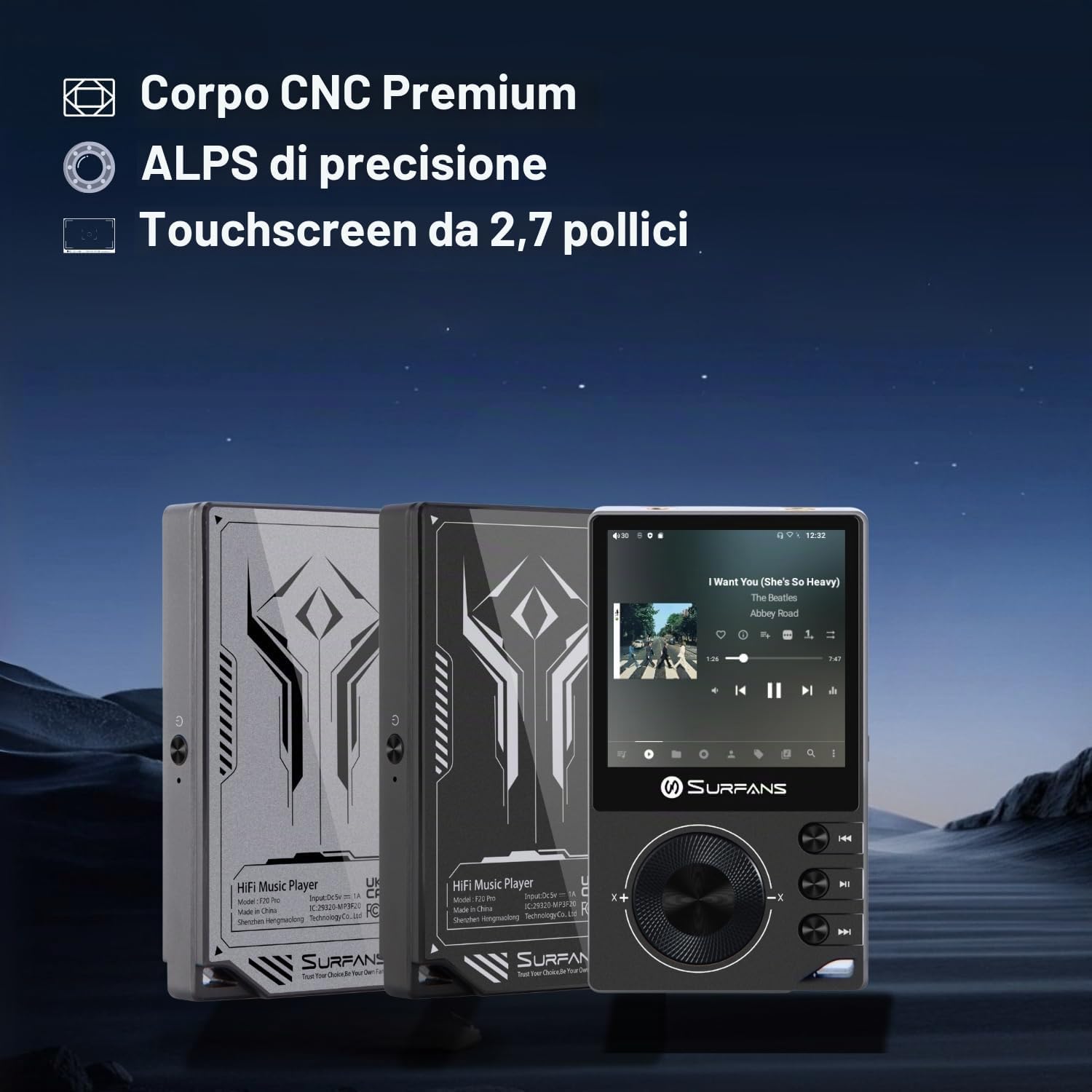
The Surfans F20 Pro features a premium CNC body for durability and aesthetics.
1.2 טעינת המכשיר
Before first use, fully charge the device. Connect the included USB cable to the player's charging port and to a USB power adapter (not included) or a computer's USB port. The charging indicator will show the charging status. A full charge typically takes approximately 3 hours.
The Surfans F20 Pro features a 1450mAh rechargeable battery, providing up to 15 hours of music playback on a full charge.
1.3 הפעלה/כיבוי
- כדי להפעיל: לחץ והחזק את לחצן ההפעלה הממוקם בצד המכשיר עד שהמסך יידלק.
- כדי לכבות: Press and hold the Power button until a power-off menu appears on the screen. Select "Power Off" to shut down the device. A short press will turn the screen on/off.
1.4 תצורה ראשונית
Upon first power-on, you may be guided through an initial setup process. This typically includes:
- בחירת שפה: בחר את השפה המועדפת עליך.
- הגדרת Wi-Fi: Connect to a Wi-Fi network to enable streaming services and software updates. Navigate to Settings > Network & Internet > Wi-Fi.
- חשבון גוגל: היכנס באמצעות חשבון Google שלך כדי לגשת לחנות Google Play ולשירותי Google אחרים.
1.5 הרחבת אחסון
The Surfans F20 Pro comes with 32GB of internal memory. You can expand the storage up to 1TB using a Micro SD card. Insert the Micro SD card into the designated slot on the device.
2. הוראות הפעלה
2.1 המכשיר נגמרview וניווט
The F20 Pro features a 2.73-inch touchscreen for primary interaction and physical buttons for quick control.

The Surfans F20 Pro features a touchscreen interface for easy navigation and access to various applications.
- מסך מגע: Tap, swipe, and pinch to navigate menus, select options, and control playback.
- כפתורים פיזיים: Use the side buttons for power, volume control, and playback (play/pause, skip tracks). The scroll wheel provides tactile navigation.
2.2 השמעת מוזיקה
The F20 Pro supports various audio formats including MP3, AAC, FLAC, WAV, and DSD. You can play music stored on the device's internal memory or Micro SD card, or stream from online services.
- השמעה מקומית: Use the pre-installed music player app to browse and play your local audio files.
- נְהִירָה: Install and use streaming applications like Spotify, Apple Music, Tidal, or YouTube from the Google Play Store.
2.3 חיבור התקני שמע
The player offers both wired and wireless audio output options.

The F20 Pro features both 3.5mm single-ended and 4.4mm balanced audio output ports for versatile headphone connectivity.
- אוזניות חוטיות:
- 3.5 מ"מ חד-קצה: Connect standard headphones to the 3.5mm port.
- 4.4 מ"מ מאוזן: For enhanced audio quality and power, connect compatible balanced headphones to the 4.4mm port. This port provides 500mW of power.
- Bluetooth Headphones/Speakers:
- The F20 Pro supports Bluetooth 5.0 with LDAC for high-fidelity wireless audio.
- To pair: Go to Settings > Connected devices > Pair new device. Ensure your Bluetooth device is in pairing mode.

The F20 Pro supports Bluetooth 5.0 with LDAC for high-quality wireless audio streaming.
This video demonstrates the process of pairing a Bluetooth device with a music player. The steps shown are generally applicable to the Surfans F20 Pro.
2.4 קישוריות Wi-Fi
The device supports dual-band Wi-Fi (2.4GHz and 5GHz) for fast downloads and smooth streaming.

The Surfans F20 Pro supports dual-band Wi-Fi for reliable internet connection and streaming.
- To connect: Go to Settings > Network & Internet > Wi-Fi. Select your network and enter the password.
- Once connected, you can use pre-installed or downloaded streaming apps.
2.5 חיבור למחשב
You can connect the F20 Pro to a computer via USB to transfer files or use it as a USB DAC.
This video illustrates how to easily connect a music player to a PC for file transfer or other functions. The process is similar for the Surfans F20 Pro.
- חבר את הנגן למחשב באמצעות כבל ה- USB.
- On the player, swipe down from the top of the screen to access notifications. Tap on the USB connection notification and select "File transfer" or "USB DAC" mode as needed.
3. תחזוקה
3.1 ניקוי ההתקן
To keep your F20 Pro in optimal condition:
- Use a soft, dry, lint-free cloth to wipe the screen and body.
- Avoid using abrasive cleaners, solvents, or aerosol sprays, which can damage the finish.
- אין לחשוף את המכשיר ללחות יתר.
3.2 טיפול בסוללה
כדי למקסם את חיי הסוללה והביצועים:
- הימנע מטמפרטורות קיצוניות.
- אין להשאיר את המכשיר פריק לחלוטין למשך פרקי זמן ממושכים.
- לאחסון לטווח ארוך, טען את הסוללה עד כ-50% ואחסן אותה במקום קריר ויבש.
3.3 עדכוני תוכנה
The F20 Pro runs on Android 12. Periodically check for software updates to ensure the best performance and access to new features. Connect to Wi-Fi and go to Settings > System > System update.
4. פתרון תקלות
4.1 המכשיר לא נדלק
- ודא שהסוללה טעונה. חבר את המכשיר למטען למשך 30 דקות לפחות.
- נסה ללחוץ והחזק את כפתור ההפעלה למשך 10-15 שניות כדי לאלץ הפעלה מחדש.
4.2 אין פלט קול
- Check headphone connections (3.5mm or 4.4mm). Ensure they are fully inserted.
- Verify volume levels on the device and any connected Bluetooth audio devices.
- אם משתמשים ב-Bluetooth, ודאו שהמכשיר מקושר ומחובר כראוי.
- Test with different headphones or speakers to rule out a faulty audio accessory.
4.3 Wi-Fi or Bluetooth Connection Issues
- ודא ש-Wi-Fi או Bluetooth מופעלים בהגדרות.
- Restart the F20 Pro and your router/Bluetooth device.
- שכח את הרשת/המכשיר בהגדרות ונסה להתחבר מחדש.
- Ensure you are within range of the Wi-Fi network or Bluetooth device.
4.4 ביצועים איטיים או קריסות אפליקציה
While the F20 Pro has an Octa-Core processor and 3GB RAM, some apps or heavy multitasking might affect performance.
- סגור אפליקציות רקע שאינן בשימוש.
- Clear app caches (Settings > Apps > [App Name] > Storage & cache > Clear cache).
- ודא שתוכנת המכשיר מעודכנת.
- If issues persist, consider a factory reset (Settings > System > Reset options > Erase all data), but back up your data first.
5. מפרטים
Below are the key technical specifications for the Surfans F20 Pro Music Player:
| תכונה | פְּרָט |
|---|---|
| שם הדגם | F20 Pro |
| מותג | סרפנים |
| מַעֲרֶכֶת הַפעָלָה | אנדרואיד 12 |
| מעבד | אוקטה ליבות |
| אַיִל | 3GB |
| אחסון פנימי | 32GB |
| אחסון ניתן להרחבה | Up to 1TB via Micro SD |
| DAC | Dual ESS9018 |
| תמיכה באודיו ברזולוציה גבוהה | DSD512 |
| קישוריות | AUX, Bluetooth 5.0 (LDAC), USB, Dual-Band Wi-Fi (2.4GHz & 5GHz) |
| גודל מסך | 2.73 אינץ' |
| טכנולוגיית מסך | מסך מגע |
| פורמטי שמע נתמכים | MP3, AAC, FLAC, WAV, DSD |
| פלט מאוזן | 4.4mm (500mW) |
| קיבולת סוללה | 1450mAh |
| חיי סוללה | עד 15 שעות השמעת מוזיקה |

The Surfans F20 Pro features dual ESS9018 DACs for superior audio decoding.

Internal audio architecture showing dual DACs and multi-stage amplifier design for both single-ended and balanced outputs.
6. אחריות ותמיכה
For warranty information and technical support, please refer to the documentation provided with your purchase or contact the seller directly. The seller for this product is SurfansAudio.
שמור את הוכחת הרכישה שלך לכל תביעת אחריות.