
1. המוצר נגמרview
The Thermaltake 6.0 Inch LCD Screen Kit is an accessory designed to enhance your Thermaltake chassis. It provides a customizable display for graphics, videos, and real-time system monitoring data. This kit supports the TT RGB PLUS 3.0 software for extensive customization and control.
תכונות עיקריות:
- לְהַצִיג: 6.0-inch LCD with 1480x720p resolution.
- התאמה אישית: Supports preloaded graphics, custom images (JPG, GIF, PNG), and videos (MP4, MOV, AVI) up to 30MB each.
- ניטור: Real-time display of CPU, GPU, RAM data, including frequency, load, and temperatures.
- תוֹכנָה: Controlled via TT RGB PLUS 3.0 software.
- קישוריות: Type-C to USB (9-Pin) connection.
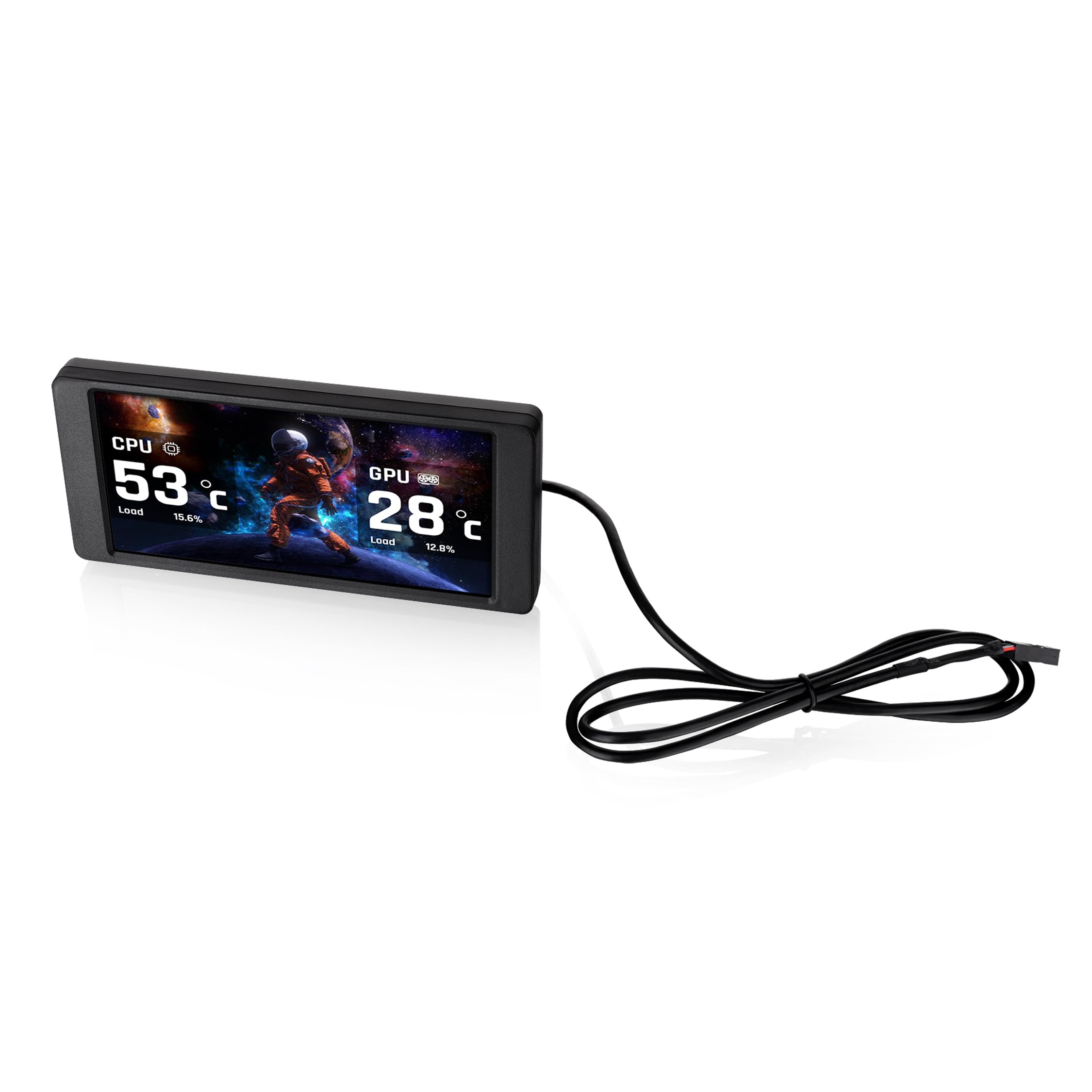
Image 1.1: The Thermaltake 6.0 Inch LCD Screen Kit and its Type-C to USB connection cable.
2. התקנה והתקנה
Follow these steps to properly install your Thermaltake 6.0 Inch LCD Screen Kit.
2.1. בדיקת תאימות
Before installation, ensure your chassis is compatible with a standalone screen kit. Refer to your chassis manual or the Thermaltake webאתר למידע על תאימות.
2.2. התקנה פיזית
- Carefully position the 6.0 Inch LCD Screen Kit within your Thermaltake chassis. This kit is designed as an expansion accessory and may require specific mounting points or custom fitting depending on your case model.
- Secure the screen kit in place using appropriate mounting hardware (not included, if custom fitting is required).

תמונה 2.1: אחורי view of the LCD Screen Kit, highlighting the Type-C connection port.
2.3. חיבור כבל
- Connect the provided Type-C cable to the Type-C port on the back of the LCD Screen Kit.
- Connect the other end of the cable (USB 9-Pin connector) to an available USB 2.0 header on your motherboard.
2.4. התקנת תוכנה
- Download the latest version of the TT RGB PLUS 3.0 software from the official Thermaltake webאתר (www.thermaltake.com).
- התקן את התוכנה על ידי ביצוע ההוראות שעל המסך.
- Restart your computer after installation to ensure all drivers and software components are properly loaded.
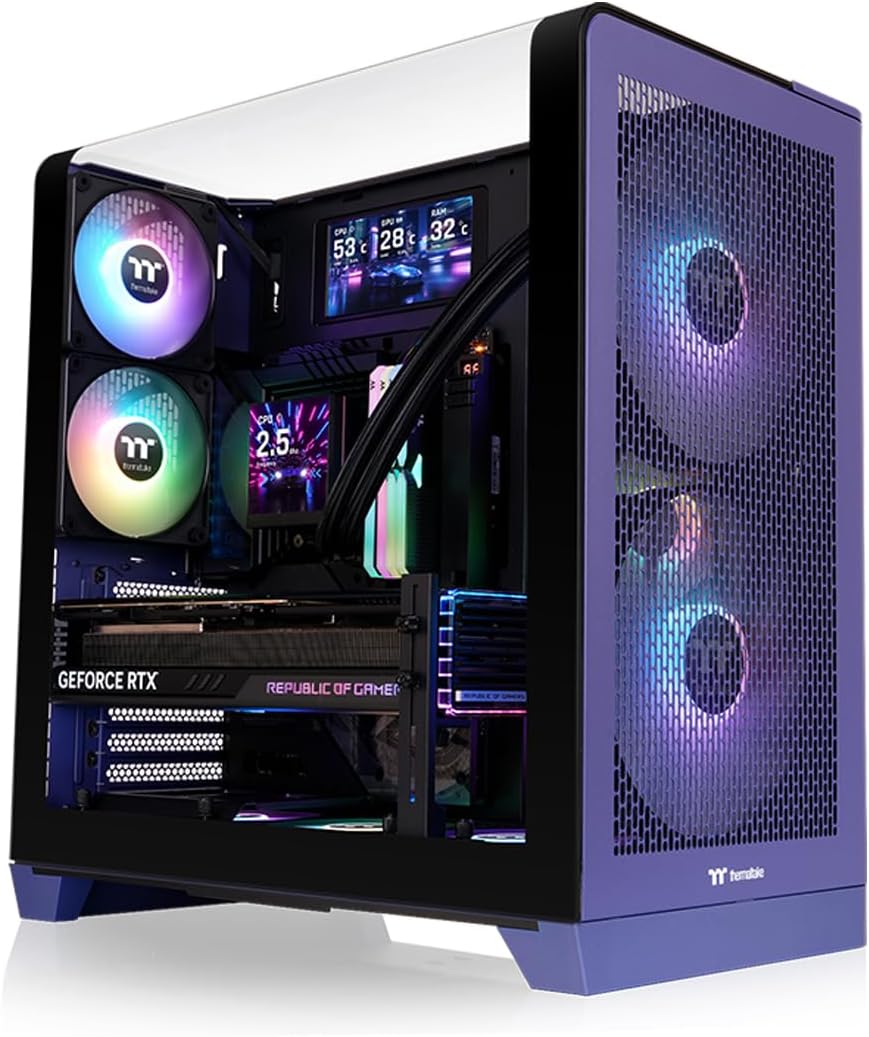
Image 2.2: The LCD Screen Kit integrated into a PC build, displaying real-time system information.
3. הוראות הפעלה
The Thermaltake 6.0 Inch LCD Screen Kit is controlled and customized through the TT RGB PLUS 3.0 software.
3.1. Launching the Software
After installation, launch the TT RGB PLUS 3.0 software from your desktop shortcut or Start Menu.
3.2. התאמה אישית של התצוגה
Within the TT RGB PLUS 3.0 software, navigate to the LCD Screen Kit section. Here you can configure various display options:
- Background Graphics: Choose from six default background styles or upload your own custom images. Supported formats include JPG, GIF, and PNG.
- הפעלת סרטון: Upload and play custom videos in MP4, MOV, and AVI formats. Each file can be up to 30MB.
- ניטור בזמן אמת: Select which system parameters to display, such as CPU temperature, load, and frequency; GPU temperature, load, and frequency; and RAM usage.
- זמן ומזג אוויר: Configure the display to show current time and local weather information.

Image 3.1: The TT RGB PLUS 3.0 software interface, showing options for customizing the LCD display.
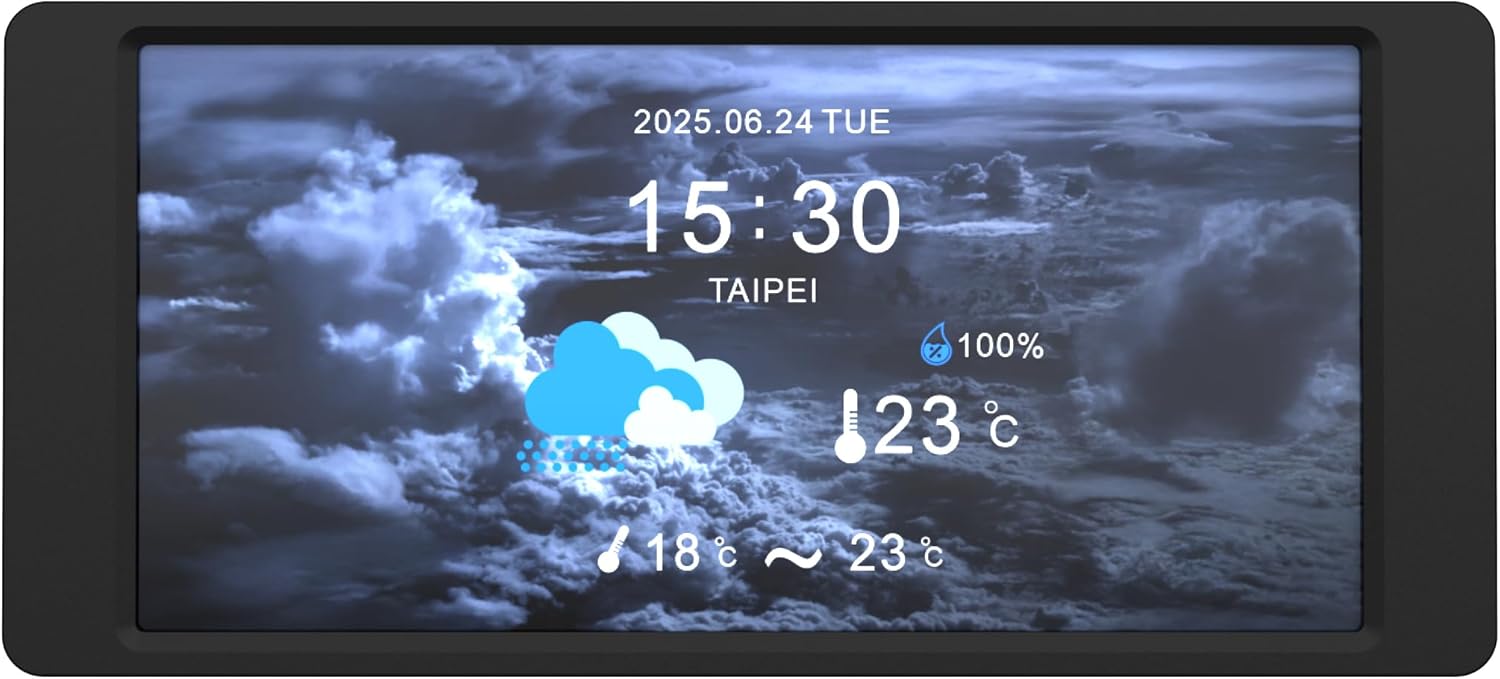
Image 3.2: The LCD Screen Kit displaying time and weather information.
4. תחזוקה
Proper maintenance ensures the longevity and optimal performance of your LCD Screen Kit.
4.1. ניקוי המסך
- Gently wipe the screen surface with a soft, lint-free cloth.
- עבור כתמים עקשניים, מעט דמוי עורampשטפו את המטלית במים או בתמיסת ניקוי בטוחה למסך. אין לרסס נוזל ישירות על המסך.
- Avoid using harsh chemicals, abrasive materials, or alcohol-based cleaners, as these can damage the screen finish.
4.2. עדכוני תוכנה
Regularly check the Thermaltake website for updates to the TT RGB PLUS 3.0 software. Software updates often include performance improvements, bug fixes, and new features.
5. פתרון תקלות
If you encounter issues with your LCD Screen Kit, refer to the following troubleshooting tips.
5.1. Screen Not Displaying / No Power
- Ensure the Type-C to USB (9-Pin) cable is securely connected to both the LCD Screen Kit and the motherboard's USB header.
- Verify that your computer is powered on and the operating system has loaded.
- Check your motherboard's BIOS/UEFI settings to ensure the USB header is enabled.
5.2. Software Issues (Freezing, Incorrect Display)
- עדכון תוכנה: Ensure you are running the latest version of TT RGB PLUS 3.0 software. Outdated software can cause instability.
- הפעל מחדש את התוכנה: Close and restart the TT RGB PLUS 3.0 application.
- התקנה מחדש של התוכנה: If issues persist, uninstall and then reinstall the TT RGB PLUS 3.0 software.
- משאבי מערכת: The software may consume system resources. If you experience performance slowdowns, monitor your system's RAM usage and close unnecessary background applications.
5.3. Custom Content Not Displaying
- Verify that your custom images or videos are in the supported formats (JPG, GIF, PNG for images; MP4, MOV, AVI for videos).
- להבטיח את file size does not exceed 30MB per file.
- Check the TT RGB PLUS 3.0 software settings to confirm the custom content is correctly selected and applied.
6. מפרטים
| תכונה | מִפרָט |
|---|---|
| מותג | Thermaltake |
| מספר דגם | AC-079-OO1NAN-A1 |
| שם הדגם | ערכת מסך LCD בגודל 6.0 אינץ' |
| גודל מסך | 6 אינץ' |
| הַחְלָטָה | 1480x720p |
| יחס גובה-רוחב | 16:9 |
| Screen Finish | מַברִיק |
| יחס ניגודיות | 2000:1 |
| סוג תצוגה | LCD |
| משקל פריט | 0.22 קילוגרם |
| טכנולוגיית קישוריות | USB סוג C |
| תכונות נוספות | Real-Time System Data Display, Customizable Graphics |
| UPC | 840480304836 |
7. אחריות ותמיכה
7.1. מידע על אחריות
This Thermaltake 6.0 Inch LCD Screen Kit is covered by a 3 שנות אחריות יצרן. Please retain your proof of purchase for warranty claims. For detailed warranty terms and conditions, refer to the official Thermaltake webאתר או צור קשר עם שירות הלקוחות.
7.2. תמיכה טכנית
For further technical assistance, software downloads, or to report issues, please visit the official Thermaltake support webאֲתַר:
You may also contact Thermaltake customer service directly through the contact information provided on their webאֲתַר.