
מָבוֹא
Thank you for choosing the Digitus DA-70919 USB-C 8K 12-Port Docking Station. This device is designed to expand the connectivity of your USB-C enabled laptop or computer, providing a comprehensive solution for video output, data transfer, network access, and power delivery. Please read this manual carefully to ensure proper installation and operation.
המוצר נגמרview
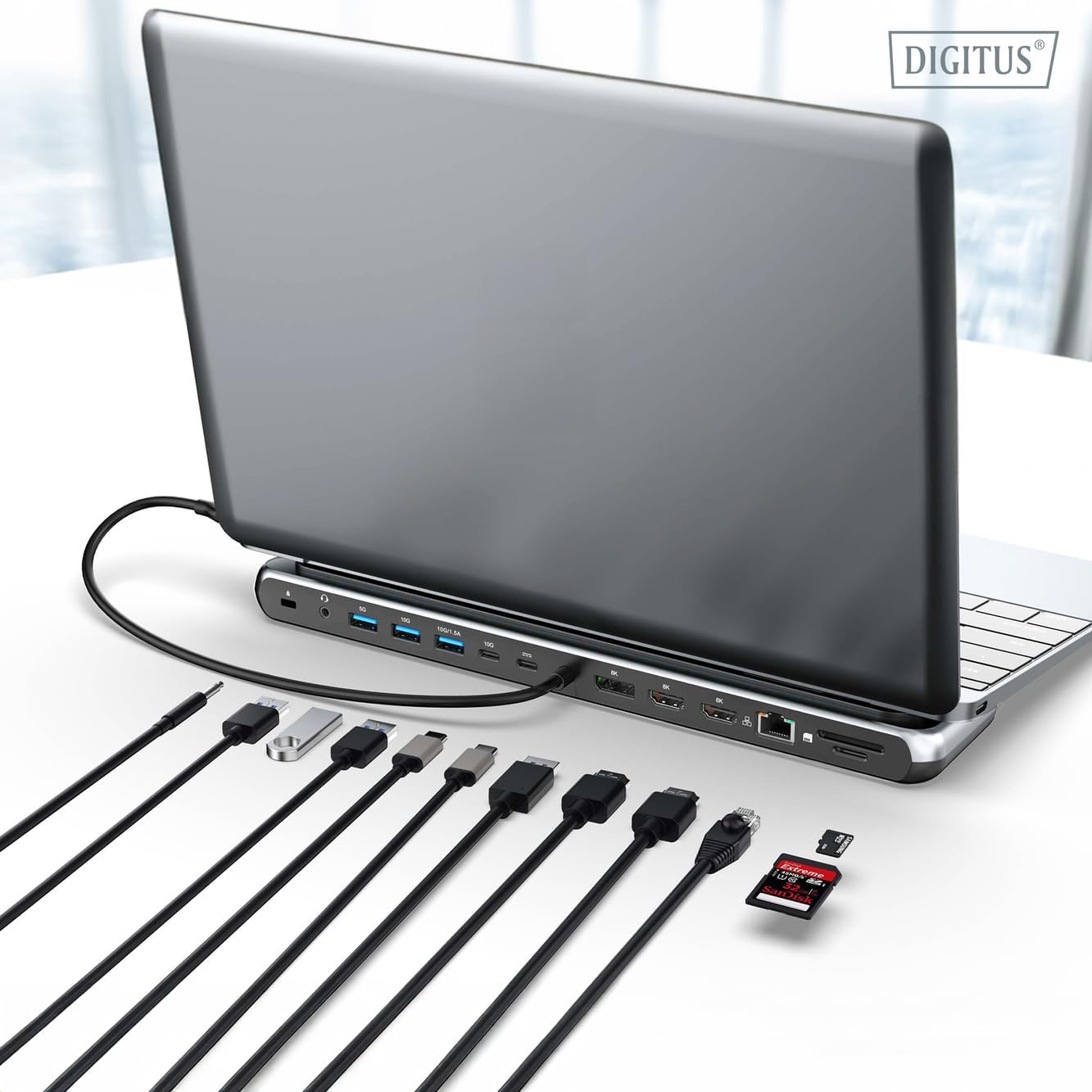
The Digitus DA-70919 docking station offers 12 essential ports to enhance your workspace. It supports high-resolution video output, fast data transfer, and efficient power delivery to your host device.

איור 1: Detailed diagram of the Digitus DA-70919 docking station ports and their functions. This diagram labels each of the 12 ports on the docking station, including Audio Jack, USB-A, USB-C, USB-C PD, DisplayPort, HDMI, RJ45 Gigabit Ethernet, and SD/MicroSD card slots, along with anti-theft protection.

איור 2: חֲזִית view of the Digitus DA-70919 docking station showing all accessible ports. A clear view of the docking station's front panel, displaying the various input and output ports including USB-A, USB-C, HDMI, DisplayPort, Ethernet, and card readers.
תכונות עיקריות:
- פלט וידאו: 2x HDMI, 1x DisplayPort (DP) supporting up to 8K/30Hz for single display, or multi-display configurations.
- יציאות נתונים USB: 2x USB-A 3.2 Gen 2 (10Gbps), 1x USB-A 3.2 Gen 1 (5Gbps), 1x USB-C 3.2 Gen 2 (10Gbps).
- אספקת חשמל (PD): USB-C PD 3.0 port for charging your host laptop (up to 85W output).
- רֶשֶׁת: Gigabit Ethernet (RJ45) for stable wired internet connection.
- קוראי כרטיסים: SD and MicroSD card slots with 104 MBps transfer speed.
- שֶׁמַע: שקע שמע 3.5 מ"מ לאוזניות או רמקולים.
הוראות התקנה
Follow these steps to set up your Digitus DA-70919 docking station:
- Check Host USB-C Port Compatibility: Ensure your laptop's USB-C port supports DisplayPort Alternate Mode (DP Alt Mode) for video output and Power Delivery for charging. Without DP Alt Mode, video output will not function.

איור 3: Guide to USB-C port compatibility for DisplayPort Alternate Mode. This graphic explains which types of USB-C ports on your laptop support the full functionality of the docking station, specifically highlighting the requirement for DisplayPort Alternate Mode (DP Alt Mode) for video output.
- התחברות להתקן מארח: Connect the integrated USB-C cable from the docking station to the USB-C port on your laptop.
- חיבור מתאם חשמל (אופציונלי אך מומלץ): If you wish to charge your laptop via the docking station or power high-demand peripherals, connect a USB-C Power Delivery adapter (not included, up to 100W recommended) to the USB-C PD input port on the docking station.
- חיבור צגים חיצוניים: חברו את המסכים שלכם ליציאות HDMI ו/או DisplayPort בתחנת העגינה באמצעות כבלים מתאימים.
- חבר ציוד היקפי: Plug in your USB devices (keyboard, mouse, external drives), Ethernet cable, SD/MicroSD cards, and audio devices to the corresponding ports on the docking station.
- התקנת דרייבר: In most cases, the docking station is plug-and-play and does not require additional drivers. If prompted, allow your operating system to install any necessary drivers automatically.
הוראות הפעלה
מצבי תצוגה
תחנת העגינה תומכת בתצורות תצוגה שונות:
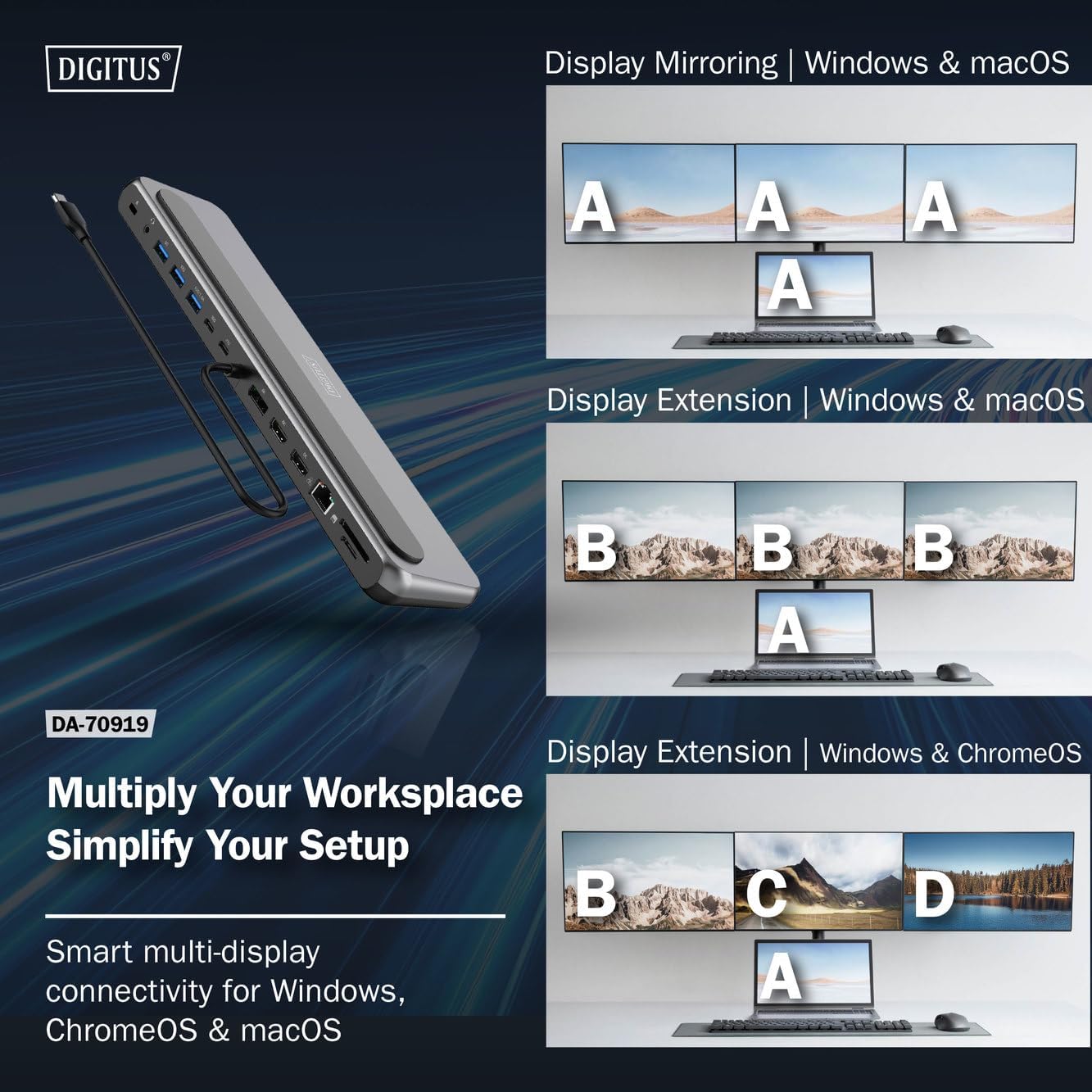
איור 4: Diagram showing display mirroring and extension modes for Windows, macOS, and ChromeOS. This image illustrates the various display configurations supported by the docking station, including mirroring your screen or extending it across multiple external monitors on Windows, macOS, and ChromeOS.
- מצב מראה: Duplicates your laptop's display onto the external monitors.
- Extend Mode (Windows/ChromeOS): Extends your desktop across multiple external monitors, allowing for a multi-tasking environment. Supports dual monitors (2x 4K/60Hz) and triple monitors (1x 4K/60Hz + 2x 4K/30Hz) in MST (Multi Stream Transport) mode.
- Extend Mode (macOS): macOS typically supports extended desktop to one external monitor, with other external monitors mirroring each other.
To configure display settings, access your operating system's display settings (e.g., Windows Display Settings, macOS System Preferences > Displays).
העברת נתונים
Utilize the USB-A and USB-C data ports for connecting external storage devices, keyboards, mice, and other USB peripherals. The USB 3.2 Gen 2 ports offer speeds up to 10Gbps, while the USB 3.2 Gen 1 port offers speeds up to 5Gbps.
אספקת חשמל
When a compatible USB-C PD power adapter is connected to the docking station's PD input port, the docking station can deliver up to 85W of power to charge your connected laptop. This allows you to power your laptop and peripherals through a single USB-C connection.
איור 5: Illustration of the docking station's fast charging capability via USB-C Power Delivery. This image demonstrates the Power Delivery function, showing a 100W input to the docking station and an 85W output to charge the connected laptop.
חיבור לרשת
Connect an Ethernet cable to the RJ45 port for a stable and high-speed wired network connection (10/100/1000 Mbps Gigabit Ethernet).
קוראי כרטיסים
Insert SD or MicroSD cards into the dedicated slots for quick access to photos, videos, and other files. The card readers support transfer speeds up to 104 MBps.
פלט אודיו
Connect your headphones or speakers to the 3.5mm audio jack for audio output.
תַחזוּקָה
- ניקוי: Use a soft, dry cloth to clean the surface of the docking station. Avoid using liquid cleaners or solvents.
- אִחסוּן: אחסן את תחנת העגינה במקום קריר ויבש, הרחק מאור שמש ישיר וטמפרטורות קיצוניות.
- טיפול: הימנעו מהפלת המכשיר או מחשיפתו לפגיעות חזקות. אל תנסו לפרק את תחנת העגינה.
פתרון בעיות
אם נתקלתם בבעיות עם תחנת העגינה שלכם, אנא עיינו בפתרונות הנפוצים הבאים:
- אין פלט תצוגה:
- ודא שיציאת ה-USB-C של המחשב הנייד שלך תומכת במצב DisplayPort חלופי.
- Check all video cables (HDMI/DP) are securely connected to both the docking station and the monitor.
- ודא שהצג דולק ומוגדר למקור הקלט הנכון.
- נסה לחבר מסך אחד בכל פעם כדי לבודד את הבעיה.
- עדכן את מנהלי ההתקנים הגרפיים של המחשב הנייד שלך.
- אין אספקת חשמל למחשב נייד:
- Ensure a compatible USB-C PD power adapter (up to 100W) is connected to the docking station's PD input port.
- ודא שיציאת ה-USB-C של המחשב הנייד שלך תומכת ב-Power Delivery.
- בדוק את מתאם החשמל ואת הכבל לאיתור נזקים.
- התקני USB לא מזוהים:
- Reconnect the USB device to a different port on the docking station.
- Ensure the docking station is properly connected to the host laptop.
- If using a high-power USB device, ensure the docking station is connected to an external power adapter.
- בעיות חיבור Ethernet:
- בדוק את חיבור כבל ה-Ethernet הן לתחנת העגינה והן לנתב/מודם שלך.
- בדוק את הגדרות הרשת במחשב הנייד שלך.
- הפעל מחדש את הנתב/מודם והמחשב הנייד.
- קורא כרטיסים לא עובד:
- Ensure the SD/MicroSD card is inserted correctly and fully.
- Test the card with another device to confirm it is not damaged.
מפרטים
| תכונה | מִפרָט |
|---|---|
| דֶגֶם | DA-70919 |
| חיבור מארח | USB-C (כבל משולב) |
| פלט וידאו | 2x HDMI, 1x DisplayPort (DP) |
| Max. Single Display Resolution | 8K (7680x4320) @ 30Hz |
| Max. Dual Display Resolution (MST) | 2x 4K (3840x2160) @ 60Hz |
| Max. Triple Display Resolution (MST) | 1x 4K@60Hz + 2x 4K@30Hz |
| יציאות נתונים מסוג USB-A | 2x USB 3.2 Gen 2 (10Gbps), 1x USB 3.2 Gen 1 (5Gbps) |
| יציאת נתונים USB-C | 1x USB 3.2 Gen 2 (10Gbps) |
| Power Delivery (PD) Input | USB-C PD 3.0 (up to 100W) |
| Power Delivery (PD) Output to Host | עד 85W |
| אתרנט | RJ45 Gigabit (10/100/1000 Mbps) |
| קוראי כרטיסים | SD, MicroSD (104 MBps) |
| שֶׁמַע | שקע אודיו 1x 3.5 מ"מ |
| תְאִימוּת | Windows, macOS, ChromeOS |
| טמפרטורת הפעלה | 0°C עד 45°C (32°F עד 113°F) |
| טמפרטורת אחסון | -10°C עד 70°C (14°F עד 158°F) |
אחריות ותמיכה
The Digitus DA-70919 USB-C 8K 12-Port Docking Station comes with a אחריות לשנה מתאריך הרכישה. אחריות זו מכסה פגמי ייצור ומבטיחה שהמוצר יתפקד כמתואר בשימוש רגיל.
For technical support, warranty claims, or further assistance, please contact your retailer or visit the official Digitus website for contact information. Please have your product model number (DA-70919) and proof of purchase ready when seeking support.