
1. הקדמה
Welcome to the Thunderobot Zero 16 Pro Gaming Laptop user manual. This guide provides essential information for setting up, operating, maintaining, and troubleshooting your new high-performance gaming laptop. The Thunderobot Zero 16 Pro is engineered for an immersive gaming experience, featuring an Intel Core Ultra 9 275HX processor, NVIDIA GeForce RTX 5080 graphics, a 16-inch QHD+ 360Hz display, 64GB DDR5 RAM, and a 2TB PCIe M.2 SSD.
Please read this manual thoroughly to ensure proper usage and to maximize the potential of your device.
2. התקנה
2.1 פתיחת הקופסה ובדיקה ראשונית
Carefully remove all components from the packaging. Verify that all items are present and undamaged. The package should include the Thunderobot Zero 16 Pro laptop, power adapter, and this user manual.
2.2 חיבור ספק הכוח
Connect the power adapter to the laptop's power input port and then plug it into a wall outlet. It is recommended to fully charge the battery before initial use.

Image: The Thunderobot Zero 16 Pro Gaming Laptop in a closed position, displaying its sleek design and the brand logo on the lid.
2.3 הפעלה ראשונה
Press the power button located on the keyboard to turn on the laptop. Follow the on-screen instructions to complete the initial Windows 11 Home setup.
2.4 חיבור ציוד היקפי
The laptop offers various ports for connecting external devices. Refer to the 'Ports and Slots' section for detailed port identification.
תמונה: מפורט view of the laptop's rear and side ports, including USB-A, USB-C, HDMI, and RJ-45, with labels for easy identification.
3. תפעול
3.1 מקלדת ומשטח מגע
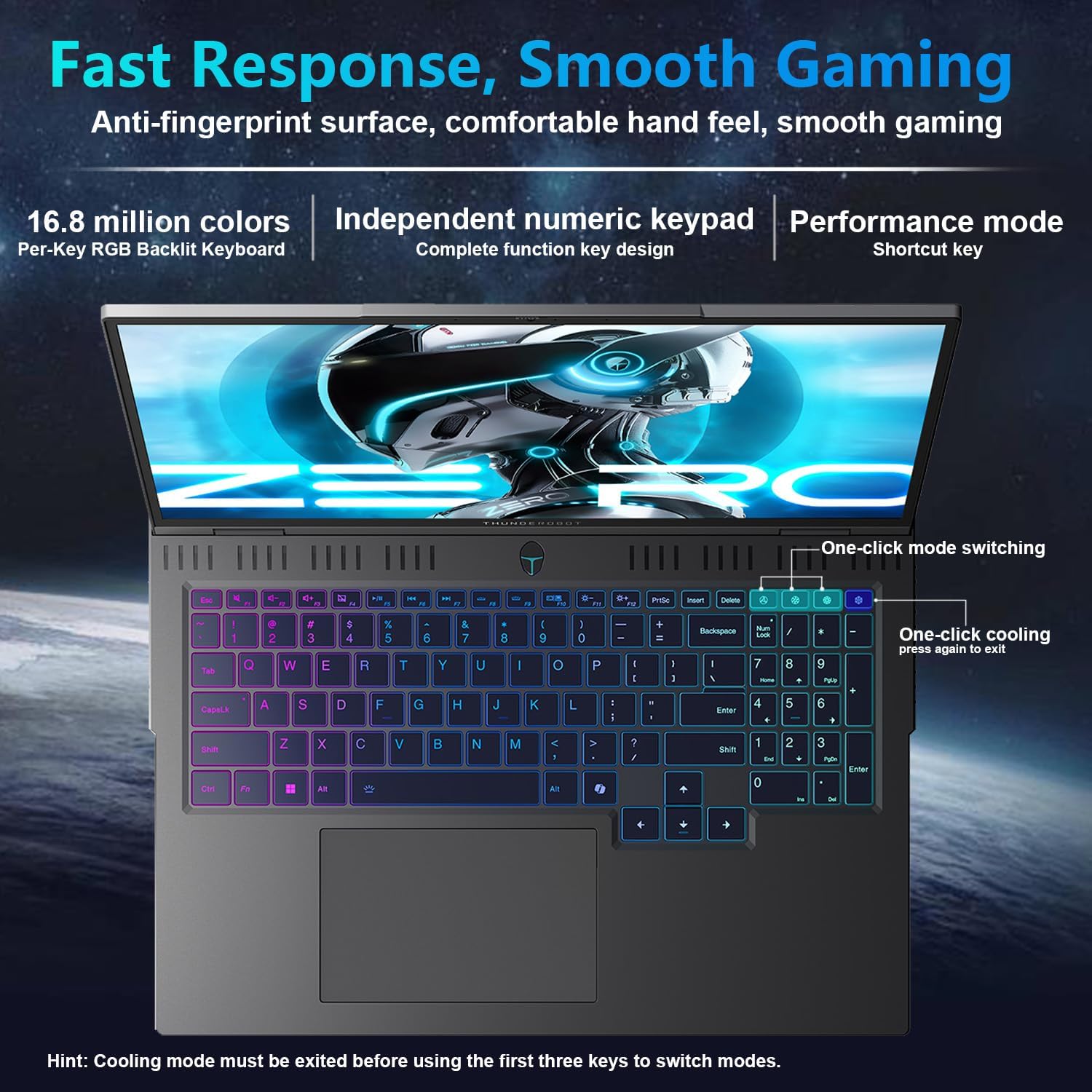
The Thunderobot Zero 16 Pro features a full-size keyboard with per-key customizable RGB lighting and an independent numeric keypad. The touchpad supports multi-touch gestures for intuitive navigation.
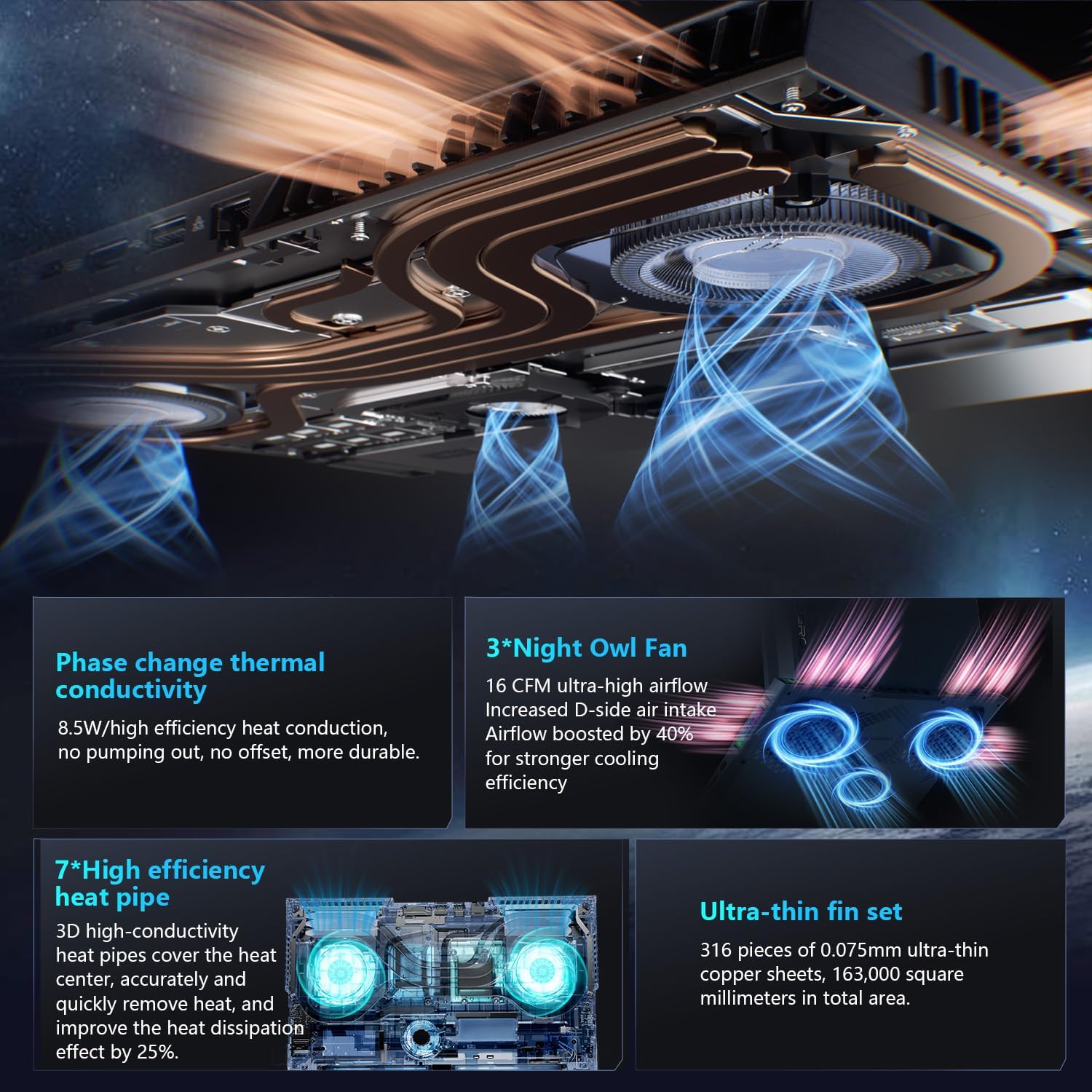
Image: A top-down perspective of the laptop's keyboard, showcasing its per-key RGB backlighting and the layout of the keys, including the numeric keypad.
3.2 הגדרות תצוגה
The 16-inch QHD+ (2560x1600) display offers a 360Hz refresh rate. To utilize the highest refresh rate, ensure the dedicated graphics direct connection mode is enabled in the control center. The display also incorporates advanced eye-care technology for comfortable viewing.
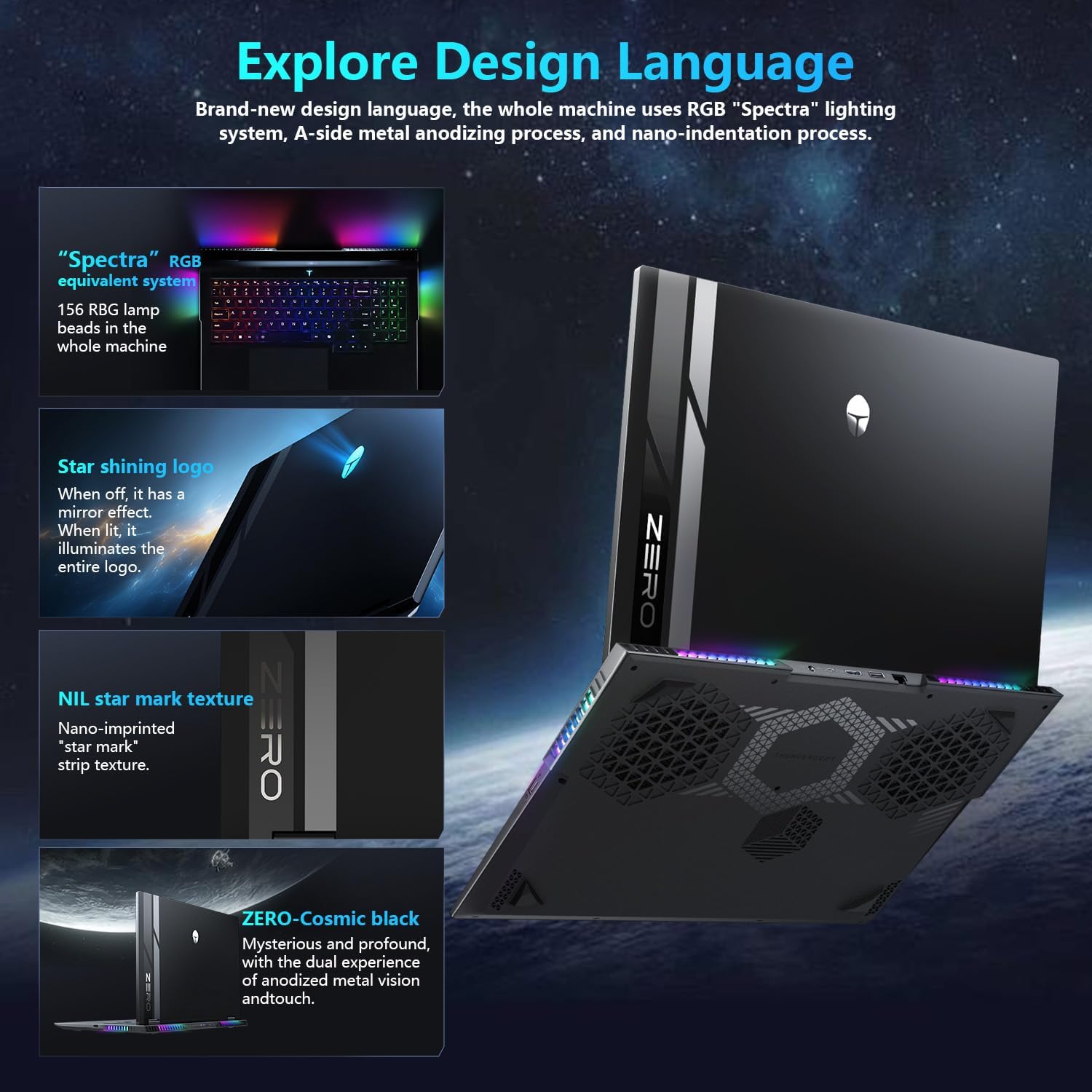
Image: A close-up of the laptop's 16-inch QHD+ display, showcasing its vibrant colors and high resolution, emphasizing its eye-care features.
3.3 AI Intelligent Control Center
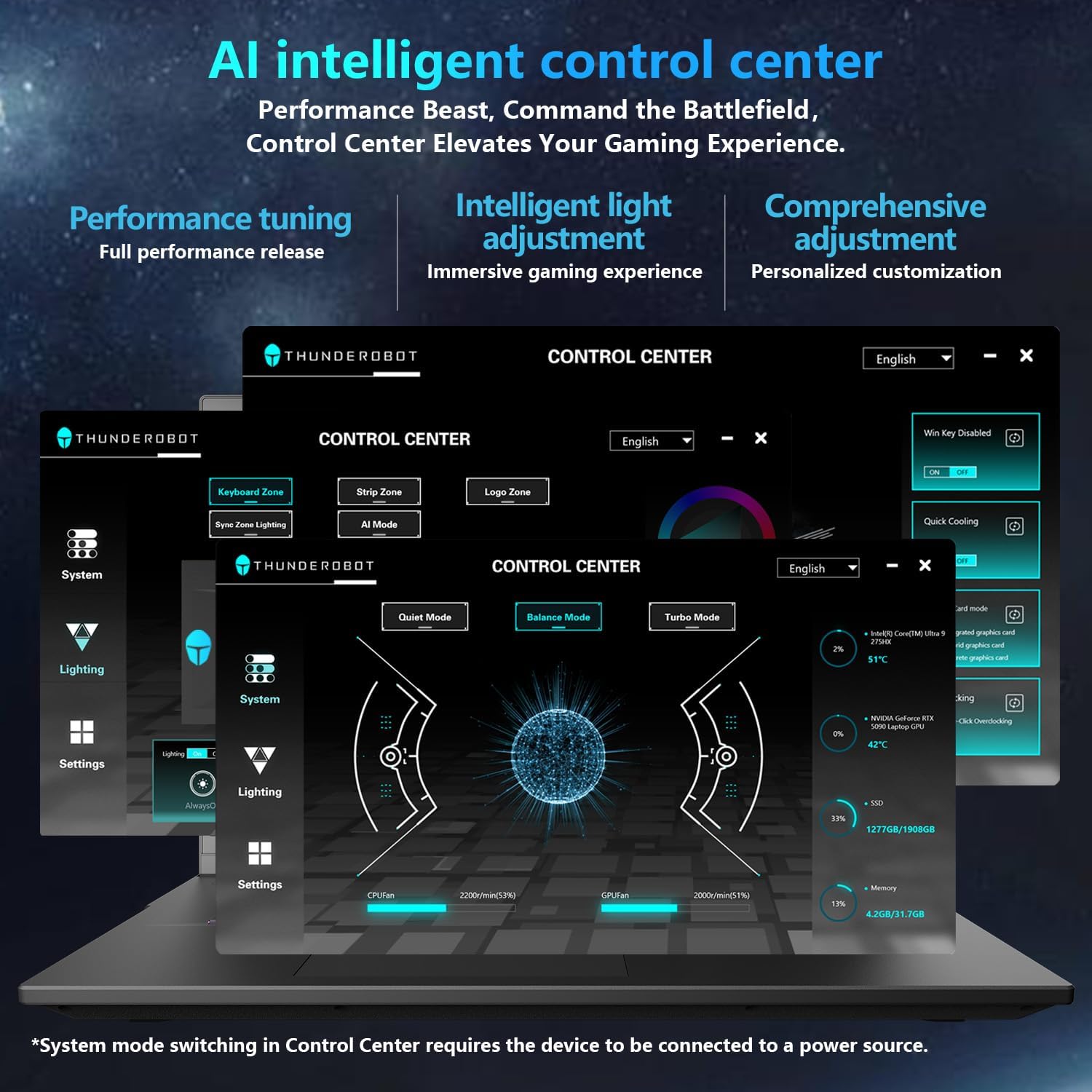
The AI Intelligent Control Center allows for performance tuning, intelligent light adjustment, and comprehensive customization. You can switch between Quiet Mode, Balance Mode, and Turbo Mode, and control the RGB lighting for the keyboard and chassis.
Video: An official video demonstrating the features and capabilities of the Thunderobot Zero 16 Pro Gaming Laptop, including its design and performance.
4. תכונות עיקריות
4.1 AI-Driven Performance
Harness the power of the Intel Core Ultra 9 275HX processor with 24 cores and turbo speeds up to 5.40GHz, combined with NVIDIA GeForce RTX 5080 graphics. This configuration ensures seamless multitasking and immersive visuals for demanding applications and games.

Image: A visual representation detailing the Intel Core Ultra 9 275HX processor and the NVIDIA GeForce RTX 5080 graphics card, highlighting their advanced architecture.
4.2 High-Speed Memory & Storage
Equipped with 64GB DDR5 RAM and a 2TB PCIe M.2 SSD, the Zero 16 Pro delivers ultra-fast responsiveness and vast storage capacity, ensuring instant access and smooth performance.
4.3 מערכת קירור מתקדמת
The laptop features a next-gen cooling design with dual Night Owl fans, 7 extended heat pipes, and 316 ultra-thin copper fins, creating a massive 163,000mm² thermal surface. This system ensures lightning-fast heat dissipation and uninterrupted performance during intense gaming sessions.

תמונה: תרשים פנימי המוצגasing the laptop's advanced cooling system, featuring dual fans and multiple heat pipes designed for efficient thermal management.
4.4 Next-Level Connectivity
The Zero 16 Pro is equipped with multiple ports including USB-A ×3, USB-C, HDMI, RJ-45, and an audio port. It also supports Wi-Fi 6E and Bluetooth for high-speed wireless connectivity.
תמונה: מקצוען צדדיfile of the laptop, highlighting the array of connectivity ports available for external devices and networks.
4.5 Spectra RGB Lighting System
The laptop features a 'Spectra' RGB lighting system equipped with 156 RGB light beads throughout the machine, offering customizable lighting effects.
4.6 Engineered for Reliability
Built to endure rigorous conditions, the laptop has passed tests for 180G impacts, 74cm drops, 10kg palm stress, 20kg screen pressure, and operates reliably in temperatures from -20°C to 60°C with 20–90% humidity.
Video: An official video showcasing the display features of the Thunderobot series, emphasizing its visual quality and eye-care technology.
5. תחזוקה
5.1 ניקוי המחשב הנייד
Regularly clean the screen with a soft, lint-free cloth and a screen-safe cleaning solution. Use compressed air to clear dust from the keyboard and ventilation grilles. Avoid harsh chemicals or abrasive materials.
5.2 עדכוני תוכנה
Keep your operating system and drivers updated to ensure optimal performance and security. Check the Thunderobot support webאתר עבור מהדורות הדרייברים האחרונות עבור הדגם שלך.
5.3 טיפול בסוללה
To prolong battery life, avoid fully discharging the battery frequently. If you primarily use the laptop while plugged in, consider enabling a battery care mode (if available in the control center) to limit charging to a certain percentage.
5.4 ניהול אחסון
לנקות מעת לעת דברים מיותרים files and applications to maintain optimal SSD performance. Consider external storage for large files to free up internal space.
6. פתרון תקלות
6.1 מחשב נייד לא נדלק
- ודא שמתאם החשמל מחובר היטב הן למחשב הנייד והן לשקע חשמל תקין.
- ודא ששקע החשמל תקין על ידי חיבור מכשיר אחר.
- אם הסוללה התרוקנה לחלוטין, יש לאפשר לה להיטען במשך 30 דקות לפחות לפני שתנסה להפעיל אותה שוב.
6.2 בעיות תצוגה
- If the screen is black, try connecting an external monitor to check if the issue is with the laptop's display or the graphics output.
- ודא שמנהלי ההתקן של הגרפיקה מעודכנים.
- If experiencing crashes or a black screen during gaming, especially with the RTX 5080, try turning off 'hardware acceleration' in relevant application settings. This can sometimes resolve compatibility issues.
6.3 ירידה בביצועים
- Check the AI Intelligent Control Center to ensure the laptop is in 'Turbo Mode' or 'Balance Mode' for demanding tasks.
- Monitor CPU and GPU temperatures using the Control Center. Excessive heat can lead to performance throttling. Ensure ventilation grilles are clear of obstructions.
- סגור יישומי רקע מיותרים.
6.4 בעיות קישוריות
- For Wi-Fi issues, restart your router and the laptop. Check Wi-Fi driver status in Device Manager.
- For wired network (RJ-45) issues, ensure the cable is properly connected and check network adapter settings.
7. מפרטים
| תכונה | פְּרָט |
|---|---|
| שם הדגם | ZERO 16 Pro |
| מעבד | Intel Core Ultra 9 275HX (24 Cores, up to 5.4 GHz) |
| אַיִל | זיכרון DDR5 בנפח 64 ג'יגה-בייט (4800 מגה-הרץ) |
| אִחסוּן | 2 TB SSD (PCIe x4) |
| מעבד גרפי | NVIDIA GeForce RTX 5080 (ייעודי) |
| לְהַצִיג | 16 Inches QHD+ (2560 x 1600 pixels), 360Hz Refresh Rate |
| מַעֲרֶכֶת הַפעָלָה | Windows 11 Home |
| קישוריות אלחוטית | Wi-Fi 6E, בלוטות' |
| נמלים | 3x USB 3.0, 1x USB-C, HDMI 2.1, RJ-45, Audio Port |
| משקל פריט | 12 פאונד |
| מידות המוצר | 14.09 x 10.52 x 1.03 אינץ' |
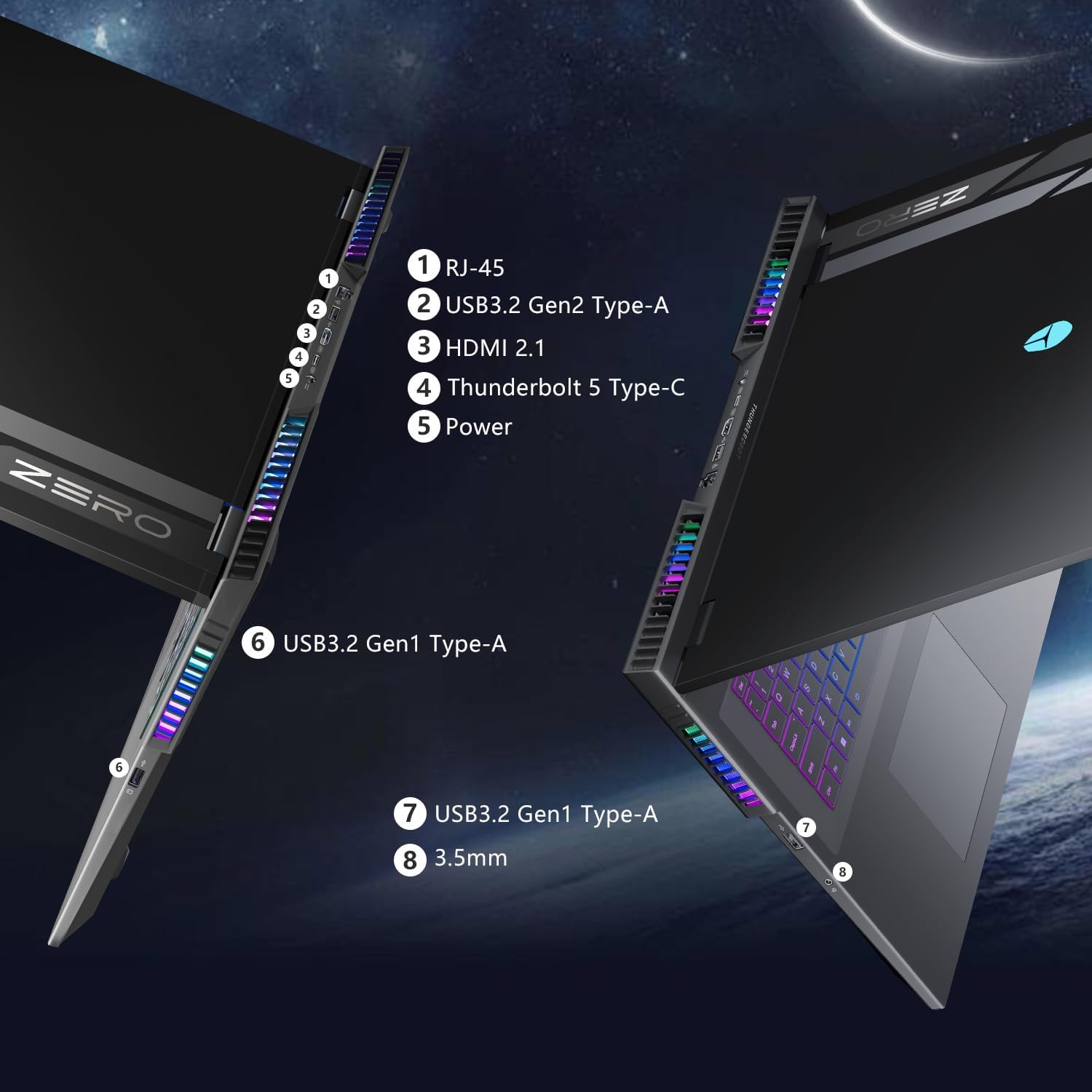
תמונה: תקריב view of the laptop's side, showing the various ports and the integrated RGB lighting strip.
8. אחריות ותמיכה
8.1 מידע אחריות
Every Thunderobot laptop includes a 12-month warranty, covering manufacturing defects and ensuring expert support. Additionally, a 90-day warranty is provided on all warranty replacement parts, ensuring hassle-free repairs and genuine components.
8.2 תמיכת לקוחות
For technical assistance, troubleshooting, or warranty claims, please visit the official Thunderobot support webאתר או צרו קשר עם שירות הלקוחות שלהם. שמרו את קבלת הרכישה ואת מספר הסידורי של המוצר בהישג יד לקבלת שירות מהיר יותר.