
1. הקדמה
This manual provides detailed instructions for the installation, configuration, and operation of the D-Link Guardian 700 Pro Multi-Gig Business Router (DBR-700). The DBR-700 is designed to provide enterprise-level networking capabilities for small and medium businesses, offering high-speed connectivity, robust security features, and simplified management.
Key features include a 2.5GbE WAN port, six 2.5GbE LAN ports, a 2.5GbE SFP uplink for flexible fiber connections, Multi-WAN failover, SPI Firewall, VPN support (IPSec, WireGuard, OpenVPN), and centralized management for up to 15 D-Link Guardian Wi-Fi 6 Smart Access Points (DBR-X3000-AP, sold separately).

Image: The D-Link Guardian 700 Pro Multi-Gig Router (DBR-700) designed for small and medium business environments.
2. תכולת החבילה
ודא שהחבילה שלך מכילה את הפריטים הבאים:
- D-Link Guardian 700 Pro Multi-Gig Business Router (DBR-700)
- מתאם מתח
- מדריך התקנה מהיר (QIG)
אם פריטים כלשהם חסרים או ניזוקים, אנא צרו קשר עם משווק D-Link המקומי שלכם.
3. חומרה נגמרהview
3.1. לוח קדמי
The front panel of the DBR-700 features status indicators and network ports.

תמונה: חזית view of the DBR-700 router, showing LED indicators, Console port, LAN ports, WAN port, and LAN/WAN SFP port.
- LED SYS: מציין את מצב המערכת.
- LED SFP: Indicates status of the SFP port.
- לחצן איפוס: Used to reset the device or restore factory defaults.
- יציאת מסוף: For command-line interface access.
- יציאות LAN (1-6): Six 2.5GbE LAN ports for connecting local network devices.
- יציאת LAN/WAN: A 2.5GbE port configurable as either a LAN or WAN interface.
- יציאת WAN: A dedicated 2.5GbE WAN port for internet connectivity.
- LAN/WAN SFP Port: A 2.5GbE/1GbE SFP port for fiber or copper connections, configurable as LAN or WAN.
3.2. לוח אחורי
הפאנל האחורי כולל את כניסת החשמל ואת מתג ההפעלה.

תמונה: אחורי view of the DBR-700 router, showing the DC 12V/2A power input and On/Off switch.
- זרם ישר 12V/2A: מחבר כניסת חשמל.
- מתג הפעלה/כיבוי: בקרת כוח למכשיר.
4. התקנה
Follow these steps for the initial setup of your DBR-700 router:
- חיבור חשמל: Connect the provided power adapter to the DC 12V/2A port on the rear panel of the router and plug it into a power outlet. Turn on the router using the On/Off switch.
- חיבור WAN: Connect your internet service provider's modem or main network line to the WAN port on the router using an Ethernet cable. If using fiber, insert the SFP module (sold separately) into the LAN/WAN SFP port and connect the fiber cable.
- אינטרנט חוטי: Connect your local network devices (e.g., computers, switches, access points) to the LAN ports (1-6) or the configurable LAN/WAN port using Ethernet cables.
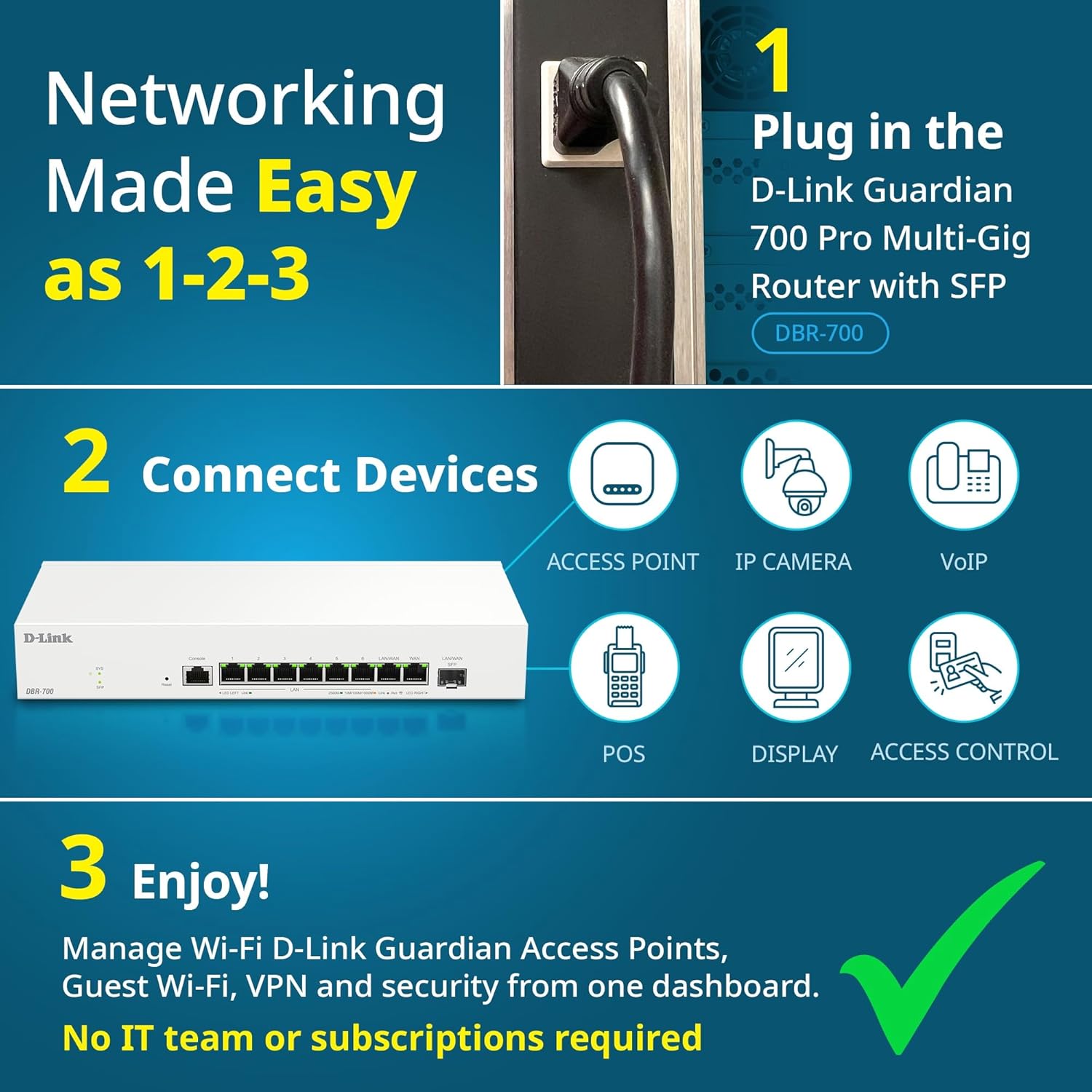
Image: Visual guide for router installation: 1. Plug in the DBR-700 router. 2. Connect devices like access points, IP cameras, VoIP, POS, displays, and access control. 3. Enjoy managed Wi-Fi, Guest Wi-Fi, VPN, and security from one dashboard.
5. תצורה
5.1. גישה ל Web מִמְשָׁק
To configure the DBR-700, access its webממשק ניהול מבוסס:
- ודא שהמחשב שלך מחובר לאחת מיציאות ה-LAN של הנתב.
- פתח א web דפדפן (למשל, כרום, פיירפוקס, אדג').
- Enter the router's default IP address (typically
192.168.1.1or similar, refer to the Quick Installation Guide for the exact address) into the address bar and press Enter. - Enter the default username and password when prompted. (Refer to the Quick Installation Guide for default credentials).
5.2. הגדרות רשת בסיסיות
Once logged in, you can configure basic network settings:
- הגדרות WAN: Configure your internet connection type (e.g., DHCP, Static IP, PPPoE) as provided by your ISP.
- הגדרות LAN: Adjust the router's internal IP address, subnet mask, and DHCP server settings for your local network.
- הגדרות זמן: Set the correct time zone and synchronize the router's clock.
6. תכונות מתקדמות
6.1. Multi-WAN Failover
The DBR-700 supports Multi-WAN with intelligent failover, ensuring business continuity by providing redundant internet connections. If the primary WAN link fails, the router automatically switches to a secondary WAN link.

Image: The DBR-700's ports, illustrating the Primary 2.5GbE WAN, Secondary 2.5GbE LAN/WAN, and SFP Uplink for Multi-WAN failover capabilities.
6.2. הגדרת VPN
The router includes built-in VPN support for IPSec, WireGuard, and OpenVPN, enabling secure remote access for employees and branch office connectivity. It supports up to 100 VPN tunnels.
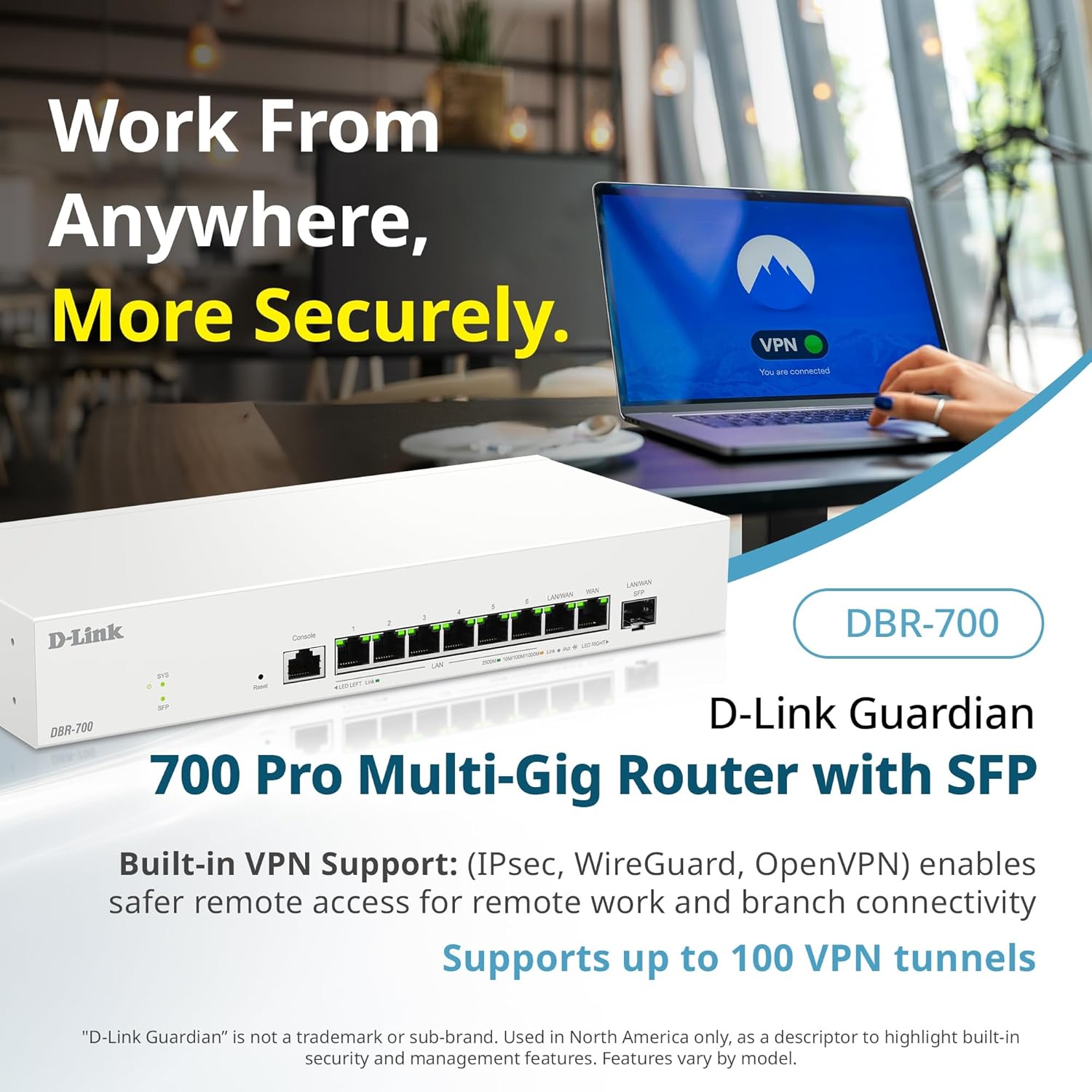
Image: A laptop displaying a 'VPN Connected' status, with the DBR-700 router in the foreground, illustrating secure remote access.
6.3. Centralized Access Point Management
The DBR-700 can discover and manage up to 15 D-Link Guardian Wi-Fi 6 Smart Access Points (DBR-X3000-AP, sold separately) from a single intuitive dashboard. This simplifies Wi-Fi network deployment and management.

Image: A tablet showing the D-Link Wi-Fi management dashboard, demonstrating centralized control over D-Link Guardian Access Points, with the DBR-700 router and a DBR-X3000-AP in the background.
6.4. Guest Wi-Fi Management
Set up and manage guest Wi-Fi networks with a Captive Portal. This allows for branded sign-in pages for guests while keeping business systems separate and secure. Configuration and management are done from the router dashboard.

Image: A smartphone screen showing a customizable guest Wi-Fi login portal, highlighting the DBR-700's ability to manage and customize guest networks.
7. תחזוקה
7.1. עדכוני קושחה
Regularly check for and install firmware updates to ensure optimal performance, security, and access to new features. Firmware updates can typically be found on the D-Link support webאתר עבור הדגם הספציפי שלך.
7.2. איפוס להגדרות היצרן
If you encounter persistent issues or wish to clear all configurations, you can perform a factory reset. To do this, locate the Reset button on the front panel. With the router powered on, use a paperclip or similar pointed object to press and hold the Reset button for approximately 5-10 seconds until the SYS LED blinks. Release the button, and the router will restart with factory default settings.
8. פתרון תקלות
This section addresses common issues you might encounter with your DBR-700 router.
8.1. אין חיבור לאינטרנט
- בדוק כבלים: ודא שכל כבלי ה-Ethernet מחוברים היטב ליציאות הנכונות (WAN, LAN).
- מצב מודם: Verify that your internet service provider's modem is working correctly and has an active internet connection.
- תצורת WAN: היכנס לנתב web interface and verify that the WAN settings (e.g., IP address, DNS) are correctly configured according to your ISP's requirements.
- אתחול התקנים: כבה מחדש את המודם, לאחר מכן את הנתב ולאחר מכן את המכשירים המחוברים.
8.2. אין גישה Web מִמְשָׁק
- כתובת IP: Ensure your computer is configured to obtain an IP address automatically (DHCP) or has a static IP address within the router's subnet.
- נתב IP: Double-check the router's default IP address. It might be printed on a label on the router itself or in the Quick Installation Guide.
- חומת אש/אנטי-וירוס: השבת זמנית כל תוכנת חומת אש או אנטי-וירוס במחשב שלך שעשויה לחסום את הגישה.
- מטמון דפדפן: נקה את שלך web מטמון ועוגיות של הדפדפן, או נסה דפדפן אחר.
8.3. Slow Network Speeds
- איכות הכבלים: Ensure you are using high-quality Ethernet cables (Cat5e or Cat6) for multi-gig connections.
- תאימות מכשיר: Verify that connected devices and network adapters support 2.5GbE speeds.
- מהירות ספק האינטרנט: Confirm your internet service plan provides the expected speeds.
- ניהול תנועה: Check router settings for any Quality of Service (QoS) or bandwidth limits that might be affecting performance.
9. מפרט טכני
| תכונה | מִפרָט |
|---|---|
| מותג | D-Link |
| מספר דגם | DBR-700 |
| יציאות WAN | 1x 2.5GbE WAN, 1x 2.5GbE/1GbE SFP (configurable as WAN) |
| יציאות LAN | 6x 2.5GbE LAN, 1x 2.5GbE (configurable as LAN) |
| תמיכה ב- VPN | IPSec, WireGuard, OpenVPN (up to 100 tunnels) |
| ניהול AP | Manages up to 15 D-Link Guardian Wi-Fi 6 Smart Access Points |
| תכונות אבטחה | SPI Firewall, WPA3 encryption, VLANs |
| מידות (LxWxH) | 11.02 x 1.73 x 4.96 אינץ' |
| משקל פריט | 2 פאונד |
| כרך ידtage | 120 וולט (AC) |
| צֶבַע | לָבָן |
10. אחריות ותמיכה
למידע מפורט על אחריות, תמיכה טכנית ומשאבים נוספים, אנא בקרו באתר הרשמי של D-Link website. You can find product registration, FAQs, firmware downloads, and contact information for customer service.
די-לינק רשמי Webאֲתַר: www.dlink.com
Please have your product model number (DBR-700) and serial number ready when contacting support.