
מָבוֹא
Thank you for choosing the UPERFECT 4K QLED 15.6 inch Portable Monitor. This manual provides essential information for setting up, operating, maintaining, and troubleshooting your new monitor. Please read it thoroughly to ensure optimal performance and longevity of your device.
תכונות המוצר
- תצוגת 4K UHD: Experience stunning visuals with a 3840 x 2160 UHD resolution, delivering exceptional clarity and detail, four times that of Full HD.
- 100% Adobe RGB Color Accuracy: The monitor features 100% Adobe RGB color space, providing a wider and more accurate color gamut compared to sRGB. This ensures realistic color reproduction, a 1200:1 contrast ratio, and support for 16.7 million display colors for a cinematic visual experience.
- חווית משחק משופרת: Integrated Game Mode optimizes screen contrast for gaming. HDR (High Dynamic Range) provides significant differences in brightness details, while FreeSync technology synchronizes the graphics card's refresh rate to minimize screen tearing and image distortion. A rapid 3ms response time ensures smooth motion without blur or ghosting.
- קישוריות רב-תכליתית: Equipped with two USB Type-C ports and one Mini HDMI port. The Type-C ports support both video signal transmission and power delivery, allowing for single-cable connection to compatible laptops and smartphones. Connect to various devices including PCs, Raspberry Pi, PS5, Xbox, and more.
- VESA Mount & Protective Cover: Standard 75x75mm VESA mounting holes (M3 x 4mm) enable flexible installation on a desk mount or wall in either landscape or portrait orientation. The included magnetic PU protective cover safeguards the screen from scratches and functions as a convenient portable stand.
הוראות התקנה
- פריקת אריזה: Carefully remove the monitor and all accessories from the packaging. Ensure all components are present: monitor, protective cover, USB-C cables, HDMI cable, and power adapter.
- Connecting to a Device (USB-C):
For devices with a full-featured USB Type-C port (supporting DisplayPort Alternate Mode and power delivery), connect one end of the provided USB-C to USB-C cable to the monitor's Type-C port and the other end to your device's USB-C port. This single cable can provide both video and power.

תֵאוּר: This image shows the portable monitor connected to a smartphone via a single USB-C cable, demonstrating the ease of mirroring or extending the smartphone's display.
- Connecting to a Device (HDMI):
For devices using HDMI output, connect one end of the provided Mini HDMI to HDMI cable to the monitor's Mini HDMI port and the other end to your device's HDMI port. In this setup, the monitor will require external power. Connect the provided power adapter to one of the monitor's USB Type-C ports and to a power outlet.
תֵאוּר: This image illustrates the portable monitor connected to a laptop using an HDMI cable for video, and a separate USB-C cable for power, a common setup for devices without full-featured USB-C ports.
- Using the Protective Cover as a Stand:
The magnetic protective cover can be folded into various positions to serve as a stand, allowing you to prop up the monitor at different viewing angles. Ensure the monitor is stable before use.

תֵאוּר: This image demonstrates how the included magnetic protective cover can be folded and used as a stable stand for the portable monitor, offering adjustable viewזוויות.
- הרכבה VESA:
The monitor features 75x75mm VESA mounting holes on the back. Use M3 x 4mm screws to attach the monitor to a compatible VESA desk mount or wall mount. This allows for flexible positioning and frees up desk space.

תֵאוּר: This image shows the portable monitor mounted on a VESA-compatible arm, illustrating how it can be integrated into a multi-monitor setup or used to optimize desk space.
הוראות הפעלה
- הפעלה/כיבוי: Press the power button located on the side or back of the monitor to turn it on or off.
- ניווט בתפריט OSD: Use the joystick or buttons (refer to the physical layout on your monitor) to navigate the On-Screen Display (OSD) menu. This menu allows you to adjust various settings.
- בחירת מקור קלט: From the OSD menu, select the appropriate input source (e.g., USB-C, HDMI) corresponding to your connected device.
- התאמת הגדרות תצוגה:
- ניגוד בהירות: התאם את ההגדרות הללו בתפריט המסך כך שיתאימו לצרכים שלך. viewing environment. The monitor offers 500 Nits brightness for vibrant visuals.
- הגדרות צבע: Fine-tune color temperature, hue, and saturation for optimal color accuracy, leveraging the 100% Adobe RGB support.
- מצב HDR: Enable HDR in the OSD menu for enhanced contrast and color depth with HDR-compatible content.
- מצב משחק: Activate Game Mode for optimized visual settings during gaming, improving visibility in dark scenes and overall responsiveness.
- FreeSync: If your connected device supports AMD FreeSync, ensure it is enabled in both your device's graphics settings and the monitor's OSD menu to prevent screen tearing.
תַחזוּקָה
- ניקוי המסך: נגבו בעדינות את המסך בעזרת מטלית רכה ונטולת סיבים. במקרה של סימנים עקשניים, נגבו קלותampשטפו את המטלית במים או בתמיסת ניקוי מסך. הימנעו מכימיקלים חזקים, חומרים שוחקים או ריסוס נוזלים ישירות על המסך.
- ניקוי הגוף: השתמש במטלית רכה ויבשה כדי לנקות את גוף הצג.
- אִחסוּן: When not in use for extended periods, store the monitor in a cool, dry place, preferably in its original packaging or protective cover, away from direct sunlight and extreme temperatures.
- טיפול: יש להחזיק את הצג תמיד בקצוותיו. יש להימנע מהפעלת לחץ על המסך.
פתרון בעיות
| בְּעָיָה | סיבה אפשרית | פִּתָרוֹן |
|---|---|---|
| אין תמונה/אין אות | Incorrect input source selected; loose cable connection; device not outputting signal. | Ensure correct input source is selected in OSD. Check all cable connections (USB-C, HDMI) are secure. Verify the source device is powered on and configured to output to the monitor. |
| המסך לא נדלק | אין ספק כוח; מתאם/כבל חשמל פגום. | Ensure the power adapter is securely connected to the monitor and a working power outlet. If using USB-C for power, ensure the source device provides sufficient power. Try a different power outlet or adapter if available. |
| תמונה מהבהבת או מעוותת | Faulty cable; incompatible resolution/refresh rate; electromagnetic interference. | Replace the connecting cable. Adjust the resolution and refresh rate on your source device to match the monitor's specifications (3840x2160, 60Hz). Move away from other electronic devices that may cause interference. |
| צבעים נראים שגויים | הגדרות צבע שגויות; כבל פגום. | Reset color settings in the OSD menu to default. Adjust color temperature, hue, and saturation. Ensure the cable is fully functional. |
| אין צליל מהמסך (אם רלוונטי) | Volume too low; incorrect audio output selected on source device; monitor's audio settings. | Increase monitor volume via OSD. Check audio output settings on your connected device to ensure sound is directed to the monitor. |
מפרטים
| תכונה | פְּרָט |
|---|---|
| מותג | מושלם |
| מספר דגם | ccf5c598-9977-4620-9699-ed83e5597279 |
| גודל מסך | 15.6 אינץ' |
| הַחְלָטָה | 3840 x 2160 UHD |
| יחס גובה-רוחב | 16:9 |
| תיאור משטח המסך | דָהוּי |
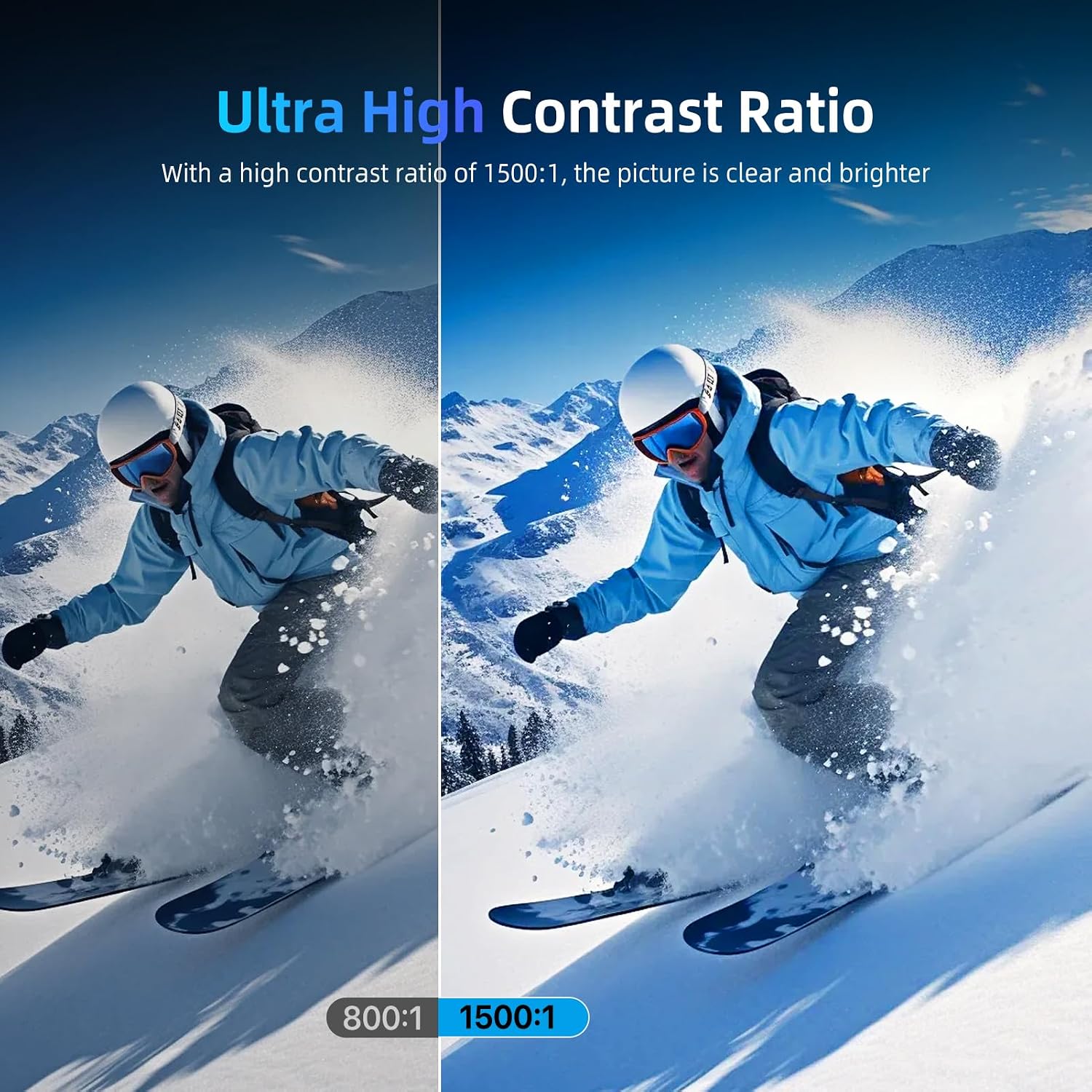
| יחס ניגודיות | 1500:1 |
| זמן תגובה | 3 מילישניות |
| רזולוציית תצוגה מקסימלית | 3840 x 2160 |
| תכונות מיוחדות | Game Mode, HDR, FreeSync, Fast Response Time, 2 Type-C Ports, VESA Mount |
| טכנולוגיית קישוריות | HDMI, USB סוג C |
| סוג תצוגה | QLED |
| בְּהִירוּת | 500 Nits |
| תצוגה צבעונית | כֵּן |
| מידות פריט (D x W x H) | 24 x 36 x 1 סנטימטרים |
| סך כל יציאות HDMI | 1 |
| סך כל יציאות USB | 2 (USB 3.0) |
| טכנולוגיית סינכרון אדפטיבי | FreeSync |
| מחלקת יעילות אנרגטית (SDR) | A |
| צריכת חשמל (SDR) | 6.0 וואט / 1000 שעות |
For detailed energy information, please refer to the EU EPREL database: https://eprel.ec.europa.eu/qr/1803782
מידע על אחריות
Specific warranty details for this product are not explicitly provided in the available product data. For information regarding warranty coverage and terms, please refer to the documentation included with your purchase or contact the seller directly. Please note that a 30-day return policy may apply, as indicated by the seller.
מידע בנוגע לזמינות חלקי חילוף ועדכוני תוכנה מובטחים אינו זמין בנתוני המוצר שסופקו.
תְמִיכָה
If you encounter any issues not covered in this manual or require further assistance, please contact UPERFECT customer support or the retailer from whom you purchased the product. Please have your model number and purchase details ready when contacting support.