
מָבוֹא
This manual provides essential information for the safe and efficient use of your Google Pixel 9 Pro 5G smartphone. Please read these instructions carefully before operating your device.
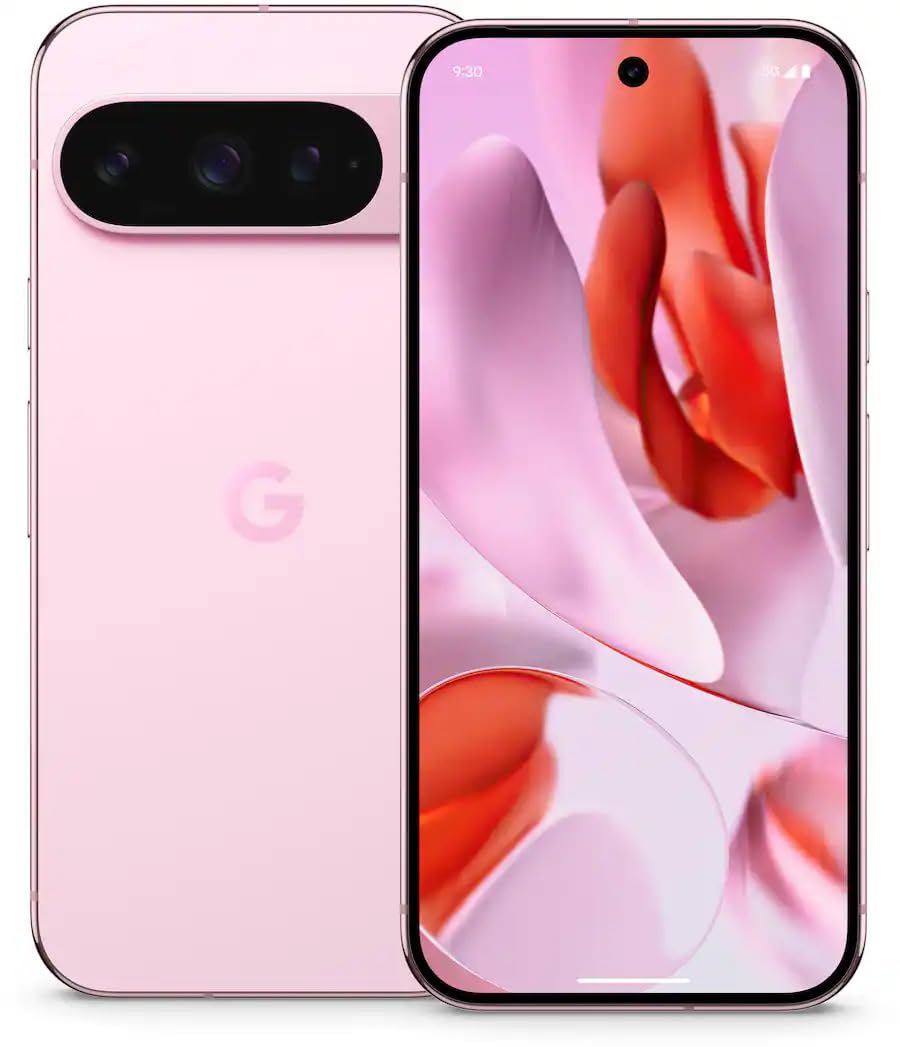
איור 1: חזית view of the Google Pixel 9 Pro 5G.
מה יש בקופסה
ודא שכל הפריטים נמצאים באריזה:
- סמארטפון גוגל פיקסל 9 פרו
- USB-C to USB-C Cable (1m, USB 2.0)
- כלי לחילוץ מגש ה-SIM
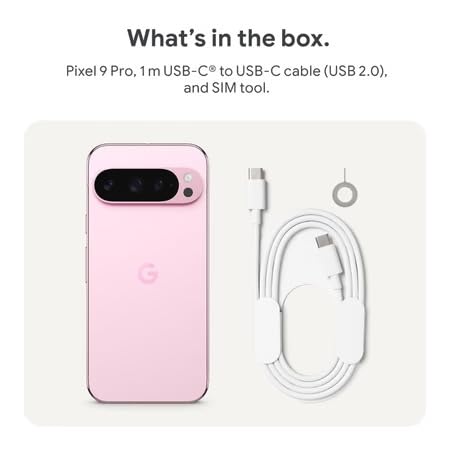
Figure 2: Included items in the Pixel 9 Pro packaging.
הגדרה
1. הכנסת כרטיס SIM
- Locate the SIM tray on the side of your Pixel 9 Pro.
- הכנס את כלי חילוץ ה-SIM המצורף לחור הקטן במגש ה-SIM ולחץ בעדינות עד שהמגש ייצא החוצה.
- Place your Nano-SIM card into the tray with the gold contacts facing down. Ensure it is seated correctly.
- דחף בזהירות את מגש ה-SIM בחזרה לתוך המכשיר עד שיהיה שטוח.
2. טעינה ראשונית
לפני השימוש הראשון, מומלץ לטעון את המכשיר במלואו.
- חבר את כבל ה-USB-C לשקע הטעינה בתחתית הטלפון.
- Connect the other end of the cable to a compatible USB power adapter (sold separately) and plug it into a power outlet.
- סמל הסוללה על המסך יציין את מצב הטעינה.
3. הפעלה / כיבוי
- כדי להפעיל: Press and hold the Power button (located on the right side) until the Google logo appears on the screen.
- כדי לכבות: לחץ והחזק את לחצן ההפעלה, לאחר מכן הקש על 'כיבוי' על המסך.
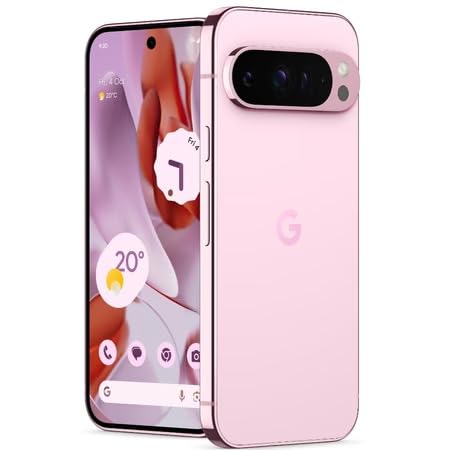
Figure 3: Power and volume buttons on the side of the device.
4. אשף ההתקנה הראשונה
Upon powering on for the first time, follow the on-screen instructions to:
- בחר את השפה והאזור שלך.
- התחבר לרשת Wi-Fi.
- היכנס באמצעות חשבון גוגל שלך או צור חשבון חדש.
- Set up security features such as fingerprint unlock, face unlock, PIN, pattern, or password.
- העברת נתונים ממכשיר ישן (אופציונלי).
הוראות הפעלה
ניווט בסיסי
- מחוות מסך מגע: Interact with the device using taps, swipes, pinches (for zoom), and long presses.
- מסך הבית: Access your applications, widgets, and customize your layout.
- התראות: החלק מטה מהחלק העליון של המסך אל view הודעות.
- הגדרות מהירות: Swipe down twice from the top of the screen to access quick settings toggles (Wi-Fi, Bluetooth, etc.).
תפעול מצלמה
The Pixel 9 Pro features a powerful triple rear camera system.
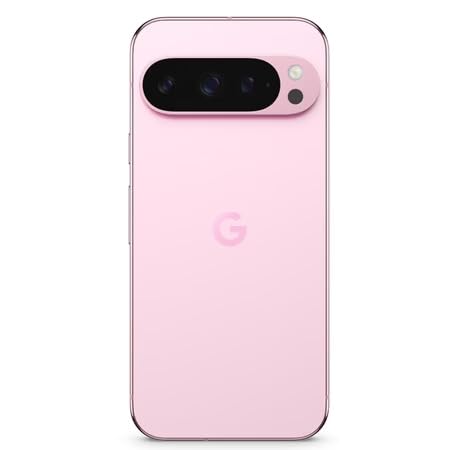
Figure 4: Rear camera system of the Pixel 9 Pro.
- פתיחת המצלמה: Tap the Camera app icon on your home screen or lock screen.
- החלפת עדשות: Tap the icons on the viewfinder to switch between wide, ultrawide, and 5x telephoto lenses.
- מצבי צילום: Select from various modes such as Night Sight for low-light conditions, אסטרופוטוגרפיה for capturing stars, מאקרו for close-up shots, חשיפה ארוכה for creative effects, and דְיוֹקָן for depth-of-field effects.
- זום ברזולוציה גבוהה: Pinch the screen to digitally zoom up to 30x. For video, Super Res Zoom supports up to 20x.
- Pro Controls: Access advanced camera settings like shutter speed and manual focus for greater creative control.
ניהול סוללות
- בדיקת רמת הסוללה: View אחוז הסוללהtage in the status bar or in Settings > Battery.
- חיסכון קיצוני בסוללה: Enable this mode in Settings > Battery > Extreme Battery Saver to significantly extend battery life.
- טְעִינָה: Use the provided USB-C cable and a compatible power adapter for optimal charging speed.
תכונות אבטחה
Your Pixel 9 Pro incorporates multiple hardware security layers to protect your data.
- נעילת טביעות אצבע: Register your fingerprints in Settings > Security & privacy > Device unlock.
- ביטול נעילת פנים: הגדר זיהוי פנים לפתיחה נוחה.
- קוד סודי/תבנית/סיסמה: Always set a strong screen lock method.
- עדכוני תוכנה: Regularly install system updates to ensure your device has the latest security patches.
חיישן טמפרטורה
The Pixel 9 Pro includes a thermometer for measuring temperature.
- Open the dedicated Thermometer app.
- Follow the on-screen instructions to measure body temperature or the temperature of objects.
- Temperature data can be saved and tracked within the Fitbit application.
תַחזוּקָה
ניקוי המכשיר שלך
- השתמש במטלית רכה ונטולת סיבים כדי לנקות את המסך וגוף הטלפון.
- הימנעו משימוש בחומרים שוחקים, כימיקלים קשים או תרסיסי אירוסול.
- Do not submerge the device in water, despite its water-resistant rating.
עדכוני תוכנה
Google regularly releases software updates to improve performance, add features, and enhance security.
- To check for updates, go to Settings > System > System update.
- Ensure your device is connected to Wi-Fi and has sufficient battery charge before installing updates.
טיפול פיזי
The Pixel 9 Pro is built with Corning Gorilla Glass Victus 2 and is water-resistant, offering durability against everyday drops and spills.
- While durable, avoid excessive impacts or drops to prevent damage.
- Consider using a screen protector and a protective case for additional safeguarding.
פתרון בעיות
המכשיר לא מגיב
If your phone becomes unresponsive, perform a force restart:
- לחץ והחזק את לחצן ההפעלה למשך כ-10-15 שניות עד שהמכשיר יופעל מחדש.
אפליקציות קורסות או קופאות
- סגור את האפליקציה הבעייתית ופתח אותה מחדש.
- Clear the app's cache: Go to Settings > Apps > See all apps > [App Name] > Storage & cache > Clear cache.
- ודא שהאפליקציה מעודכנת לגרסה העדכנית ביותר שלה מחנות Google Play.
- הפעל מחדש את הטלפון שלך.
בעיות קישוריות רשת (Wi-Fi/סלולרי)
- Toggle Wi-Fi or cellular data off and then back on.
- הפעל מחדש את הטלפון שלך.
- Verify that your SIM card is correctly inserted.
- איפוס הגדרות רשת: עבור אל הגדרות > מערכת > אפשרויות איפוס > איפוס Wi-Fi, נייד ו-Bluetooth.
הסוללה מתרוקנת במהירות
- Check battery usage in Settings > Battery to identify power-consuming apps.
- הפחת את בהירות המסך ואת משך זמן ההפסקה של המסך.
- Disable unnecessary features like GPS, Bluetooth, and Wi-Fi when not in use.
- Enable Extreme Battery Saver mode.
איפוס להגדרות יצרן (מוצא אחרון)
Warning: A factory reset will erase all data from your phone. Back up all important data before proceeding.
- עבור אל הגדרות > מערכת > אפשרויות איפוס > מחק את כל הנתונים (איפוס להגדרות היצרן).
- Confirm your decision when prompted.
מפרטים
| תכונה | פְּרָט |
|---|---|
| מותג | גוגל |
| דֶגֶם | Pixel 9 Pro |
| מַעֲרֶכֶת הַפעָלָה | אנדרואיד 15 |
| מעבד | Google Tensor G4 (3.1 GHz) |
| אַיִל | 16 ג'יגה-בייט |
| אחסון פנימי | 256 ג'יגה-בייט |
| לְהַצִיג | 6.3 Inches LTPO OLED (Actua), 1280 x 2856 Pixels, 120 Hz Refresh Rate |
| מצלמה אחורית | 50 MP wide + 48 MP ultrawide (Macro) + 48 MP 5x telephoto |
| מצלמה קדמית | 42 מגה פיקסל |
| קיבולת סוללה | 4700 מיליamp Hours (up to 24 hours average life) |
| קישוריות | 5G, Wi-Fi 7, Bluetooth 5.3, NFC, UWB, USB-C |
| כרטיס סים | Single Nano SIM |
| עמידות במים | עמיד במים |
| מידות | 8 x 72 x 153 מילימטרים |
| מִשׁקָל | 198 גרם |
אחריות ותמיכה
מידע על אחריות
Your Google Pixel 9 Pro 5G comes with a אחריות יצרן לשנה מתאריך הרכישה. אחריות זו מכסה פגמי ייצור בשימוש רגיל. אנא שמור את הוכחת הרכישה שלך לצורך תביעות אחריות.
תמיכת לקוחות
For technical assistance, warranty claims, or other support inquiries, please contact Google customer service:
- יַצרָן: Google LLC, 1600 Ampפארקווי, הר View, CA 94043, ארה"ב
- Phone Support (India): +91 7718892303
- איש קשר של יבואן (הודו): Nexora Axis Private Limited (+91 7718892303)
For the most up-to-date support information, please visit the official Google Pixel support webאֲתַר.