
1. הקדמה
Thank you for choosing the Pisichen 24 inch Touch Screen Gaming Monitor. This manual provides essential information for setting up, operating, and maintaining your monitor. Please read it thoroughly before use to ensure optimal performance and safety.
This monitor features a 24-inch QHD (2560x1440P) display with a 165Hz refresh rate, 2ms response time, and 10-point projected capacitive touchscreen functionality. It supports FreeSync and HDR, offering a vibrant and responsive visual experience for both gaming and professional applications.

Image: The Pisichen 24-inch 2K 165Hz Touch Screen Monitor highlighting its key features like HDR, IPS Panel, and 10-point Touch.
2. תכולת החבילה
לפני שתמשיך בהתקנה, אנא ודא שכל הרכיבים נמצאים בחבילה:
- Pisichen 24 inch Touch Screen Monitor
- מעמד למוניטור (בסיס וצוואר)
- כבל DP
- כבל HDMI
- USB B Touch Cable
- כבל USB CC
- מתאם מתח DC
- מדריך למשתמש (מסמך זה)
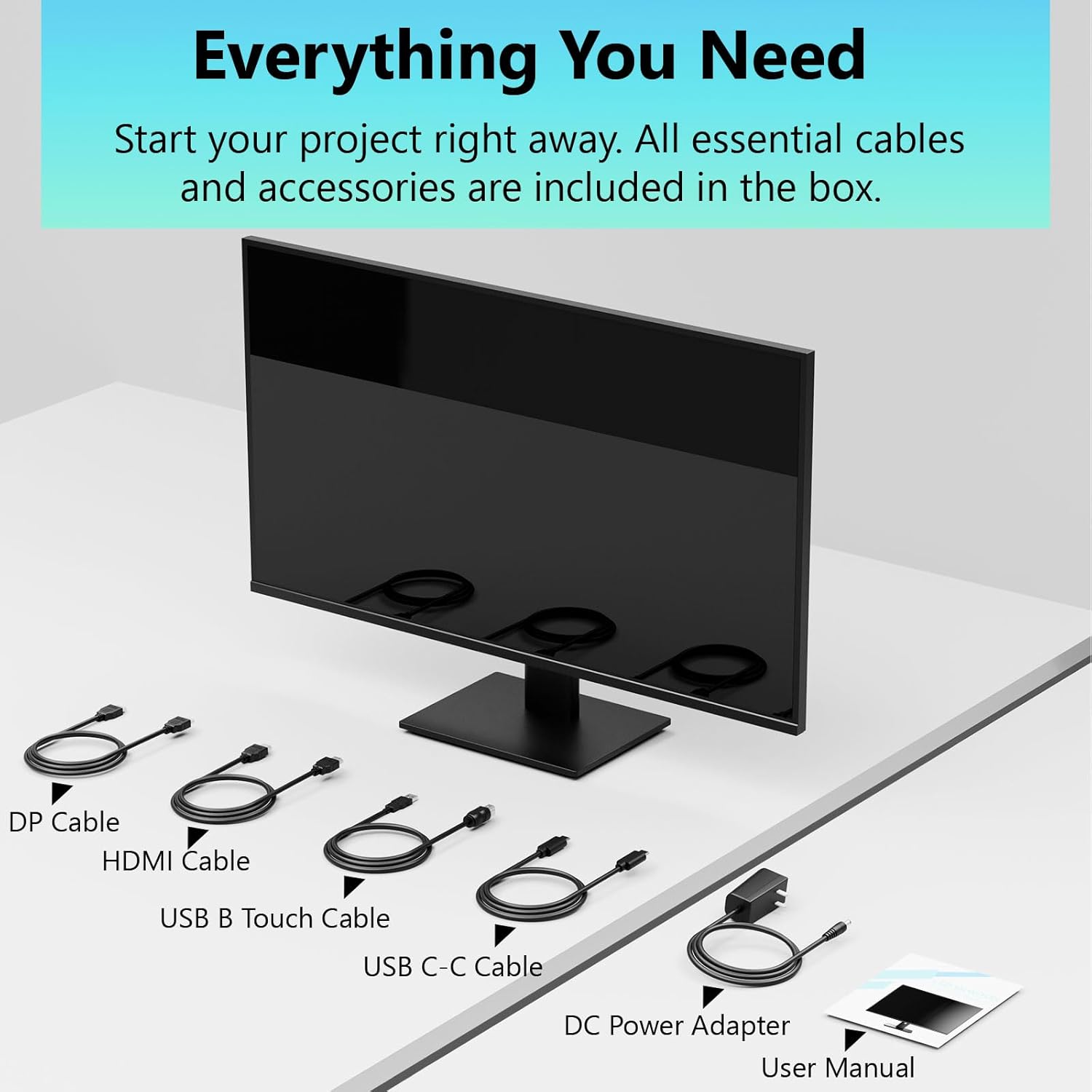
Image: All essential cables and accessories included in the box for the monitor setup.
3. הוראות התקנה
3.1 הרכבת המעמד
- הוציאו בזהירות את הצג מאריזתו, והניחו אותו כשפניו כלפי מטה על משטח רך ונקי כדי למנוע שריטות.
- Attach the stand neck to the monitor's rear panel.
- אבטחו את בסיס המעמד לצוואר המעמד באמצעות הברגים המצורפים.
- Ensure all connections are firm before placing the monitor upright.
3.2 התקנת מתקן VESA (אופציונלי)
This monitor supports VESA mounting. If you plan to use a VESA-compatible arm or wall mount, remove the stand and attach the VESA mount according to the mount's instructions. The VESA pattern is typically 75x75mm or 100x100mm (refer to specifications for exact details).
3.3 התחברות למכשיר
הצג מציע אפשרויות קישוריות מרובות:
- HDMI: חבר קצה אחד של כבל ה-HDMI ליציאת ה-HDMI של הצג ואת הקצה השני ליציאת ה-HDMI של המחשב.
- DisplayPort (DP): Connect one end of the DP cable to the monitor's DP port and the other end to your computer's DP output.
- USB Type-C: For compatible devices, connect the USB C-C cable to the monitor's USB Type-C port and your device's USB Type-C port. This single cable can transmit video, data, and power (charging).
- USB Type-B (for Touch Functionality): To enable the touch screen feature, connect the USB B Touch Cable from the monitor's USB Type-B port to an available USB Type-A port on your computer.

Image: The monitor's rear panel with various connectivity options, including HDMI, DisplayPort, and USB-C ports.
3.4 חיבור מתח
Connect the DC Power Adapter to the monitor's power input port, then plug the adapter into a power outlet.
3.5 Initial Power On and Touch Compatibility
Press the power button on the monitor. The display should light up. If no image appears, ensure all cables are securely connected and the correct input source is selected on the monitor (via the OSD menu).
For touch functionality, ensure the USB B Touch Cable is connected to your computer. Touch compatibility may vary by operating system and device. Most Windows PCs support multi-touch. For Mac devices, single-touch click is generally supported, but multi-touch may require specific drivers or configurations. Game consoles (PS3/4/5, Xbox, Steam Deck) and some other devices (Fire TV, Apple products like iPhone/iPad) typically do not support touch functionality.

Image: A compatibility chart illustrating which devices support multi-touch or single-touch, and which devices do not support touch functionality with the monitor.
4. הוראות הפעלה
4.1 הפעלה/כיבוי
לחץ על לחצן ההפעלה הממוקם על הצג כדי להפעיל או לכבות אותו. נורית חיווי ההפעלה תציג את מצב הצג.
4.2 תפריט תצוגה על המסך (OSD).
The OSD menu allows you to adjust various monitor settings. Use the control buttons (usually located on the back or bottom of the monitor) to navigate the menu. Common menu options include:
- הגדרות תמונה: בהירות, ניגודיות, חדות, טמפרטורת צבע, מצב HDR.
- הגדרות תצוגה: Aspect Ratio, Input Source selection (HDMI, DP, USB-C).
- הגדרות משחקים: FreeSync, Response Time (Overdrive), Crosshair.
- הגדרות שמע: Volume (if internal speakers or audio output are present).
- הגדרות מערכת: שפה, שקיפות תפריט המסך, איפוס להגדרות היצרן.
4.3 פונקציונליות מסך מגע
The monitor supports 10-point multi-touch, allowing for intuitive interaction directly on the screen. Ensure the USB B Touch Cable is connected to your computer for this feature to work.
- לחיצה יחידה: Equivalent to a left-click.
- הקש והחזק: שווה ערך ללחיצה ימנית.
- צביטה-להגדלה: השתמשו בשתי אצבעות כדי להגדיל או להקטין את התצוגה.
- לִגנוֹב: Navigate through content or scroll.

Image: A user interacting with the monitor's touch screen, highlighting its precision and responsiveness for creative tasks.
4.4 התאמות ארגונומיות
The monitor stand allows for tilt adjustments to achieve the most comfortable viewing and touch angle. Gently adjust the screen to your preferred position.
4.5 תכונות טיפוח עיניים
The monitor includes advanced eye-comfort features such as Flicker-Free technology and Low Bluelight mode to reduce eye strain during prolonged use. These settings can typically be adjusted within the OSD menu.

Image: Visual representation of the monitor's advanced eye-comfort features, including Flicker-Free and Low Bluelight technologies.
5. תחזוקה
5.1 ניקוי הצג
- יש לכבות תמיד את הצג ולנתק את כבל החשמל לפני הניקוי.
- השתמש קלות במטלית רכה נטולת מוך דampנשטפו במים או בחומר ניקוי מסך עדין ולא שוחק.
- אין לרסס חומר ניקוי ישירות על המסך. יש למרוח אותו תחילה על המטלית.
- הימנעו משימוש בבנזן, מדלל, חומרי ניקוי על בסיס אמוניה או חומרים שוחקים, מכיוון שאלה עלולים לפגוע במשטח המסך.
5.2 אחסון
When storing the monitor for an extended period, ensure it is powered off, unplugged, and stored in a cool, dry place away from direct sunlight and extreme temperatures. Use the original packaging if available for best protection.
6. פתרון תקלות
אם נתקלת בבעיות עם הצג שלך, עיין בשלבי פתרון הבעיות הנפוצים הבאים:
- אין כוח: ודא שמתאם החשמל מחובר היטב גם לצג וגם לשקע חשמל תקין. בדוק אם נורית חיווי ההפעלה דולקת.
- אין תמונה/אות:
- Verify that the video cable (HDMI, DP, or USB-C) is securely connected to both the monitor and your computer.
- ודא שמקור הקלט הנכון נבחר בתפריט המסך של הצג.
- בדוק את הגדרות התצוגה של המחשב שלך כדי לוודא שהצג מזוהה ומופעל.
- פונקציונליות ללא מגע:
- Confirm the USB B Touch Cable is connected from the monitor to your computer.
- Check your computer's device manager to see if the touch screen driver is installed and functioning correctly.
- Refer to the "Initial Power On and Touch Compatibility" section for device-specific limitations.
- תמונה מהבהבת או מעוותת:
- בדוק את כבל הווידאו לאיתור נזקים או חיבורים רופפים.
- נסה כבל וידאו או יציאה אחרת.
- התאם את קצב הרענון בהגדרות התצוגה של המחשב שלך.
- פיקסלים מתים: A small number of bright or dark pixels are common in LCD/LED technology and are not considered a defect unless they exceed manufacturer specifications.
אם הבעיה נמשכת לאחר שניסית את השלבים הבאים, אנא צור קשר עם תמיכת הלקוחות.
7. מפרטים
| תכונה | מִפרָט |
|---|---|
| מותג | פישין |
| מספר דגם | 24IN165HZ-QHD |
| גודל מסך | 23.8 אינץ' |
| הַחְלָטָה | QHD Wide 1440p (2560 x 1440) |
| יחס גובה-רוחב | 16:9 |
| קצב רענון | 165 הרץ |
| זמן תגובה | 2 אלפיות שניות |
| סוג תצוגה | LED IPS |
| בְּהִירוּת | 400 קנדלה (cd/m²) |
| יחס ניגודיות | 3000:1 |
| Viewזווית | 178 מעלות |
| סולם צבעים | 99% |
| Picture Quality Enhancement | HDR |
| סנכרון אדפטיבי | FreeSync |
| טכנולוגיית קישוריות | DisplayPort, HDMI, USB Type-C, USB Type-B |
| תכונות נוספות | Tilt Adjustment, 10-Point Touchscreen |
| מידות פריט (D x W x H) | 0.75" D x 21.5" W x 12.7" H |
| משקל פריט | 5.38 קילוגרם |
| צֶבַע | שָׁחוֹר |
8. מידע על אחריות
This product comes with a 1-year limited warranty from the date of purchase. The warranty covers manufacturing defects and workmanship under normal use. It does not cover damage caused by misuse, accidents, unauthorized modifications, or external factors. Please retain your proof of purchase for warranty claims.
9. תמיכת לקוחות
For technical assistance, warranty claims, or further inquiries, please contact Pisichen customer support. You may find contact information on the official Pisichen webבאתר או דרך הקמעונאי שלך.
למידע נוסף על המוצרים ולמשאבים נוספים, בקרו באתר Pisichen Store on Amazon.