
1. התקנה
This section guides you through the initial setup of your ASUS ROG Zephyrus G14 AI Gaming Laptop.
1.1 פתיחת הקופסה ובדיקה ראשונית
Carefully remove all components from the packaging. Verify that the laptop, power adapter, and any included accessories, such as the DKZ USB Port Expander, are present and undamaged.

Image: The ASUS ROG Zephyrus G14 AI Gaming Laptop, showcasinהתצוגה והעיצוב הכללי שלה.
1.2 חיבור ספק הכוח
- חבר את ספק הכוח לשקע קלט החשמל במחשב הנייד.
- חבר את כבל החשמל לשקע בקיר.
- אפשרו למחשב הנייד להיטען במשך 30 דקות לפחות לפני השימוש הראשון, או עד שמחוון הסוללה יראה טעינה מספקת.
1.3 הפעלה ראשונית והגדרת Windows
- פתח את מכסה המחשב הנייד ולחץ על לחצן ההפעלה, הממוקם בדרך כלל על גבי לוח המקשים.
- Follow the on-screen instructions to complete the Windows 11 Pro operating system setup. This includes selecting your region, language, and setting up user accounts.
1.4 Connecting the DKZ USB Port Expander
The included DKZ USB Port Expander provides additional connectivity options. Connect it to an available USB port on your laptop. No additional drivers are typically required for basic functionality.
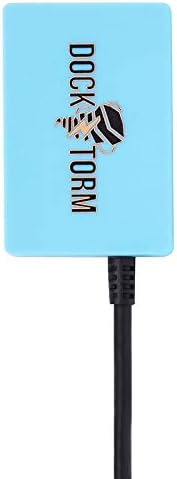
Image: The DKZ USB Port Expander, an accessory for expanding USB connectivity.
2. הפעלת המחשב הנייד
This section details the basic operation and key features of your ASUS ROG Zephyrus G14.
2.1 ניהול חשמל
- הפעלה: לחץ על לחצן ההפעלה.
- מצב שינה: סגור את המכסה או בחר 'שינה' מתפריט התחל של Windows.
- כיבוי: בחר 'כיבוי' מתפריט התחל של Windows.
2.2 מקלדת ומשטח מגע
The laptop features an RGB backlit keyboard with a 1.7mm key travel distance for comfortable typing and gaming. The touchpad supports multi-touch gestures for navigation.

תמונה: מלמעלה למטה view of the ASUS ROG Zephyrus G14 keyboard and touchpad.
2.3 תכונות תצוגה
Your laptop is equipped with a 14.0-inch ROG Nebula OLED display, offering a 2.8K (2880x1800) resolution, 120Hz refresh rate, and 500 nits brightness. It supports G-SYNC and Dolby Vision for enhanced visual experiences.

Image: The ROG Nebula OLED display of the ASUS ROG Zephyrus G14, highlighting its visual quality.
2.4 מערכת שמע
The integrated audio system features 6 speakers and supports Dolby Atmos for immersive sound.
2.5 קישוריות
- אַלחוּט: WiFi 7 (802.11be) and Bluetooth 5.4 for high-speed wireless connections.
- יציאות: HDMI, USB 3.2 Type-C, Micro SD Reader, and a Headphone/Microphone Combo Jack are available for various peripherals and external displays.

תמונה: צד view of the ASUS ROG Zephyrus G14, illustrating the available connectivity ports.
3. תחזוקה
תחזוקה נכונה מבטיחה את אורך החיים והביצועים האופטימליים של המחשב הנייד שלכם.
3.1 ניקוי
- לְהַצִיג: השתמש במטלית רכה נטולת מוך מעט דampשטוף במים או בחומר לניקוי מסכים. הימנע מכימיקלים חזקים.
- שלדה ומקלדת: Wipe with a soft, dry cloth. Use compressed air to clear dust from keyboard keys and vents.
3.2 טיפול בסוללה
- הימנעו מפריקת הסוללה באופן מלא לעתים קרובות.
- אחסנו את המחשב הנייד במקום קריר ויבש אם לא נעשה בו שימוש למשך תקופות ממושכות.
- The 4-cell, 73 WHr battery supports fast charging; use the provided 200W power adapter for optimal charging.
3.3 עדכוני תוכנה
Regularly update your Windows 11 Pro operating system and device drivers to ensure security, stability, and performance. Check the ASUS support webאתר עבור הדרייברים העדכניים ביותר הספציפיים לדגם שלך.
3.4 מערכת קירור
Ensure the laptop's ventilation openings are clear and unobstructed to maintain efficient cooling, especially during intensive tasks like gaming. The ROG Intelligent Cooling system relies on proper airflow.
4. פתרון תקלות
סעיף זה מטפל בבעיות נפוצות שאתה עשוי להיתקל בהן במחשב הנייד שלך.
4.1 בעיות חשמל
- מחשב נייד לא נדלק: ודא שמתאם החשמל מחובר היטב הן למחשב הנייד והן לשקע חשמל תקין. בדוק את נורית חיווי ההפעלה.
- סוללה אינה נטענת: Verify the power adapter is functioning. Try a different outlet.
4.2 בעיות תצוגה
- אין תמונה על המסך: Connect an external monitor to check if the issue is with the laptop's display. Ensure the display is not set to an external output only.
- תמונה מהבהבת או מעוותת: עדכן את מנהלי ההתקן של הכרטיס המסך. התאם את הגדרות התצוגה ב-Windows.
4.3 ביצועים וחום
- ביצועים איטיים: Close unnecessary applications. Check for background processes consuming high resources. Ensure sufficient free space on the 1TB PCIe NVMe SSD.
- חום מוגזם: Ensure ventilation vents are clear. Consider using a cooling pad, especially during extended gaming sessions.
4.4 בעיות קישוריות
- Wi-Fi לא מתחבר: Check router and network settings. Ensure Wi-Fi is enabled in Windows. Update Wi-Fi drivers.
- מכשיר בלוטות' לא מתחבר: Ensure the device is in pairing mode and within range. Check Bluetooth settings in Windows.
For further assistance, refer to the official ASUS support webאתר או צור קשר עם שירות הלקוחות.
5. מפרטים
Detailed technical specifications for the ASUS ROG Zephyrus G14 AI Gaming Laptop.
| תכונה | מִפרָט |
|---|---|
| שם הדגם | ROG Zephyrus G14 |
| מעבד | AMD Ryzen 9 270 (4.0GHz, up to 5.2 GHz, 8-Cores, 16-Threads) |
| גרָפִיקָה | כרטיס מסך NVIDIA GeForce RTX 5060 בנפח 8GB GDDR7 |
| לְהַצִיג | 14.0" ROG Nebula OLED 2.8K (2880x1800) 120Hz, 500nits |
| אַיִל | זיכרון LPDDR5X מובנה בנפח 16 ג'יגה-בייט |
| אִחסוּן | כונן SSD PCIe NVMe בנפח 1TB |
| מַעֲרֶכֶת הַפעָלָה | Windows 11 Pro-64 |
| קישוריות אלחוטית | WiFi 7 (802.11be), Bluetooth 5.4 |
| נמלים | HDMI, USB 3.2 Type-C, Micro SD Reader, Headphone/Microphone Combo Jack |
| סוֹלְלָה | סוללת 4 תאים, 73 וואט-שעה |
| ספק כוח | PSU 200W |
| מידות (LxWxH) | 12.25 x 8.75 x 0.75 אינץ' |
| משקל פריט | 7.5 פאונד |
| אביזר כלול | מרחיב יציאות USB של DKZ |
6. אחריות ותמיכה
Your ASUS ROG Zephyrus G14 AI Gaming Laptop comes with a manufacturer's warranty. Please refer to the documentation included with your purchase for specific warranty terms and conditions.
6.1 מידע אחריות
A 1-year manufacturer warranty is typically provided. For detailed information regarding coverage and claims, please consult the warranty card or the official ASUS webאֲתַר.
6.2 תמיכה טכנית
לקבלת סיוע טכני, הורדות מנהלי התקנים או פתרון בעיות נוסף, אנא בקרו באתר התמיכה הרשמי של ASUS webאֲתַר:
When contacting support, have your laptop's serial number readily available.