
נחשול SG60094
Surge Wireless Pro Controller User Manual
דגם: SG60094
מָבוֹא
This manual provides instructions for the Surge Wireless Pro Controller, Model SG60094. It covers setup, operation, maintenance, troubleshooting, and specifications. Please read this manual thoroughly before using the controller.
The Surge Wireless Pro Controller is designed for multi-platform compatibility, featuring Hall Effect thumb sticks and triggers for precision control.
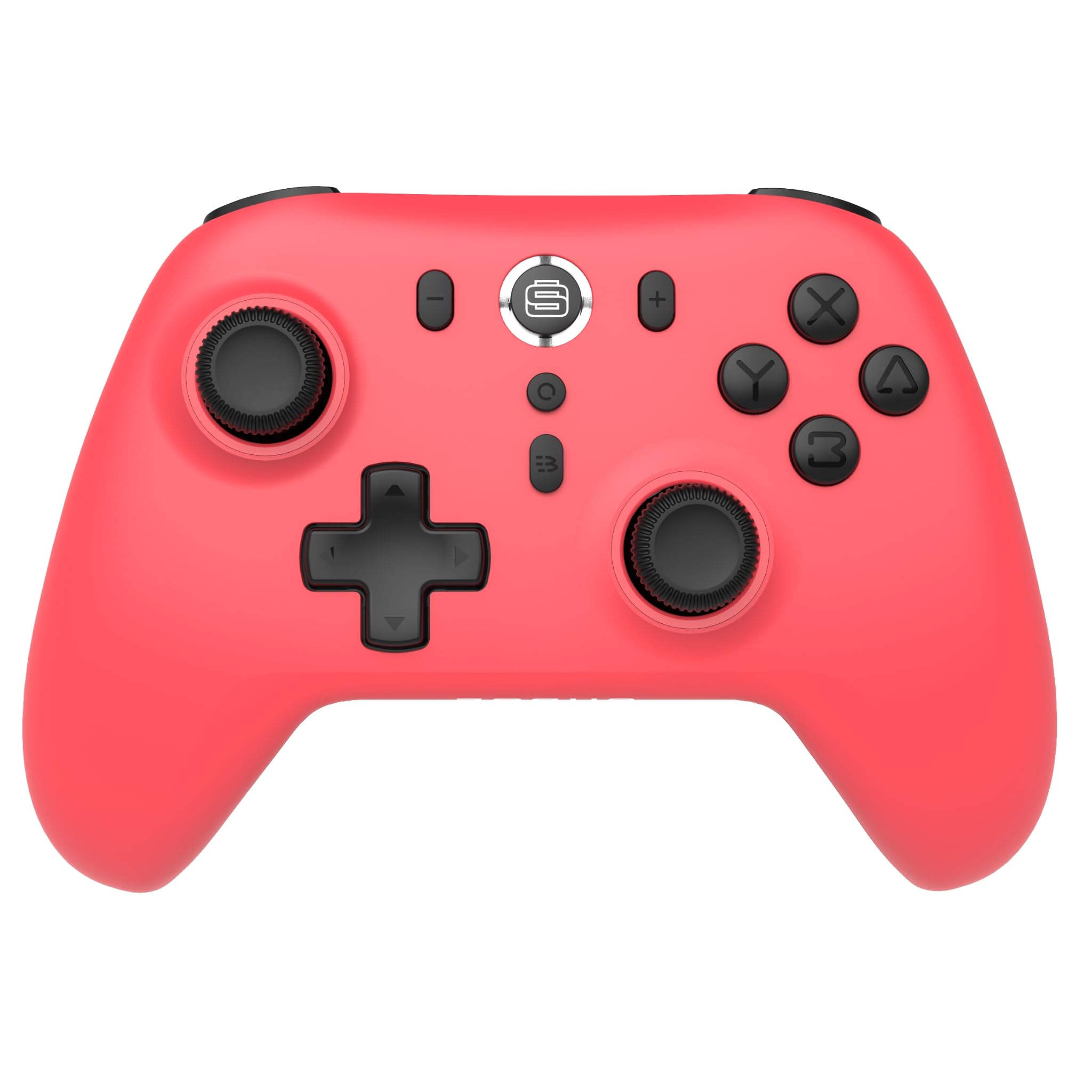
תמונה: חזית view of the Surge Wireless Pro Controller in Neon Red.
תכונות מפתח
- תאימות מרובת פלטפורמות: Supports Nintendo Switch/Switch 2 (Note: No C Button/Audio Port on Switch 2), Windows PC, Steam Deck, Android, and iOS devices.
- Hall Effect Thumb Sticks & Triggers: Engineered for precise control and to prevent stick drift.
- Turbo Functionality: Offers 3 adjustable turbo levels for rapid-fire actions.
- משוב רטט: Features 4 customizable vibration levels for enhanced haptic feedback.
- בקרות תנועה: Compatible with games that utilize motion sensing.
- Console Wake Up: Ability to wake the Nintendo Switch console from sleep mode (Nintendo Switch only).
- סוללה נטענת: Built-in 600mAh Li-polymer battery provides up to 10 hours of gameplay per charge.
- טעינת USB-C: Includes a 1-meter USB-C charging cable.
הוראות התקנה
1. טעינה ראשונית
Before first use, fully charge the controller. Connect the included USB-C cable to the controller's charging port and the other end to a USB power source (e.g., console, PC, USB wall adapter). The charging indicator will show status.

Image: The controller connected to a USB-C charging cable.
2. צימוד עם נינטנדו סוויץ'
- בקונסולת ה-Nintendo Switch שלכם, גשו לתפריט HOME.
- לִבחוֹר בקרים, אז שנה אחיזה/סדר.
- לחץ והחזק את כפתור זיווג on the top of the Surge Wireless Pro Controller until the player indicator lights begin to flash.
- Once paired, the player indicator light(s) will remain solid.
- To wake the console from sleep mode, press the Home button on the controller.
3. Pairing with PC, Android, or iOS
The pairing process may vary slightly depending on your device's operating system. Generally, you will need to enable Bluetooth on your device and search for new devices.
- Ensure Bluetooth is enabled on your PC, Android, or iOS device.
- On the Surge Wireless Pro Controller, press and hold the כפתור זיווג until the indicator lights flash.
- On your device, select "Surge Pro Controller" from the list of available Bluetooth devices.
- פעל לפי כל ההנחיות שעל המסך כדי להשלים את הצימוד.
וידאו: אוברview of the 8Bitdo Ultimate 2 Wireless Controller, demonstrating general wireless controller setup principles.
הוראות הפעלה
פריסת כפתורים

Image: Diagram showing the button layout of the Surge Wireless Pro Controller.
- מקלות אנלוגיים שמאל/ימין: For movement and camera control. Features Hall Effect technology for enhanced durability and precision.
- D-Pad: עבור קלט כיווני.
- כפתורי A/B/X/Y: כפתורי פעולה סטנדרטיים.
- כפתורי שמאל/ימין: כפתורי כתף.
- טריגרים של ZL/ZR: Analog triggers with Hall Effect sensors.
- כפתור בית: Returns to the console's home menu.
- כפתור צילום מסך: לוכד צילומי מסך.
- כפתורי פלוס (+) / מינוס (-): לניווט בתפריטים בתוך המשחק.
- כפתור טורבו: Activates/deactivates turbo function.
- לחצן זיווג: משמש לצימוד Bluetooth.
פונקציית טורבו
To activate turbo for a button, press and hold the כפתור טורבו, then press the desired action button (A, B, X, Y, L, R, ZL, ZR). Repeat the process to deactivate. There are 3 adjustable turbo levels; refer to the full product manual for detailed adjustment instructions.
התאמת רטט
The controller offers 4 levels of vibration intensity. Specific button combinations or software may be required to adjust these levels. Consult the full product manual or manufacturer's website for precise instructions.
תַחזוּקָה
- ניקוי: השתמשו במטלית רכה ויבשה לניקוי הבקר. הימנעו משימוש בכימיקלים חזקים או בחומרים שוחקים.
- אִחסוּן: יש לאחסן את הבקר במקום קריר ויבש, הרחק מאור שמש ישיר וטמפרטורות קיצוניות.
- טיפול בסוללה: כדי להאריך את חיי הסוללה, הימנעו מפריקה מלאה של הסוללה לעתים קרובות. טען את הבקר באופן קבוע, גם אם אינו בשימוש למשך פרקי זמן ממושכים.
- טיפול בכבלים: Handle the USB-C charging cable carefully. Avoid bending or twisting it excessively.
פתרון בעיות
| בְּעָיָה | פִּתָרוֹן |
|---|---|
| הבקר לא נדלק. | Ensure the controller is fully charged. Connect it to a power source using the USB-C cable. |
| Unable to pair with device. | Make sure Bluetooth is enabled on your device. Press and hold the pairing button on the controller until lights flash. Ensure the controller is not already paired with another device. Try restarting both the controller and the device. |
| Stick drift or inaccurate input. | The controller features Hall Effect sticks to minimize drift. If issues persist, ensure the controller's firmware is up to date. Contact customer support if the problem continues. |
| הרטט לא עובד. | Check in-game settings to ensure vibration is enabled. Verify the vibration intensity level on the controller. |
| Console Wake Up not functioning. | This feature is only supported on Nintendo Switch. Ensure the controller is properly paired with the Switch. |
מפרטים
- מספר דגם: SG60094
- סוֹלְלָה: 1 Nonstandard Battery (600mAh Li-polymer, included)
- חיי סוללה: עד 10 שעות (בקירוב)
- יציאת טעינה: USB-C
- קישוריות: Bluetooth אלחוטי
- מידות: 20.1 x 14 x 6.6 ס"מ (בקירוב)
- מִשׁקָל: 310 גרם (בערך)
- ארץ מוצא: סִין
אחריות ותמיכה
For warranty information and customer support, please refer to the official Surge website or contact support directly at support@surgegaming.com.
The product typically comes with a manufacturer's warranty covering defects in materials and workmanship. Please retain your proof of purchase for warranty claims.
Ask a question about this manual
Ask about setup, troubleshooting, compatibility, parts, safety, or missing instructions. Manuals+ will review the question and use this page’s manual context to help answer it.