
1. המוצר נגמרview
The SHERRIVA WHD-5100 is a wireless HDMI transmitter and receiver system designed for seamless audio and video streaming. It supports 1080P@60Hz resolution and offers flexible connectivity options for various devices.
מה יש בקופסה

Image: All components included in the SHERRIVA WHD-5100 package.
- 1 x מקלט (RX)
- 2 x Transmitters (TX) (1x USB-C, 1x HDMI)
- 2 אנטנות חיצוניות
- 1 x כבל טעינה מסוג C
- 1 x מתאם חשמל
תכונות מפתח
- קלט כפול: Supports both USB-C and HDMI input for versatile device compatibility.
- טווח מורחב: Up to 328 feet (100 meters) wireless transmission.
- Plug & Play: No Wi-Fi, apps, or drivers required for basic operation.
- תמיכה במשדרים מרובים: Connect up to 32 transmitters to one receiver (additional transmitters sold separately).
- הר מגנטי: Receiver features a built-in magnetic base for secure placement.
- פלט שמע: 3.5mm audio jack for separate audio output.
- HDMI Backup: Wired HDMI backup port for continuous connection.
- אתחול אוטומטי: Daily auto-reboot feature to maintain stable performance.
2. הוראות התקנה
2.1 חיבור בסיסי
- חבר את המקלט (RX):
Connect the receiver to your display's HDMI port and provide power using the Type-C charging cable and power adapter. Ensure the external antennas are securely attached to the receiver.
Image: Diagram showing the receiver connected to a display's HDMI port and powered via USB-C.
- חבר את המשדר (TX):
Connect the transmitter to your source device (e.g., laptop, smartphone, tablet). If using a USB-C transmitter, ensure your device's USB-C port supports video output (DP Alt Mode). For HDMI transmitters, connect to the HDMI output of your device.
Image: Illustration of connecting Type-C and HDMI transmitters to compatible devices like laptops, smartphones, and cameras.
- התאמה אוטומטית:
Wait for the transmitter and receiver to automatically pair and connect. The TX light will blink during pairing and become solid blue once connected. The RX light will be solid blue when powered on.Image: Visual representation of the pairing process, showing the TX and RX units and their indicator lights.
2.2 Connecting Multiple Transmitters
The WHD-5100 system supports connecting up to 32 transmitters to a single receiver, allowing for easy switching between multiple sources.
- חיבור מקלט: Follow Step 1 from Basic Connection to connect the receiver to your display.
- Pair First Transmitter: Insert the first transmitter into your source device and hold its button to enter pairing mode. The TX light will blink. Once paired, the light will become solid.
- צימוד משדרים נוספים: Repeat the process for each additional transmitter. Each transmitter needs to be paired individually with the receiver.

Image: Diagram illustrating the process of pairing multiple transmitters to a single receiver unit.
2.3 Connecting Your Phone (Screen Mirroring)
For phone connectivity, the WHD-5100 supports screen mirroring via AirPlay, Miracast, and Chromecast.
- חיבור מקלט: Follow Step 1 from Basic Connection to connect the receiver to your display.
- Connect Phone to Receiver's Wi-Fi: On your phone, find and connect to the receiver's Wi-Fi network (SSID and password will be displayed on the screen).
- הפעל שיקוף מסך: On your phone, enable screen mirroring. For Android, this might be 'Screen Cast' or 'Smart View'. For iOS, use 'AirPlay'. Select the WHD-5100 device from the list.

Image: Visual guide for connecting a smartphone to the WHD-5100 receiver via Wi-Fi and enabling screen mirroring.
3. הוראות הפעלה
3.1 Switching Sources
When multiple transmitters are paired, you can switch between them with a single click on the desired transmitter's button. This allows for effortless transitions during presentations or collaborative work.

Image: A meeting scenario demonstrating how to switch between different laptop sources using the transmitter's button.
3.2 Display Modes: Mirror & Extended
The WHD-5100 supports both Mirror and Extended display modes, depending on your operating system's capabilities.
- מצב מראה: Displays the same content on both your source device and the connected display.
- מצב מורחב: Allows you to display different content on your source device and the connected display, expanding your workspace.

Image: Side-by-side comparison of Mirror Mode (same content) and Extended Mode (different content) on a laptop and external display.
3.3 Separate Audio Output
The receiver includes a 3.5mm audio jack, allowing you to connect external speakers for enhanced sound, especially useful with projectors or monitors that lack built-in audio.

Image: A person relaxing while listening to audio from external speakers connected to the SHERRIVA receiver, which is displaying content on a TV.
3.4 HDMI Backup Port
The receiver features an HDMI backup port. In case of wireless signal interruption or for a wired connection preference, you can connect an HDMI cable directly from your source to this port to ensure continuous display.

Image: A scenario depicting a wireless signal loss and the solution of using the HDMI backup port for uninterrupted display.
4. תחזוקה
The SHERRIVA WHD-5100 is designed for reliable, long-term operation with minimal user maintenance.
- Automatic Daily Reboot: The system is programmed to perform an automatic daily reboot at 3:00 AM. This clears the cache, prevents potential freezes or lags, and ensures consistent stable performance without manual intervention.
- ניקוי: השתמשו במטלית רכה ויבשה לניקוי החלק החיצוני של יחידות המשדר והמקלט. הימנעו משימוש בחומרי ניקוי נוזליים או בחומרים שוחקים.
- אִחסוּן: כאשר המכשיר אינו בשימוש למשך תקופות ממושכות, יש לאחסן אותו במקום קריר ויבש, הרחק מאור שמש ישיר וטמפרטורות קיצוניות.
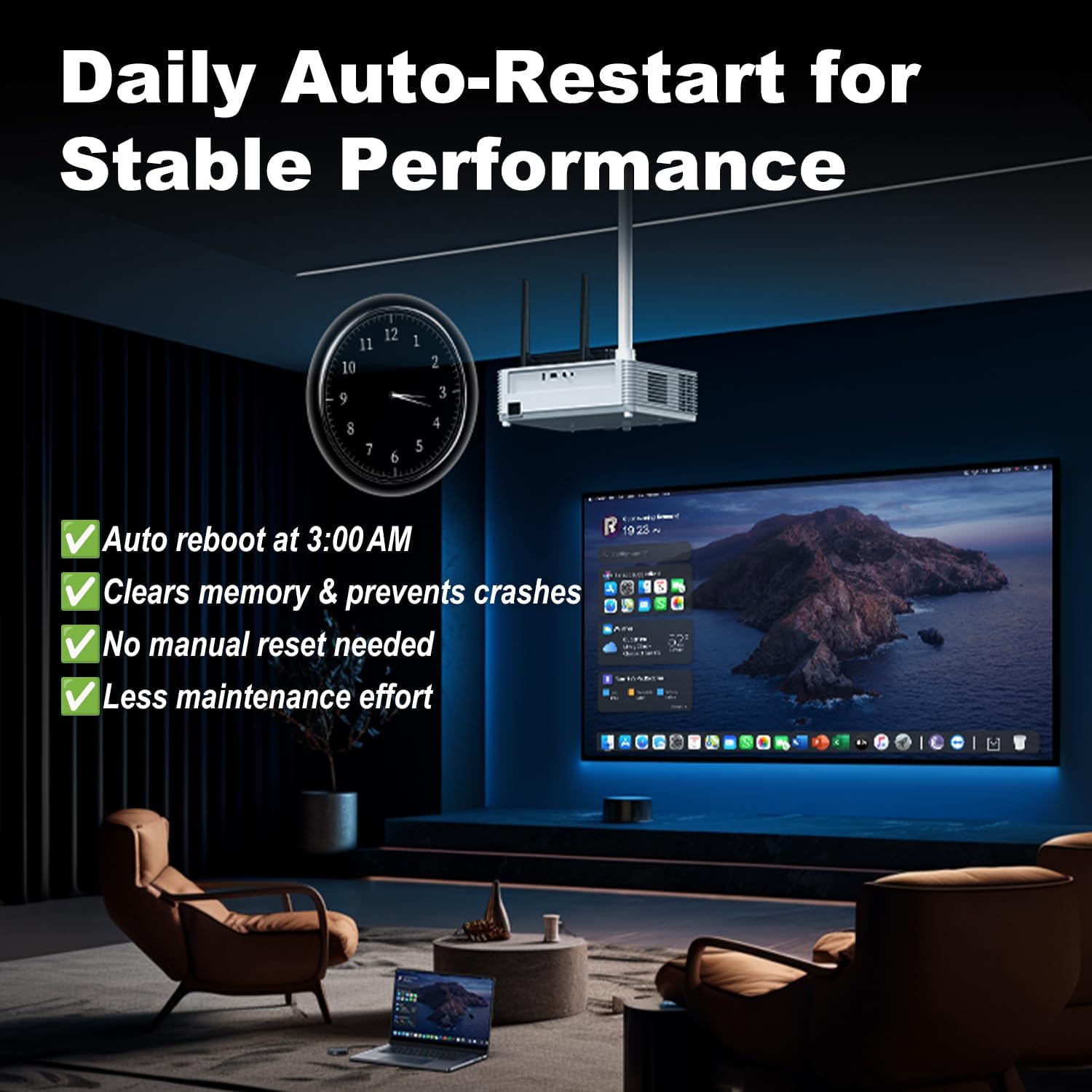
Image: A visual representation of the daily auto-restart feature, emphasizing its role in maintaining stable performance.
5. פתרון תקלות
If you encounter issues with your SHERRIVA WHD-5100, please refer to the following common problems and solutions:
| בְּעָיָה | סיבה אפשרית | פִּתָרוֹן |
|---|---|---|
| אין אות בתצוגה | Transmitter not powered or connected correctly. Receiver not powered or connected to display. Pairing failed. | Ensure both TX and RX units are powered on and correctly connected. Check HDMI/USB-C cables. Re-attempt pairing by holding the TX button. |
| Intermittent signal or lag | Excessive distance between TX and RX. Obstructions (e.g., thick walls). Interference from other wireless devices. | Reduce distance between TX and RX. Minimize obstructions. Try changing the wireless channel if possible (refer to advanced settings via IP if applicable). |
| Phone mirroring not working | Phone not connected to receiver's Wi-Fi. Screen mirroring feature not enabled or incompatible. | Ensure your phone is connected to the WHD-5100's Wi-Fi. Verify your phone's screen mirroring function (AirPlay, Miracast, Chromecast) is active and selecting the correct device. |
| אין פלט שמע | Display audio settings incorrect. External speakers not connected or powered. | Check your display's audio settings. If using the 3.5mm jack, ensure external speakers are properly connected and powered. Note: Supports standard stereo audio only, not Dolby Atmos. |
| USB-C transmitter not working | Source device's USB-C port does not support video output (DP Alt Mode). | Verify that your device's USB-C port supports DisplayPort Alternate Mode (DP Alt Mode) for video output. Consult your device's manual. |
6. מפרטים
| תכונה | פְּרָט |
|---|---|
| מספר דגם | WHD-5100 |
| מותג | שריבה |
| טכנולוגיית קישוריות | Wireless (2.4G/5G Dual-band) |
| רזולוציית וידאו | 1080P @ 60Hz |
| חֶבִיוֹן | < 0.05 שניות |
| טווח שידור | עד 328 רגל (100 מ') |
| כניסות משדר | USB Type-C (DP Alt Mode required), HDMI |
| יציאות מקלט | HDMI, 3.5mm Audio Jack |
| מספר משדרים מקסימלי לכל מקלט | עד 32 |
| מכשירים תואמים | Personal Computer, Smartphone, Tablet, Television, Projector |
| קידוד וידאו | H.264, H.265/HEVC |
| משקל פריט | 1.48 פאונד |
| מידות המוצר | 6.93 x 6.5 x 2.68 אינץ' |
| צֶבַע | אָפוֹר |
מידות

Image: Detailed diagram illustrating the physical dimensions of the SHERRIVA WHD-5100 receiver and transmitter units.
7. אחריות ותמיכה
For warranty information and technical support, please refer to the documentation included with your product or visit the official SHERRIVA webאתר. ניתן גם ליצור קשר עם שירות הלקוחות דרך הקמעונאי בו נרכש המוצר.
משאבים מקוונים:
- SHERRIVA Store on Amazon: Visit the SHERRIVA Store