
מָבוֹא
The ASUS ROG Harpe II Ace is an ultralight 48-gram semi-symmetrical gaming mouse engineered for esports professionals. It integrates a 42,000-DPI ROG AimPoint Pro optical sensor, durable ROG Optical Micro Switches, and delivers 8,000Hz polling wireless performance through SpeedNova 8K wireless technology. This manual provides comprehensive instructions for setting up, operating, maintaining, and troubleshooting your device to ensure optimal performance.
הגדרה
1. פתיחת האריזה ורכיבים
Carefully remove all components from the packaging. The box should contain the ROG Harpe II Ace mouse, a USB charging cable, a 2.4GHz USB dongle, and optional anti-slip grip tape.
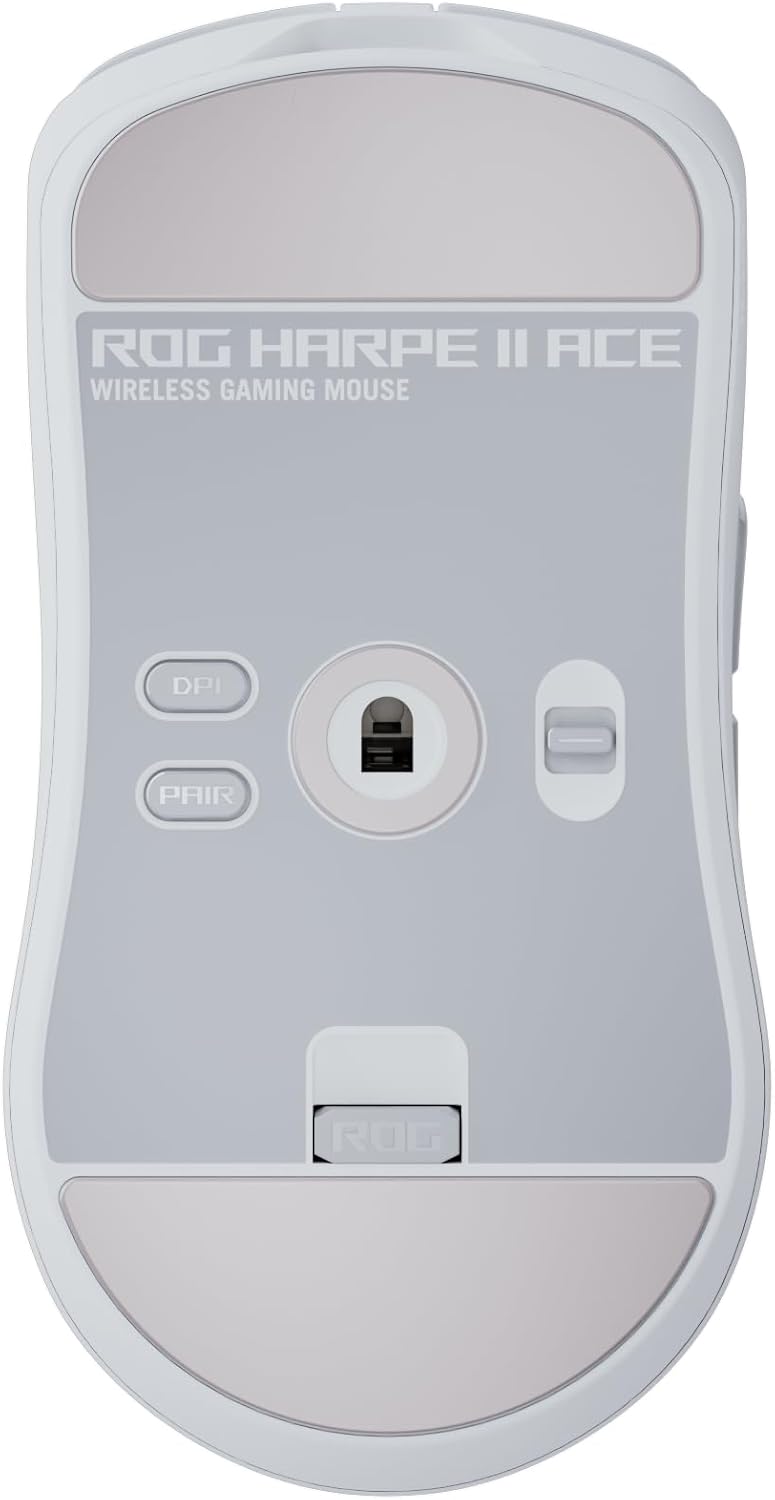
תַחתִית view of the ASUS ROG Harpe II Ace mouse, highlighting the DPI button, pairing button, and the convenient storage slot for the 2.4GHz USB dongle.
2. אפשרויות קישוריות
The ROG Harpe II Ace supports three modes of connectivity:
- מצב קווי: Connect the mouse directly to your PC using the provided USB cable.
- מצב אלחוטי 2.4GHz: Insert the USB dongle into an available USB port on your computer. Ensure the switch on the bottom of the mouse is set to 2.4GHz mode.
- מצב Bluetooth: Set the switch on the bottom of the mouse to Bluetooth mode. Follow your operating system's instructions to pair the mouse via Bluetooth.

This image illustrates the mouse's versatile tri-mode connectivity (wired, 2.4GHz, Bluetooth), its improved mouse feet for smooth gliding, and the included anti-slip grip tape for enhanced handling.
3. טעינה ראשונית
For optimal performance, fully charge the mouse before first use. Connect the USB cable to the mouse and a powered USB port on your computer. The scroll wheel LED will indicate charging status.
4. Software Installation (ROG Gear Link)
The ROG Harpe II Ace utilizes a web-based configuration tool called ROG Gear Link. Access it via your web דפדפן ב gearlink.asus.com. No software installation is required, allowing for quick and easy customization of settings.

A view of the ROG Gear Link web interface, demonstrating how users can quickly set up and customize mouse performance parameters like DPI and polling rate without needing to download software.
הוראות הפעלה
1. כוונון DPI
The ROG AimPoint Pro optical sensor offers up to 42,000 DPI. You can adjust DPI settings on-the-fly using the dedicated DPI button on the bottom of the mouse or through the ROG Gear Link software for more granular control.

This image highlights the ROG AimPoint Pro Sensor, capable of up to 42,000 DPI, ensuring exceptional tracking accuracy for competitive gaming.
2. שיעור סקרים
Leverage ROG SpeedNova 8K wireless technology for an ultra-fast 8,000Hz polling rate, providing minimal latency and highly responsive input. This setting can be configured via ROG Gear Link.

The ROG SpeedNova 8K wireless technology is depicted here, showcasing its capability to deliver an 8,000Hz polling rate for superior wireless precision and reliability.
3. כפתורים ניתנים לתכנות
The mouse features ROG Optical Micro Switches for crisp, instant actuation and a 100-million-click lifespan. All buttons can be customized and assigned specific functions using the ROG Gear Link software.

This graphic details the ROG Optical Micro Switches, known for their rapid actuation and extended lifespan of 100 million clicks, crucial for competitive play.
4. סגנונות אחיזה
The semi-symmetrical design is optimized for various grip styles, including claw, fingertip, and palm grips, ensuring comfort and control for a wide range of users.

This image demonstrates how the mouse accommodates various grip styles, including claw, fingertip, and palm, ensuring ergonomic comfort for different users.
5. Zone Mode
Activate Zone Mode via ROG Gear Link to optimize performance by boosting polling rate, heightening focus (RGB on/off), and optimizing sensor responsiveness (always on/power saving).

The ROG Zone Mode is explained, detailing how it enhances performance by boosting polling rate, adjusting RGB for focus, and optimizing sensor responsiveness for competitive play.
6. סרטוני מוצר רשמיים
Harpe II Ace - Product Overview
סרטון זה מספק סקירה מקיפהview of the ASUS ROG Harpe II Ace, detailing its key features, design, and performance benefits for gamers.
ROG Harpe II Ace - Shaped by Esports Pros
Learn about the design philosophy behind the ROG Harpe II Ace, developed in collaboration with esports professionals to meet the demands of competitive gaming.
Harpe II Ace - From Aim Lab Edition to Harpe II Ace
This video traces the evolution of the Harpe II Ace, highlighting improvements and features carried over from the Aim Lab Edition to the current model.
תַחזוּקָה
1. ניקיון
The mouse is constructed with bio-based nylon material and features a simplified side surface to prevent dirt buildup. Use a soft, dry cloth to clean the mouse. Avoid harsh chemicals or abrasive materials.

This image focuses on the simplified side walls of the mouse, engineered to minimize grooves and make cleaning easier, preventing dirt and grime buildup.
2. טיפול בסוללה
The mouse offers up to 101 hours of battery life. To prolong battery lifespan, avoid fully discharging the battery frequently. Charge the mouse when the battery indicator is low.
3. Mouse Feet and Grip Tape
An extra set of mouse feet is included for replacement when the original feet show wear. The anti-slip grip tape can be applied to the mouse for enhanced grip and control, especially during intense gaming sessions.
פתרון בעיות
- בעיות קישוריות: If the mouse loses connection, ensure the USB dongle is securely plugged in or re-pair via Bluetooth. Check for interference from other wireless devices.
- Sensor Tracking Problems: Ensure the optical sensor is clean and free from debris. Test on different surfaces. Adjust DPI settings via ROG Gear Link.
- סוללה לא נטענת: Verify the USB cable is properly connected and the USB port is functional. Try a different cable or port.
- תוכנה לא מזהה עכבר: Ensure the mouse is connected and powered on. Restart the ROG Gear Link web tool or your browser.
- עצה כללית: If issues persist, restart your computer. Visit the ASUS support website for updated drivers or further assistance.
מפרטים
| תכונה | מִפרָט |
|---|---|
| מותג | ASUS |
| מספר דגם | P723 HARPE II ACE WHT |
| סִדרָה | P723 ROG HARPE II ACE/WHT |
| טכנולוגיית קישוריות | USB (Wired), 2.4GHz Wireless (Dongle), Bluetooth |
| טכנולוגיית זיהוי תנועה | Optical (ROG AimPoint Pro Sensor) |
| DPI מקסימום | 42,000 DPI |
| שיעור סקרים | Up to 8,000Hz (Wireless) |
| מתגים | ROG Optical Micro Switches (100-million-click lifespan) |
| לְעַצֵב | Ultralight 48g, Semi-symmetrical, Right-Handed |
| חוֹמֶר | Bio-based nylon |
| חיי סוללה ממוצעים | 101 שעות |
| מקור כוח | מופעל על ידי סוללה (סוללה אחת של 12 וולט כלולה) |
| פלטפורמת חומרה | PC |
| תמיכה במערכת הפעלה | Windows, macOS |
| משקל פריט | 1.6 אונקיות (כ-45 גרם) |
| מידות המוצר (LxWxH) | 4.9 x 2.5 x 1.6 אינץ' |
| צֶבַע | לָבָן |
אַחֲרָיוּת
Your ASUS ROG Harpe II Ace Wireless Esports Gaming Mouse is covered by a limited warranty. Please refer to the warranty card included in your product packaging or visit the official ASUS support webבאתר לקבלת תנאי אחריות מפורטים הספציפיים לאזורך.
תְמִיכָה
For further assistance, technical support, or to download the latest firmware updates, please visit the official ASUS support webאֲתַר:
You can also access the ROG Gear Link web-based configuration tool at gearlink.asus.com for mouse customization.