
1. המוצר נגמרview
The PeriPage P92 is a compact and lightweight thermal tattoo stencil printer designed for both professional tattoo artists and enthusiasts. It utilizes inkless thermal technology to produce clear and precise tattoo lines, streamlining the stencil creation process. This printer offers versatile connectivity options, including Bluetooth and USB, making it compatible with a wide range of devices such as smartphones, tablets, and PCs.

Image: The PeriPage P92 Tattoo Stencil Printer, a sleek black device, shown on a desk with a printed tattoo stencil.
תכונות עיקריות:
- עיצוב נייד: Compact and lightweight (approximately 15.2 ounces) for easy transport.
- טכנולוגיה תרמית ללא דיו: Eliminates the need for ink cartridges, reducing operational costs.
- תאימות גבוהה: Supports Android, iOS, Windows, and macOS devices.
- קישוריות רב-תכליתית: Connects via Bluetooth for wireless printing or USB for wired connections.
- Powerful Mobile App: The "PeriPage APP" provides abundant resources, including built-in tattoo templates and design editing tools.
- הדפסה יעילה: Capable of printing clear and precise tattoo lines in seconds.
- חיי סוללה ארוכים: Built-in 2600mAh rechargeable battery, capable of printing up to 200 pages per charge.
2. מדריך התקנה
2.1 פתיחת האריזה וטעינה ראשונית
Carefully remove all components from the packaging. Before first use, ensure the printer is fully charged using the provided USB cable and a compatible power adapter. The power indicator light will typically change to indicate a full charge.
2.2 התקנת תוכנה
To operate the PeriPage P92, you will need to install the appropriate software:
- For Smartphones/Tablets (Android/iOS): Download the "PeriPage APP" from your device's respective app store (Google Play Store for Android, Apple App Store for iOS).
- For PCs (Windows/macOS): Download the printer driver from the official PeriPage webאֲתַר: https://www.ileadtek.com/en/download.html.

Image: The PeriPage P92 printer connected to a laptop via USB and a smartphone via Bluetooth, illustrating multi-device compatibility.
2.3 Loading Stencil Paper
- ודא שהמדפסת כבויה או במצב המתנה.
- Gently insert the tattoo stencil paper (thermal paper, 8.5x11 inches) into the paper feed slot at the front of the printer.
- The printer will automatically detect and feed the paper into position. Ensure the transfer film side is facing up.

Image: A step-by-step visual guide showing how to power on the printer, insert stencil paper, and initiate printing via the app.
3. הוראות הפעלה
3.1 הפעלה/כיבוי
To power on the printer, press and hold the power button (usually located on the top or side) for approximately 2 seconds until the indicator light illuminates. To power off, press and hold the power button again until the light turns off.
3.2 התחברות למכשיר שלך
- חיבור Bluetooth:
- ודא ש-Bluetooth מופעל בטלפון החכם או בטאבלט שלך.
- Open the "PeriPage APP".
- Within the app, search for and select the PeriPage P92 printer to establish a connection.
- חיבור USB:
- חבר את המדפסת למחשב האישי שלך באמצעות כבל ה-USB המצורף.
- Ensure the printer driver is installed on your PC.
- The printer should be recognized as a printing device.
3.3 Using the PeriPage App for Printing
The "PeriPage APP" is your primary interface for creating and printing tattoo stencils.
- Open the "PeriPage APP" on your connected device.
- You can choose to use built-in tattoo templates or import your personal designs. The app offers tools for editing, resizing, and adjusting your designs.
- Once your design is ready, select the print option within the app.
- Confirm print settings (e.g., density, size) if prompted.
- The printer will then feed the stencil paper and print your design.

Image: Screenshots of the PeriPage mobile application interface, demonstrating design editing, template selection, and 3D preview תכונות.

Image: The PeriPage P92 printer actively printing a tattoo stencil design onto thermal paper, with a smartphone displaying the design.
4. תחזוקה
4.1 ניקוי המדפסת
ניקוי קבוע מסייע בשמירה על איכות ההדפסה ומאריך את חיי המדפסת.
- חִיצוֹנִי: נגבו את החלק החיצוני של המדפסת בעזרת מטלית רכה ויבשה. הימנעו משימוש בחומרי ניקוי שוחקים או ממסים.
- ראש הדפסה תרמי: If print quality degrades, gently clean the thermal print head with an alcohol wipe or a specialized thermal printer cleaning pen. Ensure the printer is off and cooled down before cleaning.
- נתיב נייר: Periodically check the paper path for any dust or debris and remove it carefully.
4.2 אחסון
Store the printer in a cool, dry place away from direct sunlight and extreme temperatures. When not in use for extended periods, ensure the printer is fully charged and then powered off.
5. פתרון תקלות
This section addresses common issues you might encounter with your PeriPage P92 printer.
5.1 איכות הדפסה ירודה
- הדפסים חלשים:
- Check if the thermal paper is loaded correctly with the transfer film side facing up.
- Ensure the printer's battery is sufficiently charged.
- Clean the thermal print head (refer to Section 4.1).
- Adjust print density settings within the PeriPage APP.
- Streaks or Gaps:
- Clean the thermal print head.
- Ensure the paper is free from wrinkles or damage.
- Incomplete Designs (Large Shadows/Complex Images): The printer is optimized for clear line drawings. Complex images with large shaded areas may not transfer optimally.
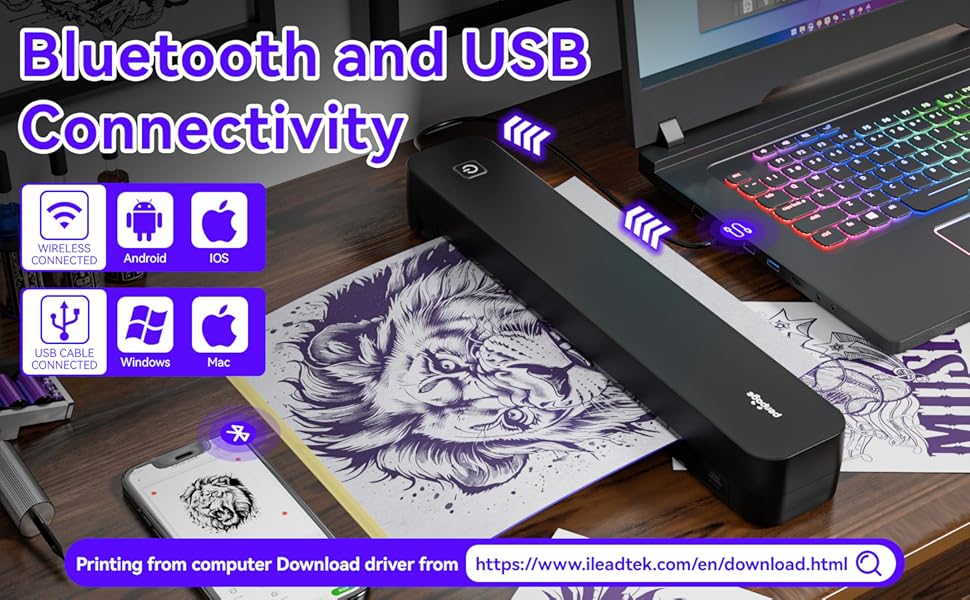
Image: A comparison showing effective line drawings and less shadowy prints versus bad effects with large shadows and complex images, illustrating optimal design types for the printer.
5.2 בעיות קישוריות
- Bluetooth לא מתחבר:
- ודא שהמדפסת דולקת ונמצאת בטווח קליטה של המכשיר שלך.
- ודא ש-Bluetooth מופעל במכשיר שלך.
- הפעל מחדש גם את המדפסת וגם את המכשיר שלך.
- שכח את המכשיר בהגדרות ה-Bluetooth שלך ונסה לבצע התאמה שוב.
- USB Not Recognized:
- Ensure the USB cable is securely connected to both the printer and your PC.
- Verify that the correct printer drivers are installed on your PC.
- נסה יציאת USB או כבל אחר.
5.3 חסימת נייר
If paper gets jammed, gently pull the paper out in the direction of the paper path. Avoid forcing it, as this can damage the printer mechanisms. Ensure paper is loaded straight and not wrinkled.
6. מפרטים
| תכונה | פְּרָט |
|---|---|
| מותג | PeriPage |
| שם הדגם | HDD-P92 |
| טכנולוגיית קישוריות | בלוטות', USB |
| טכנולוגיית הדפסה | תרמי (ללא דיו) |
| תכונה מיוחדת | נייד |
| צֶבַע | שָׁחוֹר |
| פלט מדפסת | מונוכרום |
| Max Print Speed (B&W) | 6 עמודים לדקה |
| משקל פריט | 15.2 אונקיות |
| מידות פריט (D x W x H) | 2.13" D x 4" W x 11.4" H |
| סוג בקר | אנדרואיד, iOS |
| מדיה מודפסת | נייר תרמי |
| מכשירים תואמים | מחשבים ניידים, מחשב אישי, סמארטפונים, טאבלטים |
| שיטת בקרה | אפליקציה |
| גודל מדיה מקסימלי | A4, 8.5x11 Inches |
| סוֹלְלָה | 2600mAh rechargeable, prints ~200 pages per charge |
7. מידע על אחריות
לפי מפרט המוצר, יש "Not Application" for warranty. Please refer to your retailer's return policy or contact the seller directly for any issues or concerns regarding your purchase.
8. תמיכה
לסיוע נוסף, אנא עיינו במקורות הבאים:
- PeriPage APP: The mobile application often includes help sections, FAQs, and direct support contact options.
- רִשְׁמִי Webאֲתַר: Visit the PeriPage official website for updated drivers, FAQs, and support contact information: www.ileadtek.com.
- תמיכת מוכרים: Contact the seller (Ileadtek Inc.) through the platform where you purchased the product for specific purchase-related inquiries.