
FUNYET DuetBook N5095
FUNYET 14-inch Laptop N5095
מדריך למשתמש
Model: DuetBook N5095
מָבוֹא
This manual provides essential information for setting up, operating, maintaining, and troubleshooting your FUNYET 14-inch Laptop N5095. Please read this guide thoroughly to ensure optimal performance and longevity of your device.

תמונה: חזית view of the FUNYET 14-inch Laptop N5095, highlighting its key specifications on the screen.
1. הגדרה ראשונית
1.1 פתיחת האריזה והדלקה ראשונה
- Carefully remove the laptop and all accessories from the packaging. The box should contain the laptop, AC adapter, warranty card, and this instruction manual.
- חבר את מתאם ה-AC ליציאת DC-in של המחשב הנייד ולאחר מכן לשקע חשמל.
- פתח את מכסה המחשב הנייד. ייתכן שהמחשב הנייד יידלק אוטומטית, או שתצטרך ללחוץ על לחצן ההפעלה הממוקם במקלדת.
1.2 תצורת Windows 11 Pro
Upon first boot, you will be guided through the Windows 11 Pro setup process. Follow the on-screen instructions to:
- בחר את האזור שלך ואת פריסת המקלדת.
- התחבר לרשת Wi-Fi.
- היכנס באמצעות חשבון Microsoft שלך או צור חשבון חדש.
- הגדר קוד סודי (PIN) להתחברות מהירה.
- התאם את הגדרות הפרטיות.

Image: The Windows 11 Pro operating system interface shown on the laptop screen.
2. הפעלת המחשב הנייד
2.1 מקלדת ומשטח מגע
The laptop features a full-sized keyboard and a large, responsive touchpad for navigation. Refer to the image below for key layout.

תמונה: מפורט view of the laptop's keyboard and touchpad.
2.2 חיבור ציוד היקפי
המחשב הנייד שלך מצויד במגוון יציאות לחיבור התקנים חיצוניים:
- יציאות USB 3.0: Two ports for high-speed data transfer with USB devices.
- יציאת HDMI: חיבור לצגים חיצוניים או מקרנים.
- שקע אוזניות: לפלט שמע לאוזניות או רמקולים חיצוניים.
- חריץ כרטיס TF: For expanding storage with a TF (MicroSD) card.
- יציאת DC-in: לחיבור מתאם מתח AC.
Wireless connectivity includes Bluetooth and Wi-Fi (2.4G/5G) for connecting to networks and wireless accessories.
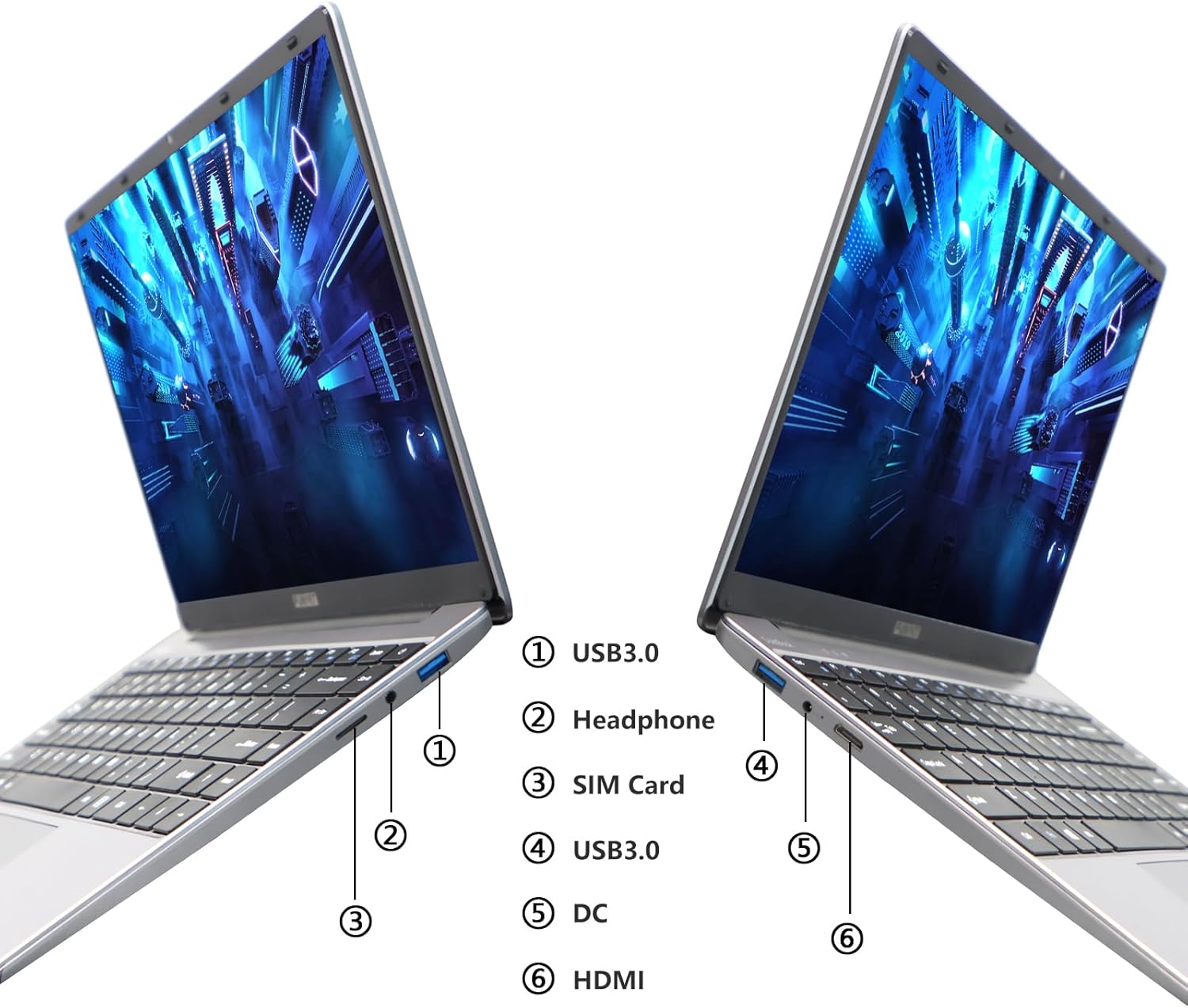
Image: Diagram illustrating the various ports on the sides of the laptop.
2.3 תכונות תצוגה
The 14.1-inch FHD IPS display offers a 1920x1080 resolution. The laptop supports a 180-degree opening angle, allowing for flexible viewעמדות.

Image: The laptop's screen fully opened to a 180-degree flat position.
2.4 ניהול סוללה
The laptop is equipped with a 3800mAh (7.6V/5000mAh) battery. For optimal battery life, ensure the laptop is fully charged before first use. Unplug the AC adapter once the battery is fully charged to prevent overcharging. For extended storage, charge the battery to approximately 50% and store the device in a cool, dry place.

Image: Laptop screen showing a full battery charge indicator.
3. תחזוקה
3.1 טיפול כללי
- Keep the laptop clean by wiping surfaces with a soft, dry cloth. Avoid liquid cleaners directly on the screen or keyboard.
- Ensure proper ventilation. Do not block the air vents to prevent overheating.
- הימנע מחשיפת המחשב הנייד לטמפרטורות קיצוניות, אור שמש ישיר או לחות גבוהה.
- טפלו במחשב הנייד בזהירות כדי למנוע נזק פיזי.
3.2 הרחבת אחסון
The laptop's storage can be expanded using a TF (MicroSD) card. Insert the TF card into the designated slot until it clicks into place. To remove, gently push the card in until it springs out.
4. פתרון תקלות
| לְהַנפִּיק | סיבה אפשרית | פִּתָרוֹן |
|---|---|---|
| המחשב הנייד לא נדלק. | בעיה בסוללה חלשה או במתאם החשמל. | Ensure the AC adapter is securely connected and the power outlet is functional. Charge the laptop for at least 30 minutes before attempting to power on again. |
| בעיות חיבור Wi-Fi. | Incorrect Wi-Fi password, router issues, or Wi-Fi adapter disabled. | Verify the Wi-Fi password. Restart your router. Check Windows settings to ensure Wi-Fi is enabled. |
| ביצועים איטיים. | יותר מדי יישומים פועלים, שטח אחסון נמוך או מנהלי התקנים מיושנים. | Close unnecessary applications. Check available storage on the SSD. Update Windows and device drivers. |
| המסך ריק או מהבהב. | בעיה במנהל התקן של התצוגה, התנגשות עם תצוגה חיצונית או בעיית חומרה. | Restart the laptop. If connected to an external monitor, disconnect it. Update graphics drivers. |
If you encounter issues not listed here or if the suggested solutions do not resolve the problem, please contact FUNYET support.
5. מפרט טכני
| תכונה | פְּרָט |
|---|---|
| שם הדגם | DuetBook N5095 |
| מעבד | Intel 11th Gen Celeron N5095 (up to 2.9 GHz, 4 Cores, 4 Threads) |
| גרָפִיקָה | כרטיס גרפי אינטל UHD (משולב) |
| אַיִל | 16GB DDR4 |
| אִחסוּן | 512GB SSD (Expandable via TF card) |
| לְהַצִיג | 14.1-inch FHD IPS (1920 x 1080 pixels) |
| מַעֲרֶכֶת הַפעָלָה | Windows 11 Pro |
| קישוריות אלחוטית | Wi-Fi (2.4G/5G), בלוטות' 4.2 |
| נמלים | 2x USB 3.0, 1x HDMI, 1x Headphone Jack, 1x DC-in, 1x TF Card Slot |
| סוֹלְלָה | 3800mAh (7.6V/5000mAh) Lithium Ion |
| מידות (LxWxH) | 12.7 x 8.3 x 0.8 אינץ' |
| מִשׁקָל | 3 פאונד |

Image: Visual summary of key laptop features and specifications.
6. אחריות ותמיכה
FUNYET provides comprehensive support for your laptop:
- אַחֲרָיוּת: שנתיים אחריות מתאריך הרכישה.
- החזרות/החלפות: 6 months of free replacement or return service.
- תמיכה מקוונת: 24/7 online support with instant responses.
- תמיכה טלפונית: Available every business day from 4 PM to 10 PM Pacific Time.
For assistance, please contact FUNYET support:
- טֵלֵפוֹן: +1 800-986-9631
- אֶלֶקטרוֹנִי: funyetstore@outlook.com
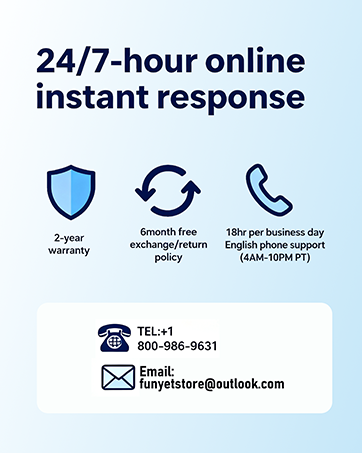
Image: FUNYET customer support and warranty details.
Ask a question about this manual
Ask about setup, troubleshooting, compatibility, parts, safety, or missing instructions. Manuals+ will review the question and use this page’s manual context to help answer it.