
1. הקדמה
This manual provides detailed instructions for the setup, operation, maintenance, and troubleshooting of your ATTACK SHARK G3PRO Wireless Gaming Mouse. Please read this manual thoroughly to ensure proper use and to maximize your gaming experience.

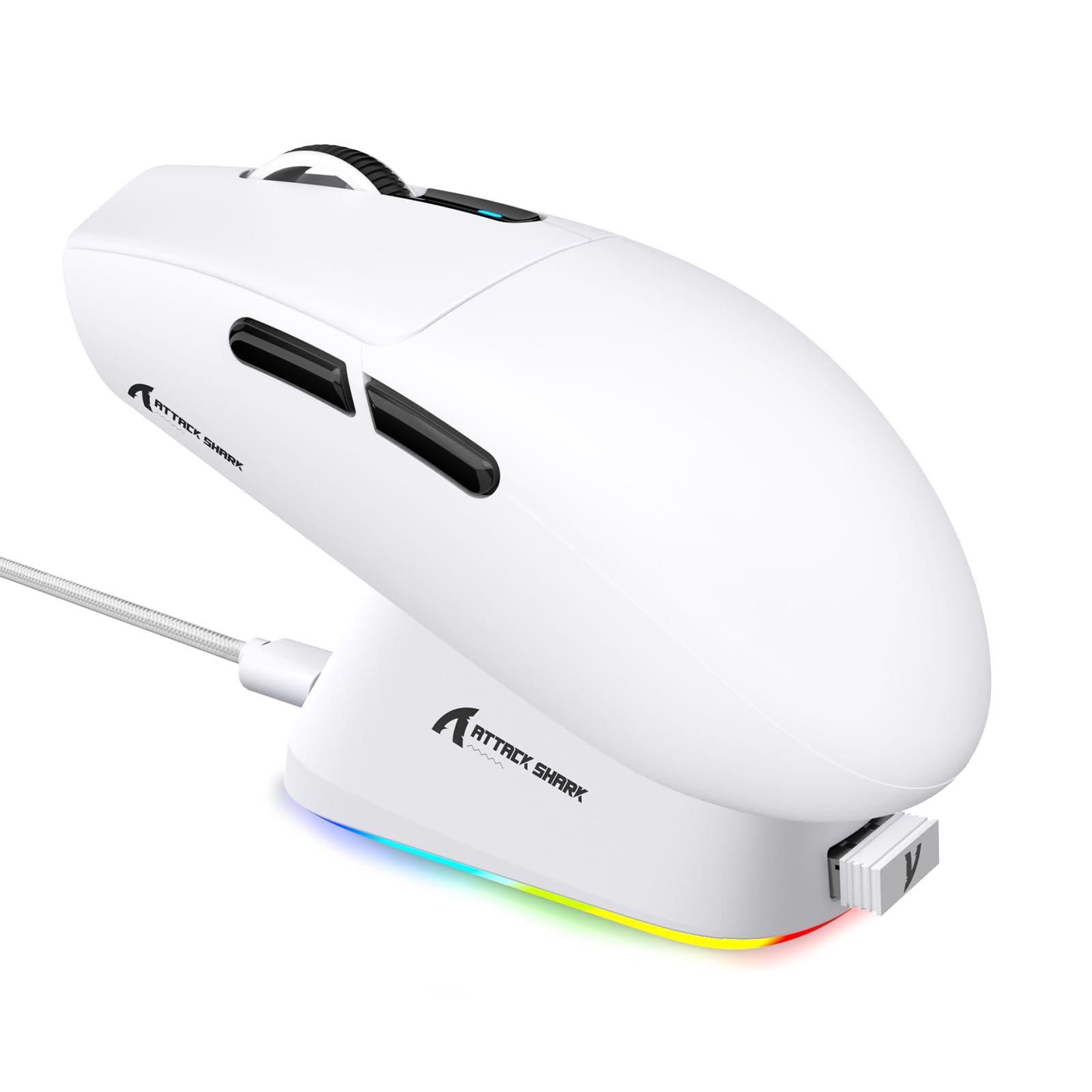
תמונה: מעלview of the ATTACK SHARK G3PRO mouse and its features, including magnetic fast charging, PAW3311 sensor, web cloud drive, RGB rapid charging dock, and lightweight design.
2. תכולת החבילה
ודא שכל הפריטים נמצאים בחבילה שלך:
- ATTACK SHARK G3PRO Wireless Gaming Mouse
- RGB Magnetic Charging Dock
- מקלט USB 2.4G
- USB-C ל-USB-A כבל טעינה/נתונים
- מדריך למשתמש
3. התקנה
3.1 טעינה ראשונית
Before first use, it is recommended to fully charge the mouse. Connect the USB-C cable to the charging dock and a power source. Place the mouse onto the magnetic charging dock. The RGB lighting on the dock will indicate charging status.
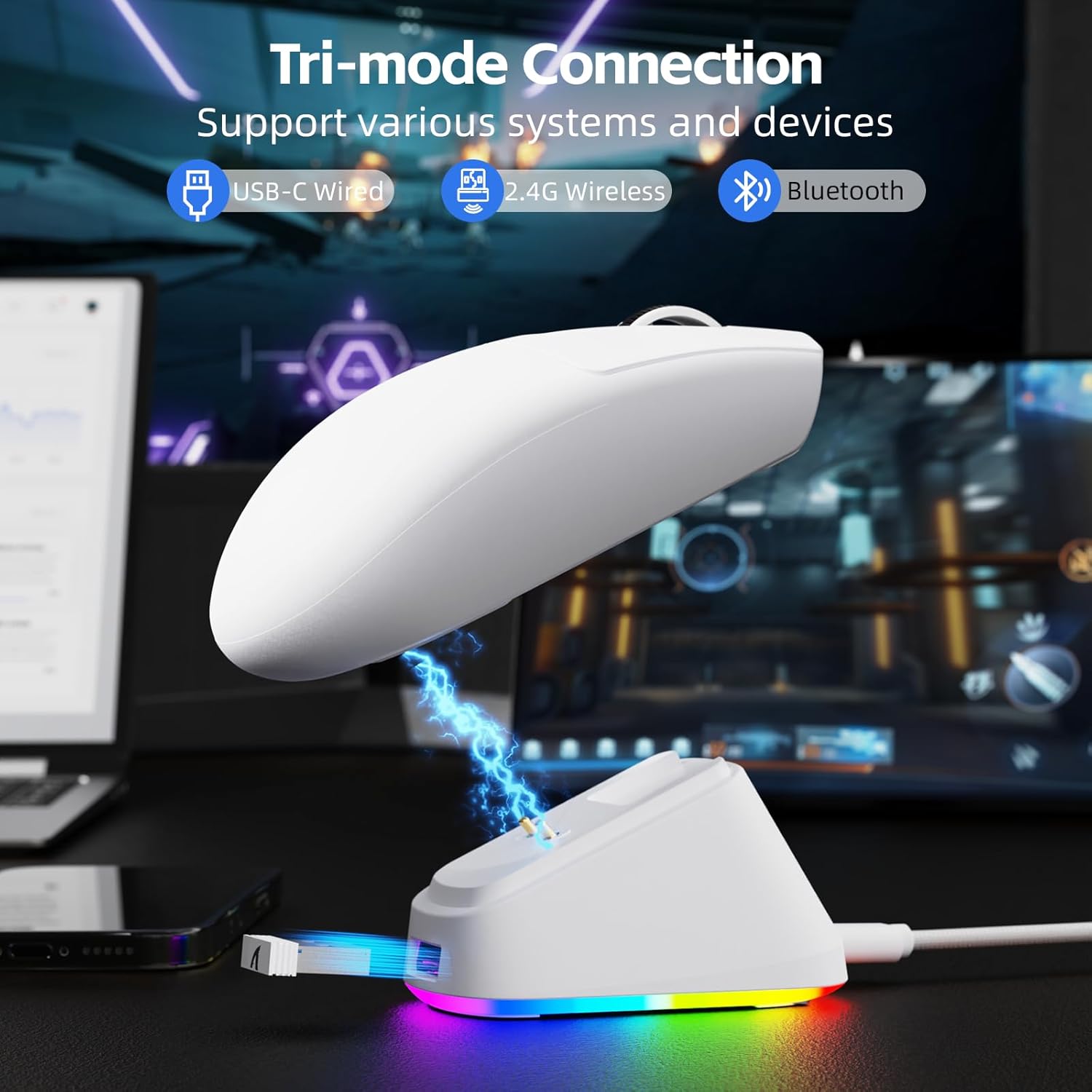
Image: The ATTACK SHARK G3PRO mouse magnetically attached to its RGB charging dock, showing the charging thimbles and USB-C port.
For a visual guide on charging, please watch the following video:
Video: This video demonstrates the magnetic charging dock and its features for the ATTACK SHARK G3PRO Wireless Gaming Mouse.
3.2 חיבור העכבר
The G3PRO supports three connection modes: 2.4GHz Wireless, Bluetooth, and USB-C Wired. A switch on the bottom of the mouse allows you to select the desired mode.

Image: The ATTACK SHARK G3PRO mouse with visual indicators for Wired, 2.4G, and Bluetooth connectivity modes.
מצב אלחוטי 2.4GHz:
- Locate the 2.4G USB receiver, typically stored within the charging dock or the mouse itself.
- חבר את מקלט ה-USB ליציאת USB זמינה במחשב שלך.
- Set the switch on the bottom of the mouse to "2.4G".
- העכבר אמור להתחבר אוטומטית.
מצב Bluetooth:
- Set the switch on the bottom of the mouse to "BT".
- במחשב או במכשיר שלך, נווט אל הגדרות Bluetooth והפעל את Bluetooth.
- חפש new devices and select "ATTACK SHARK G3PRO" to pair.
מצב חוטי USB-C:
- חבר את כבל ה-USB-C ישירות מהעכבר למחשב.
- העכבר יפעל כעכבר חוטי ויטען בו זמנית.
For a visual guide on product features and connectivity, please watch the following video:
Video: This video demonstrates the various color options and the magnetic charging feature of the ATTACK SHARK G3PRO Wireless Gaming Mouse, showcasinהעיצוב והפונקציונליות שלו.
4. הפעלת העכבר
4.1 פונקציות כפתורים
The ATTACK SHARK G3PRO features 5 programmable buttons:
- לחיצה שמאלית: פעולה ראשונית.
- מקש ימני: תפריט פעולה/הקשר משני.
- קליק/גלגל גלילה אמצעי: Scroll up/down, middle click for universal scroll or other functions.
- לחצן קדימה: Default for navigating forward in web browsers/folders.
- לחצן אחורה: Default for navigating backward in web browsers/folders.
- מתג DPI: מחזורי בין רמות DPI מוגדרות מראש.

Image: A detailed diagram illustrating the location and default functions of the multi-functional buttons on the ATTACK SHARK G3PRO mouse.

תמונה: פיצוץ view and labeled diagram of the G3PRO mouse components, including buttons, switches, charging points, and the 2.4G/OFF/BT mode switch.
התאמת 4.2 DPI
The mouse features a dedicated DPI switch to cycle through various sensitivity levels, ranging from 800 to 25,000 DPI. The current DPI setting is indicated by an LED light.

Image: A visual representation of the 25,000 DPI optical sensor's precision and how mouse movement trajectory sensitivity scales with DPI settings.
4.3 שיעור ההצבעה
The G3PRO supports a 1000Hz polling rate in both wired and 2.4GHz wireless modes, ensuring rapid response times for competitive gaming.

Image: A diagram illustrating the 1000Hz polling rate capability in both wired and wireless modes, highlighting millisecond response times.
5. תוכנה והתאמה אישית
Customize your G3PRO mouse settings using the intuitive web driver or downloadable software from ATTACK SHARK. This allows for personalization of DPI, polling rate, macros, and more.
- Web נֶהָג: גישה אל web-based configuration tool for quick adjustments without installation.
- Downloadable Software: For advanced customization and profile management, download the dedicated software.

Image: A screenshot of the ATTACK SHARK Hub software interface, showing options for mouse settings, DPI settings, parameter settings, macro editing, and personal center.

Image: The cloud-driven programming interface for the G3PRO mouse, displaying options for button settings, DPI adjustments, polling rate settings, and power management.
6. תחזוקה
6.1 ניקוי
כדי לשמור על ביצועים אופטימליים, נקו את העכבר באופן קבוע. השתמשו במטלית רכה ויבשה לניגוב המשטח. במקרה של לכלוך עיקש, שטפו מעט.amp ניתן להשתמש בבד, תוך הבטחה שלא תיכנס לחות לרכיבים הפנימיים. יש להימנע מכימיקלים חזקים או מחומרים שוחקים.
6.2 אחסון
When not in use for extended periods, store the mouse and charging dock in a cool, dry place. Ensure the USB receiver is securely stored, ideally within the charging dock's designated slot, to prevent loss.
7. פתרון תקלות
| בְּעָיָה | סיבה אפשרית | פִּתָרוֹן |
|---|---|---|
| עכבר לא מגיב (2.4G) | Low battery; Receiver not plugged in; Incorrect mode selected; Driver issue. | Charge the mouse; Ensure receiver is firmly plugged in; Set mouse to "2.4G" mode; Reinstall mouse drivers. |
| עכבר לא מגיב (בלוטות') | Low battery; Bluetooth not enabled on device; Not paired; Incorrect mode selected. | Charge the mouse; Enable Bluetooth on your device; Re-pair the mouse in Bluetooth settings; Set mouse to "BT" mode. |
| Charging dock RGB not lighting up | Cable not connected; Power source issue. | Ensure USB-C cable is securely connected to dock and power source; Try a different USB port or power adapter. |
| מעקב לא עקבי | Dirty sensor; Uneven surface; Interference (wireless). | Clean the optical sensor; Use a clean, even mouse pad; Reduce wireless interference by moving other devices or using wired mode. |
| הכפתורים לא מגיבים | התנגשות תוכנה; נזק פיזי. | Check software settings for button remapping; Test on another computer; Contact support if physical damage is suspected. |
8. מפרטים
| תכונה | פְּרָט |
|---|---|
| מותג | לתקוף כריש |
| דֶגֶם | G3PRO |
| צֶבַע | לָבָן |
| טכנולוגיית קישוריות | 2.4Ghz Wireless, Bluetooth, USB-C Wired |
| טכנולוגיית זיהוי תנועה | אופטי (חיישן PAW3311) |
| DPI מקסימום | 25,000 DPI |
| שיעור סקרים | 1000 הרץ |
| תְאוּצָה | 40G |
| מהירות מעקב | 400 IPS |
| מתגים | Mechanical (100 Million Clicks) |
| קיבולת סוללה | 500mAh |
| חיי סוללה | עד 200 שעות |
| מִשׁקָל | 59 גרם ± 3 גרם |
| כפתורים | 5 |
| כיוון יד | אמבידקסטרואי |
| מכשירים תואמים | מחשב נייד, מחשב אישי, סמארטפון, טאבלט |
| מַעֲרֶכֶת הַפעָלָה | Windows, macOS |
For a comparison of G3 and G3PRO models, refer to the image below:

Image: A table comparing the specifications of the ATTACK SHARK G3 and G3PRO models, highlighting differences in components and features.
9. מידע בטיחות
- אין לחשוף את המכשיר לטמפרטורות קיצוניות או לחות.
- הימנע מנפילה או הכפיפה של המכשיר למכות חזקות.
- הרחק מהישג ידם של ילדים.
- אל תנסו לפרק או לשנות את המכשיר, שכן פעולה זו תגרום לביטול האחריות ועלולה לגרום נזק.
- Use only the provided charging cable and dock.
10. אחריות ותמיכה
The ATTACK SHARK G3PRO Wireless Gaming Mouse comes with a standard manufacturer's warranty. For detailed warranty information, please refer to the warranty card included in your package or visit the official ATTACK SHARK webאֲתַר.
For technical support, troubleshooting assistance, or to inquire about replacement parts, please contact ATTACK SHARK customer service through their official webאתר או פרטי הקשר המופיעים באריזת המוצר.
רִשְׁמִי Webאֲתַר: ATTACK SHARK Store on Amazon