
1. הקדמה
This manual provides detailed instructions for the installation, operation, and maintenance of your Surakey Android 14 Car Stereo. This unit is designed to enhance your driving experience with features such as wireless CarPlay, Android Auto, MirrorLink, Bluetooth connectivity, WiFi, FM/RDS radio, and an 8-inch HD touch screen. Please read this manual thoroughly before use to ensure proper functionality and safety.
2. תאימות
This car stereo is compatible with specific Chevrolet, GMC, and Buick models. Please verify your vehicle's make, model, and year against the list below to ensure proper fitment and functionality. It is recommended to send a complete image of the plugs on the back of your vehicle's center console and main unit to the seller for confirmation if you are unsure about compatibility or require additional wiring harnesses/adapters.

איור 2.1: Applicable Car Models. This image illustrates various car stereo configurations, distinguishing between those compatible and not compatible with this unit. Please compare your vehicle's current stereo setup with the examples מסופק.
דגמי רכב תואמים:
- עבור שברולט: Silverado 1500HD (2007-2012) (Second Generation), Silverado 2500HD (2007-2012) (Second Generation), Silverado 3500HD (2007-2012) (Second Generation), Avalanche (2007-2011) (GMT900), Express Van (2008-2011), Impala (2006-2012) (Ninth Generation), Equinox (2005-2009) (First Generation), HHR (SS/LT/Panel/LS) (2006-2011).
- עבור GMC: Acadia (Denali) (2007-2012), Savana (2008-2013), Sierra (Denali) (2007-2011), Yukon (Denali) (2007-2013).
- עבור ביואיק: מובלעת (2008-2012).
פֶּתֶק: The Silverado Classic 2007 model is not compatible. Always double-check your car model, year, and existing stereo configuration before installation.
3. תכולת החבילה
Please ensure all items listed below are present in your package before proceeding with installation.

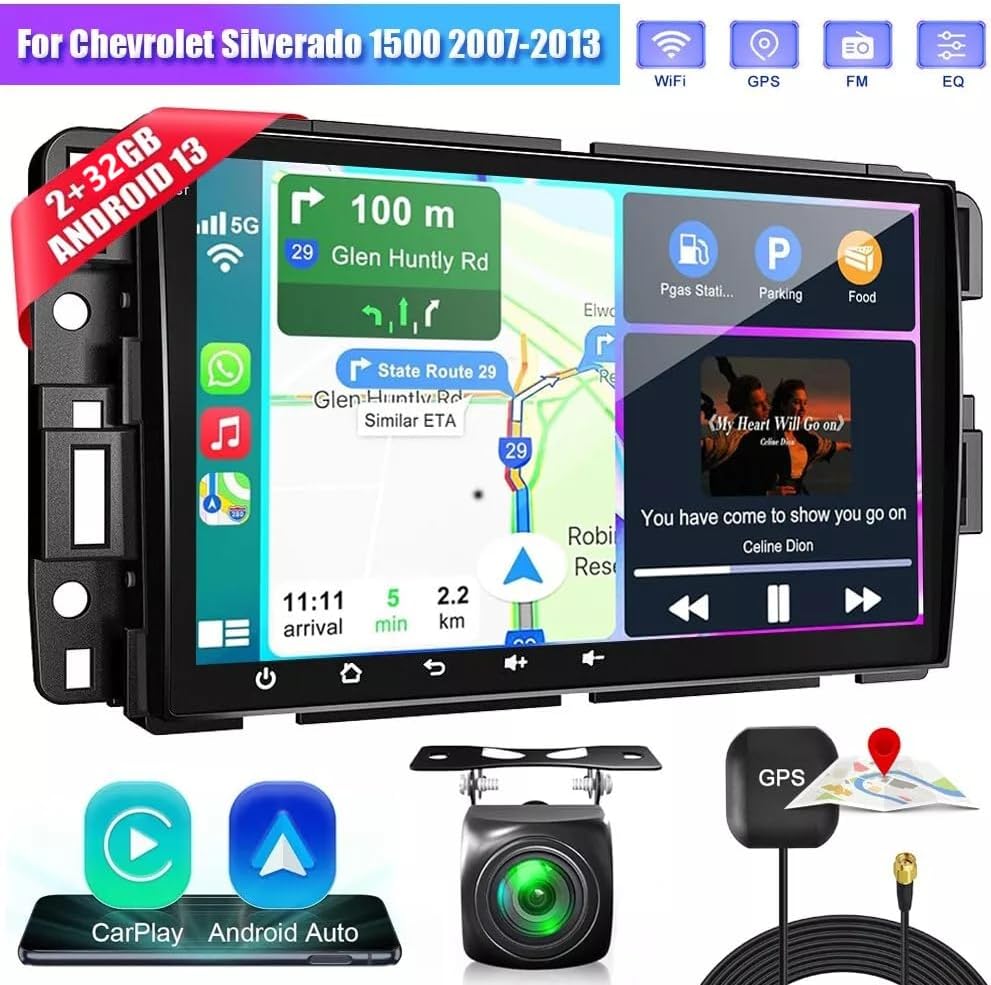
איור 3.1: Package Contents. This image displays the main car stereo unit along with all essential accessories and cables included in the box.
- Car Stereo Unit (8-inch touch screen)
- כבל חשמל
- כבלי קלט/פלט RCA
- 2 כבלי USB
- כבל כניסת מצלמה
- מתאם רדיו
- אנטנת GPS
- מדריך הוראות (מסמך זה)
- קוֹל Ampחיים יותר
- קופסת קנבוס
- אֲחוֹרִיview מצלמה (אם כלולה בחבילה הספציפית שלך)
4. התקנה והתקנה
מומלץ להתקין באופן מקצועי. יש לוודא שהרכב מנותק מחשמל לפני תחילת ההתקנה.
4.1 תרשים חיווט כללי
איור 4.1: Product Wiring Diagram. This diagram illustrates the connections for power (GND, ACC, B+, ILL), speakers (front left, front right, rear left, rear right), steering wheel control (SW1, SW2), reverse input, antenna, and other auxiliary inputs.
Refer to the diagram for connecting the power cable, speaker wires, and other essential inputs. Ensure all connections are secure to prevent malfunctions.
4.2 התקנת מצלמת רוורס

איור 4.2: Reversing Camera Wiring. This diagram details how to connect the AHD rearview camera. Connect the red wire to the positive pole of the reversing light and the black wire to the negative pole. The reversing trigger is controlled by the stereo and does not require a separate connection. The white plug must be connected to the main device for Bluetooth and WiFi signals.
- Connect the red wire of the camera to the positive pole of the car's reversing light.
- Connect the black wire of the camera to the negative pole of the car's reversing light.
- The reversing trigger is controlled by the stereo; therefore, no additional connection is required for the trigger.
- Ensure the white plug is connected to the main unit to enable Bluetooth and WiFi signals.
עֵצָה: יש לחבר את כניסת הרכבה לאחור גם אם מצלמת הרוורס אינה בשימוש.
4.3 Pre and Post Installation Comparison

איור 4.3: Installation Effect. This image provides a visual comparison of the vehicle's dashboard before and after the Surakey car stereo installation, demonstrating the integrated appearance.
5. הוראות הפעלה
סעיף זה מפרט את הפונקציות העיקריות וכיצד להפעיל את מערכת הסטריאו של הרכב.
5.1 CarPlay אלחוטי ואנדרואיד אוטו

איור 5.1: Wireless CarPlay & Android Auto. This image shows the car stereo screen displaying CarPlay and Android Auto interfaces, highlighting voice command capabilities like "Hey Siri, find a gas station" or "Hey Google, call Mia."
Connect your iPhone or Android smartphone wirelessly via Bluetooth and WiFi to access CarPlay or Android Auto. This allows for voice control of navigation, music, calls, and messages, providing a safer driving experience.
הווידאו 5.1: Car Stereo Radio Functionality. This video demonstrates the Bluetooth and ZLINK (CarPlay/Android Auto) connection process, including manual WiFi connection if ZLINK fails. It shows how to pair a phone via Bluetooth, enter the PIN, and connect to the ZLINK application for seamless smartphone integration.
5.2 פונקציית קישור מראה

איור 5.2: Mirror Link. This image depicts the Mirror Link feature, allowing you to display your smartphone's screen directly onto the car stereo. This function supports both iOS and Android devices, typically via a wired USB connection for Android or wireless for iOS.
The Mirror Link function allows you to mirror your smartphone's screen onto the car stereo display. This is supported for both iOS and Android devices, providing a safer way to view content from your phone while driving.
5.3 ניווט GPS

איור 5.3: GPS Navigation. The car stereo supports both offline and online navigation. You can use the included GPS module for offline maps or download navigation apps via WiFi for online routing. This image shows a typical navigation screen with route information.
The unit offers both offline and online navigation options. Use the included GPS module for offline navigation or connect to WiFi/WLAN to download and use online navigation applications from the Play Store.
5.4 קישוריות בלוטות'

איור 5.4: Bluetooth Interface. This image displays the Bluetooth connection screen, indicating features like music playback, address book access, caller ID, and voice call functionality.
Connect your mobile phone via Bluetooth for hands-free calls, access to your phone book, and Bluetooth music streaming (A2DP). The device name for pairing is typically "CarBT".
קישוריות WiFi 5.5

איור 5.5: WiFi Connectivity. This image highlights the WiFi feature, which is crucial for online maps, downloading applications, and other internet-dependent functions.
Connect to a WiFi network to enable online features such as map updates, app downloads, and internet browsing. You can also use your phone's hotspot for internet access.
5.6 פונקציית רדיו FM

איור 5.6: FM Radio Function. This image displays the FM radio interface, showing frequency tuning, station presets, and RDS information. It allows access to news, music, and real-time traffic updates.
The car stereo includes an FM/RDS radio tuner. Enjoy various radio stations, news, music, and real-time traffic updates. The RDS (Radio Data System) provides additional information like station name and program type.
5.7 בקרת הגה (SWC)

איור 5.7: Steering Wheel Control. This image shows a hand interacting with steering wheel buttons, indicating the ability to control the car stereo's functions such as changing songs, adjusting volume, and answering calls directly from the steering wheel.
Utilize your vehicle's existing steering wheel controls to manage the car stereo. This function allows you to answer calls, change music tracks, and adjust volume without taking your hands off the wheel, enhancing safety.
5.8 תצוגת מסך מפוצל

איור 5.8: Split-screen Display. This image illustrates the split-screen feature, where two applications, such as navigation and music playback, are displayed simultaneously on the car stereo screen, improving multitasking efficiency.
The split-screen feature allows you to display two applications simultaneously, such as navigation and music, for a more efficient and convenient user experience.
5.9 פונקציית DSP
איור 5.9: DSP Function. This image displays the Digital Sound Processor (DSP) interface, which allows for advanced audio customization, including equalizer settings for various sound profiles like metal, subwoofer, vocal, rock, and custom options.
The integrated Digital Sound Processor (DSP) provides high-quality audio and personalized sound settings. Adjust equalizer settings to optimize the soundstage and enhance your in-car audio experience.
6. תחזוקה
To ensure the longevity and optimal performance of your Surakey Car Stereo, follow these maintenance guidelines:
- ניקוי: Use a soft, dry cloth to clean the touch screen and exterior surfaces. Avoid abrasive cleaners or solvents that could damage the finish.
- עדכוני תוכנה: בדקו מעת לעת אם קיימים עדכוני תוכנה זמינים דרך הגדרות המערכת או דרך אישור היצרן. webאתר כדי להבטיח שיש לכם את התכונות ותיקוני הבאגים העדכניים ביותר.
- טֶמפֶּרָטוּרָה: הימנעו מחשיפת המכשיר לטמפרטורות קיצוניות, חמות וקורות כאחד, למשך תקופות ממושכות.
- ספק כוח: Ensure the vehicle's electrical system is in good condition to prevent power fluctuations that could harm the unit.
7. פתרון תקלות
אם נתקלת בבעיות עם מערכת הסטריאו של הרכב שלך, עיין בשלבי פתרון הבעיות הנפוצים הבאים:
| בְּעָיָה | סיבה אפשרית | פִּתָרוֹן |
|---|---|---|
| היחידה לא נדלקת | חיבור חשמל רופף, נתיך שרוף, בעיה במצבר של הרכב. | Check power cables and fuse. Ensure battery is charged. Consult a professional if necessary. |
| אין קול | Volume too low, speaker wires disconnected, incorrect audio source. | Increase volume. Check speaker connections. Select correct audio source. |
| בלוטות'/קארפליי/אנדרואיד אוטו לא מתחברים | Bluetooth/WiFi off on phone or stereo, incorrect pairing, software glitch. | Ensure Bluetooth/WiFi is enabled on both devices. Re-pair the device. Restart both phone and stereo. Refer to Video 5.1 for connection steps. |
| אות GPS אבד או לא מדויק | אנטנת ה-GPS חסומה או מנותקת, מפות מיושנות. | ודא שאנטנת ה-GPS פנויה view of the sky and is securely connected. Update maps if using offline navigation. |
| אֲחוֹרִיview המצלמה לא מציגה | Camera wiring incorrect, camera faulty, reverse gear not detected. | Check camera power and video connections (refer to Figure 4.2). Ensure the vehicle is in reverse. |
אם שלבים אלה אינם פותרים את הבעיה, אנא פנו לתמיכת הלקוחות לקבלת סיוע נוסף.
8. מפרטים
Key technical specifications of the Surakey Android 14 Car Stereo:
- מותג: Surakey
- דֶגֶם: 2GB+32GB (Android 14)
- לְהַצִיג: מסך מגע HD בגודל 8 אינץ'
- אַיִל: 2GB
- ROM: 32GB
- מַעֲרֶכֶת הַפעָלָה: אנדרואיד 14
- קישוריות: Wireless CarPlay, Wireless Android Auto, MirrorLink, Bluetooth, WiFi, FM/RDS
- מעבד: Quad / 4 cores high efficiency processor
- פלט וידאו: HD 1024P or IPS 1280P Video support
- תכונות נוספות: DSP, Steering Wheel Control, Rearview Camera support, MP3/AUX/USB, support for TPMS, OBD2, DVR, DAB+ (extended equipment functions)
9. מידע על אחריות
Specific warranty details for this product are not provided in the available information. Please refer to the product packaging or contact the seller directly for comprehensive warranty terms and conditions. Typically, electronic products come with a manufacturer's limited warranty covering defects in materials and workmanship for a specified period from the date of purchase.
10. תמיכה
For technical assistance, troubleshooting, or any questions regarding your Surakey Car Stereo, please contact the seller or manufacturer's customer support. Have your product model number and purchase details ready when contacting support.
יַצרָן: Surakey
מוֹכֵר: Fuyatong-US
אתם יכולים גם לבקר ב Surakey Store on Amazon למידע נוסף על המוצר ומשאבים.