1. הקדמה
This manual provides detailed instructions for the setup, operation, and maintenance of your ELEPHAS K350 Smart Projector. Please read this manual thoroughly before using the product to ensure proper function and longevity. Keep this manual for future reference.
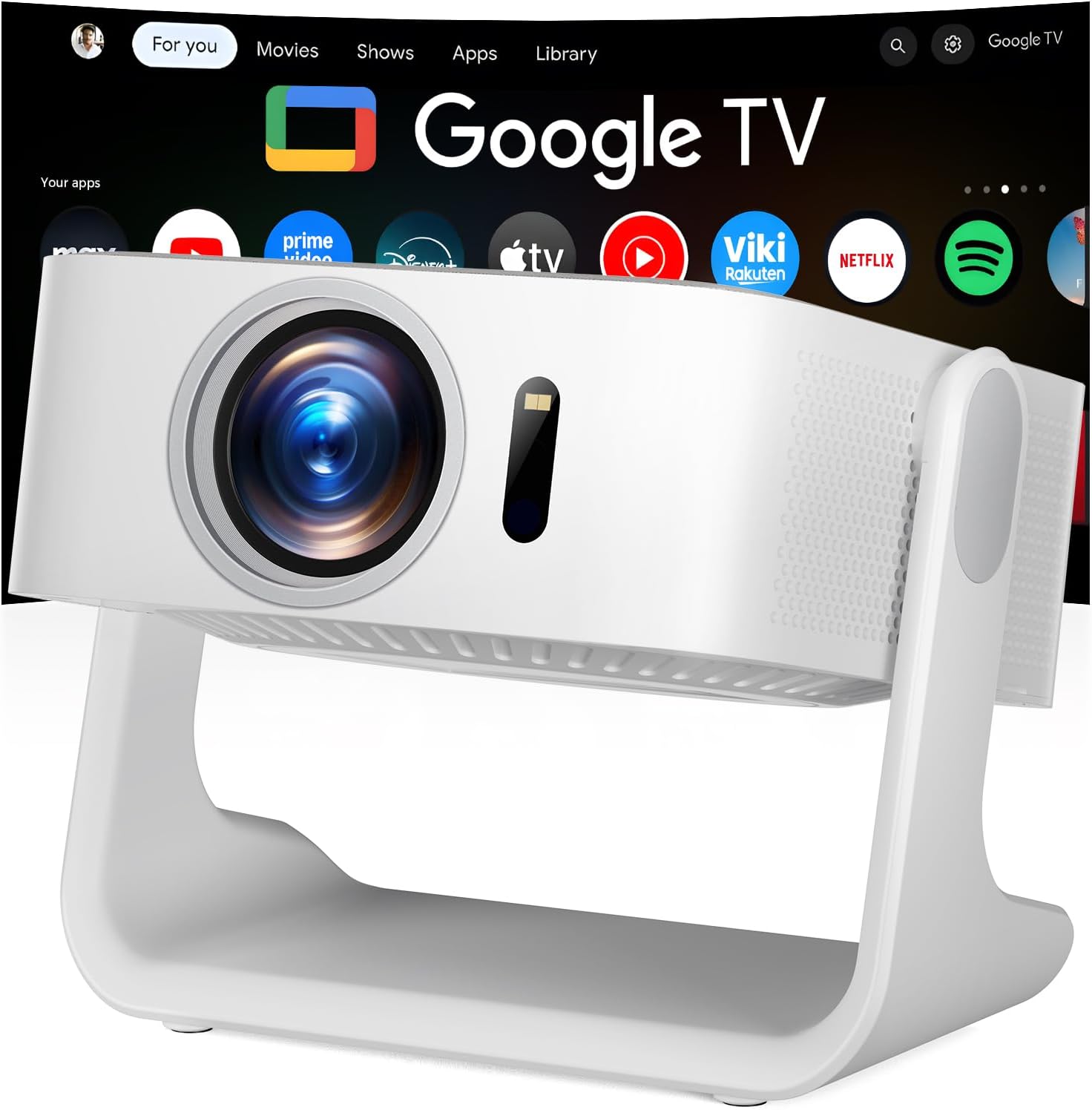
Image 1.1: The ELEPHAS K350 Smart Projector, a compact device with a lens visible on the front, projecting the Google TV interface onto a screen. The projector is white and sits on a stable base.
2. תכולת החבילה
ודא שכל הפריטים נמצאים בחבילה:
- ELEPHAS K350 Smart Projector
- שְׁלַט רָחוֹק
- מתאם מתח
- כבל HDMI
- מדריך למשתמש (מסמך זה)
3. המוצר נגמרview
הכירו את רכיבי המקרן והיציאות שלו.
3.1 חזית וצד View
תמונה 3.1: חזית view of the ELEPHAS K350 Smart Projector, highlighting the projection lens and sensor for auto-focus/keystone correction.
3.2 פאנל אחורי וקישוריות
The rear panel typically includes power input, HDMI port, USB port, and audio output. Refer to the physical device for exact port locations.

Image 3.2: The ELEPHAS K350 Smart Projector connected to power, with its remote control and various streaming app logos (Netflix, Prime Video, YouTube, HBO Max, Hulu) displayed, indicating its smart capabilities.
4. התקנה
4.1 הפעלה ראשונית
- חבר את מתאם החשמל לכניסת החשמל של המקרן ולאחר מכן לשקע חשמל.
- לחץ על לחצן ההפעלה במקרן או בשלט הרחוק כדי להפעיל את המכשיר.
- Follow the on-screen instructions for initial language and region settings.
4.2 חיבור רשת (Wi-Fi 6)
The projector supports Wi-Fi 6 for fast and stable internet connectivity.
- Navigate to the "Settings" menu on the Google TV interface.
- בחר "רשת ואינטרנט".
- בחר את רשת ה-Wi-Fi שלך מהרשימה והזן את הסיסמה.
- אשר את החיבור.

Image 4.1: Illustration of the projector's dual-band Wi-Fi 6 capability, showing a user gaming with the projector, emphasizing fast and stable connections for online content.
4.3 Bluetooth Pairing (Bluetooth 5.4)
Connect external audio devices or use the projector as a Bluetooth speaker.
- Go to "Settings" and select "Remotes & Accessories".
- Enable Bluetooth on the projector and your desired device (e.g., speaker, headphones).
- בחר את המכשיר שלך מהרשימה כדי לזווג.

Image 4.2: Depiction of the projector's two-way Bluetooth 5.4 connectivity, showing it paired with external speakers for enhanced audio and a tablet for screen mirroring, illustrating versatile audio and display options.
4.4 Physical Placement and 270° Rotatable Stand
The integrated 270° rotatable stand allows flexible projection angles.
- הנח את המקרן על משטח יציב.
- Adjust the stand to direct the projection onto a wall, screen, or ceiling.
- Ensure no objects obstruct the projection path.
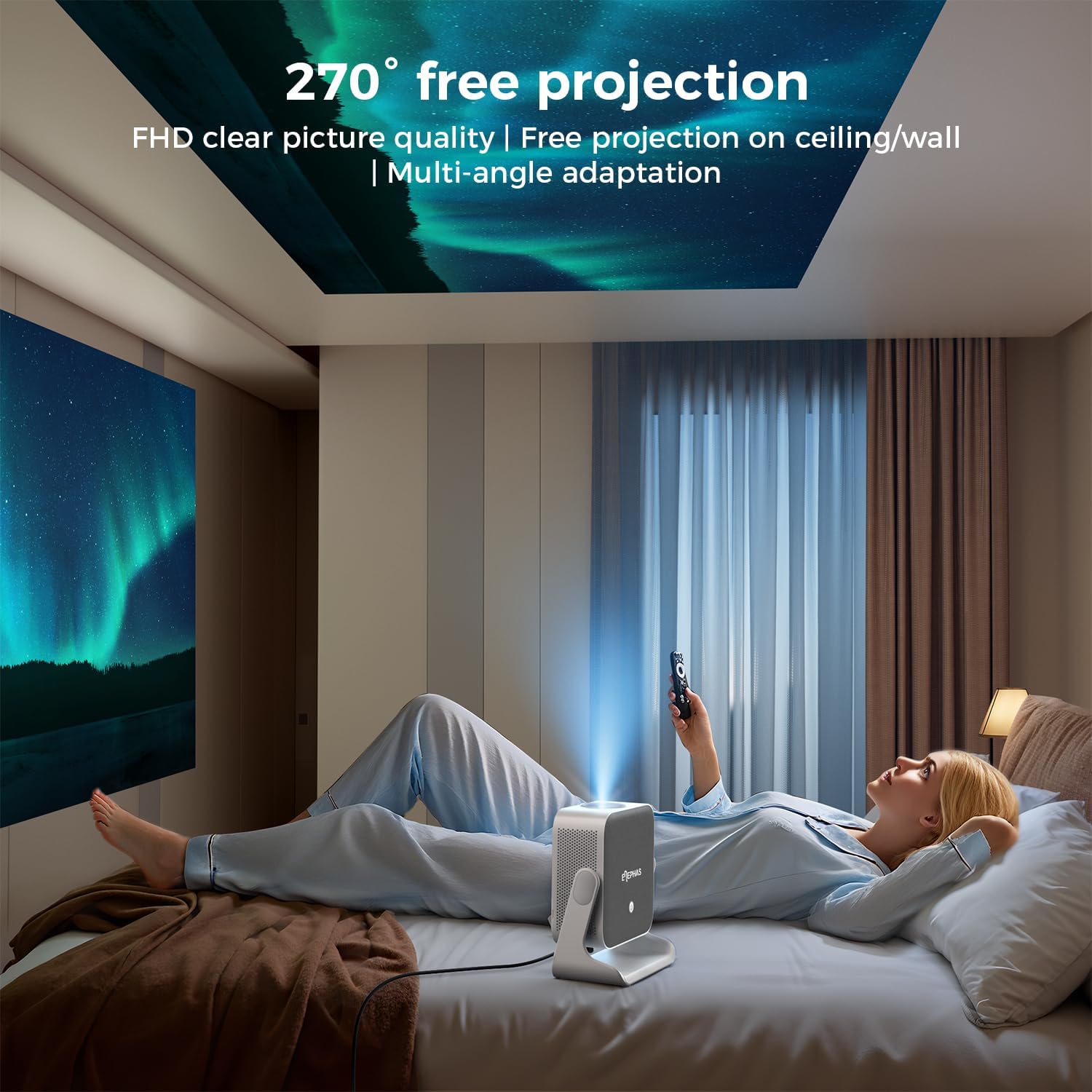
Image 4.3: A user lying in bed, watching content projected onto the ceiling by the ELEPHAS K350 Smart Projector, demonstrating its 270° rotatable stand for flexible viewזוויות.
4.5 Auto Focus, Auto Keystone, and Auto Obstacle Avoidance
The projector features advanced automatic adjustments for optimal image quality.
- מיקוד אוטומטי: The projector automatically adjusts the image clarity using TOF technology. This occurs within milliseconds upon startup or movement.
- תיקון אבן מפתח אוטומטי: The image will automatically adjust to a rectangular shape, even if the projector is placed at an angle (up to ±30° vertical/horizontal).
- הימנעות ממכשולים אוטומטיים: The projector detects and adjusts the projection area to avoid obstacles on the surface.
- זום: The projection size can be adjusted up to 70% via settings if needed.

Image 4.4: A diagram illustrating the projector's AI intelligent algorithm for image correction, showing how TOF auto focus, auto obstacle avoidance, and auto keystone correction work to provide a clear, properly framed image.
5. הוראות הפעלה
5.1 ממשק גוגל טי וי
The ELEPHAS K350 features an integrated Google TV system, providing access to a wide range of streaming services and applications.
- Use the remote control's navigation buttons to browse the Google TV home screen.
- Access pre-installed apps like Netflix, Prime Video, YouTube, Hulu, and Disney+.
- הורד אפליקציות נוספות מחנות Google Play.

Image 5.1: The Google TV interface displayed on a projection screen, with examples of voice commands for the Google Assistant, such as "Open YouTube" or "Play Netflix," demonstrating effortless smart control.
5.2 עוזר קולי של גוגל
Utilize the built-in Google Voice Assistant for hands-free control.
- לחץ על כפתור הקול הייעודי בשלט רחוק.
- Speak your command clearly, such as "Open Netflix," "Adjust volume," or "חפש סרטי פעולה."
- The projector will respond to your voice commands.
5.3 External Device Connection (HDMI)
Connect gaming consoles, Blu-ray players, or other devices via the HDMI port.
- Ensure both the projector and the external device are powered off.
- Connect one end of the HDMI cable (included) to the external device and the other end to the HDMI port on the projector.
- הפעל את שני המכשירים.
- Select the HDMI input source from the projector's input menu.
5.4 Screen Mirroring (Google Cast)
Cast content from your Android or iOS devices using Google Cast.
- ודא שהמכשיר הנייד והמקרן מחוברים לאותה רשת Wi-Fi.
- On your mobile device, open a compatible app (e.g., YouTube, Netflix) or use the screen mirroring function.
- Select the Cast icon and choose your ELEPHAS K350 projector from the list of available devices.
6. תחזוקה
תחזוקה שוטפת מבטיחה ביצועים אופטימליים ומאריכה את תוחלת החיים של המקרן שלכם.
- ניקוי עדשות: השתמש במטלית רכה ונטולת סיבים המיועדת במיוחד לעדשות אופטיות כדי לנגב בעדינות את עדשת המקרן. הימנע מחומרים שוחקים או כימיקלים חזקים.
- הסרת אבק: Periodically clean the projector's exterior with a soft, dry cloth. Ensure ventilation openings are free from dust accumulation to prevent overheating. Do not spray cleaning liquids directly onto the projector.
- אִחסוּן: כאשר המקרן אינו בשימוש למשך תקופות ממושכות, יש לאחסן אותו במקום קריר ויבש, הרחק מאור שמש ישיר וטמפרטורות קיצוניות.
- עדכוני תוכנה: Ensure the projector's software is up-to-date through the Google TV settings to benefit from the latest features and performance improvements.
7. פתרון תקלות
סעיף זה עוסק בבעיות נפוצות שאתה עשוי להיתקל בהן.
| בְּעָיָה | סיבה אפשרית | פִּתָרוֹן |
|---|---|---|
| אין כוח | כבל החשמל לא מחובר; בעיה בשקע החשמל | ודא שכבל החשמל מחובר היטב. בדוק את השקע עם מכשיר אחר. |
| אין תמונה מוקרנת | Lens cap on; Incorrect input source; Device not powered on | Remove lens cap. Select the correct input source (e.g., HDMI). Ensure connected device is powered on. |
| תמונה מטושטשת | לא בפוקוס; המקרן הוזז | The projector has auto-focus. If manual adjustment is needed, check settings. Ensure the projector is stable. |
| תמונה מעוותת (לא מלבנית) | Incorrect keystone settings; Projector angle too extreme | The projector has auto-keystone correction. If issues persist, check manual keystone settings in the menu. Reposition the projector if the angle is too severe. |
| אין קול | Volume too low; Muted; Incorrect audio output selected; Bluetooth not paired | Increase volume. Check if muted. Ensure internal speakers are selected or Bluetooth device is correctly paired. |
| בעיות חיבור Wi-Fi | סיסמה שגויה; בעיות בנתב; מחוץ לטווח | Verify Wi-Fi password. Restart router. Move projector closer to router. |
8. מפרטים
| תכונה | פְּרָט |
|---|---|
| מותג | אלפאס |
| מספר דגם | K350 |
| רזולוציית תצוגה | 1920 x 1080 (Full HD) |
| טכנולוגיית קישוריות | Wi-Fi 6, Bluetooth 5.4, HDMI |
| תכונות מיוחדות | Auto Focus, Auto Keystone, Auto Obstacle Avoidance, Built-In Speaker, Built-In Wi-Fi, Google TV, Google Voice Assistant, 270° Rotatable Stand |
| שֶׁמַע | Built-in 10W Hi-Fi speakers (Dolby Audio support) |
| משקל פריט | 4.51 פאונד |
| מידות חבילה | 11.02 x 10.12 x 7.09 אינץ' |
| שימוש מומלץ | Home Cinema, Gaming, Outdoor Movie Nights, Presentations |
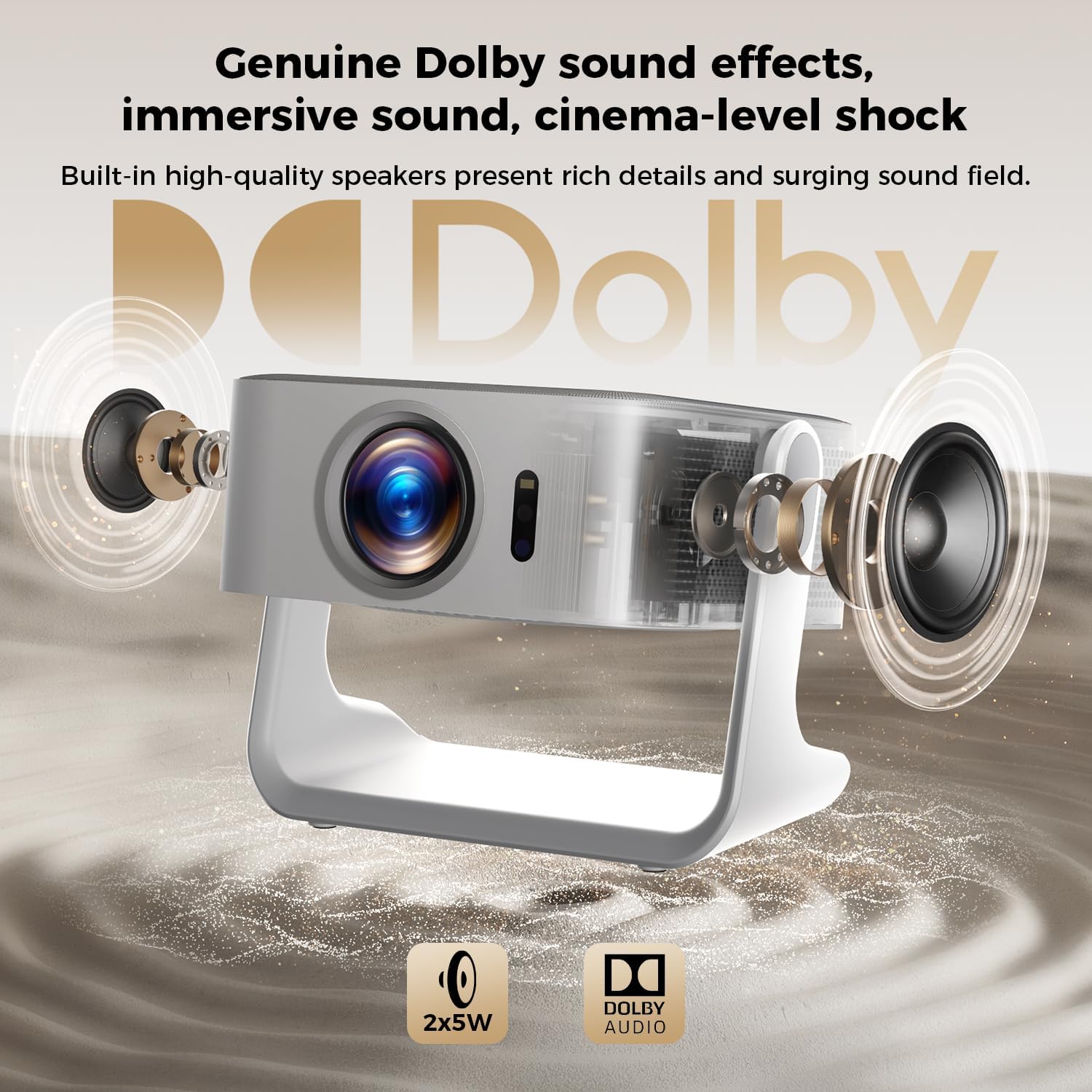
תמונה 8.1: פיצוץ view of the ELEPHAS K350 Smart Projector, highlighting its internal 2x5W speakers and Dolby Audio support, indicating immersive sound capabilities.
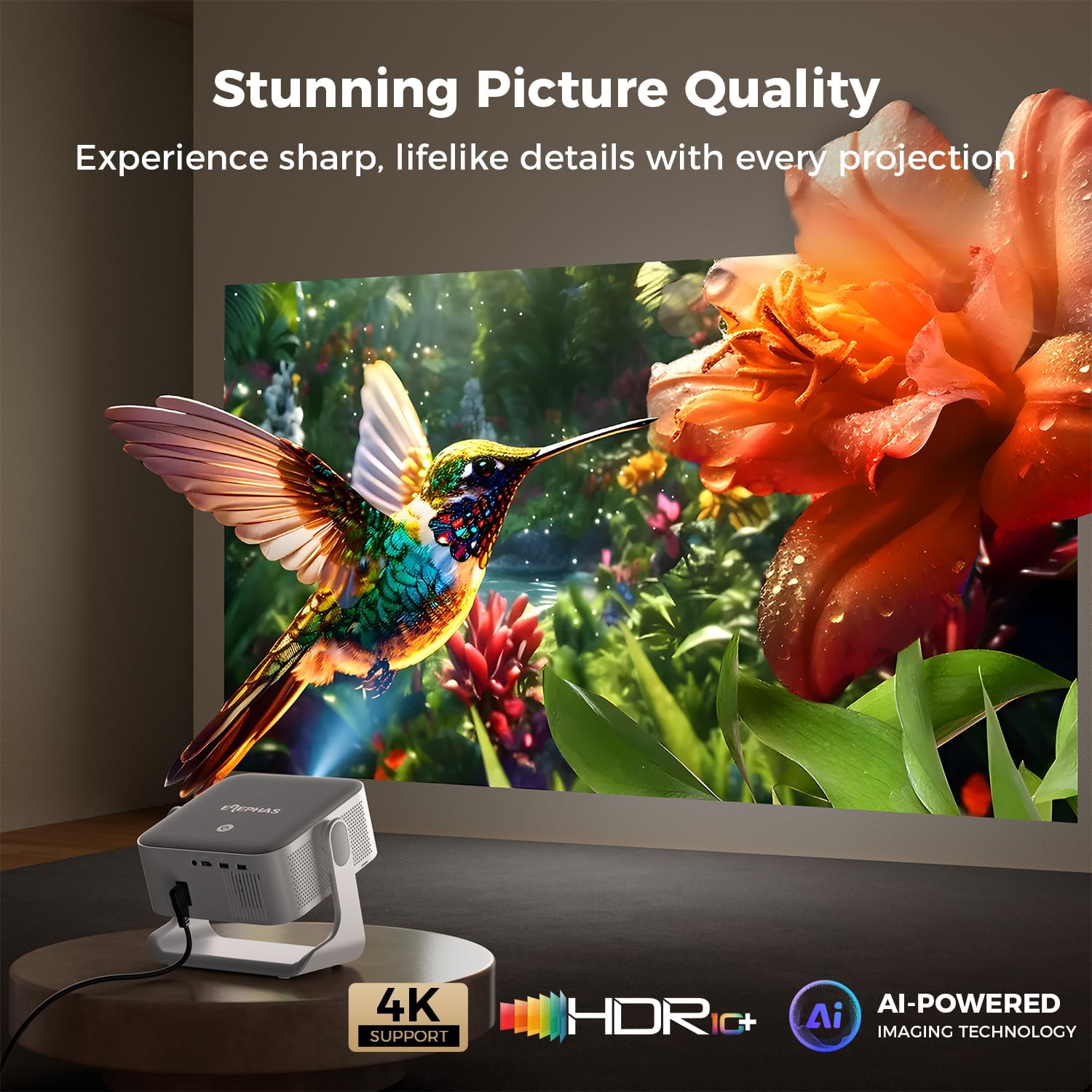
Image 8.2: The ELEPHAS K350 Smart Projector projecting a vibrant, detailed image of a hummingbird and flower, emphasizing its stunning picture quality with 4K support, HDR, and AI-powered imaging technology.
9. אחריות ותמיכה
The ELEPHAS K350 Smart Projector is backed by a אחריות שירות לשנתיים.
For any product-related issues, technical assistance, or warranty claims, please contact ELEPHAS customer support through the official channels provided at the point of purchase or on the ELEPHAS brand webאֲתַר.
אנא שמור את הוכחת הרכישה שלך לצורך אימות האחריות.