
1. הקדמה
Thank you for choosing the Zeuslap Z13KT 13.3-inch Portable Touchscreen Monitor. This device is designed to enhance your productivity and entertainment experience with its high-resolution 2K IPS display, 100% sRGB color gamut, and responsive touch functionality. This manual provides essential information for the safe and efficient use of your monitor, including setup, operation, maintenance, and troubleshooting.
2. מידע בטיחות
- קרא בעיון את כל ההוראות לפני השימוש בצג.
- אין לחשוף את הצג לגשם, לחות או טמפרטורות קיצוניות.
- הימנעו מהצבת הצג בקרבת מקורות חום או באור שמש ישיר.
- השתמשו רק במתאם החשמל ובכבלים שסופקו או מומלצים על ידי היצרן.
- אל תנסה לפרק או לתקן את הצג בעצמך. יש לפנות לכל תיקון וטיפול באנשי מקצוע מוסמכים.
- Clean the monitor with a soft, dry cloth. Avoid using liquid cleaners or aerosols.
- הרחק את הצג משדות מגנטיים חזקים.
3. תכולת החבילה
אנא בדקו את תוכן האריזה בעת פתיחת הקופסה. אם חסרים פריטים או פגומים, צרו קשר עם הקמעונאי שלכם.
- Zeuslap Z13KT Portable Monitor
- כבל USB-C ל-USB-C (לחשמל ולווידאו/מגע)
- כבל מיני HDMI ל-HDMI (לווידאו)
- כבל USB-A ל-USB-C (לחשמל)
- מתאם מתח (אם כלול)
- כיסוי/מעמד מגן
- מדריך למשתמש (מסמך זה)
4. המוצר נגמרview
הכירו את רכיבי ויציאות הצג.
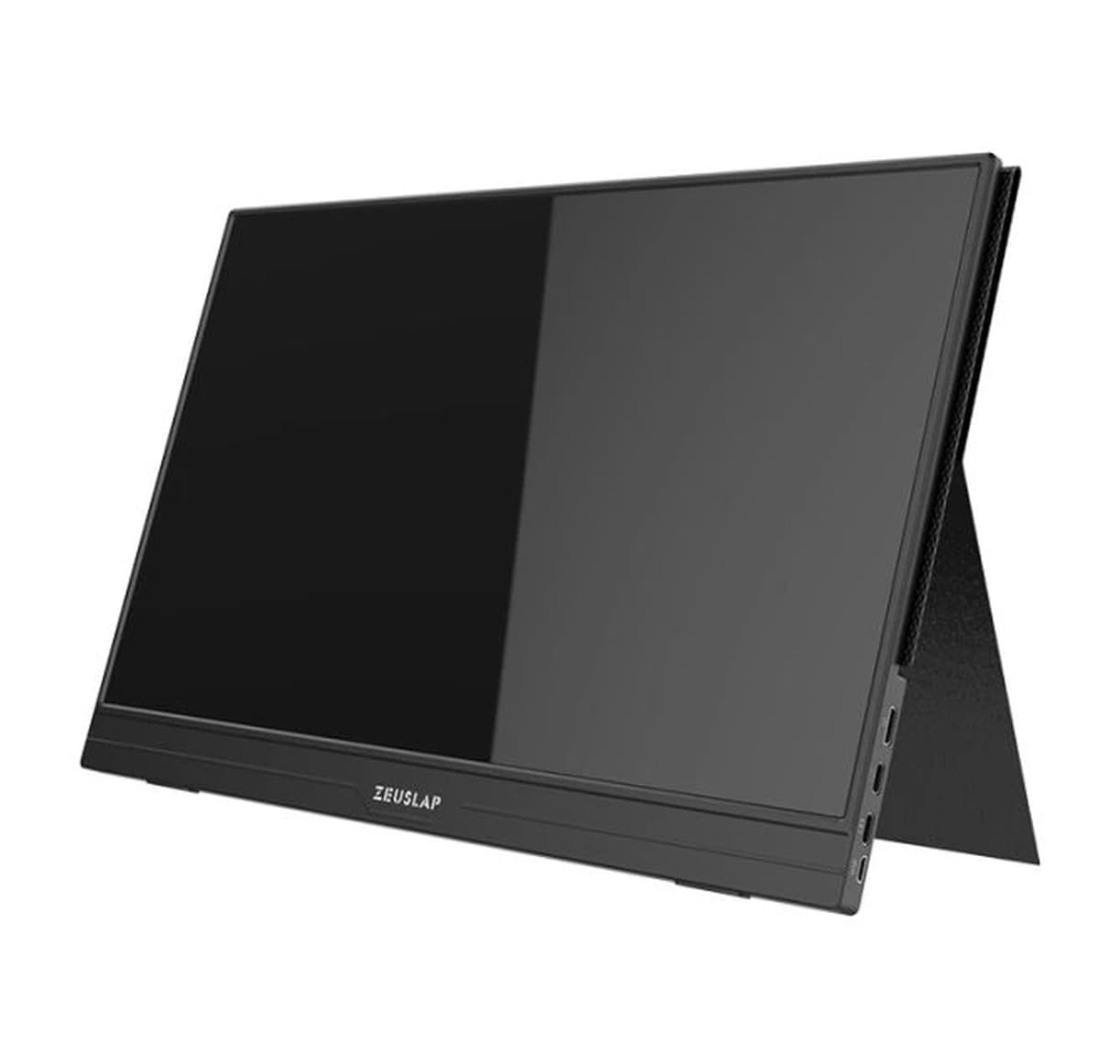
איור 4.1: חֲזִית view of the Zeuslap Z13KT portable monitor, showcasing its slim design and screen.
4.1. רכיבי הצג
- 13.3-inch 2K IPS Touchscreen: Main display area with touch input capability.
- לחצן הפעלה: Turns the monitor on/off and can be used to access the OSD menu.
- כפתורי תפריט/ניווט: For navigating the On-Screen Display (OSD) menu.
- רמקולים: פלט שמע משולב.
4.2. Available Ports
- יציאת USB-C (עם כל התכונות): For power, video signal, and touch data transmission from compatible devices (e.g., laptops, smartphones).
- USB-C Port (Power Only): For connecting to an external power adapter to supply power to the monitor.
- יציאת מיני HDMI: For video signal input from devices like gaming consoles, cameras, or older laptops.
- שקע שמע 3.5 מ"מ: לחיבור אוזניות או רמקולים חיצוניים.
5. התקנה
Follow these steps to connect your Zeuslap Z13KT monitor to your device.
5.1. Connecting to a Laptop/PC (USB-C with DisplayPort Alt Mode)
- Ensure your laptop's USB-C port supports DisplayPort Alternate Mode (DP Alt Mode) and power delivery.
- Connect one end of the provided USB-C to USB-C cable to the full-featured USB-C port on the monitor.
- Connect the other end of the USB-C to USB-C cable to your laptop's compatible USB-C port.
- The monitor should automatically detect the signal and power on. If not, press the monitor's power button.
- For touch functionality, ensure the USB-C connection is established correctly.
5.2. Connecting to a Laptop/PC (HDMI + USB for Power/Touch)
- Connect one end of the Mini HDMI to HDMI cable to the Mini HDMI port on the monitor.
- Connect the other end of the HDMI cable to your laptop's HDMI port.
- For power, connect the USB-A to USB-C cable from your laptop's USB-A port (or a power adapter) to the power-only USB-C port on the monitor.
- For touch functionality, if your laptop has a USB-A port, connect the USB-A end of the USB-A to USB-C cable to your laptop and the USB-C end to the full-featured USB-C port on the monitor. This will provide touch data.
- The monitor should power on and display the image.
5.3. Connecting to a Smartphone (USB-C with DisplayPort Alt Mode)
Note: Not all smartphones support video output via USB-C. Check your phone's specifications.
- Connect one end of the USB-C to USB-C cable to the full-featured USB-C port on the monitor.
- Connect the other end of the USB-C to USB-C cable to your compatible smartphone's USB-C port.
- The monitor will draw power from the phone. For extended use or if the phone cannot supply enough power, connect an external power adapter to the monitor's power-only USB-C port.
- The monitor should display your phone's screen, and touch functionality should be active.
6. הוראות הפעלה
6.1. הפעלה/כיבוי
- כדי להפעיל: לחץ על לחצן ההפעלה.
- כדי לכבות: לחץ והחזק את לחצן ההפעלה למשך 3 שניות.
6.2. תפריט תצוגה על המסך (OSD).
תפריט ה-OSD מאפשר לך להתאים הגדרות צג שונות.
- גישה לתפריט המסך: Press the Menu button (or short press the Power button, depending on model variation).
- ניווט: Use the navigation buttons (or touch gestures if enabled) to move through menu options.
- בְּחִירָה: Press the Menu button (or tap) to select an option.
- יְצִיאָה: Navigate to the "Exit" option or wait for the OSD to time out.
6.3. הגדרות OSD נפוצות
- ניגוד בהירות: כוונן את רמות הבהירות והניגודיות של התצוגה.
- הגדרות צבע: שינוי טמפרטורת צבע, גוון ורוויה.
- מקור קלט: בחירה ידנית בין כניסות USB-C ו-Mini HDMI.
- יחס גובה-רוחב: שנה את יחס הגובה-רוחב של התצוגה (למשל, 16:9, 4:3).
- כֶּרֶך: Adjust the built-in speaker volume.
- שָׂפָה: בחר את שפת תפריט המסך.
6.4. פונקציונליות מסך מגע
The monitor supports multi-touch gestures. Ensure your device (laptop/smartphone) is compatible and connected via a full-featured USB-C cable for touch input to function.
- בֶּרֶז: שווה ערך ללחיצת עכבר.
- לִגנוֹב: לגלילה או ניווט.
- צביטה-להגדלה: For zooming in or out on content.
7. תחזוקה
7.1. ניקוי הצג
- תמיד כבו את הצג ונתק אותו מהחשמל לפני ניקויו.
- השתמש במטלית רכה ונטולת סיבים כדי לנגב בעדינות את המסך.asing.
- עבור כתמים עקשניים, לטחון קלותampשטפו את המטלית במים או בתמיסת ניקוי ייעודית למסך. אין לרסס נוזל ישירות על המסך.
- הימנעו משימוש בחומרי ניקוי שוחקים, אלכוהול או תמיסות מבוססות אמוניה, מכיוון שהם עלולים לפגוע במשטח המסך.
7.2. אחסון
- When not in use, store the monitor in a cool, dry place.
- Use the provided protective cover to prevent scratches and dust accumulation.
- הימנע מהנחת חפצים כבדים על גבי הצג.
8. פתרון תקלות
אם אתם נתקלים בבעיות עם הצג שלכם, עיינו בבעיות הנפוצות ובפתרונות הבאים.
| בְּעָיָה | סיבה אפשרית | פִּתָרוֹן |
|---|---|---|
| אין תצוגה/אין אות |
|
|
| מסך מגע לא עובד |
|
|
| תצוגה מהבהבת או לא יציבה |
|
|
| אין שמע מרמקולי המוניטור |
|
|
9. מפרטים
| תכונה | פְּרָט |
|---|---|
| דֶגֶם | ZL-Z13KT |
| גודל מסך | 13.3 אינץ' |
| הַחְלָטָה | 2560 x 1600 (2K) |
| קצב רענון | 60 הרץ |
| סוג פאנל | IPS |
| סולם צבעים | 100% sRGB |
| בְּהִירוּת | 300 תקליטורים/מ"ר |
| מסך מגע | כֵּן |
| קישוריות | 2x USB-C (1x Full-featured, 1x Power), 1x Mini HDMI, 1x 3.5mm Audio Jack |
| קלט כוח | USB-C (5V-20V) |
10. אחריות ותמיכה
Specific warranty information for the Zeuslap Z13KT monitor is not available in the provided product data. Please refer to the warranty card included with your product or visit the official ZEUSLAP webבאתר לקבלת תנאי האחריות המפורטים.
For technical support, product inquiries, or service requests, please contact your retailer or the manufacturer directly through their official support channels.