
מקספרי M4
מדריך למשתמש של Maxfree Dual Portable Monitor M4
דגם: M4
מָבוֹא
Thank you for choosing the Maxfree Dual Portable Monitor M4. This manual provides essential information for setting up, operating, and maintaining your new dual monitor system. Please read this manual thoroughly before use to ensure optimal performance and longevity of your device.
המוצר נגמרview
The Maxfree Dual Portable Monitor M4 is designed to expand your workspace with two 15.6-inch 1080P FHD IPS displays. Its folding design enhances portability, making it ideal for travel and various work environments.

Image: The Maxfree Dual Portable Monitor M4, featuring two 15.6-inch screens in an open, stacked configuration, ready for use.
תכונות עיקריות:
- Dual 15.6-inch 1080P FHD IPS Displays
- Plug & Play USB-C Connectivity
- Folding Design for Portability
- Matte Screen with Anti-glare, No Flicker, and Eye Care Functions
- סולם צבעים 100% sRGB
- Multiple Display Modes and 330° Rotation
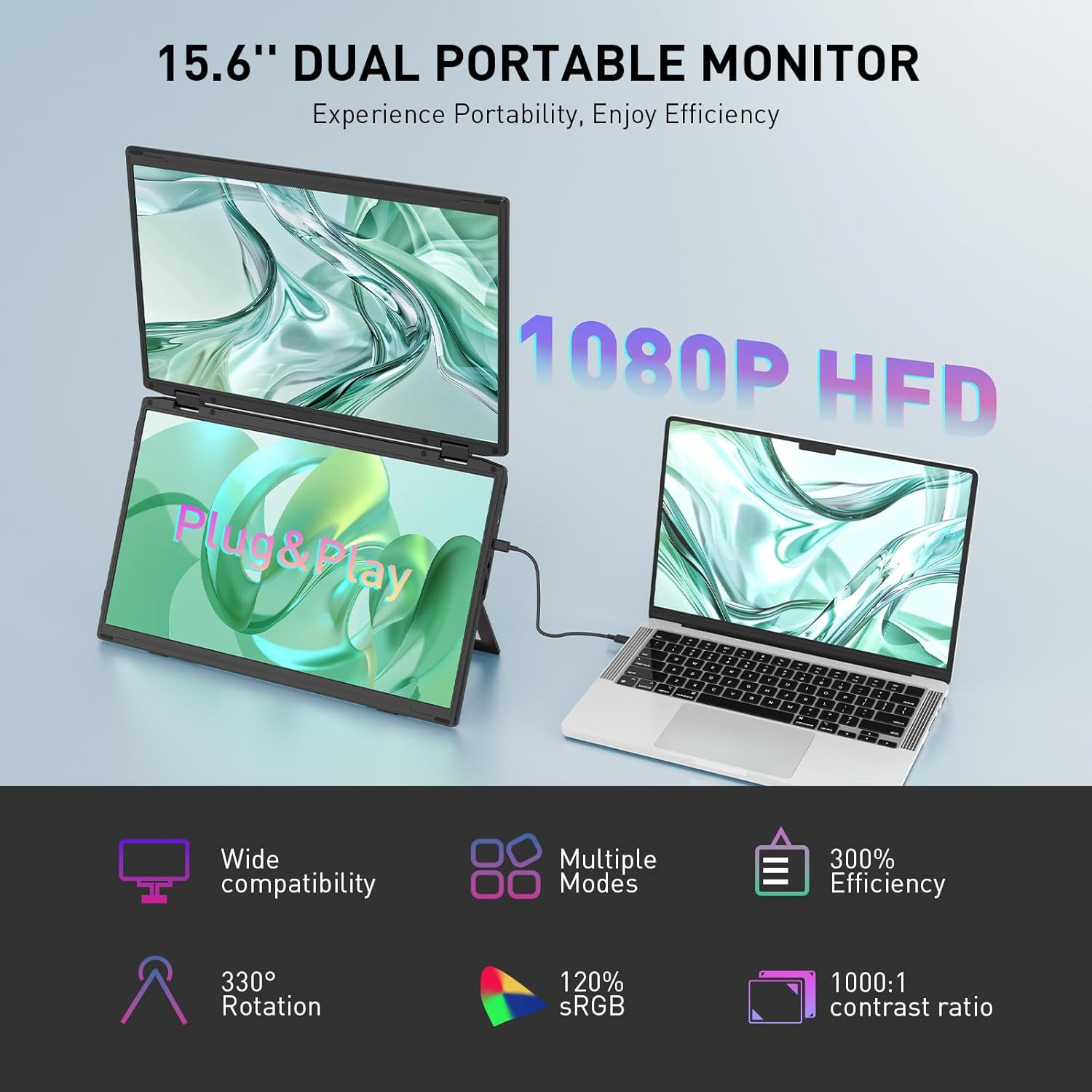
Image: The Maxfree Dual Portable Monitor M4 connected to a laptop, illustrating its plug-and-play functionality and various display modes.
הוראות התקנה
- פרק את הצג: הוציאו בזהירות את הצג ואת כל האביזרים מהאריזה.
- מקם את הצג: הנח את הצג על משטח יציב ושטוח. כוונן את המעמד המובנה למצב הרצוי. viewזווית ing.
- Connect to Power (Recommended): For optimal performance, connect the monitor to a power source using the provided USB-C power adapter (if included) or a compatible USB-C port on your device that supports power delivery.
- התחבר למכשיר:
- חיבור USB-C: Connect one end of the provided USB-C cable to the monitor's USB-C port and the other end to a full-featured USB-C port on your laptop or PC. This single cable can transmit video, audio, and power.
- HDMI + USB-A Connection (if applicable): If your device does not have a full-featured USB-C port, you may need to use an HDMI cable for video and a USB-A to USB-C cable for power and touch functionality (if supported by your model). Refer to your device's manual for specific port requirements.
- הפעלה: Press the power button on the monitor. Your device should automatically detect and extend the display.
- התאם את הגדרות התצוגה: On your computer, navigate to Display Settings to configure the dual monitors (e.g., extend, duplicate, arrange displays).
הוראות הפעלה
מצבי תצוגה:
The Maxfree Dual Portable Monitor supports various display modes to enhance productivity:
- מצב מורחב: Expands your desktop across both screens, providing a larger workspace. This is ideal for multitasking.
- מצב שכפול: Mirrors your primary display onto the portable monitors. Useful for presentations or sharing content.
- פריסה אנכית: The unique vertical stacking design minimizes scrolling and page switching, reducing eye and neck fatigue, especially for document review or coding.
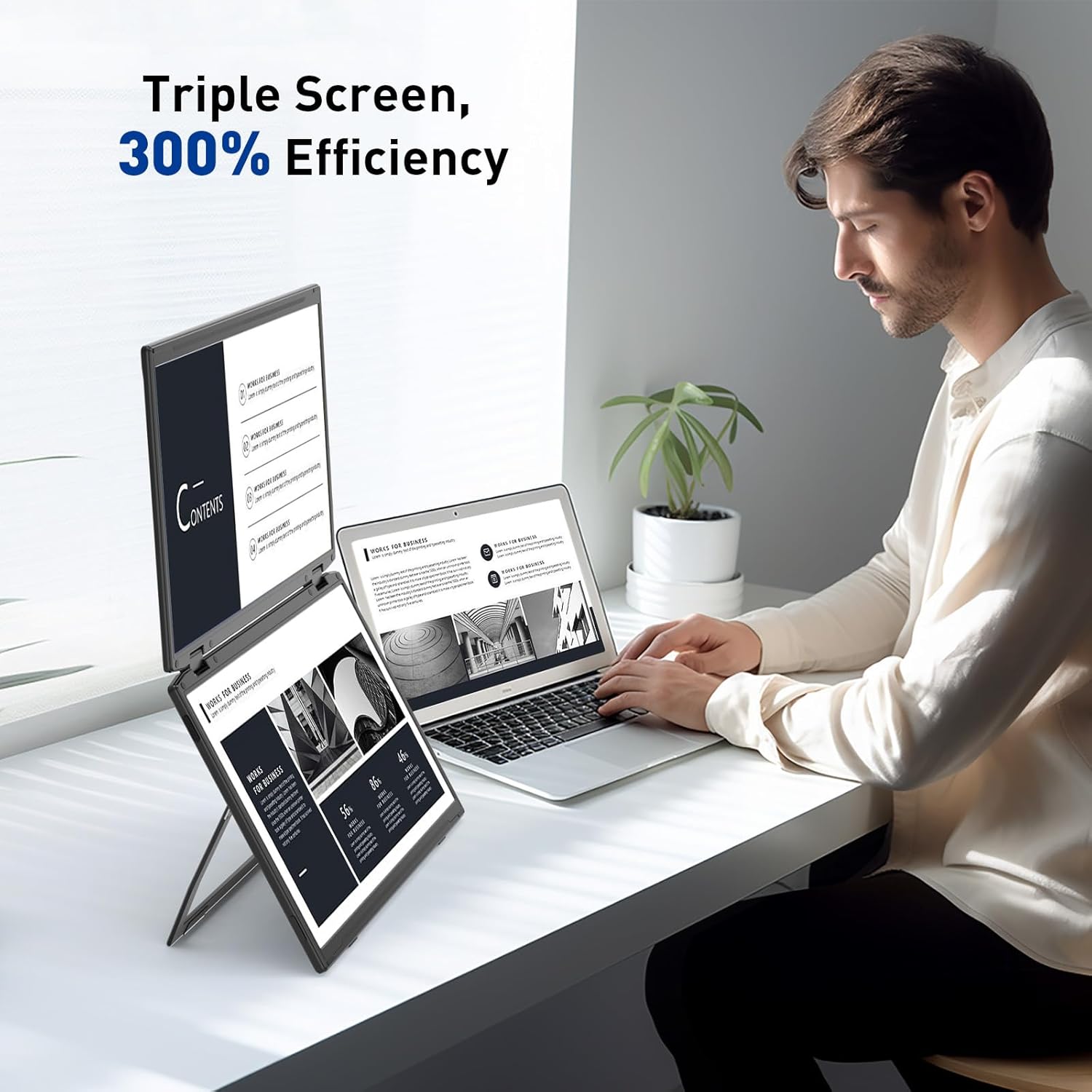
Image: A user demonstrating the Maxfree Dual Portable Monitor M4 in a vertical stacked setup, illustrating how it creates an efficient triple-screen workspace.
תפריט תצוגה על המסך (OSD):
Use the buttons on the side of the monitor to access and navigate the OSD menu. This menu allows you to adjust settings such as:
- בהירות וניגודיות
- Color Settings (e.g., sRGB, color temperature)
- בחירת מקור קלט
- יחס גובה-רוחב
- Volume (if applicable)
Refer to the on-screen prompts for specific button functions (e.g., Menu, Up, Down, Exit).
מפרטים
| תכונה | פְּרָט |
|---|---|
| גודל מסך | כפול 15.6 אינץ' |
| הַחְלָטָה | 1920 x 1080 (FHD 1080p) |
| סוג פאנל | IPS |
| יחס גובה-רוחב | 16:9 |
| משטח המסך | דָהוּי |
| בהירות תמונה | 300 קנדלה |
| סולם צבעים | 100% sRGB |
| קישוריות | USB-C (Full-featured), HDMI (if applicable) |
| סך כל יציאות USB | 1 (USB-C for main connection) |
| כרך ידtage | 5 וולט |
| מידות המוצר | 0.5 x 14 x 9 אינץ' |
| משקל פריט | 3.5 פאונד |
| מספר דגם | M4 |
פתרון בעיות
- אין תצוגה:
- Ensure the USB-C cable is securely connected to both the monitor and your device.
- ודא שיציאת ה-USB-C של המכשיר שלך תומכת בפלט וידאו (מצב חלופי של DisplayPort).
- Connect the monitor to an external power source if your device cannot provide sufficient power.
- בדוק את הגדרות התצוגה של המחשב שלך כדי לוודא שהצג החיצוני מזוהה ומופעל.
- מסך מהבהב:
- ודא שחיבורי הכבלים מאובטחים.
- נסה כבל USB-C אחר.
- Reduce the display resolution or refresh rate on your computer.
- בעיות באיכות התמונה (טשטוש, צבעים שגויים):
- Adjust the brightness, contrast, and color settings via the OSD menu.
- Ensure your computer's display resolution matches the monitor's native resolution (1920x1080).
- המסך לא נדלק:
- Confirm the power cable is properly connected and the power outlet is functional.
- לחץ על לחצן ההפעלה בחוזקה.
תַחזוּקָה
- ניקוי המסך: נגבו בעדינות את המסך בעזרת מטלית רכה ונטולת סיבים. במקרה של סימנים עקשניים, נגבו קלותampשטפו את המטלית במים או בתמיסת ניקוי מסכים. הימנעו מכימיקלים חזקים או מחומרים שוחקים.
- ניקוי ה-Casing: השתמש במטלית רכה ויבשה כדי לנגב את הצגasing.
- אִחסוּן: When not in use, fold the monitor and store it in a cool, dry place, preferably in its original packaging or a protective case to prevent damage.
- הימנע מתנאים קיצוניים: אין לחשוף את הצג לטמפרטורות קיצוניות, לחות או אור שמש ישיר.
אחריות ותמיכה
For warranty information, technical support, or service inquiries, please refer to the warranty card included with your product or visit the official Maxfree webאֲתַר.
יַצרָן: Shenzhen Baijiayoupu Technology CO., Ltd.
Ask a question about this manual
Ask about setup, troubleshooting, compatibility, parts, safety, or missing instructions. Manuals+ will review the question and use this page’s manual context to help answer it.