
1. הקדמה
Thank you for choosing the Attoe F-18 Wireless Vertical Gaming Mouse. This ergonomic mouse is designed to provide a comfortable user experience, reducing wrist strain during extended use, while offering advanced features for gaming and productivity. It features tri-mode connectivity (2.4GHz wireless, Bluetooth 5.0, and wired USB-C), 12 programmable buttons, a 5-direction rocker, and adjustable DPI up to 24000.

Image 1.1: Attoe F-18 Wireless Vertical Gaming Mouse with USB receiver.
2. תכולת החבילה
- Attoe F-18 Vertical Gaming Mouse
- כבל טעינה USB-C
- מקלט USB 2.4 GHz
- מדריך למשתמש
3. הגדרה וקישוריות
3.1 טעינת העכבר
The Attoe F-18 mouse is equipped with a built-in 800mAh ternary lithium battery. Before first use, or when the low battery warning activates, charge the mouse using the provided USB-C cable.
- Connect the USB-C end of the cable to the mouse and the USB-A end to a power source (e.g., computer USB port, USB wall adapter).
- During charging, the four indicator lights on the mouse will illuminate in sequence.
- All four lights will turn off when the mouse is fully charged.
- A red light flashing quickly indicates the battery level has dropped to 25%, signaling the need for charging.

Image 3.1: Illustration of the 800mAh battery and charging indicators.
3.2 חיבור העכבר
The Attoe F-18 supports three connection modes: 2.4GHz Wireless, Bluetooth 5.0, and Wired USB-C.
חיבור אלחוטי 3.2.1 2.4GHz
- הפעל את העכבר באמצעות מתג ההפעלה הממוקם בתחתית.
- Press the bottom Bluetooth button briefly to select 2.4G mode (red indicator light).
- הוציאו את מקלט ה-USB מחריץ האחסון שלו בתחתית העכבר.
- Insert the USB receiver into an available USB port on your computer. The mouse will automatically connect.

Image 3.2: Steps for connecting via 2.4GHz USB wireless.
3.2.2 חיבור בלוטות' 5.0
- הפעל את העכבר באמצעות מתג ההפעלה הממוקם בתחתית.
- Press the bottom Bluetooth button briefly to select Bluetooth mode (blue indicator light). The mouse can pair with up to two Bluetooth devices.
- במחשב או במכשיר שלך, הפעל את Bluetooth וחפש מכשירים חדשים.
- Select "F-18" or "Attoe Mouse" from the list of available devices to pair.
3.2.3 חיבור USB-C קווי
חברו את העכבר ישירות למחשב באמצעות כבל ה-USB-C המצורף. העכבר יפעל כמכשיר קווי ויטען בו זמנית.
3.3 התקנת תוכנה (Windows בלבד)
To customize the 12 programmable buttons and macro settings, download the dedicated software driver. This software is compatible with Windows operating systems only; Mac OS lacks programming features.
- עיין באריזת המוצר או בהוראות היצרן website for the software download link.
- Download and run the installer. If your security program flags the installer, approve the action (e.g., select "Trust") to proceed.
- עקוב אחר ההוראות שעל המסך כדי להשלים את ההתקנה.
- Once installed, launch the software to customize button functions, lighting, and macros. Programmable data is saved directly to the mouse, so settings persist even when connected to a new computer.

Image 3.3: Screenshot of the custom driver programming software interface.
4. הוראות הפעלה
4.1 עיצוב ארגונומי
The vertical design of the Attoe F-18 mouse promotes a natural handshake position, which helps alleviate wrist pain, shoulder fatigue, and tendinitis often associated with traditional horizontal mice. This design is ideal for right-handed users and supports various hand sizes for comfortable extended use.

Image 4.1: Visual comparison of vertical mouse grip versus common horizontal mouse grip.
4.2 Button Functions and 5-Direction Rocker
The mouse features 12 programmable buttons, including a unique 5-direction rocker for enhanced control.
- לחצני שמאל/ימין: לחיצות עכבר סטנדרטיות.
- גלגל גלילה: לגלילה אנכית ולפונקציית לחיצה אמצעית.
- כפתורי קדימה/אחורה: Located on the left side for navigation.
- לחצן DPI: Adjusts sensitivity (see section 4.3).
- 5-Direction Rocker: Located near the thumb, this rocker replaces five traditional keys (W, A, S, D, and Space/Click) for agile in-game navigation. It allows movements forward, backward, left, right, and a central click.
- BT/2.4G Button: For switching between connectivity modes.
All buttons, except the BT/2.4G button, can be customized using the programming software.

Image 4.2: Close-up of the 5-way joystick, curved buttons, and side function keys.

Image 4.3: Keystroke analysis chart detailing button assignments.
התאמת 4.3 DPI
The mouse features 5 adjustable DPI presets (1600/2400/3200/4800/24000) powered by a high-precision PMW3325 sensor. Press the DPI button to cycle through the settings. The DPI indicator lights will change to reflect the current setting:
- 1st light: 1600 DPI
- 2nd light: 2400 DPI
- 3rd light: 3200 DPI
- 4th light: 4800 DPI
- All 4 lights: 24000 DPI

Image 4.4: DPI indicators and RGB lighting on the mouse.
תאורת RGB 4.4
The side RGB strips feature 5 dynamic effects (Neon, Marquee, Streamer, etc.) to enhance your gaming atmosphere. Lighting modes can be customized via the software.
4.5 Device/Mode Switching
כדי לעבור בין מכשירים או מצבים מחוברים:
- Briefly press the Bluetooth button on the bottom of the mouse.
- The indicator light will show red for 2.4GHz mode and blue for Bluetooth mode.
- The mouse can switch between up to two paired Bluetooth devices and one 2.4GHz receiver connection.

Image 4.5: Diagram illustrating the device/mode switching function on the mouse bottom.
5. תחזוקה
To ensure the longevity and optimal performance of your Attoe F-18 mouse, follow these maintenance guidelines:
- ניקוי: השתמש במטלית רכה ויבשה כדי לנגב את משטח העכבר. במקרה של לכלוך עיקש, נגבו מעטampשטפו את המטלית במים או בתמיסת ניקוי עדינה. הימנעו מכימיקלים חזקים או מחומרים שוחקים.
- אִחסוּן: כאשר העכבר אינו בשימוש למשך תקופות ממושכות, כבה אותו כדי לחסוך בחיי הסוללה. אחסן אותו במקום קריר ויבש הרחק מאור שמש ישיר וטמפרטורות קיצוניות.
- רפידות נגד החלקה: Ensure the protective film is removed from the Teflon anti-slip pads on the bottom of the mouse for smooth movement.
6. פתרון תקלות
If you encounter issues with your Attoe F-18 mouse, refer to the following common solutions:
- עכבר לא מגיב:
- ודא שהעכבר מופעל.
- בדוק את רמת הסוללה וטען במידת הצורך.
- Verify the correct connection mode (2.4GHz, Bluetooth, or Wired) is selected.
- For 2.4GHz, ensure the USB receiver is securely plugged into a working USB port. Try a different USB port.
- עבור Bluetooth, ודא ש-Bluetooth מופעל במכשיר שלך ושהעכבר מקושר כהלכה.
- If using wired mode, ensure the USB-C cable is properly connected.
- Cursor lag or erratic movement:
- ודא שהעכבר נמצא על משטח נקי ולא מחזיר אור.
- Interference can affect wireless performance. Move the mouse closer to the receiver or try a different USB port for the receiver.
- Check for other wireless devices operating on the same frequency.
- ודא שהסוללה טעונה מספיק.
- כפתורים ניתנים לתכנות אינם פועלים:
- Ensure the customization software is installed and running on a Windows PC.
- ודא שהכפתורים תכנתו ונשמרו כהלכה בתוך התוכנה.
- Remember that Mac OS does not support programming features for this mouse.
- DPI לא משתנה:
- Press the DPI button firmly to cycle through the settings. Observe the indicator lights.
7. מפרטים
| תכונה | מִפרָט |
|---|---|
| מותג | Attoe |
| מספר דגם | F-18 |
| טכנולוגיית קישוריות | אלחוטי 2.4GHz, בלוטות' 5.0, USB-C קווי |
| טכנולוגיית זיהוי תנועה | אופטי (חיישן PMW3325) |
| רמות DPI | 1600/2400/3200/4800/24000 |
| מספר כפתורים | 12 (ניתן לתכנות) |
| קיבולת סוללה | סוללת ליתיום טרנרית 800mAh |
| מידות המוצר | 4.3 x 2.8 x 0.04 אינץ' (110 x 72 x 76.5 מ"מ) |
| משקל פריט | 3.88 ounces (105 ± 5g) |
| תוחלת חיים של כפתור | ≥20 מיליון קליקים |
| Scroll Wheel Lifespan | ≥1.2 million rotations |
| טווח אפקטיבי | ≥10 מ' |
| כרך הפעלהtage/נוכחי | 3.7V === 15mA |
| 2.4GHz Rolling Rate | 125-1000 הרץ |
| Bluetooth Rolling Rate | 133 הרץ |
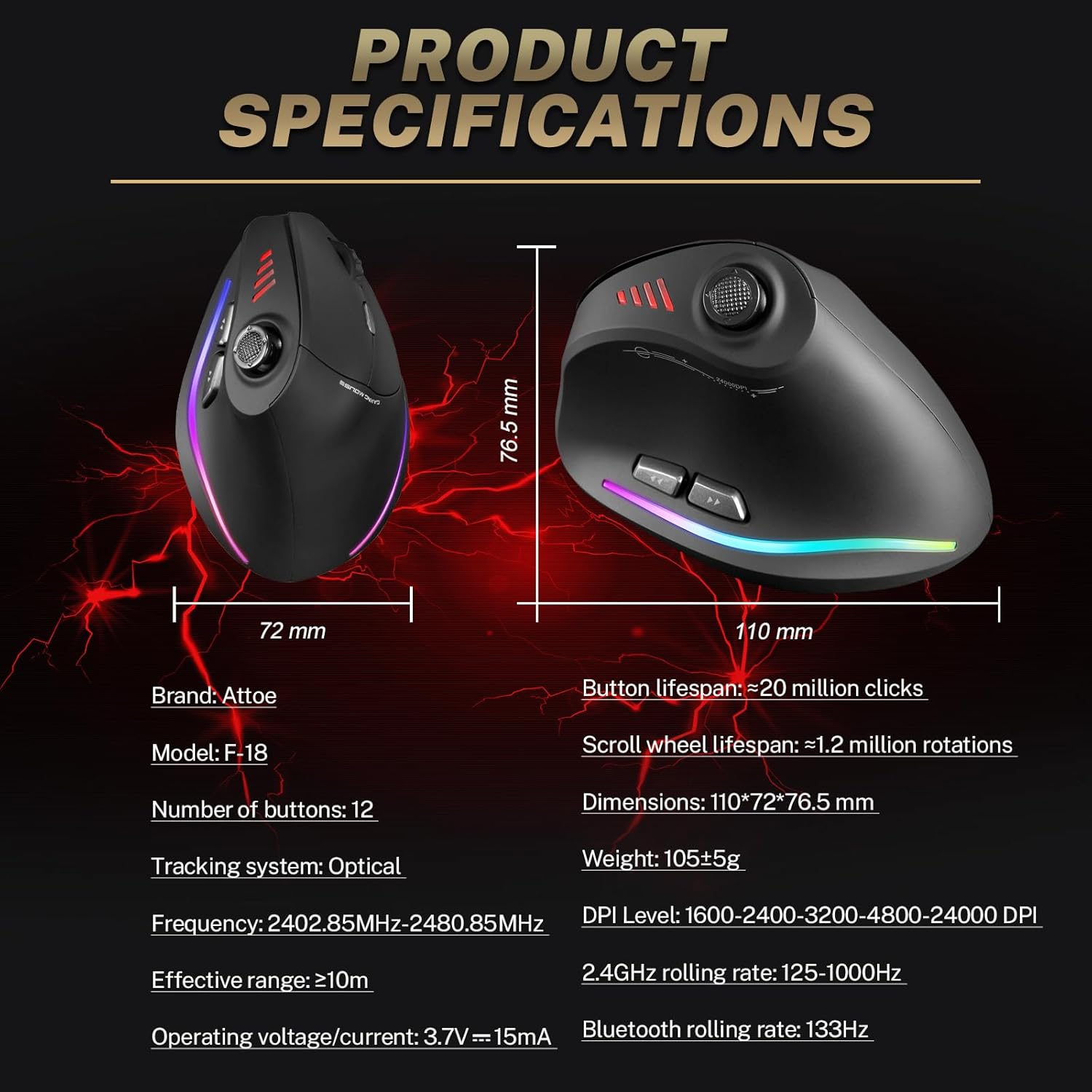
Image 7.1: Diagram showing product dimensions and key specifications.
8. אחריות ותמיכה
For warranty information or technical support, please refer to the documentation included with your product or visit the official Attoe website. If you require further assistance, contact Attoe customer service.