מָבוֹא
This manual provides essential information for setting up, operating, maintaining, and troubleshooting your Thunderobot Zero 18 Pro 5070 Ti Gaming Laptop. Please read this guide thoroughly to ensure optimal performance and longevity of your device.
מה יש בקופסה
בעת פירוק האריזה, יש לוודא שכל הפריטים המפורטים להלן נמצאים:
- THUNDEROBOT Zero Laptop
- מתאם מתח
- מדריך למשתמש (מסמך זה)
- תעודת אחריות
If any items are missing or damaged, contact your retailer or Thunderobot customer support immediately.
הגדרה
הפעלה ראשונית
- Connect the power adapter to the laptop's power input port and then to a wall outlet.
- פתח את מכסה המחשב הנייד.
- לחץ על לחצן ההפעלה כדי להפעיל את המחשב הנייד.
- פעל לפי ההוראות שעל המסך כדי להשלים את הגדרת Windows 11 Home.
חיבור ציוד היקפי
Utilize the available ports to connect external devices such as a mouse, keyboard, external display, or other accessories. Refer to the "Connectivity (Ports)" section for port details.
הוראות הפעלה
הפעלה/כיבוי
- To power on: Press the power button located on the keyboard deck.
- To shut down: Click the Start button, then Power, and select "Shut down".
- To restart: Click the Start button, then Power, and select "Restart".
- To sleep: Close the laptop lid or click the Start button, then Power, and select "Sleep".
Keyboard and RGB Lighting
The laptop features a full-size keyboard with per-key customizable RGB backlighting and a dedicated numeric keypad.
- Per-Key RGB Backlight: Customize individual key lighting through the AI Intelligent Control Center software.
- מקשי פונקציה: השתמש ב- Fn key in combination with other keys for various functions (e.g., volume control, screen brightness, keyboard backlight adjustment).
- Performance Mode Switching: Dedicated keys (Fn+Space) allow for quick toggling between performance profiles.
- One-Click Cooling: A dedicated key (often near the numeric keypad) can activate maximum cooling. Ensure cooling mode is exited before using the first three keys to switch modes.
תכונות תצוגה
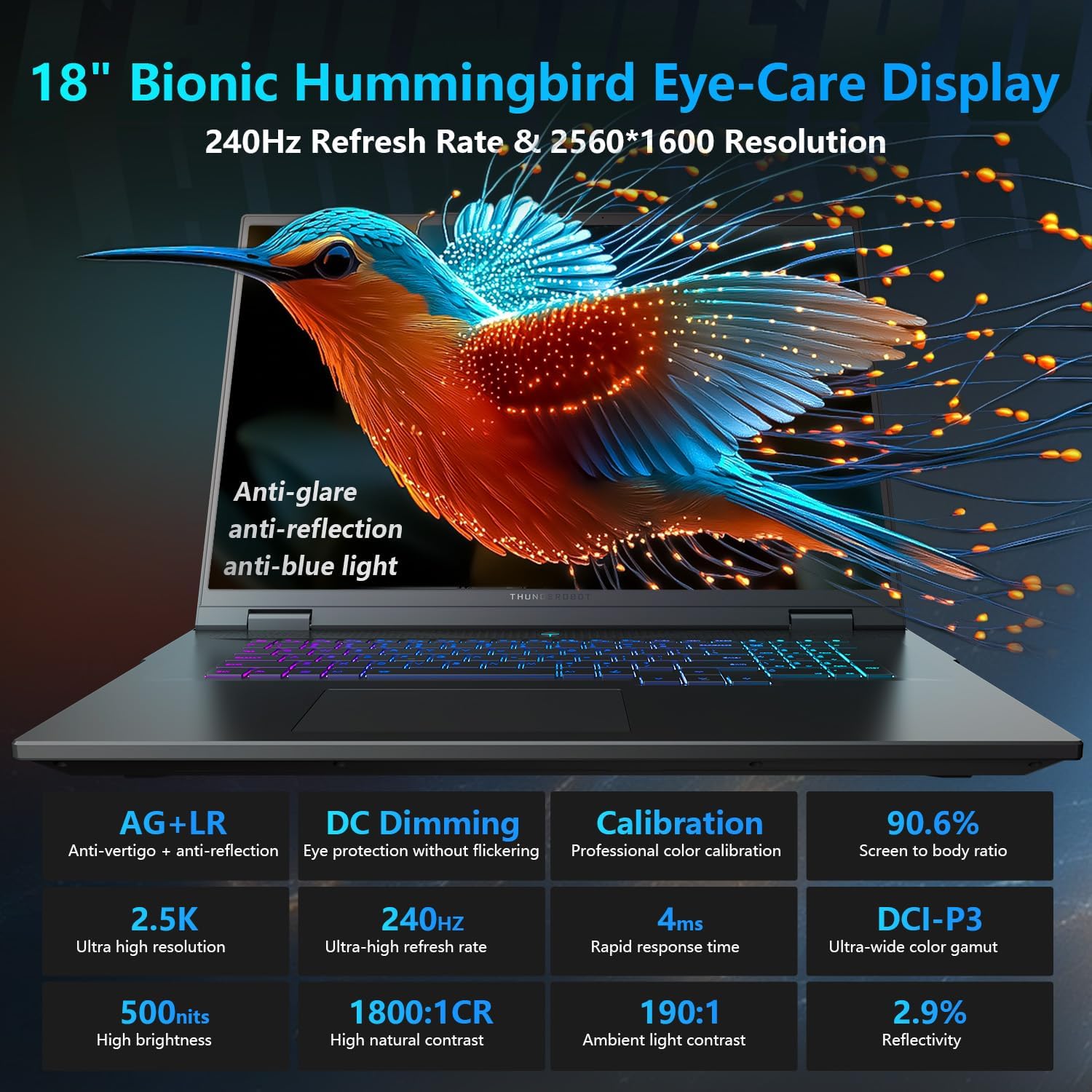
The 18-inch QHD+ (2560x1600) Bionic Hummingbird Eye-Care display offers a 240Hz refresh rate and 4ms response time for clear and fluid visuals. It includes anti-glare, anti-reflection, and anti-blue light technologies for eye comfort.

Connectivity (Ports)
The laptop is equipped with various ports for extensive connectivity:
- 3 x Superspeed USB Type-A ports
- 2 x Superspeed USB Type-C ports (including Thunderbolt 5 support)
- 1 x HDMI port (HDMI 2.1)
- 1 x RJ-45 Ethernet port
- 1 x יציאת שמע (3.5 מ"מ)
- קורא כרטיסי SD UHS-II
- Wi-Fi 6E for high-speed wireless internet
- Bluetooth for wireless peripheral connections

מערכת קירור
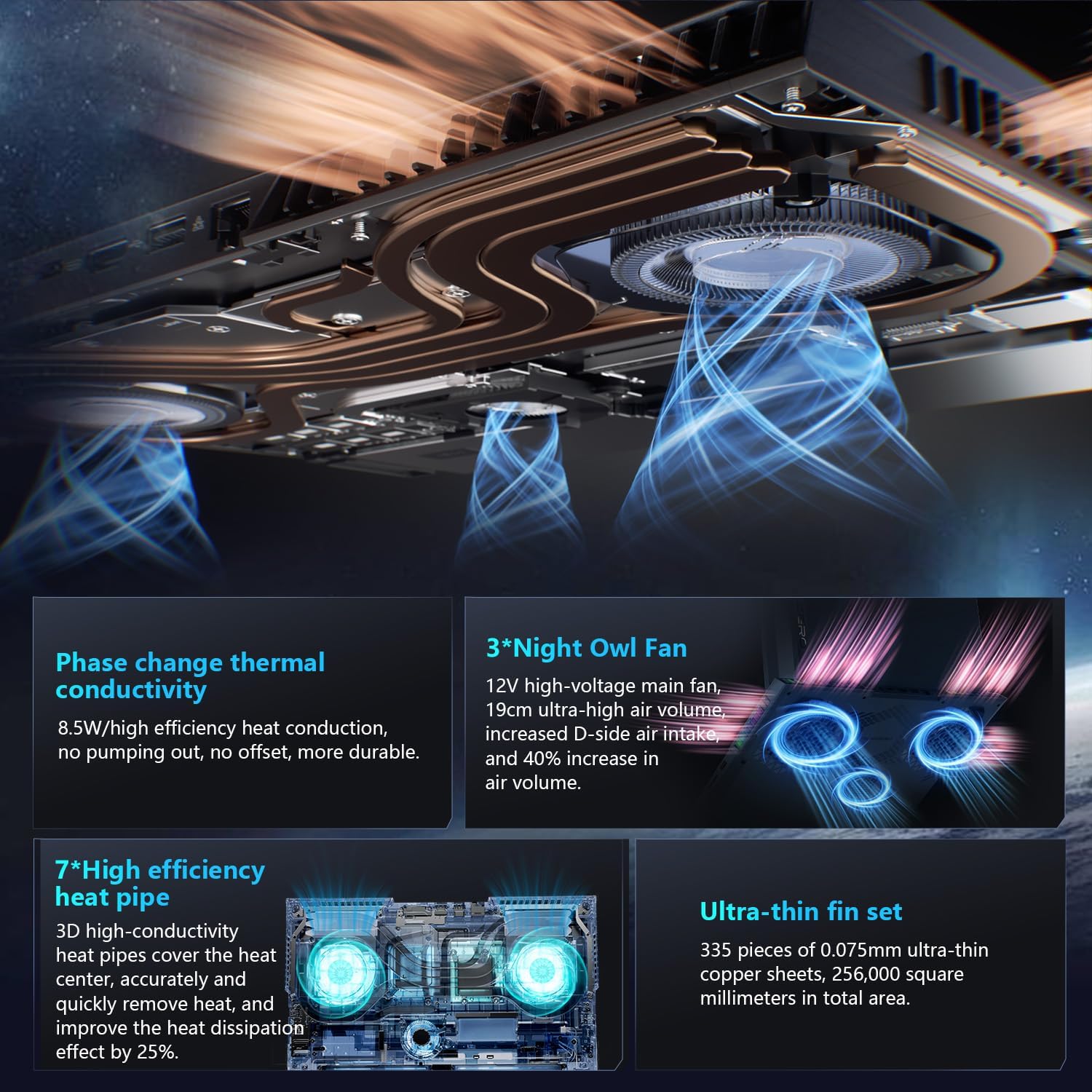
The advanced cooling system features 3 Night Owl fans, 7 high-efficiency heat pipes, and 338 ultra-thin copper fins to ensure optimal thermal management during intensive use, allowing for 270W super performance release.
AI Intelligent Control Center
The AI Intelligent Control Center software allows for comprehensive system management, including performance tuning, intelligent light adjustment, and personalized customization. This includes monitoring CPU/GPU temperatures and fan speeds.
- כוונון ביצועים: Adjust power settings for quiet, balanced, or turbo modes.
- Intelligent Light Adjustment: Customize keyboard, strip, and logo RGB lighting effects.
- ניטור מערכת: View real-time CPU and GPU status.
Note: System mode switching in Control Center requires the device to be connected to a power source.
תַחזוּקָה
ניקוי המחשב הנייד שלך
- מָסָך: השתמש קלות במטלית רכה נטולת מוך דampשטוף במים או בחומר לניקוי מסכים. הימנע מכימיקלים חזקים.
- מקלדת ושלדה: השתמשו במטלית רכה לניגוב משטחים. לאבק בסדקים, השתמשו באוויר דחוס.
- פתחי אוורור: Periodically clean the cooling vents with compressed air to prevent dust buildup, which can affect performance.
טיפול בסוללה
- הימנעו מפריקת הסוללה באופן מלא לעתים קרובות.
- אחסנו את המחשב הנייד במקום קריר ויבש אם לא נעשה בו שימוש למשך תקופות ממושכות.
- להשגת תקינות סוללה אופטימלית, יש להימנע מטמפרטורות קיצוניות.
עדכוני תוכנה
Regularly check for and install operating system updates (Windows Update) and driver updates (via Thunderobot's official website or the AI Intelligent Control Center) to ensure system stability and performance.
פתרון בעיות
| בְּעָיָה | סיבה אפשרית | פִּתָרוֹן |
|---|---|---|
| המחשב הנייד לא נדלק. | אין בעיית חשמל, סוללה ריקה או חומרה. |
|
| המסך ריק או שחור. | Display settings, external monitor connected, or hardware issue. |
|
| התחממות יתר במהלך השימוש. | Blocked vents, high performance settings, or dust buildup. |
|
| בעיות חיבור Wi-Fi. | Wi-Fi disabled, driver issues, or router problems. |
|
For further assistance, please contact Thunderobot customer support.
מפרטים
| תכונה | פְּרָט |
|---|---|
| שם הדגם | Zero 18 Pro |
| מעבד | Intel Core Ultra 9 275HX (24 Cores, 24 Threads, up to 5.40GHz) |
| גרָפִיקָה | NVIDIA GeForce RTX 5070 Ti (8 GB GDDR6 Dedicated) |
| אַיִל | זיכרון DDR5 בנפח 32 ג'יגה-בייט (4800 מגה-הרץ) |
| אִחסוּן | 2 TB PCIe M.2 SSD |
| לְהַצִיג | 18-inch QHD+ (2560x1600) 240Hz Bionic Hummingbird Eye-Care Display |
| מַעֲרֶכֶת הַפעָלָה | Windows 11 Home |
| קישוריות | Wi-Fi 6E, Bluetooth, 3x USB-A, 2x USB-C (Thunderbolt 5), HDMI 2.1, RJ-45, Audio Port |
| מִקלֶדֶת | Per-Key RGB Backlit, Numeric Keypad |
| מידות (LxWxH) | 16.04 x 11.78 x 1.41 אינץ' |
| משקל פריט | 15 פאונד |
| מקור כוח | AC וסוללה |
אחריות ותמיכה
כל מחשב נייד של Thunderobot כולל אחריות ל-12 חודשים, offering expert support, thorough diagnostics, and genuine parts if a repair is needed. Additionally, a אחריות ל-90 יום is provided on all warranty replacement parts, ensuring hassle-free repairs. Your complete satisfaction is our commitment.
לתמיכה טכנית, תביעות אחריות או שאלות בנוגע לשירות, אנא בקרו באתר הרשמי של Thunderobot website or contact their customer service department. Keep your purchase receipt and serial number handy for faster service.