
1. הקדמה
This manual provides essential information for the safe and efficient use of your BOOX Go 7 ePaper Tablet. Please read it thoroughly before operating the device and retain it for future reference.

Figure 1.1: BOOX Go 7 ePaper Tablet
2. מידע בטיחות
- אין לחשוף את המכשיר לטמפרטורות קיצוניות, לאור שמש ישיר או לחות גבוהה.
- הימנע מנפילה או הכפיפה של המכשיר למכות חזקות.
- השתמש רק בכבל ה-USB המצורף לטעינה.
- Keep the device away from water and liquids, despite its water-repellent features.
- אל תנסה לפרק או לתקן את המכשיר בעצמך. פנה לאנשי שירות מורשים.
3. תכולת החבילה
ודא שכל הפריטים נמצאים בחבילה:
- BOOX Go 7 ePaper Tablet
- כבל USB
- מדריך התחלה מהירה (עשוי להשתנות בהתאם לאזור)

Figure 3.1: BOOX Go 7 Package Contents
4. המכשיר נגמרview
4.1 רכיבים פיזיים
Familiarize yourself with the main components of your BOOX Go 7 tablet:
- E Ink Screen: 7-inch monochrome display with 300 ppi resolution.
- פנס קדמי: Adjustable illumination for reading in various lighting conditions.
- Page-Turn Buttons: Ergonomically designed buttons for easy navigation.
- יציאת USB-C: לטעינה והעברת נתונים.
- לחצן הפעלה: ממוקם בקצה העליון.
- מיקרופון מובנה: לכניסת שמע.
- רמקולים כפולים מובנים: עבור פלט אודיו.

Figure 4.1: Page-Turn Buttons and Water-Repellent Protection
5. התקנה
5.1 טעינה ראשונית
Before first use, fully charge your BOOX Go 7 tablet. Connect the provided USB-C cable to the device and a compatible power adapter (not included) or a computer's USB port. The charging indicator will show the charging status.
5.2 הפעלה/כיבוי
- כדי להפעיל: Press and hold the Power button until the BOOX logo appears.
- כדי לכבות: לחץ והחזק את לחצן ההפעלה, ולאחר מכן בחר "כיבוי" מהאפשרויות שעל המסך.
- לישון/להתעורר: לחץ לחיצה קצרה על לחצן ההפעלה.
5.3 חיבור רשת (Wi-Fi)
- ממסך הבית, החליקו מטה מלמעלה כדי לגשת לחלונית ההגדרות המהירות.
- הקש על סמל ה-Wi-Fi כדי להפעיל את ה-Wi-Fi.
- הקש והחזק את סמל ה-Wi-Fi כדי לפתוח את הגדרות ה-Wi-Fi.
- בחר את הרשת הרצויה מהרשימה והזן את הסיסמה אם תתבקש.
- לאחר החיבור, סמל ה-Wi-Fi יציין חיבור מוצלח.
6. הוראות הפעלה
6.1 ניווט בסיסי
- מסך מגע: Tap, swipe, and pinch to navigate menus, open applications, and interact with content.
- Page-Turn Buttons: Use the physical buttons on the side to turn pages in documents and books.
6.2 Reading Documents and Books
The BOOX Go 7 supports various document formats. Open your desired file from the library. Use the page-turn buttons or swipe gestures to navigate through pages. Adjust font size, contrast, and frontlight settings for optimal reading comfort.
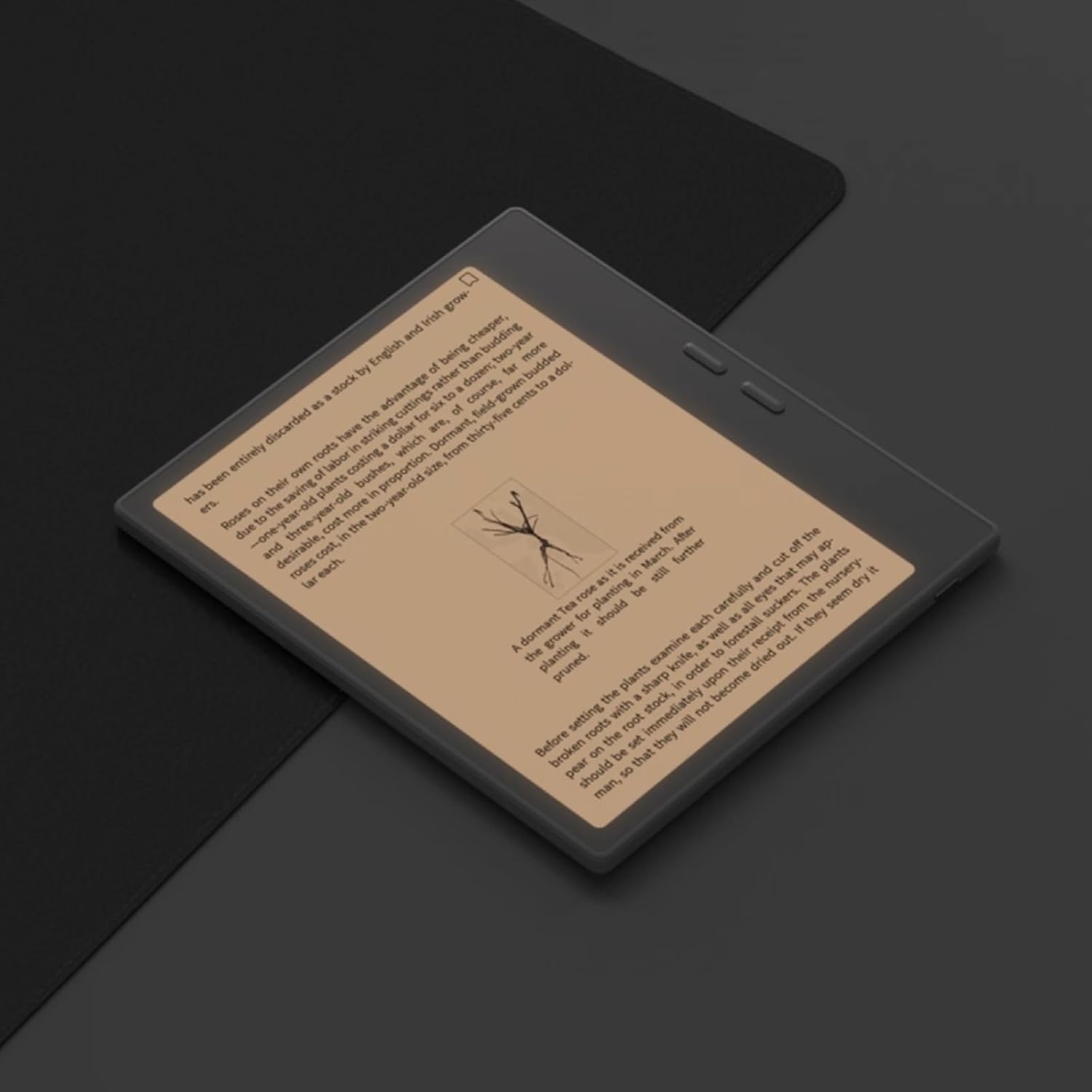
Figure 6.1: Reading with Frontlight
6.3 שימוש באפליקציות אנדרואיד
As an Android 13 device, the BOOX Go 7 allows installation of various applications from the Google Play Store. Navigate to the App Store, search for your desired application, and install it. Note that some applications may not be fully optimized for ePaper displays.

Figure 6.2: Various Android Applications on BOOX Go 7
6.4 Note-Taking and Drawing
Utilize the stylus (if included or purchased separately) for note-taking, sketching, and annotating documents. The device offers various templates and tools for creative and organizational tasks.

Figure 6.3: Stylus Use for Note-Taking

Figure 6.4: Handwriting to Text Conversion
7. תחזוקה
7.1 ניקוי ההתקן
Use a soft, lint-free cloth to gently wipe the screen and body of the device. Do not use harsh chemicals, abrasive cleaners, or excessive moisture.
7.2 עדכוני תוכנה
Regularly check for and install software updates to ensure optimal performance and access to new features. Connect to Wi-Fi and navigate to הגדרות > מערכת > עדכון מערכת כדי לבדוק אם קיימים עדכונים זמינים.
8. פתרון תקלות
- המכשיר לא נדלק: ודא שהמכשיר טעון. חבר אותו למקור חשמל ונסה שוב.
- המסך לא מגיב: Perform a soft reset by holding the Power button for 10-15 seconds.
- בעיות חיבור Wi-Fi: Verify your Wi-Fi password and router settings. Try restarting your router and the device.
- אפליקציות קורסות: Ensure applications are updated to their latest versions. Clear the app's cache or reinstall if issues persist.
9. מפרטים
| מותג | BOOX |
| שם הדגם | לך 7 |
| קיבולת אחסון | 64 ג'יגה-בייט |
| גודל מסך | 7 אינץ' |
| רזולוציית תצוגה מקסימלית | 300 Pixels per inch |
| מַעֲרֶכֶת הַפעָלָה | אנדרואיד 13 |
| צֶבַע | נואר (שחור) |
| גודל זיכרון RAM מותקן | 4 ג'יגה-בייט |
| תכונות מיוחדות | USB OTG support, Expandable storage, Stylus support |
| שנת דגם | 2025 |
| סוג סוללה | ליתיום-יון |
| תכולת האנרגיה של הסוללה | 8.8 וואט-שעה |
| מותג מעבד | קוואלקום |
| תיאור המעבד | Snapdragon של קוואלקום |
| מַצלֵמָה | אין מצלמה |
| סוג חיישן | ג'ִירוֹסקוֹפּ |
| Item Dimensions (LxWxT) | 15.6L x 0.6W x 13.7T centimeters |
| שיטת קלט | Touchscreen with stylus |
| תיאור כרטיס מסך | מְשׁוּלָב |
| מכשירים תואמים | חֶרֶט |
| סוג תצוגה | דיו אלקטרוני |
| רזולוציית מסך | 1280 x 800 פיקסלים |
| יחס גובה-רוחב | 16:10 |
| קישוריות חומרה | USB |
| טכנולוגיה אלחוטית | Bluetooth, Wi-Fi (802.11ax) |
| סך כל יציאות USB | 1 |

Figure 9.1: BOOX Go 7 Energy Label (קישור EPREL)
10. מידע על אחריות
The BOOX Go 7 ePaper Tablet comes with a אחריות מוגבלת לשנה. This warranty covers manufacturing defects under normal use. For specific terms and conditions, please refer to the warranty card included in your package or contact customer support.
The standard return policy allows for returns within 30 days of purchase for refund or replacement.
11. תמיכה
For technical assistance, troubleshooting, or warranty claims, please contact BOOX customer service. You can find support resources and submit inquiries through the official BOOX help center.
- עדכוני קושחה: BOOX commits to at least 3 years of firmware updates for each product.
- אחסון בענן: 10 GB of free cloud storage is provided for each user.
- זמן תגובה: פניות של לקוחות נענות בדרך כלל תוך 24 שעות.
למידע נוסף, בקר באתר BOOX Brand Store on Amazon.