
1. הקדמה
The Innex DS200 is a professional USB book scanner designed for efficient digitization of various documents, including books, magazines, and loose papers. It features a 26MP camera, A3 scanning capability, and advanced software functions to enhance scanning quality and workflow. This manual provides detailed instructions for setting up, operating, and maintaining your DS200 scanner.

Figure 1.1: Innex DS200 Scanner in operation with an open book.
2. תכולת החבילה
ודא שכל הפריטים המפורטים להלן כלולים בחבילה שלך. אם פריטים חסרים או פגומים, אנא צור קשר עם תמיכת הלקוחות.
- Innex DS200 Scanner Unit
- משטח סריקה
- כבל USB
- מתאם חשמל (סוג A)
- Power Plugs (Type C, Type G)
- כפתור יד
- דוושת רגל
- Adapter (USB-C to USB-A)
- מדריך להתחלה מהירה
- כרטיס שירות
- הצהרת GPSR
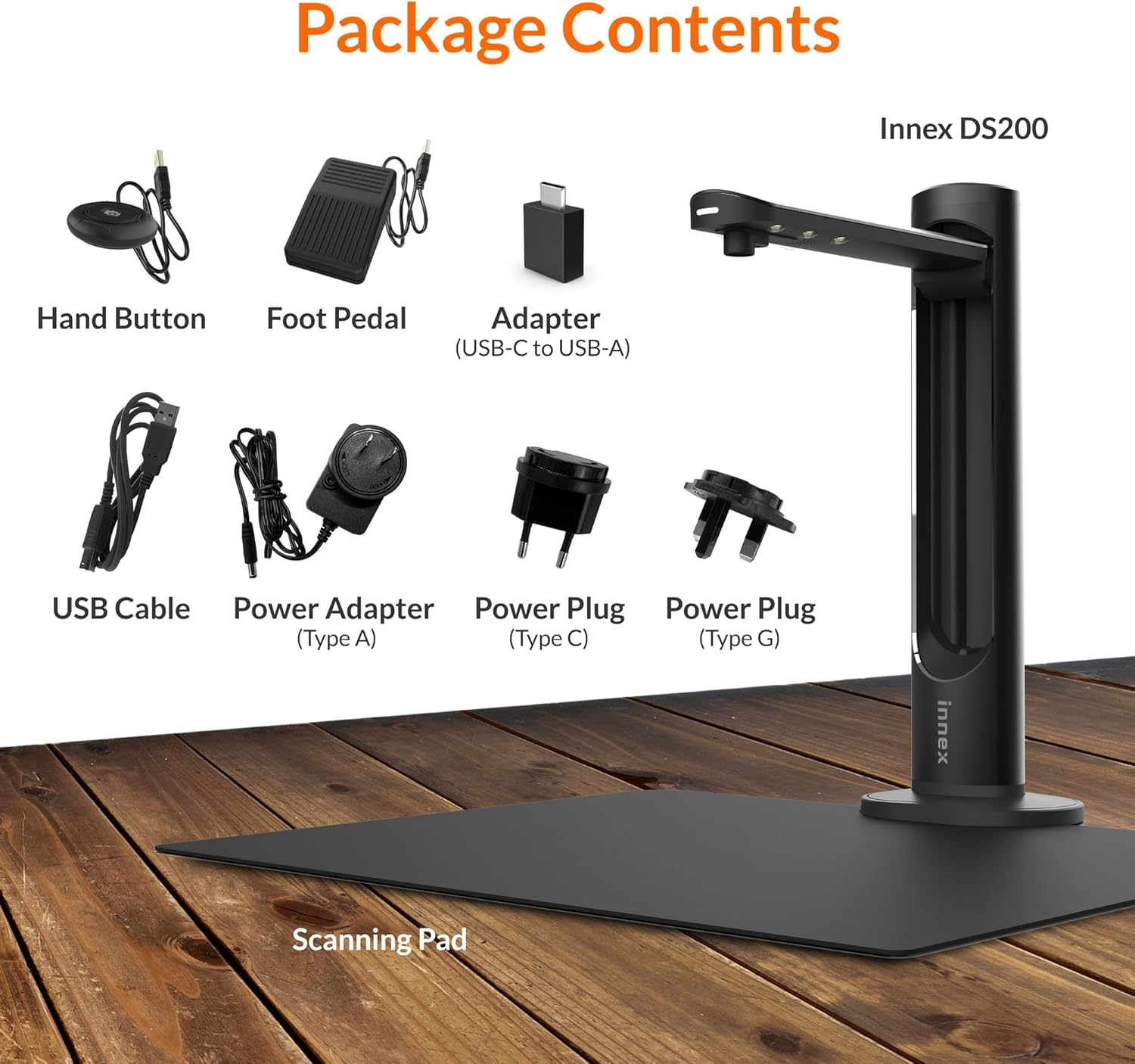
Figure 2.1: Contents of the Innex DS200 package.
3. התקנה
- פרק רכיבים: הוציאו בזהירות את כל הפריטים מהאריזה.
- מקם את הסורק: Place the Innex DS200 scanner unit on a stable, flat surface.
- Place the Scanning Pad: Position the black scanning pad directly beneath the scanner head. Ensure it is centered and flat.
- חבר חשמל: Connect the power adapter to the scanner and plug it into an electrical outlet. Use the appropriate power plug for your region.
- התחבר למחשב: Connect the scanner to your computer using the provided USB cable. If your computer only has USB-C ports, use the included USB-C to USB-A adapter.
- להתקין תוכנה: Download and install the Innex Scan software from the official Innex website. Follow the on-screen instructions for installation. The software is compatible with Windows and macOS.
- חיבור אביזרים: Plug in the hand button and foot pedal to the designated ports on the scanner unit.
4. הוראות הפעלה
4.1. הליך סריקה בסיסי
- Launch Innex Scan Software: Open the Innex Scan application on your computer.
- מסמך מקום: Place the document or book you wish to scan on the scanning pad. Ensure it is within the scanning area. The laser guide can assist with alignment.
- התאם הגדרות: In the software, select your desired scanning mode (e.g., Document, Book, Photo) and adjust settings such as color mode, resolution, and output format.
- התחל סריקה: Trigger the scan using one of the available methods: the software capture button, the hand button, or the foot pedal.
- Review ושמור: לאחר הסריקה, חזורview the image in the software. Apply any necessary corrections and save the file to your preferred location and format.

Figure 4.1: Using the laser guide for document alignment.

Figure 4.2: Multiple options for triggering a scan.
4.2. תכונות תוכנה
The Innex Scan software includes several features to optimize your scanning experience:
- Curve Flattening: Automatically corrects the curvature of book pages for flat, readable scans.
- OCR (זיהוי תווים אופטי): Converts scanned images into editable and searchable text in over 120 languages.
- Auto-Cropping: Automatically detects and crops the document edges.
- Page-Turn Detection: For book scanning, the software can detect when a page has been turned and automatically initiate the next scan.
- הסרת אצבע: Intelligently removes images of fingers holding down pages during scanning.
- Multi Scan Mode: Allows scanning multiple small items simultaneously, such as business cards or photos, and separates them into individual files.
- Visualizer Mode: Enables the scanner to function as a document camera for presentations or live demonstrations.
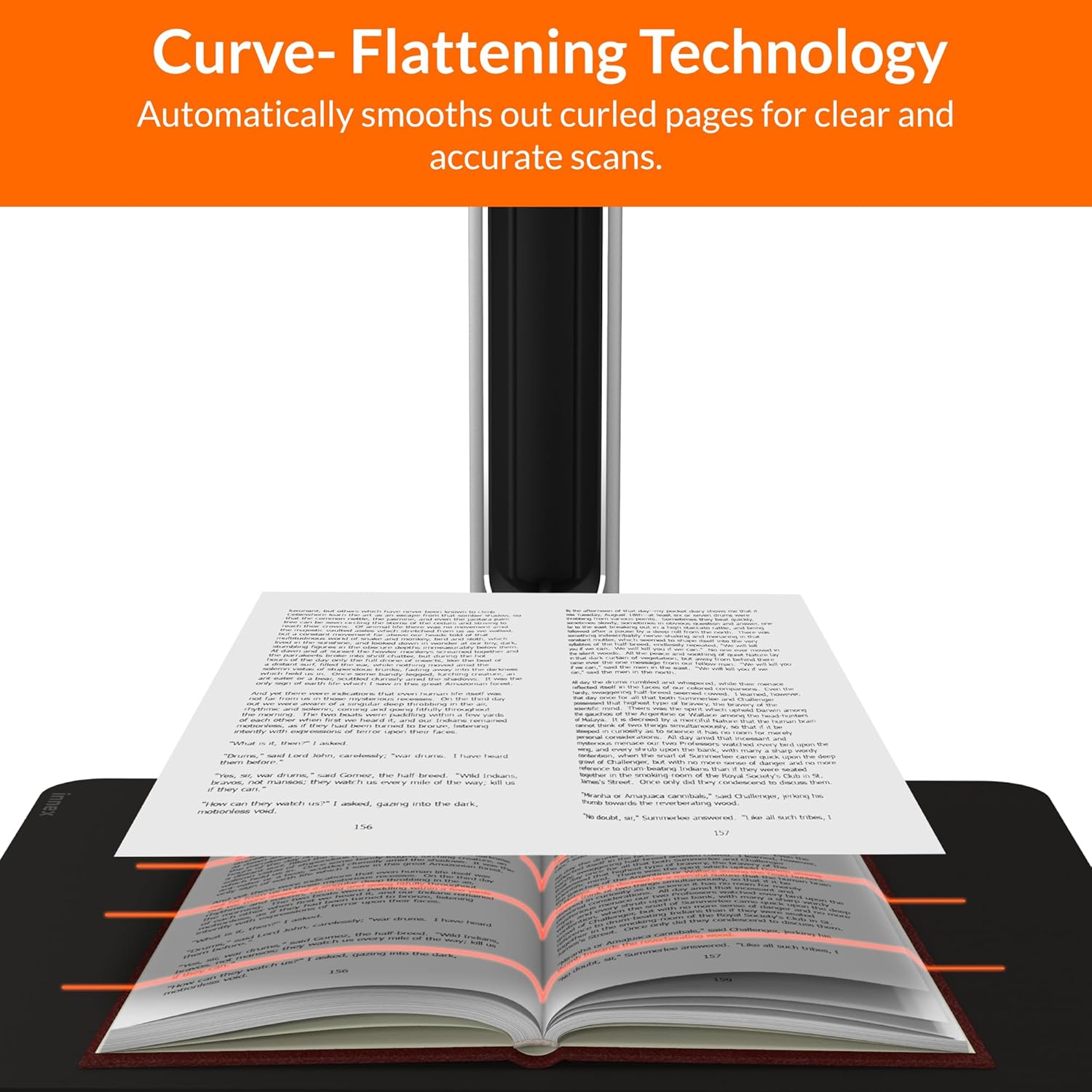
Figure 4.3: Curve Flattening Technology in use.

Figure 4.4: OCR Text Recognition and export options.

איור 4.5: מעלview of Innex Scan software features.
4.3. Export Options
The Innex DS200 supports various export formats for both image and text files:
- תְמוּנָה Files: JPEG, PNG, BMP, TIFF
- מִסְמָך Files: PDF (searchable), DOC, EXCEL, TEXT
- ספר אלקטרוני Files: EPUB
- שֶׁמַע Files (Text-to-Speech): MP3, WAV
- וִידֵאוֹ Files (Visualizer Mode): MP4, AVI, FLV, WMV

Figure 4.6: Available export formats in Innex Scan software.
5. תחזוקה
- ניקוי: Regularly wipe the scanner lens and LED lamp with a soft, dry, lint-free cloth to ensure optimal scan quality. Clean the scanning pad with a damp בד במידת הצורך.
- עדכוני תוכנה: Periodically check the official Innex website for software updates to ensure you have the latest features and performance improvements.
- אִחסוּן: כאשר אינו בשימוש, יש לאחסן את הסורק בסביבה נקייה ויבשה, הרחק מאור שמש ישיר וטמפרטורות קיצוניות.
6. פתרון תקלות
6.1. בעיות נפוצות ופתרונות
| לְהַנפִּיק | סיבה אפשרית | פִּתָרוֹן |
|---|---|---|
| הסורק לא זוהה | Loose USB connection, driver issue, power issue | Ensure USB cable is securely connected. Check power connection. Reinstall scanner drivers or software. Try a different USB port. |
| איכות סריקה ירודה | Dirty lens, insufficient lighting, incorrect settings, document not flat | Clean the scanner lens. Ensure adequate ambient lighting or use the built-in LED lamp. Adjust resolution and color settings in software. Ensure documents are flat on the scanning pad. |
| תוכנה קורסת או קופאת | Outdated software, system incompatibility, insufficient system resources | Update Innex Scan software to the latest version. Ensure your computer meets minimum system requirements. Close other demanding applications. Restart the software and computer. |
| OCR not working correctly | Poor scan quality, incorrect language setting, complex font | Improve scan quality. Verify the correct OCR language is selected in the software. For highly stylized or handwritten text, OCR accuracy may vary. |
7. מפרטים
Detailed technical specifications for the Innex DS200 scanner:

Figure 7.1: Innex DS200 Technical Specifications.
- דֶגֶם: DS200
- חיישן תמונה: חיישן CMOS
- מקסימום הַחְלָטָה: 5800 x 4522 פיקסלים (26MP)
- Output DPI: Approx. 300 dpi (A3)
- מקסימום אזור ירי: A3 (16.77" x 12.59" / 426 x 320mm)
- עומק צבע: 24 סיביות
- Lens Focus: קָבוּעַ
- מהירות סריקה: 1.5 sec per A3 page
- טריגר סריקה: כפתור יד, דוושת רגל, כפתור תוכנה, סריקה אוטומטית
- פורמטי פלט: Picture (JPG, TIFF, BMP, PNG), Document (PDF, Image, PDF Searchable), Text (DOC, EXCEL, TEXT), E-book (EPUB), Audio (MP3, WAV), Video (AVI, MPEG, FLV, WMV)
- הקרנת לייזר: מובנה
- מקור אור: נורת LED מובנית בעלת בהירות גבוהה
- מִמְשָׁק: USB 2.0 Type B x 1 (for PC Connection), USB 2.0 Type-A x 1 (for USB Extension)
- כּוֹחַ: 5V/2A
- דרישות מערכת מינימליות: Windows 10, 11, macOS 11 or later; Intel i5 Processor or higher; 8GB RAM (Recommended 16GB or more); 20GB Available HDD Space; USB 2.0 Port
- מידות המוצר (מקופל): מידות: 110 x 150 x 400 מ"מ (עומק 4.33 אינץ', רוחב 5.91 אינץ', גובה 15.75 אינץ')
- Product Dimensions (In Use): מידות: 307 x 150 x 400 מ"מ (עומק 12.05 אינץ', רוחב 5.91 אינץ', גובה 15.75 אינץ')
- משקל נטו: כ. 2.64 פאונד (1.2 ק"ג)
8. אחריות ותמיכה
For warranty information and technical support, please refer to the service card included in your package or visit the official Innex website. You can also contact FunTech Innovation, the manufacturer, for assistance.
יַצרָן: FunTech Innovation
Webאֲתַר: Innex Official Store on Amazon