
1. הקדמה
This manual provides detailed instructions for the installation, configuration, and operation of the Intelbras iNVD 5232 32-Channel IP Digital Video Recorder. Please read this manual thoroughly before using the device to ensure proper functionality and to prevent damage.
The Intelbras iNVD 5232 is designed for professional surveillance applications, offering advanced features for recording, monitoring, and managing IP camera feeds.
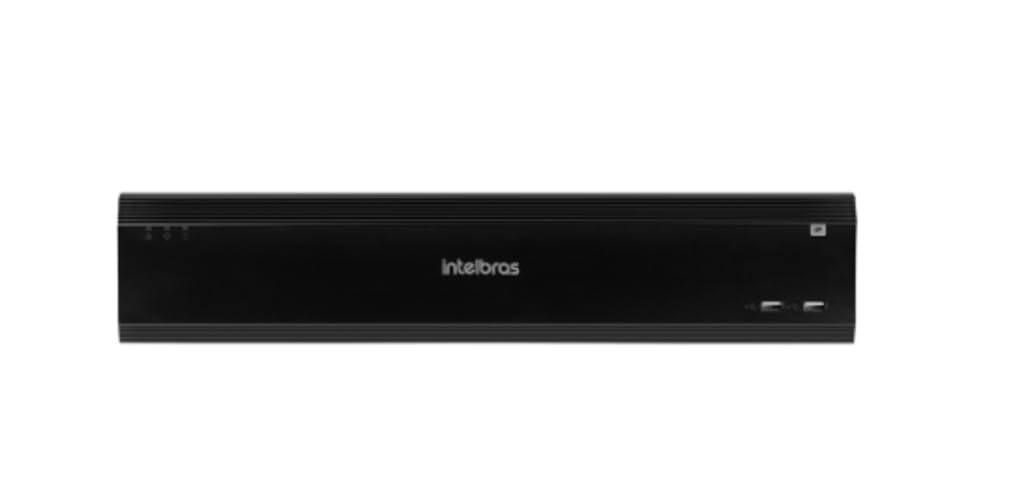
Figure 1: Intelbras iNVD 5232 Digital Video Recorder. This image shows the front panel of the iNVD 5232 unit, featuring a sleek black design with the Intelbras logo and USB ports.
2. מידע בטיחות
יש להקפיד על אמצעי הזהירות הבאים כדי למנוע פגיעה ונזק למכשיר:
- ודא את אספקת החשמל כרךtage תואם את דרישות המכשיר.
- אין לחשוף את המכשיר ללחות, גשם או טמפרטורות קיצוניות.
- הימנע מלהציב את המכשיר באור שמש ישיר או ליד מקורות חום.
- אל תפתח את המכשיר גasinז. הפנה את כל הטיפולים לצוות מוסמך.
- השתמש רק באביזרים שצוינו על ידי היצרן.
- Properly ground the device to prevent electrical shock.
3. תכולת החבילה
ודא שכל הפריטים נמצאים בחבילה:
- Intelbras iNVD 5232 Digital Video Recorder Unit
- מתאם מתח
- עכבר USB
- ברגים להתקנת כונן קשיח
- מדריך להתחלה מהירה
- CD-ROM (containing software and full manual)
4. המוצר נגמרview
4.1 לוח קדמי
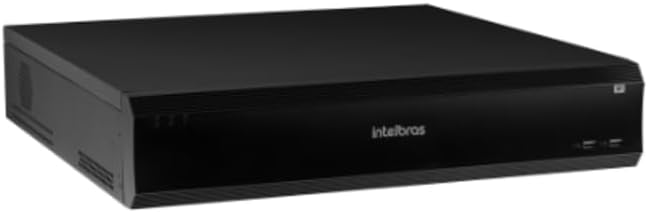
Figure 2: Front Panel of the iNVD 5232. This image displays the front of the DVR, showing LED indicators for power and status, along with two USB ports for peripheral connections.
- LED מתח: מציין מצב כוח.
- נורית מצב: מציין את מצב הפעולה של המערכת.
- יציאות USB: For connecting a mouse, USB drive, or other peripherals.
4.2 פאנל אחורי

Figure 3: Rear Panel of the iNVD 5232. This image details the rear connections, including power input, network ports, video outputs (HDMI, VGA), audio inputs/outputs, and alarm terminals.
- קלט כוח: חבר את מתאם החשמל המצורף.
- יציאת HDMI: Connect to an HDMI-compatible monitor.
- פלט VGA: Connect to a VGA-compatible monitor.
- יציאות LAN: Connect to your network for IP camera communication and remote access.
- אודיו כניסה/יציאה: לחיבור התקני שמע חיצוניים.
- אזעקה נכנסת/יוצאת: For connecting external alarm sensors and actuators.
- יציאות USB: יציאות USB נוספות עבור ציוד היקפי.
5. התקנה
5.1 התקנת חומרה
- התקנת כונן קשיח (אם לא מותקן מראש): פתח את ה-DVR גasing, mount the hard drive using the provided screws, and connect the SATA power and data cables.
- חבר את המסך: חבר צג ליציאת HDMI או VGA.
- חבר עכבר: חבר את עכבר ה-USB לאחת מיציאות ה-USB.
- חיבור רשת: Connect an Ethernet cable from the LAN port to your network router or switch.
- חבר חשמל: Plug the power adapter into the DVR's power input and then into a power outlet. The device will power on automatically.
5.2 תצורה ראשונית
Upon first boot, the system will guide you through an initial setup wizard:
- בחירת שפה: בחר את השפה המועדפת עליך.
- הגדרת סיסמה: צור סיסמת מנהל חזקה.
- הגדרות רשת: Configure IP address, subnet mask, gateway, and DNS. DHCP is usually enabled by default.
- תאריך ושעה: הגדר את התאריך, השעה ואזור הזמן הנכונים.
- אתחול דיסק קשיח: Format the installed hard drive for recording.
- IP Camera Search and Add: The system will scan for available IP cameras on the network. Select and add your cameras.
6. הפעלה
6.1 בשידור חי View
לאחר ההתקנה הראשונית, המערכת תציג את הנתונים בזמן אמת view של מצלמות מחוברות. ניתן לעבור בין מצלמה בודדת view, multi-camera grids, and sequence viewבאמצעות הפקדים שעל המסך או העכבר.
6.2 ניהול הקלטות
- לוח ההקלטות: הגדר לוחות זמנים להקלטה רציפה, לזיהוי תנועה או להקלטה המופעלת על ידי אזעקה עבור כל מצלמה.
- הקלטה ידנית: Initiate recording manually from the live view מִמְשָׁק.
- השמעה: גישה foo מוקלטtage by date, time, and event type. Use the playback controls to navigate through recordings.
- גיבוי: Export recorded video clips to a USB drive or network storage.
6.3 גישה מרחוק
The iNVD 5232 supports remote access via a web browser or dedicated mobile application. Ensure your network is configured for remote access (e.g., port forwarding or P2P cloud service activation).
- Web דפדפן: Enter the DVR's IP address into a web דפדפן במחשב המחובר לאותה רשת.
- אפליקציה לנייד: Download the official Intelbras surveillance app from your device's app store. Scan the QR code on the DVR (if available) or manually enter the device ID for connection.
7. תחזוקה
7.1 ניקוי
נקו באופן קבוע את החלק החיצוני של ה-DVR בעזרת מטלית רכה ויבשה. אין להשתמש בחומרי ניקוי נוזליים או בתרסיסים. ודאו שפתחי האוורור נקיים מאבק וחסימות.
7.2 עדכוני קושחה
Periodically check the Intelbras webאתר לעדכוני קושחה. עדכוני קושחה יכולים לספק תכונות חדשות, שיפורי ביצועים ושיפורי אבטחה. יש לפעול בקפידה אחר ההוראות המצורפות לחבילת עדכון הקושחה.
7.3 ניהול כונן קשיח
Monitor the health of your hard drives through the system's HDD management menu. Replace failing drives promptly to avoid data loss. Configure automatic overwriting of old footagה כדי להבטיח הקלטה רציפה.
8. פתרון תקלות
| בְּעָיָה | סיבה אפשרית | פִּתָרוֹן |
|---|---|---|
| אין כוח | כבל חשמל מנותק; מתאם חשמל פגום; בעיה בשקע החשמל. | Check power connections; test power adapter; try a different outlet. |
| אין פלט וידאו | Monitor off/disconnected; incorrect video output settings; faulty cable. | Ensure monitor is on and connected; check video cable; try a different output port or cable. |
| Cannot connect IP cameras | Network issue; incorrect camera IP address/credentials; camera not powered. | Verify network connectivity; ensure cameras are powered and configured correctly; check camera credentials. |
| אין הקלטה | HDD not initialized/full; recording schedule not set; camera disconnected. | Initialize HDD; check recording schedule; verify camera connection and status. |
9. מפרטים
| תכונה | תֵאוּר |
|---|---|
| דֶגֶם | iNVD 5232 |
| קלט וידאו | 32 ערוצי IP |
| פלט וידאו | 1 HDMI, 1 VGA |
| קלט/פלט אודיו | Specific ports (e.g., RCA) |
| רזולוציית הקלטה | Up to 8MP (depending on camera) |
| Playback Capability | Multi-channel synchronous playback |
| אִחסוּן | Multiple SATA HDD bays (HDDs not included) |
| ממשק רשת | יציאות Ethernet של Gigabit |
| ממשק USB | יציאות USB 2.0/3.0 |
| ספק כוח | מתח זרם ישר 12 וולט (מתאם כלול) |
| טמפרטורת הפעלה | 0°C עד 50°C (32°F עד 122°F) |
10. אחריות ותמיכה
For warranty information, please refer to the warranty card included with your product or visit the official Intelbras website. Technical support is available through Intelbras authorized service centers and online resources.
Intelbras Official Webאֲתַר: www.intelbras.com.br
אנא ודאו כי דגם המוצר ומספר הסידורי שלכם מוכנים בעת פנייה לתמיכה.