
Macally BTZKEYA
MACALLY BTZKEYA Bluetooth Wireless Keyboard for Mac (JIS Layout) - Rechargeable, Multi-Device Pairing Instruction Manual
Model: BTZKEYA
מָבוֹא
Welcome to the Macally family. Thank you for purchasing the ACEBTKEY series keyboard. Our mission is to provide visually appealing, high-quality, and affordable peripherals and accessories to satisfy our customers. To achieve this, we create innovative and practical products, prioritizing ease of use above all else.
This manual provides comprehensive instructions for setting up, operating, and maintaining your new Macally BTZKEYA Bluetooth Wireless Keyboard. Please read it thoroughly to ensure optimal performance and longevity of your device.
תוכן החבילה
- Macally BTZKEYA Bluetooth Wireless Keyboard
- כבל טעינה USB-C ל- USB-A
- מדריך למשתמש
דרישות מערכת
- Bluetooth-enabled computer, laptop, smartphone, or tablet.
- Mac OS X or later.
- A USB-A port on your laptop or desktop PC for charging the keyboard.
- If your laptop or desktop PC only has USB-C ports, a USB-C to USB-A hub or adapter is required for charging.
המוצר נגמרview
The Macally BTZKEYA keyboard is designed for efficiency and comfort, featuring a full-size layout with a numeric keypad and dedicated macOS shortcut keys. Its slim profile and scissor-switch keys provide a quiet and responsive typing experience.

איור 1: The Macally BTZKEYA keyboard's slim profile and integrated kickstand. The keyboard is only 0.8 inches (approx. 2cm) thick.

איור 2: The keyboard features 111 scissor-switch keys and 14 dedicated shortcut keys for macOS, enhancing productivity.

איור 3: Scissor-switch keycaps provide a smooth, tactile, and quiet typing experience.

איור 4: The keyboard supports multi-sync Bluetooth, allowing pairing with up to three devices like MacBook, iMac, iPad, and iPhone, with a wireless range of 30 feet.
הגדרה
טעינת המקלדת
Before initial use, ensure the keyboard is fully charged. The built-in rechargeable battery provides extended usage.
- Connect the USB-A end of the included cable to a USB-A port on your computer, laptop, or a USB-compatible AC adapter.
- Connect the USB-C end to the USB-C charging port located on the side of the keyboard.
- פֶּתֶק: This cable is for charging only. The keyboard will not function as a wired device when connected via this cable.
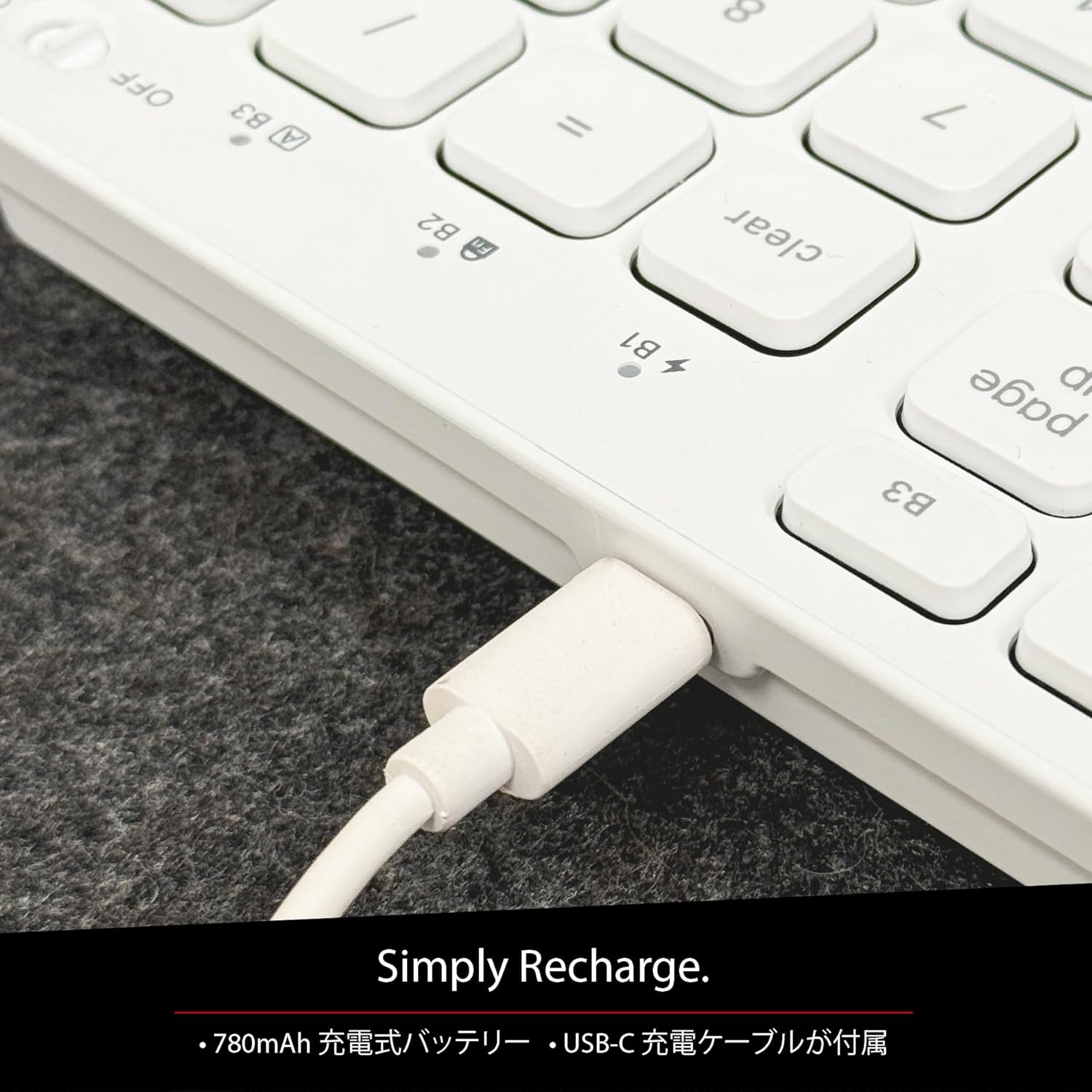
איור 5: The USB-C charging port for easy recharging. The keyboard includes a 780mAh rechargeable battery.
מחווני LED טעינה:
- נורת LED אדומה: טעינה בעיצומה.
- נורית LED ירוקה: טעון מלא.
- All Bluetooth Channel LEDs flashing: הסוללה חלשה.
הליך זיווג בלוטות '
The keyboard can be paired with up to three Bluetooth-enabled devices. The number keys 1, 2, and 3 on the top row (not the numeric keypad) are labeled B1, B2, and B3, representing the Bluetooth channels.
Ensure the keyboard is powered on and sufficiently charged before starting the pairing process. The power switch is a slide button located on the side of the keyboard (Red for Off, Green for On).
Steps to Pair (using Bluetooth Channel 1 (B1) as an example):
- On the device you wish to connect (laptop, desktop, tablet, smartphone, etc.), open the Bluetooth settings screen.
- במקלדת, לחצו והחזיקו את ה- fn מקש ולאחר מכן הקש על 1 key (B1) to select Bluetooth Channel 1.
- לאחר מכן, לחצו והחזיקו את fn key and simultaneously press the P key. This will put the keyboard into pairing mode, and the B1 LED will flash rapidly.
- On your device's Bluetooth settings screen, click or tap the device name "ACEBTKEY" to initiate pairing.
- Once pairing is complete, the B1 LED on the keyboard will remain steadily lit in blue.
To connect to a second or third device, follow the same procedure using B2 (fn+2) or B3 (fn+3).
Keyboard Setup Assistant (For Mac Users)
If your Bluetooth keyboard is not immediately recognized by macOS, the Keyboard Setup Assistant will automatically launch, prompting you to specify the keyboard type. Follow the on-screen instructions.
- When prompted, press the Z מַפְתֵחַ.
- לאחר מכן, הקש על ? מַפְתֵחַ.
- Confirm that "ANSI" is selected as the keyboard type and click "Done".
If keys do not respond or different characters are entered than printed, you may need to manually launch the Keyboard Setup Assistant:
- Open "System Settings" or "System Preferences".
- Select "Keyboard" and click "Change Keyboard Type".
- When the "Keyboard Setup Assistant" window appears, click "Continue" and follow the on-screen instructions.
הוראות הפעלה
מעבר בין מספר מכשירים
After pairing all your devices with the keyboard, you can easily switch between them:
- לחץ והחזק את fn מַפְתֵחַ.
- תוך כדי אחיזה fn, press the desired Bluetooth channel key (B1, B2, או B3).
- Release both keys. The keyboard will switch to the selected device.
Shortcut and Function Keys
The F-row (function key row) at the top of the keyboard defaults to shortcut mode. These keys perform functions indicated by the small white icons or text printed on them (e.g., play, pause, cut, copy).
To use standard function keys (F1, F2, etc.), press the desired function key while holding down the fn מַפְתֵחַ.
You can toggle between shortcut mode and standard F1-F12 function keys at any time by pressing fn + Esc. After switching, if you wish to use a shortcut function, press the desired shortcut key while holding down the fn מַפְתֵחַ. לחיצה fn + Esc again will return the keyboard to shortcut mode.
F-Key Functions:
| פוּנקצִיָה | Mac OSX | חלונות | iOS | דְמוּי אָדָם |
|---|---|---|---|---|
| fn+esc (Toggle F-row mode) | ✓ | ✓ | ✓ | ✓ |
| ירידה בהירות המסך | ✓ | ✓ | ||
| העלאת בהירות המסך | ✓ | ✓ | ||
| גְזִירָה | ✓ | ✓ | ✓ | ✓ |
| לְהַעְתִיק | ✓ | ✓ | ✓ | ✓ |
| לְהַדבִּיק | ✓ | ✓ | ✓ | ✓ |
| המסלול הקודם | ✓ | ✓ | ✓ | ✓ |
| הפעל/השהה | ✓ | ✓ | ✓ | ✓ |
| המסלול הבא | ✓ | ✓ | ✓ | ✓ |
| לְהַשְׁתִיק | ✓ | ✓ | ✓ | ✓ |
| הורדת עוצמת הקול | ✓ | ✓ | ✓ | ✓ |
| הגברת עוצמת הקול | ✓ | ✓ | ✓ | ✓ |
| הֶדפֵּס | ✓ | |||
| Mac: Eject Mac / Windows: Media Eject | ✓ | ✓ | ||
| Area Capture (Screenshot) | ✓ | |||
| מקלדת על המסך | ✓ | |||
| חיפוש | ✓ | ✓ | ✓ | ✓ |
| כפתור בית | ✓ | ✓ | ||
| תַפרִיט | ✓ | |||
| לִנְעוֹל | ✓ | ✓ | ✓ | ✓ |
הערה חשובה: Standard function keys (F1-F12) may have special functions assigned by the connected operating system or currently running programs.
מצב חיסכון בחשמל
The keyboard is designed with power-saving features. Based on an average of 3 hours of daily use, the built-in rechargeable battery can last up to 3 months on a single charge.
תַחזוּקָה
To ensure the longevity and optimal performance of your Macally BTZKEYA keyboard, please follow these maintenance guidelines:
- Keep the device away from liquids, moisture, and water.
- Use the device only within the specified temperature range of 0°C (32°F) to 40°C (104°F).
- Clean the keyboard regularly with a soft, dry cloth. Avoid using harsh chemicals or abrasive materials.
- Do not disassemble the device. Disassembly will void the warranty.
- When disposing of the product, do not treat it as general waste. Take it to your nearest recycling center for proper disposal.
פתרון בעיות
בעיות זיווג:
- If pairing fails, delete all existing pairing records for the keyboard on your device and attempt to reconnect.
- ודא שהמקלדת טעונה במלואה ודלוקה.
- ודא ש-Bluetooth של המכשיר שלך מופעל וניתן לגילוי.
Key Response Issues:
- If keys do not respond or different characters are entered than printed, manually launch the Keyboard Setup Assistant on your Mac (refer to the "Keyboard Setup Assistant" section under Setup).
- Ensure the keyboard is within the 30-foot wireless range of your device.
תאימות כללית:
- While designed for Mac, this keyboard is also compatible with Windows PCs. However, some functions may behave differently depending on the operating system or running programs.
מפרטים
| תכונה | פְּרָט |
|---|---|
| מותג | מקאלי |
| מספר דגם | BTZKEYA |
| מספר מפתחות | 111 keys (Mac layout) |
| סוג מתג מפתחות | מתג מספריים |
| טכנולוגיית קישוריות | בלוטות' |
| תמיכה בריבוי מכשירים | עד 3 מכשירים |
| קיבולת סוללה | 780mAh (נטענת) |
| יציאת טעינה | USB-C |
| מידות המוצר | 42 x 14 x 2 ס"מ |
| משקל המוצר | 650 גרם |
| שימוש מומלץ | Multimedia, Everyday Use, Personal, Education, Student, Business |
מידע על אחריות
Macally Peripherals warrants this product against defects in title, materials, and workmanship for a period of one year from the date of purchase. If a defect is found in the product, Macally's sole obligation and your sole remedy will be to repair or replace the product.
This is a limited warranty applicable only to the product accompanied by this user guide. This warranty does not apply in the following cases:
- Abuse or misuse of the product.
- Exposure to abnormal electrical or environmental conditions.
- Use under conditions not considered normal use.
- Disassembly of the device.
Macally Peripherals' liability arising from this warranty and sale is limited to a refund of the purchase price. Macally is not responsible for the cost of procuring substitute products or services, lost profits, or any other consequential, incidental, direct, or indirect damages. These limitations apply even if the limited remedies fail of their essential purpose.
תמיכה טכנית
For technical assistance, please contact Macally support during the following hours:
- שעות פעילות: Monday to Friday, 9 AM to 5 PM (Pacific Standard Time)
- אֶלֶקטרוֹנִי: techsupport@macally.com
When contacting support, please have your product model number (BTZKEYA) and purchase information ready.
הצהרת תאימות של FCC
מכשיר זה תואם לחלק 15 של כללי ה-FCC. ההפעלה כפופה לשני התנאים הבאים: (1) מכשיר זה אינו עלול לגרום להפרעות מזיקות, ו-(2) מכשיר זה חייב לקבל כל הפרעה שנקלטה, לרבות הפרעה שעלולה לגרום לפעולה לא רצויה.
שינויים או תיקונים שלא אושרו במפורש על ידי הגורם האחראי על התאימות עלולים לבטל את סמכותו של המשתמש להפעיל את הציוד.
ציוד זה נבדק ונמצא תואם למגבלות עבור מכשיר דיגיטלי Class B, בהתאם לחלק 15 של כללי FCC. מגבלות אלו נועדו לספק הגנה סבירה מפני הפרעות מזיקות בהתקנה למגורים. ציוד זה מייצר, משתמש ויכול להקרין אנרגיית תדר רדיו, ואם לא מותקן ולא נעשה בו שימוש בהתאם להוראות, עלול לגרום להפרעות מזיקות לתקשורת רדיו. עם זאת, אין ערובה לכך שלא תתרחש הפרעה בהתקנה מסוימת. אם ציוד זה אכן גורם להפרעות מזיקות לקליטת רדיו או טלוויזיה, אשר ניתן לקבוע על ידי כיבוי והדלקה של הציוד, מומלץ למשתמש לנסות לתקן את ההפרעה באמצעות אחד או יותר מהאמצעים הבאים:
- כיוון מחדש או העבר את האנטנה המקבלת.
- הגדל את ההפרדה בין הציוד למקלט.
- חבר את הציוד לשקע במעגל שונה מזה שאליו מחובר המקלט.
- התייעץ עם הספק או עם טכנאי רדיו/טלוויזיה מנוסה לקבלת עזרה.
מכשיר זה הוערך כדי לעמוד בדרישות כלליות של חשיפת RF. ניתן להשתמש במכשיר בתנאי חשיפה ניידים ללא הגבלה.
סרטוני מוצר
Macally BTZKEYA Bluetooth Keyboard Overview
סרטון זה מספק סקירה כלליתview of the Macally BTZKEYA Bluetooth keyboard, highlighting its features and design.
Macally Mac Bluetooth Keyboard - Premium Multi-Device
A detailed look at the Macally Bluetooth keyboard for Mac, emphasizing its premium build and multi-device capabilities.
Macally SLIMKEYPROA Keyboard Features
This video showcases the features of the Macally SLIMKEYPROA keyboard, which shares similar design and functionality with the BTZKEYA model.
Macally BLSlimkeyproA Keyboard Demonstration
A demonstration of the Macally BLSlimkeyproA keyboard, highlighting its compact design and key features.
Macally ACEBTKEYSGCB Keyboard Overview
הסרטון הזה מספק מעלהview of the Macally ACEBTKEYSGCB keyboard, showcasinהעיצוב והפונקציונליות שלו.
Macally SLIMKEYPRO Manual Guide
A visual guide to the Macally SLIMKEYPRO, offering insights into its usage and features.
Ask a question about this manual
Ask about setup, troubleshooting, compatibility, parts, safety, or missing instructions. Manuals+ will review the question and use this page’s manual context to help answer it.