
מָבוֹא
Welcome to the VIBOX VTX-7 Gaming PC user manual. This guide provides essential information for setting up, operating, maintaining, and troubleshooting your new gaming system. Please read these instructions carefully before using your PC to ensure optimal performance and longevity.
Your VIBOX VTX-7 system is equipped with high-performance components designed for an immersive gaming experience and efficient productivity. Key features include:
- Nvidia GeForce RTX 5070 (12GB GDDR7 RAM / HDMI 2.1b / DisplayPort)
- AMD Ryzen 7 5700X Processor - 8 cores - Max speed 4.6 GHz
- 1TB SATA SSD for ultra-fast storage
- 32GB DDR4 RAM for smooth multitasking
- Pre-installed Windows 11 Home operating system
- Includes a 27-inch monitor, gaming keyboard, mouse, headset, LED mouse pad, and USB Wi-Fi 6 AX1300 + Bluetooth 5.4 adapter.
מה יש בקופסה
Carefully unpack all items from the box. Ensure all components listed below are present:
- VIBOX VTX-7 Gaming PC Tower
- צג 27 אינץ'
- מקלדת גיימינג
- עכבר גיימינג
- אוזניות גיימינג
- משטח LED לעכבר
- USB Wi-Fi 6 AX1300 and Bluetooth 5.4 Adapter
- כבלי חשמל (למחשב ולמסך)
- כבל HDMI/DisplayPort
- מדריך למשתמש (מסמך זה)
מדריך התקנה
1. פריקה והשמה
Remove the PC tower and monitor from their packaging. Place the PC tower on a stable, flat surface with adequate ventilation. Avoid placing it directly on carpet or in enclosed spaces that could restrict airflow.

Image: VIBOX VTX-7 Gaming PC Tower with vibrant RGB lighting, showcasinהעיצוב החלקלק והרכיבים הפנימיים שלו.
2. חיבור ציוד היקפי
- צג: Connect the 27-inch monitor to the graphics card (Nvidia RTX 5070) on the back of the PC using the provided HDMI or DisplayPort cable. Ensure the cable is securely fastened. Connect the monitor's power cable to an electrical outlet.
- מקלדת ועכבר: Connect the gaming keyboard and mouse to any available USB ports on the back of the PC.
- אוזניות: Plug the headset into the appropriate audio jacks (usually green for audio out, pink for microphone in) or a USB port if it's a USB headset.
- Wi-Fi/Bluetooth Adapter: Insert the USB Wi-Fi 6 and Bluetooth 5.4 adapter into an available USB port.
- כּוֹחַ: Connect the PC's power cable to the power supply unit (PSU) on the back of the PC, then plug it into a grounded electrical outlet.
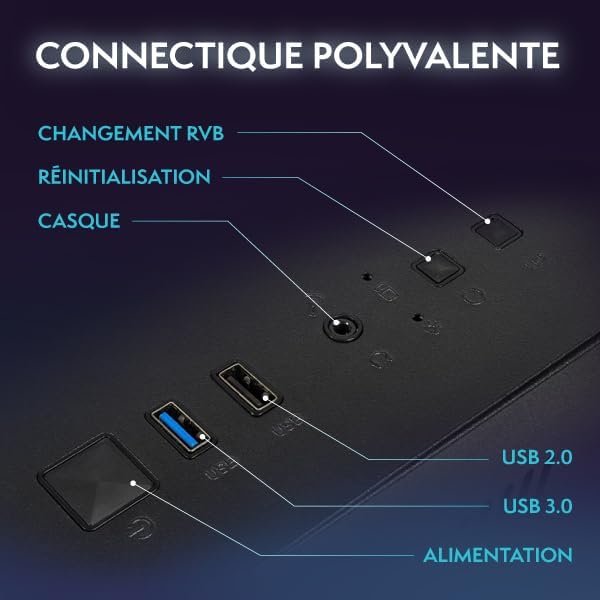
תמונה: תקריב view of the VIBOX PC's rear panel, highlighting various connectivity ports including USB, HDMI, and audio jacks.
3. הפעלה ראשונית
Once all connections are secure, press the power button on the front of the PC tower. The system will boot up, and the monitor should display the VIBOX logo or Windows startup screen.
הוראות הפעלה
1. אתחול ראשון והתקנת Windows
Upon the first boot, you will be guided through the Windows 11 Home setup process. Follow the on-screen prompts to:
- בחר את האזור שלך ואת פריסת המקלדת.
- התחבר לרשת (Wi-Fi או Ethernet).
- Sign in with a Microsoft account or create a local account.
- הגדר הגדרות פרטיות.
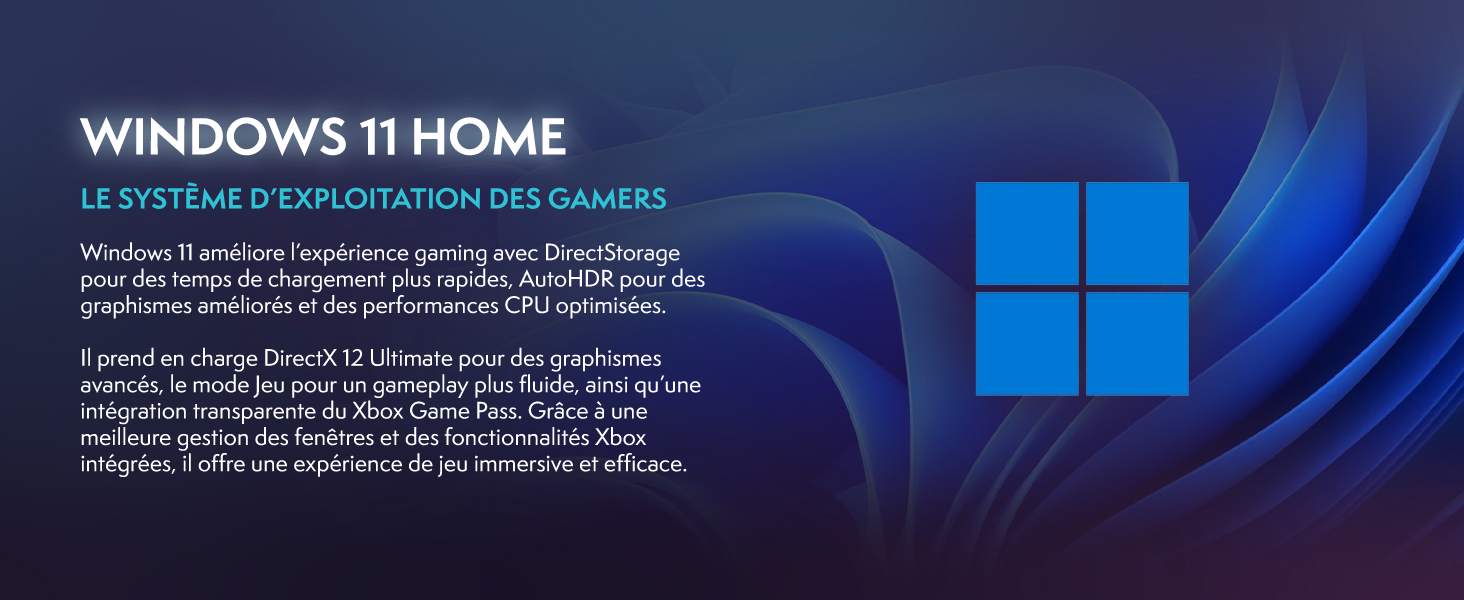
Image: Promotional image highlighting Windows 11 Home features, including faster loading times with DirectStorage and improved graphics with AutoHDR, optimized for gaming.
2. התחברות ל-Wi-Fi ובלוטות'
Your system includes a USB Wi-Fi 6 and Bluetooth 5.4 adapter. After Windows setup:
- Wi-Fi: לחץ על סמל הרשת בשורת המשימות, בחר את רשת ה-Wi-Fi שלך, הזן את הסיסמה ולחץ על התחבר.
- בלוטות': Go to Settings > Bluetooth & devices, turn on Bluetooth, and pair with your desired devices.
3. Basic Usage Tips
- עדכונים: Regularly check for Windows updates (Settings > Windows Update) and graphics driver updates (Nvidia GeForce Experience) to ensure optimal performance and security.
- התקנת תוכנה: Install your preferred games and applications. Ensure you download software from trusted sources.
- בקרת RGB: Your PC features RGB lighting. Refer to the specific software provided by VIBOX or component manufacturers (e.g., motherboard, GPU) to customize lighting effects.
תַחזוּקָה
1. ניקיון
Regular cleaning helps maintain performance and extends the lifespan of your PC:
- חִיצוֹנִי: השתמש רך, דamp cloth to wipe down the exterior of the PC case and monitor. Avoid harsh chemicals.
- אָבָק: Periodically use compressed air to clear dust from fan vents and internal components. Ensure the PC is powered off and unplugged before doing so.
2. מערכת קירור
Your VIBOX VTX-7 features an AIO 120mm liquid cooler and Hex RGB Infinity 120mm fans for efficient cooling. Ensure these components are free from dust buildup.

Image: The VIBOX AIO 120mm liquid cooler, featuring a compact design with RGB lighting on the pump head and fan, ensuring stable processor temperatures.
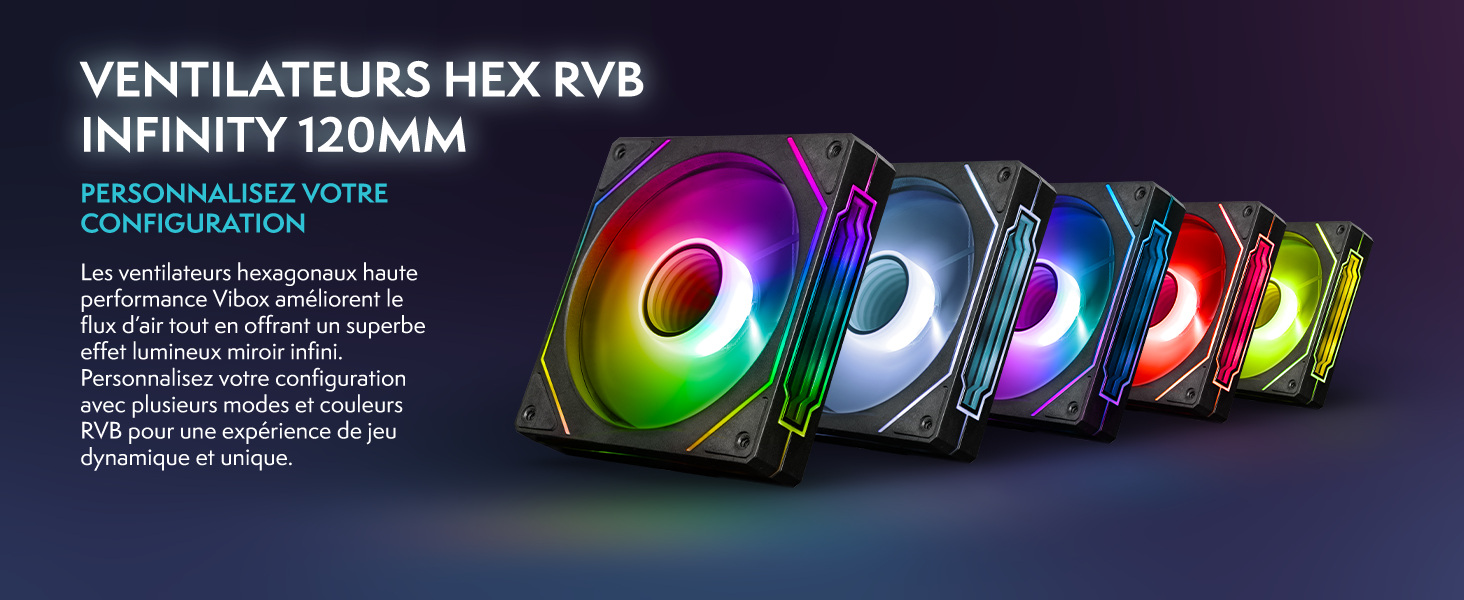
Image: A row of VIBOX Hex RGB Infinity 120mm fans, displaying various colorful lighting effects, designed to enhance airflow and customize the PC's aesthetic.
The system also utilizes an inverted airflow design for optimal thermal management.

Image: Diagram illustrating the inverted airflow design within the VIBOX PC case, showing cool air intake from the side and bottom, and hot air exhaust from the top and rear, optimizing cooling efficiency.
פתרון בעיות
1. אין כוח
- Ensure all power cables are securely connected to the PC, monitor, and electrical outlets.
- Check the power switch on the back of the PSU (Power Supply Unit) is in the 'ON' position.
- בדוק את שקע החשמל עם מכשיר אחר כדי לוודא שהוא פועל.
2. אין תצוגה על הצג
- Verify the HDMI or DisplayPort cable is firmly connected to both the PC's graphics card and the monitor.
- Ensure the monitor is powered on and set to the correct input source (HDMI/DisplayPort).
- Try a different video cable or monitor if available to isolate the issue.
3. אין חיבור לאינטרנט
- Check if the USB Wi-Fi adapter is properly inserted and its drivers are installed (Windows usually installs them automatically).
- Verify your Wi-Fi network is active and you have entered the correct password.
- If using an Ethernet cable, ensure it is securely connected to both the PC and your router/modem.
- הפעל מחדש את הנתב/מודם שלך.
4. בעיות ביצועי מערכת
- Ensure all drivers (especially graphics drivers) are up to date.
- סגור יישומי רקע מיותרים.
- Check system temperatures using monitoring software to ensure components are not overheating.
מפרטים
Detailed technical specifications for your VIBOX VTX-7 Gaming PC:
| רְכִיב | מִפרָט |
|---|---|
| מותג | VIBOX |
| שם הדגם | VTX-7 |
| מַעֲרֶכֶת הַפעָלָה | Windows 11 Home |
| דגם מעבד | AMD Ryzen 7 5700X (8 Cores) |
| מהירות מעבד | 3.4 GHz (Base), 4.6 GHz (Max Boost) |
| מעבד גרפי | Nvidia GeForce RTX 5070 |
| זיכרון RAM של כרטיס המסך | 12 GB GDDR7 |
| RAM מותקן | 32 GB DDR4 |
| Max RAM Size | 128 ג'יגה-בייט |
| מהירות זיכרון | 2666 מגה-הרץ |
| קיבולת אחסון | SSD 1 TB |
| שיטת קירור | Water Cooling (AIO 120mm) |
| קישוריות | Ethernet, HDMI, USB, Wi-Fi 6, Bluetooth 5.4 |
| פלט וידאו | HDMI, DisplayPort |
| סך כל יציאות USB | 6 |
| גודל צג | 27 אינץ' |
| רזולוציית תצוגה מקסימלית | 1920x1080 פיקסלים |
| מידות פריט | 42 x 28 x 43.5 ס"מ |
| Power Plug סוג | Type C/EF – 2-pin (European/Hybrid FR-DE plug) |
| ארץ מוצא | צָרְפַת |
מידע על אחריות
Your VIBOX VTX-7 Gaming PC comes with a comprehensive warranty:
- חלקים: 2 שנים
- עֲבוֹדָה: מֶשֶׁך הָחַיִים
Please retain your proof of purchase for warranty claims. The warranty covers manufacturing defects and hardware failures under normal use conditions. It does not cover damage caused by misuse, accidents, unauthorized modifications, or improper maintenance.
תְמִיכָה
For further assistance, technical support, or warranty inquiries, please contact VIBOX Gaming directly. You can find contact information on the official VIBOX webבאתר או דרך הקמעונאי שלך.
VIBOX is committed to providing high-quality gaming PCs and excellent customer service. For more information about VIBOX products and support, visit the VIBOX Gaming Store on Amazon.