
1. הקדמה
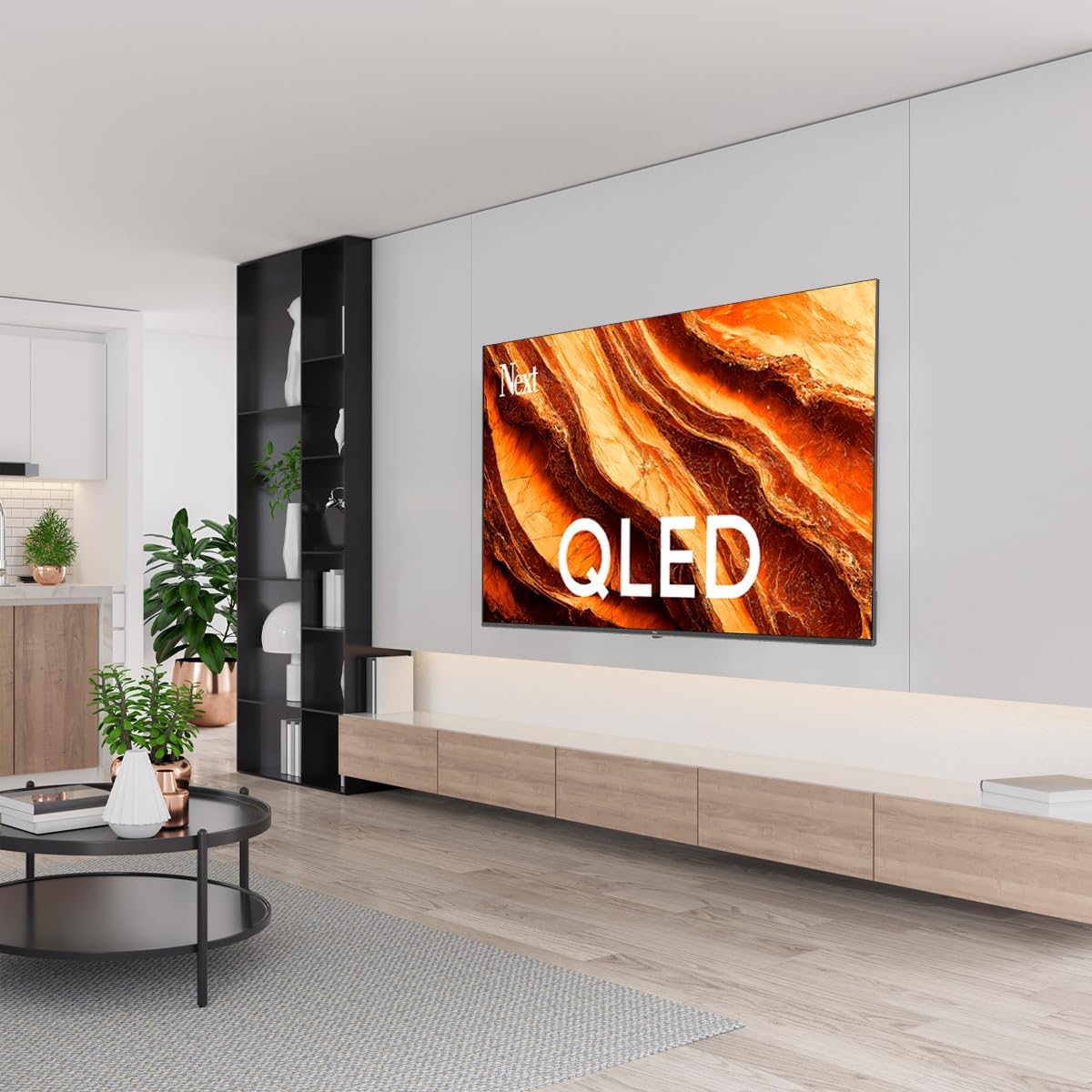
This manual provides essential information for the safe and efficient operation of your Next YE-65GFSG8-QLED 65-inch UHD 4K Google QLED TV. Please read this manual thoroughly before using the television and retain it for future reference. Your new television combines QLED display technology with the Google TV operating system, offering a high-quality viewing experience and smart features.
2. מידע בטיחות חשוב
Always follow these basic safety precautions when operating your television:
- מקור כוח: ודא שהטלוויזיה מחוברת לאספקת חשמל בטווח עוצמת הקול שצוינהtagטווח e.
- אוורור: אין לחסום פתחי אוורור. יש להשאיר מספיק מקום מסביב לטלוויזיה לזרימת אוויר תקינה.
- מים ולחות: אין לחשוף את הטלוויזיה לגשם או לחות. אין להניח חפצים מלאים בנוזלים, כגון אגרטלים, על הטלוויזיה.
- ניקוי: נתקו את הטלוויזיה משקע החשמל לפני הניקוי. השתמשו במטלית רכה ויבשה. אין להשתמש בחומרי ניקוי נוזליים או בחומרי ניקוי בתרסיס.
- מיקום: הנח את הטלוויזיה על משטח יציב ומאוזן. הימנע מהצבתה באור שמש ישיר או בקרבת מקורות חום.
- בָּרָק: במהלך סופות ברקים או כאשר הטלוויזיה אינה בשימוש למשך תקופות ארוכות, נתקו את הטלוויזיה משקע החשמל ונתק את האנטנה.
- שֵׁרוּת: אל תנסה לתת שירות למוצר זה בעצמך. הפנה את כל השירות לאנשי שירות מוסמכים.
3. תכולת החבילה
Verify that all items are present in your TV package:
- Next YE-65GFSG8-QLED 65-inch UHD 4K Google QLED TV
- שְׁלַט רָחוֹק
- כבל חשמל
- מעמד טלוויזיה (2 יחידות) וברגים
- מדריך למשתמש (מסמך זה)
- מדריך להתחלה מהירה
4. התקנה
4.1 התקנה פיזית
You can install your TV on a stand or mount it on a wall. Ensure the TV is placed on a stable surface or securely mounted.

תְמוּנָה: TV Dimensions. This image illustrates the physical dimensions of the 65-inch television, including its width, height, and diagonal screen size of 164 cm (65 inches).
התקנת מעמד:
- הנח בזהירות את הטלוויזיה כשפניה כלפי מטה על משטח רך ושטוח כדי למנוע נזק למסך.
- Attach the two stand pieces to the designated slots on the bottom of the TV.
- אבטחו את המעמדים בעזרת הברגים המצורפים.
- הרם בזהירות את הטלוויזיה למיקומה הזקוף על משטח יציב.
הרכבה על הקיר:
For wall mounting, use a VESA-compatible wall mount kit (sold separately) that matches the TV's VESA pattern. Follow the instructions provided with your wall mount kit. It is recommended to have professional assistance for wall mounting.
4.2 חיבור ציוד היקפי
Connect your external devices to the appropriate ports on the back of your TV.
תְמוּנָה: Rear Panel Connections. This image displays the various input and output ports located on the back of the television, including HDMI, USB, DVB-S, DVB-T, CI Module, Mini AV-IN, Optical Out, and Ethernet.
- HDMI (ARC): Connect Blu-ray players, game consoles, or other HDMI devices. HDMI 1 supports Audio Return Channel (ARC).
- USB (2x): חבר התקני אחסון USB להפעלת מדיה.
- DVB-S / DVB-T: Connect satellite (DVB-S) or terrestrial (DVB-T) antenna cables.
- CI Module: Insert a Common Interface (CI) module for encrypted digital channels.
- מיני AV-IN: Connect older devices using an AV adapter cable.
- יציאה אופטית: Connect to an external audio system for digital audio output.
- אתרנט: חבר כבל Ethernet לחיבור אינטרנט קווי.
- כּוֹחַ: חבר את כבל החשמל לטלוויזיה ולאחר מכן לשקע בקיר.
4.3 הפעלה ראשונית והתקנה ראשונה
- After connecting all cables, plug the power cord into an electrical outlet.
- לחץ על כפתור ההפעלה בשלט רחוק או בטלוויזיה.
- הטלוויזיה תדריך אותך בתהליך ההתקנה הראשוני, הכולל:
- בחירת שפה
- מתחבר ל-Wi-Fi או Ethernet
- Signing in with your Google Account (required for Google TV features)
- קבלת התנאים וההגבלות
- Channel scanning (for DVB-S/T)
- עקוב אחר ההוראות שעל המסך כדי להשלים את ההגדרה.
5. הפעלת הטלוויזיה שלך
5.1 פונקציות שלט רחוק
The remote control allows you to navigate the TV's features. Familiarize yourself with its buttons:
- כּוֹחַ: מפעיל או מכבה את הטלוויזיה.
- Google Assistant: מפעיל פקודות קוליות.
- לוח ניווט (למעלה/למטה/שמאלה/ימינה/אישור): ניווט בתפריטים ובחירת אפשרויות.
- בְּחֲזָרָה: חוזר למסך הקודם.
- בַּיִת: גישה למסך הבית של גוגל TV.
- נפח +/-: מכוונן את עוצמת הקול.
- ערוץ +/-: משנה ערוצי טלוויזיה.
- קֶלֶט: בחירת מקורות קלט (HDMI, AV וכו').
- כפתורי אפליקציה: גישה ישירה לאפליקציות סטרימינג פופולריות.
5.2 Navigating Google TV Interface
Google TV organizes your entertainment with a personalized home screen. Content from your apps is brought together and organized for easy discovery.

תְמוּנָה: Google TV Interface. This image shows the main Google TV home screen with various streaming app icons and content recommendations, demonstrating the user interface.
- מסך הבית: מציג המלצות מותאמות אישית, אפליקציות מותקנות וגישה מהירה לתוכן.
- לשונית "בשבילך": Provides tailored content suggestions based on your viewיצירת הרגלים.
- כרטיסייה חיה: Accesses live TV channels from integrated services.
- כרטיסיית אפליקציות: Shows all installed applications. You can download more from the Google Play Store.
- לשונית הספרייה: Accesses your purchased or rented content from Google Play.
5.3 הגדרות תמונה וקול
כדי להתאים את הגדרות התמונה והקול:
- הקש על הגדרות button (usually a gear icon) on your remote.
- נווט אל תצוגה וסאונד.
- הגדרות תמונה: Adjust brightness, contrast, color, sharpness, and select picture modes (e.g., Standard, Vivid, Movie, Game). Your QLED TV offers enhanced color saturation.
- הגדרות סאונד: Adjust bass, treble, balance, and select sound modes (e.g., Standard, Music, Movie, Speech).

תְמוּנָה: QLED Color Saturation. This image visually demonstrates the high color saturation achieved with QLED technology, showing a vibrant and rich color display.

תְמוּנָה: HDR (High Dynamic Range). This image illustrates the visual impact of HDR, showcasing improved contrast and color detail in a scene when HDR is enabled versus when it is off.
5.4 הגדרות רשת
To connect your TV to the internet:
- הקש על הגדרות כפתור בשלט שלך.
- נווט אל רשת ואינטרנט.
- לִבחוֹר Wi-Fi to connect to a wireless network or ensure אתרנט is connected for a wired connection.
- עבור Wi-Fi, בחר את הרשת שלך מהרשימה והזן את הסיסמה.
6. תחזוקה
6.1 ניקוי הטלוויזיה
- תמיד נתקו את הטלוויזיה מהחשמל לפני ניקוי.
- השתמשו במטלית רכה, יבשה ונטולת סיבים כדי לנגב בעדינות את המסך ואת גוף הטלוויזיה.
- עבור סימנים עקשניים, ליטוש קלותampen the cloth with water or a specialized screen cleaner (ensure it's safe for TV screens). Never spray cleaner directly onto the screen.
- הימנע משימוש בחומרי ניקוי שוחקים, שעווה או ממיסים.
6.2 עדכוני תוכנה
Your TV may receive software updates to improve performance and add new features. It is recommended to keep your TV's software updated.
- ודא שהטלוויזיה שלך מחוברת לאינטרנט.
- הקש על הגדרות כפתור בשלט שלך.
- נווט אל מַעֲרֶכֶת > אוֹדוֹת > עדכון מערכת.
- לִבחוֹר בדוק אם יש עדכון.
- פעל לפי ההנחיות שעל המסך כדי להוריד ולהתקין את כל העדכונים הזמינים.
7. פתרון תקלות
אם נתקלת בבעיות עם הטלוויזיה שלך, עיין בבעיות הנפוצות ובפתרונות הבאים:
| בְּעָיָה | סיבה / פתרון אפשרי |
|---|---|
| אין כוח | Check if the power cord is securely plugged into the TV and the wall outlet. Ensure the outlet is working. |
| אין תמונה, אבל יש קול | בדוק את מקור הקלט. ודא שהמכשיר המחובר דולק ופועל כראוי. |
| אין קול, אבל יש תמונה | Check the volume level and mute status. Verify audio cable connections for external devices. Check TV sound settings. |
| השלט רחוק לא עובד | החלף את הסוללות. ודא שאין חסימות בין השלט לחיישן ה-IR של הטלוויזיה. |
| לא ניתן להתחבר ל-Wi-Fi | Ensure your Wi-Fi router is on and within range. Re-enter the Wi-Fi password carefully. Try restarting the TV and router. |
| אפליקציות איטיות או קופאות | Close unused apps. Clear app cache (Settings > Apps > See all apps > [App Name] > Clear cache). Ensure a stable internet connection. |
אם הבעיה נמשכת לאחר ניסיון פתרונות אלה, אנא צור קשר עם תמיכת הלקוחות.
8. מפרטים
Technical specifications for the Next YE-65GFSG8-QLED 65-inch UHD 4K Google QLED TV:
- מותג: הַבָּא
- שנת דגם: 2025
- הַחְלָטָה: 4K (3840x2160)
- טכנולוגיית תצוגה: QLED
- גודל מסך: 65 אינץ' (165 ס"מ)
- יחס גובה-רוחב: 16:9
- קצב רענון: 60 הרץ
- תכונות עיקריות: עיצוב ללא מסגרת
- קישוריות: Bluetooth, Ethernet, HDMI (ARC), USB (2x), Wi-Fi
- מידות המוצר: 27.8D x 144.6W x 88.9H ס"מ
- מִשׁקָל: 16.3 קילוגרם
- מַעֲרֶכֶת הַפעָלָה: Google TV
- רכיבים כלולים: שְׁלַט רָחוֹק
- ארץ מוצא: טוּרְקִיָה
9. אחריות ותמיכה
Your Next YE-65GFSG8-QLED TV comes with a manufacturer's warranty. Please refer to the warranty card included in your package for specific terms and conditions, including the warranty period and coverage details.
For technical support, service requests, or further assistance, please contact Next customer service. Contact information can typically be found on the manufacturer's webבאתר או במסמכי האחריות.
- תמיכה מקוונת: Visit the official Next website for FAQs, troubleshooting guides, and support contact details.
- מרכזי שירות: For hardware issues, locate an authorized service center near you.