
1. הקדמה
This manual provides essential instructions for the setup, operation, and maintenance of your TMY Projector. Please read this manual thoroughly before using the product to ensure proper functionality and to maximize your viewניסיון. שמור מדריך זה לעיון עתידי.
2. המוצר נגמרview
2.1 תכולת החבילה
ודא שכל הפריטים נמצאים בחבילה:
- TMY Projector Unit
- שְׁלַט רָחוֹק
- כבל HDMI
- כבל חשמל
- תעודת אחריות
2.2 תכונות עיקריות
- Netflix Officially Licensed: Access streaming services directly without external devices.
- 1080P Resolution: מספק תמונות ברורות ומפורטות.
- Electric Focus & Auto Keystone: Automatic image adjustment for optimal clarity and shape.
- מעמד מסתובב 270°: Flexible projection angles, including ceiling projection.
- Upgraded WiFi 6 Connectivity: Ensures stable and fast wireless streaming.
- Dual-Mode Bluetooth 5.2: Connects to external speakers or functions as a standalone Bluetooth speaker.
- אפשרויות קישוריות מרובות: HDMI, USB, Phone/PC mirroring.
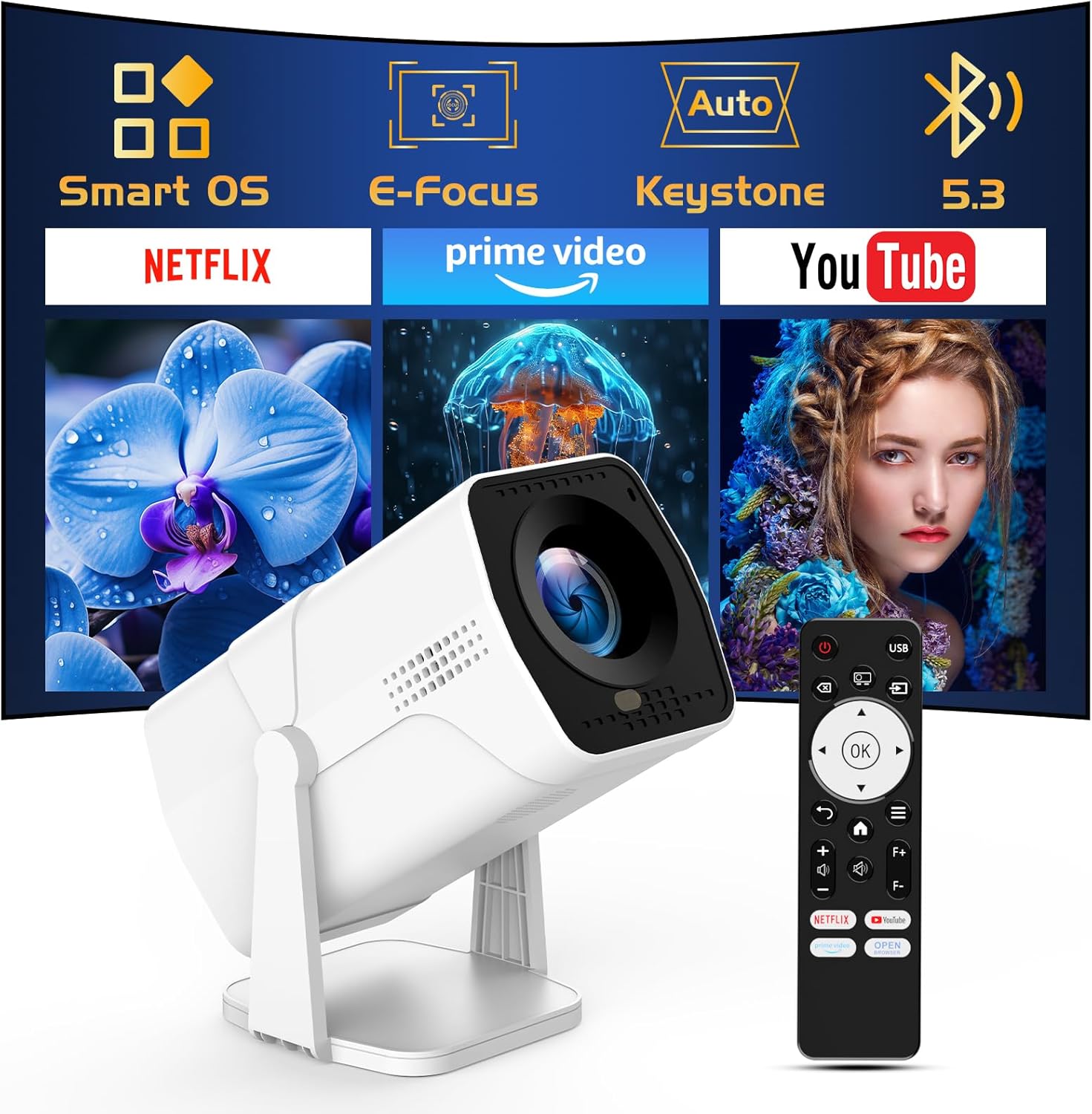
Image: The TMY Projector unit, its remote control, and a projected screen displaying logos for Smart OS, E-Focus, Auto Keystone, Bluetooth 5.3, Netflix, Prime Video, and YouTube.
3. התקנה
3.1 מיקום
Position the projector on a stable, flat surface. The 270° rotatable stand allows for versatile placement, including projecting onto walls or ceilings. Ensure adequate ventilation around the projector.

Image: A TMY Projector positioned on a bedside table, projecting an image onto the ceiling, demonstrating its 270° rotatable stand for multi-angle viewing.
3.2 חיבור מתח
- חבר את כבל החשמל לשקע החשמל של המקרן.
- חבר את הקצה השני של כבל החשמל לשקע חשמלי רגיל.
3.3 הפעלה ראשונית וכוונון מיקוד
- לחץ על לחצן ההפעלה במקרן או בשלט הרחוק כדי להפעיל את המכשיר.
- תכונות המקרן פוקוס חשמלי ו אוטומטי קיסטון correction. The image will automatically adjust for clarity and a rectangular shape within approximately 2 seconds.
- If further adjustment is needed, use the remote control to fine-tune the focus.

Image: A TMY Projector projecting a vibrant image onto a screen, with an overlay illustrating the 'FOCUS' function and icons for Auto Keystone and 50%-100% Zoom.
3.4 חיבור רשת (WiFi)
The projector supports WiFi 6 for a fast and stable internet connection.
- נווטו לתפריט 'הגדרות' באמצעות השלט רחוק.
- בחר 'רשת' או 'הגדרות WiFi'.
- Choose your desired WiFi network from the list and enter the password.
- אשר את החיבור.

Image: A TMY Projector wirelessly connected to a tablet, smartphone, and laptop, illustrating its WiFi 6 connectivity for faster streaming with no lagging.
3.5 חיבור בלוטות'
The projector features Dual-Mode Bluetooth 5.2 for audio connectivity.
- Projector Mode (Output): To connect to external Bluetooth speakers or soundbars: Navigate to 'Bluetooth Settings', enable Bluetooth, and pair with your audio device.
- Speaker Mode (Input): To use the projector's built-in speakers as a standalone Bluetooth speaker: Select 'Speaker Mode' in the Bluetooth settings. Your phone or other device can then connect to the projector to play audio.

Image: A TMY Projector illustrating its two-way Bluetooth 5.2 functionality, showing connections to a soundbar (Projector Mode) and a smartphone (Speaker Mode).
4. תפעול
4.1 Navigating the Smart OS
The projector runs on a smart TV operating system. Use the provided remote control to navigate menus, select applications, and control playback.

Image: The TMY Projector unit with a projected screen showing a grid of built-in smart OS applications, including Netflix, YouTube, Prime Video, TikTok, and others.
4.2 Accessing Built-in Apps
The projector comes with pre-installed and officially licensed applications such as Netflix, Prime Video, and YouTube. Access these directly from the home screen or through the 'App Store' for additional content.

Image: A TMY Projector projecting a screen filled with content from officially licensed apps like Netflix, Prime Video, and YouTube, with the remote control in the foreground.
4.3 חיבור התקנים חיצוניים
המקרן מציע מספר יציאות לחיבור התקנים חיצוניים:
- HDMI: Connect TV sticks, TV boxes, PCs/Laptops, or gaming consoles (e.g., PS).
- USB: הפעל מדיה files directly from USB drives or connect other USB accessories.
- Phone/PC Mirroring: Wirelessly mirror content from your smartphone or PC (refer to the on-screen instructions for specific mirroring protocols).
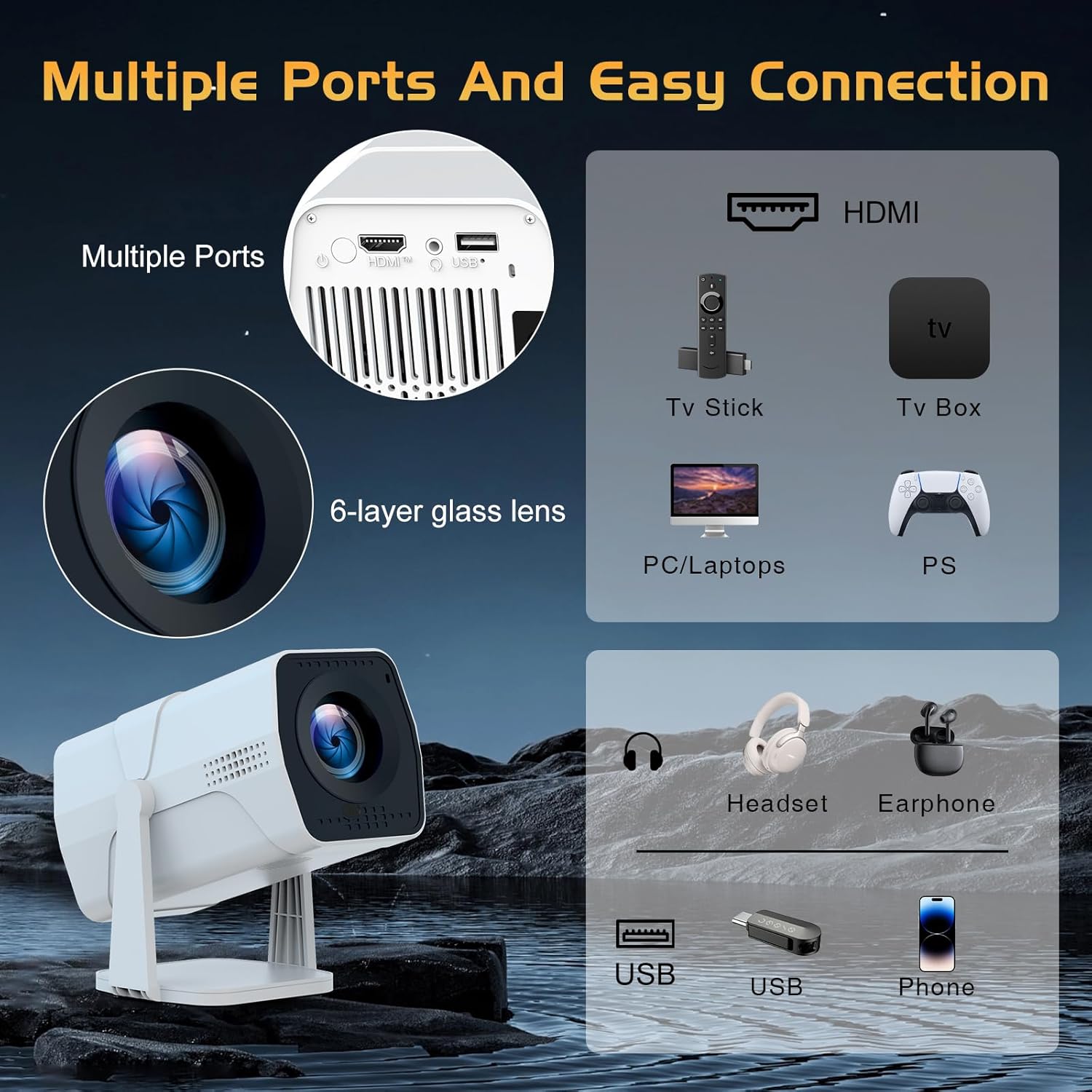
Image: A detailed diagram showing the multiple ports on the TMY Projector (HDMI, USB) and various connection possibilities, including TV sticks, PCs, gaming consoles, headsets, and phones.
4.4 Screen Zoom Function
The projector includes a 50%-100% zoom function, allowing you to adjust the screen size without moving the projector. This feature can be accessed via the remote control or settings menu.
5. תחזוקה
To ensure the longevity and optimal performance of your TMY Projector, follow these maintenance guidelines:
- ניקוי העדשה: השתמשו במטלית רכה ונטולת סיבים המיועדת במיוחד לעדשות אופטיות. הימנעו מחומרים שוחקים או כימיקלים חזקים.
- ניקוי החלק החיצוני: נגבו את החלק החיצוני של המקרן בעזרת מטלית רכה ויבשה. אין להשתמש בחומרי ניקוי נוזליים ישירות על המכשיר.
- אוורור: ודא שפתחי האוורור אינם חסומים כדי למנוע התחממות יתר.
- אִחסוּן: כאשר המקרן אינו בשימוש למשך תקופות ממושכות, יש לאחסן אותו במקום קריר ויבש, הרחק מאור שמש ישיר ומאבק.
6. פתרון תקלות
If you encounter issues with your TMY Projector, refer to the following common problems and solutions:
- אין כוח:
- Ensure the power cord is securely connected to both the projector and a working electrical outlet.
- בדוק אם שקע החשמל תקין.
- אין תמונה / תמונה מטושטשת:
- Verify the projector is powered on and the lens cap is removed.
- Allow the automatic focus and keystone correction to complete. If still blurry, manually adjust focus using the remote.
- Ensure the projection surface is suitable and the projector is within the recommended distance.
- If using an external source (HDMI), ensure the correct input source is selected.
- אין צליל:
- בדוק את עוצמת הקול במקרן ובכל התקני שמע חיצוניים המחוברים.
- אם משתמשים ברמקולי בלוטות', ודאו שהם מותאמים ומחוברים כראוי.
- If using internal speakers, ensure external Bluetooth output is not selected.
- שלט רחוק לא מגיב:
- ודא שהסוללות מוכנסות כהלכה ואינן מתרוקנות.
- כוון את השלט ישירות אל מקלט ה-IR של המקרן.
- בעיות חיבור WiFi:
- Ensure your WiFi network is active and within range.
- בדוק שוב את סיסמת ה-WiFi.
- Restart the projector and your WiFi router.
- If the connection times out, try moving the projector closer to the router or reducing interference.
7. מפרטים
| תכונה | מִפרָט |
|---|---|
| מותג | TMY |
| דֶגֶם | B0DRFF5KMF |
| משקל פריט | 2.79 פאונד |
| מידות המוצר | 5.35 x 4.84 x 7.09 אינץ' |
| צֶבַע | לָבָן |
| תכונות מיוחדות | Speakers, Electric Focus, Auto Keystone, 270° Rotatable Stand |
| טכנולוגיית קישוריות | HDMI, USB, WiFi 6, Bluetooth 5.2 |
| רזולוציית תצוגה | 1920 x 1080 (1080P Full HD) |
| שימושים מומלצים | מקורה |

Image: A visual comparison showing the TMY Projector's 1080P Full HD image quality, emphasizing that it is recommended for use in dark environments for optimal viewing, contrasted with daytime or light-on conditions.
8. אחריות ותמיכה
TMY is committed to providing excellent customer service and product support.
- אַחֲרָיוּת: מוצר זה מגיע עם 3 שנות אחריות.
- מדיניות החזרות: Enjoy a 30-day return period.
- תמיכה טכנית: Lifetime after-sale service and technical support are available.
- זמן תגובה: Expect a quick reply within 24 hours for support inquiries.
לסיוע נוסף, אנא בקרו באתר הרשמי TMY Store on Amazon or contact customer support through the provided channels in your warranty card.