
hosabely SK500
Hosabely SK500 Podcast Equipment Bundle Audio Interface User Manual
דגם: SK500
מָבוֹא
This manual provides detailed instructions for setting up, operating, and maintaining your Hosabely SK500 Podcast Equipment Bundle. Please read this manual thoroughly before using the product to ensure proper function and longevity.

Image: The Hosabely SK500 Podcast Equipment Bundle, featuring the audio interface, microphone, and stand.
תוכן החבילה
ודא שכל הפריטים נמצאים בחבילה שלך:
- 1x Audio Interface Mixer (SK500)
- 1x XLR to 3.5mm Microphone
- מעמד חצובה 1x
- 1x אוזניות חוטיות
- 1x Microphone Cable (XLR-3.5mm)
- כבל USB 1x USB טעינה
- 2x 3.5mm Audio Cables
- מדריך למשתמש באנגלית אחת
מדריך התקנה
Follow these steps to set up your Hosabely SK500 Podcast Equipment Bundle.
1. הפעלה והגדרה ראשונית
- הפעלה: Long press the power button on the audio interface for approximately 5 seconds until the lights illuminate. The Bluetooth indicator will flash, indicating it's ready for pairing.
- Connect Headphones/Earphones: Plug your wired headphones or earphones into the designated "Earphone" port on the audio interface.
- חיבור מיקרופון: Plug the microphone cable into either "MIC 1" or "MIC 2" port on the audio interface.
- התקן טעינה: Connect the USB charging cable from the "Charging Port" on the audio interface to a power bank or adapter for charging.
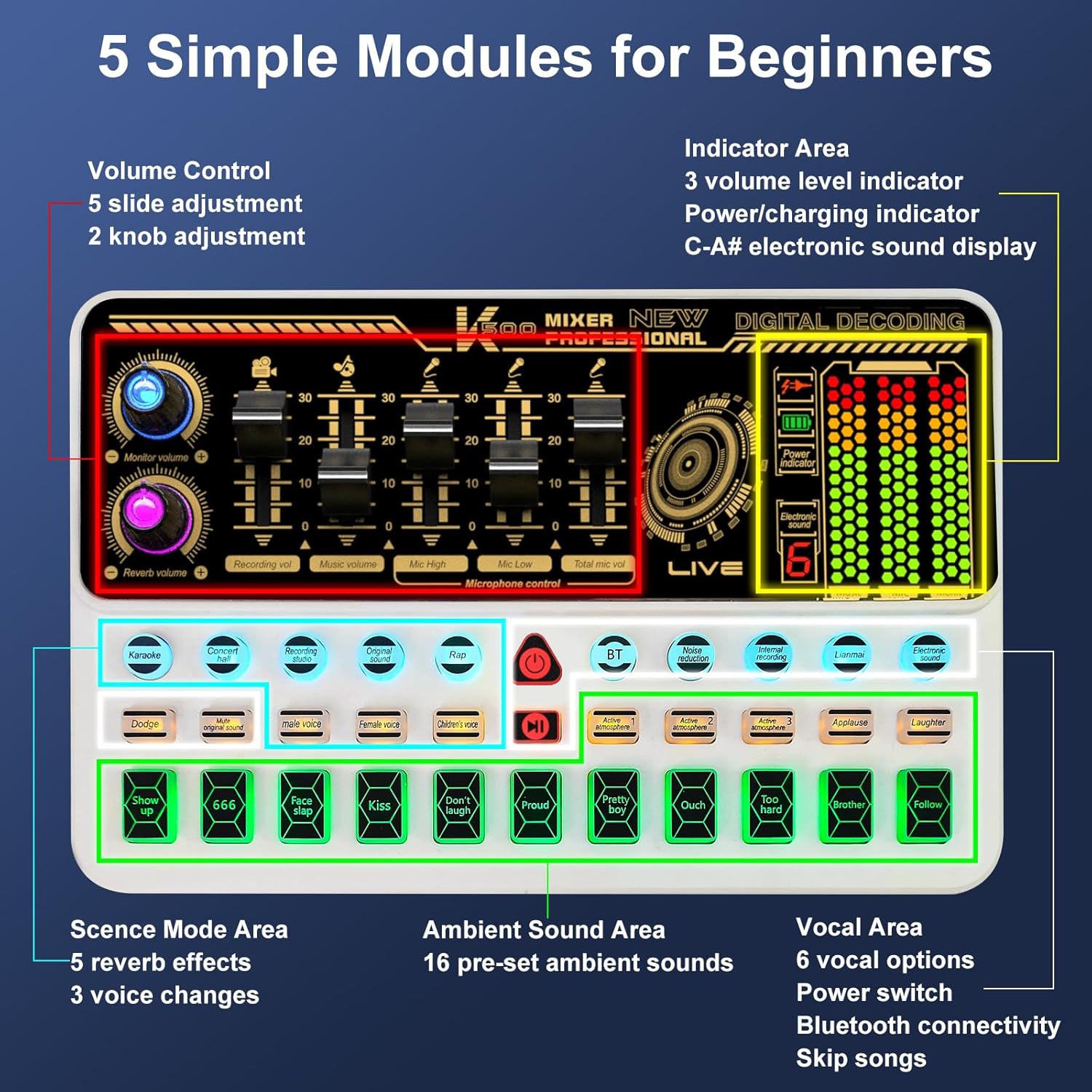
תמונה: מעלview of the SK500 audio interface controls and indicators.
2. Connecting to a Phone or Tablet
- זיווג Bluetooth: On your phone or tablet, enable Bluetooth and search for "SK500". Select it to pair.
- חיבור קווי (אופציונלי): For phones without a 3.5mm jack, an OTG adapter (not included) is required. Connect a USB cable from the "OTG" port on the audio interface to your phone's USB port.
- Live Output: Connect one of the 3.5mm audio cables from the "Live" port on the audio interface to your phone's 3.5mm audio input (if available).
Video: Instructions on how to connect the SK500 sound board to your phone or pad.

Image: Diagram illustrating various connection methods for the SK500, including single phone, dual phone, phone+PC/laptop, and PC/laptop only setups.
3. Connecting to a PC or Laptop
- חיבור USB: Connect the USB charging cable from the "Charging Port" on the audio interface to your PC/laptop's USB port.
- בחירת פלט שמע: On your PC/laptop, navigate to Sound Settings. Select "SK500 Studio" as the output device.
Video: Instructions on how to connect the SK500 sound board to your PC or laptop.
4. Connecting to a PS5
- חיבור USB: Connect the USB charging cable from the "Charging Port" on the audio interface to an available USB port on your PS5.
- Input/Output Device Selection: On your PS5, go to Settings > Sound.
- For Microphone Input Device, select "USB Headset (SK500)".
- For Audio Output Device, select "USB Headset (SK500)".
- כוונון עוצמת המיקרופון: Adjust the microphone level in the PS5 settings to ensure optimal input volume.
Video: Instructions on how to connect the SK500 sound card to a PS5 console.
הוראות הפעלה
The SK500 audio interface offers intuitive controls for various audio functions.
1. בקרות עוצמת קול
The soundboard features 5 volume faders for precise adjustment:
- עוצמת הקול של המיקרופון: Adjusts the input level of the connected microphone(s).
- נפח הליווי: Controls the volume of background music or tracks.
- נפח הקלטה: Sets the overall recording level.
- עוצמת הקול של הצג: Adjusts the volume for your monitoring headphones.
- Reverb Volume: Controls the intensity of the reverb effects.

Image: Close-up of the SK500 audio mixer showing the 5 individual volume faders for precise control over microphone, music, and recording levels.
2. Voice Change Options
The SK500 offers 3 voice change options for creative alterations:
- קול זכר
- קול נשי
- קול ילד

Image: The SK500 audio mixer highlighting the voice changer buttons for male, female, and child voices.
3. Reverb Modes and Sound Effects
Enhance your audio with various effects:
- 5 Reverb Modes: Includes Echo, Reverb, and Original Sound.
- 16 Preset Sound Effects: A variety of ambient sounds to enrich your recordings or performances.

Image: The SK500 audio mixer displaying the various sound effect buttons and reverb mode options.
4. תכונות מתקדמות
- הפחתת רעש: Minimizes background noise for clearer audio.
- שיפור קול: Improves vocal clarity and presence.
- ברווזון: מנמיך אוטומטית את עוצמת מוזיקת הרקע בעת זיהוי דיבור.
- הסר שירה: Isolates instrumental tracks by removing lead vocals.
- Loopback: Allows internal recording of audio output back into the system (useful for PC).
- Bluetooth 5.0: For seamless wireless accompaniment track input.
- Dual-Device Broadcasting: Supports simultaneous broadcasting to two devices.
- ניטור בזמן אמת: Allows for easy control of audio output during live sessions.

Image: The SK500 mixer shown in a streaming setup, compatible with various live broadcast applications.
שימוש במיקרופון
The included XLR to 3.5mm microphone features a cardioid pickup pattern, designed to capture sound sources directly in front of it with precision. The adjustable tripod stand provides stable positioning and anti-vibration properties.
פֶּתֶק: The XLR microphone supports 3.5mm MIC input only and cannot be used with phantom power. Ensure proper connection to the MIC ports on the audio interface.

Image: The included XLR to 3.5mm microphone with its tripod stand, highlighting its cardioid pickup pattern and low noise features.
תַחזוּקָה
- ניקוי: Use a soft, dry cloth to clean the surface of the audio interface and microphone. Avoid using liquid cleaners or abrasive materials.
- אִחסוּן: יש לאחסן את המכשיר במקום קריר ויבש, הרחק מאור שמש ישיר וטמפרטורות קיצוניות.
- טיפול בכבלים: Handle cables carefully to prevent damage. Avoid sharp bends or excessive pulling.
פתרון בעיות
- אין פלט קול:
- Check all cable connections (headphones, speakers, live output).
- Ensure volume faders on the audio interface are not at minimum.
- Verify correct input/output device selection on your connected phone, PC, or PS5.
- המיקרופון לא עובד:
- Confirm the microphone is securely plugged into a "MIC" port.
- Adjust the microphone volume fader.
- Remember the microphone does not support phantom power.
- בעיות קישוריות Bluetooth:
- Ensure Bluetooth is enabled on both the audio interface and your device.
- Check that "SK500" is selected and paired in your device's Bluetooth settings.
- נסה להפעיל מחדש את שני המכשירים.
- Poor Sound Quality / Noise:
- Activate the noise reduction feature on the audio interface.
- Ensure all cables are properly shielded and not damaged.
- Adjust microphone gain and output levels to avoid clipping or distortion.
- Phone Connectivity (No 3.5mm Jack):
- An OTG adapter (not included) is required for wired connection to phones without a 3.5mm jack.
מפרטים
| תכונה | פְּרָט |
|---|---|
| מותג | hosabely |
| דֶגֶם | SK500 |
| משקל פריט | 2.14 פאונד |
| מידות המוצר | 5.11 x 7.87 x 1.96 אינץ' |
| סוללות | נדרשת סוללת ליתיום פולימר אחת (כלול) |
| צֶבַע | לָבָן |
| מכשירים תואמים | Headphone, Laptop, Microphone, Smartphone, Speaker |
| מַעֲרֶכֶת הַפעָלָה | אנדרואיד, iOS |
| טכנולוגיית קישוריות | USB, בלוטות' 5.0 |
| מספר ערוצים | 2 |
אחריות ותמיכה
For any issues or questions regarding your Hosabely SK500 Podcast Equipment Bundle, please feel free to contact us. We are committed to resolving any problems within 12 hours.
אנא עיין במסמכי הרכישה שלך לקבלת פרטי אחריות ספציפיים.
Ask a question about this manual
Ask about setup, troubleshooting, compatibility, parts, safety, or missing instructions. Manuals+ will review the question and use this page’s manual context to help answer it.