
1. הקדמה
This manual provides essential information for the proper installation, operation, and maintenance of your GAMEON Pro Series 27-inch Fast IPS Gaming Monitor (Model: GOAE27QHD165IPS). Please read this manual thoroughly before using the product to ensure optimal performance and safety. Keep this manual for future reference.

תמונה 1.1: חזית view of the GAMEON Pro Series 27-inch Fast IPS Gaming Monitor, showcasinהמסגרת הדקה והמעמד.
The GAMEON Pro Series 27-inch Fast IPS Gaming Monitor features a QHD 2K (2560x1440p) resolution, a 165Hz refresh rate, and a 0.5ms MPRT response time. It supports Adaptive-Sync and Variable Refresh Rate (VRR) technologies for smooth, tear-free gameplay. Connectivity options include dual HDMI 2.1 ports and dual DisplayPort 1.4 ports, along with an audio-out jack and integrated speakers. This monitor is compatible with various gaming consoles and PCs, including PS5.
2. תכולת החבילה
אנא בדקו את תוכן האריזה בעת פתיחת הקופסה. אם חסרים פריטים או פגומים, צרו קשר עם הקמעונאי שלכם.
- GAMEON Pro Series 27-inch Fast IPS Gaming Monitor
- מעמד למוניטור (בסיס וצוואר)
- מתאם חשמל וכבל חשמל
- כבל HDMI
- כבל DisplayPort
- מדריך למשתמש
3. התקנה
3.1 הרכבת הצג
- הוציאו בזהירות את הצג מאריזתו, תוך שמירה על הגנה על המסך.
- חברו את צוואר המעמד לפאנל הצג. ודאו שהוא נכנס במקומו בקליקה היטב או שהוא מהודק באמצעות ברגים, אם מסופקים.
- חברו את בסיס המעמד לצוואר המעמד והדקו את הבורג בתחתית הבסיס.
- הנח את הצג המורכב על משטח יציב ושטוח.
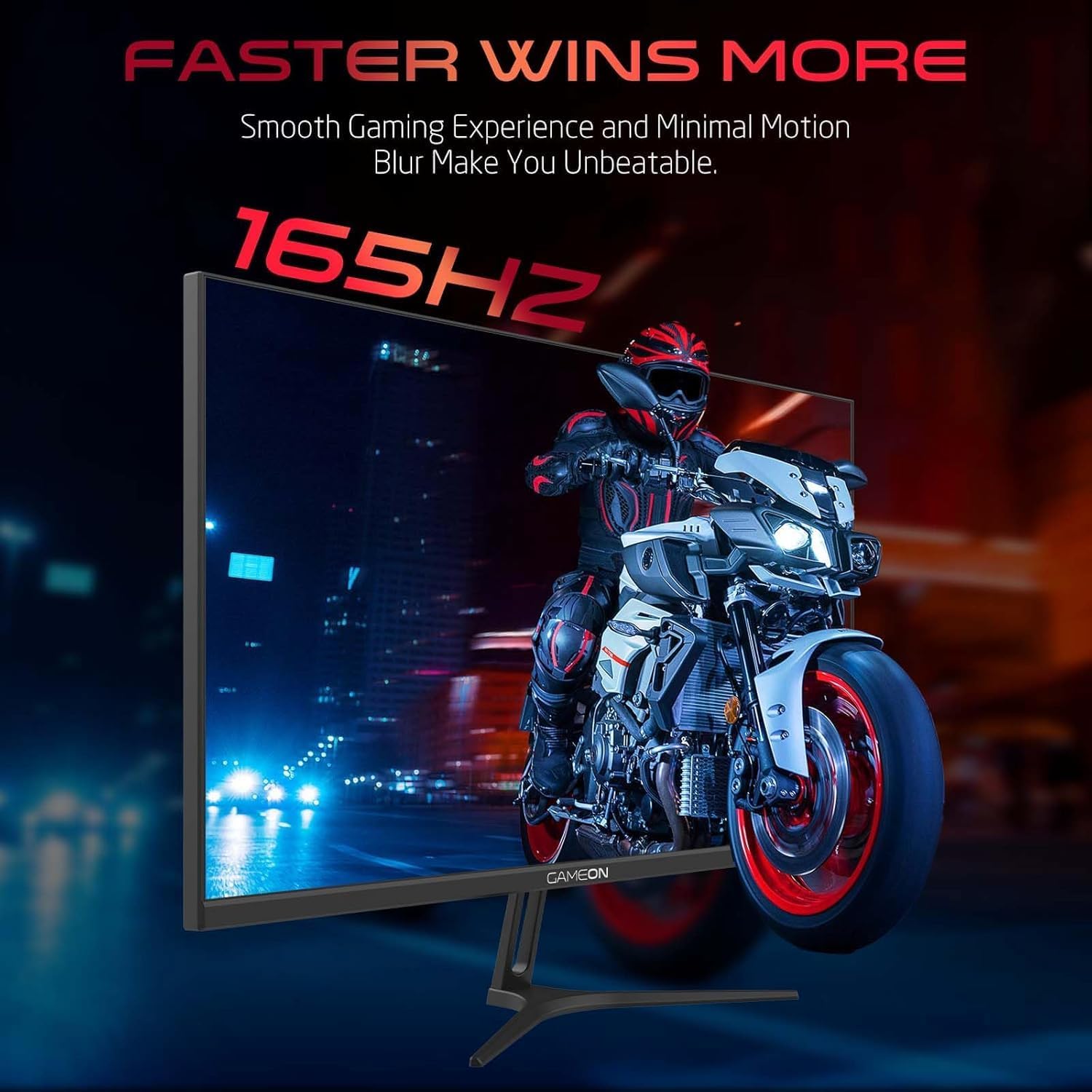
Image 3.1: Illustration of the monitor with its stand, ready for assembly.
3.2 התחברות למכשירים
The monitor offers multiple input options. Choose the appropriate cable for your device (PC, gaming console, etc.).

תמונה 3.2: אחורי view of the monitor, highlighting the input ports and VESA mounting points.

Image 3.3: Detailed diagram illustrating the various input/output ports and their corresponding devices.
- חיבור HDMI: Connect one end of the HDMI cable to the HDMI output port of your device (PC, PS5, Xbox, TV box) and the other end to one of the HDMI 2.1 ports on the monitor.
- חיבור DisplayPort: Connect one end of the DisplayPort cable to the DisplayPort output of your PC and the other end to one of the DisplayPort 1.4 ports on the monitor.
- פלט שמע: For external audio, connect headphones or external speakers to the 3.5mm audio-out jack on the monitor.
3.3 חיבור מתח
- Connect the power adapter to the DC IN port on the monitor.
- Plug the power cable into the power adapter, then plug the other end of the power cable into a power outlet.
4. הוראות הפעלה
4.1 הפעלה/כיבוי
לחץ על לחצן ההפעלה הממוקם על הצג כדי להפעיל או לכבות אותו. נורית חיווי ההפעלה תידלק כאשר הצג דולק.
4.2 תפריט תצוגה על המסך (OSD).
The monitor features a menu button (often a joystick or a series of buttons) usually located on the back or bottom right of the monitor. Use this to navigate the OSD menu and adjust settings.
- Press the menu button to open the OSD menu.
- Use the navigation controls to move through menu options.
- Press the menu button again (or a designated 'Enter' button) to select an option.
- Use the navigation controls to adjust values or select sub-menus.
- Select 'Exit' or press the menu button repeatedly to close the OSD menu.
4.3 הגדרות OSD נפוצות
- הגדרות תמונה: כוונן את הבהירות, הניגודיות, החדות, הגמא וטמפרטורת הצבע.
- הגדרות צבע: כוונון עדין של ערכי RGB, גוון ורוויה.
- מקור קלט: Manually select between HDMI 1, HDMI 2, DisplayPort 1, or DisplayPort 2.
- שֶׁמַע: כוונן את עוצמת הקול עבור רמקולים מובנים או אוזניות מחוברות.
- תכונות משחק: Enable/disable Adaptive-Sync/FreeSync, adjust overdrive settings, and activate crosshair overlays if available.
4.4 PS5 120Hz Setup Guide
To enable 120Hz output on your PlayStation 5 with this monitor, follow these steps:

Image 4.1: Visual guide for configuring 120Hz refresh rate on a PlayStation 5 console.
- Enable 120Hz from PS5 Settings:
- עבור אל הגדרות > Screen and Video > פלט וידאו.
- מַעֲרֶכֶת Enable 120Hz Output אֶל אוֹטוֹמָטִי.
- מַעֲרֶכֶת הַחְלָטָה אֶל 1080p or אוֹטוֹמָטִי. (Note: While the monitor supports 1440p, some PS5 games may require 1080p for 120Hz output.)
- Enable Performance Mode for Gamers:
- עבור אל הגדרות > Save Data and Game App Settings > הגדרות קבועות מראש של המשחק.
- מַעֲרֶכֶת מצב ביצועים כברירת המחדל.
- Check In-Game Settings:
- Go to the specific game's הגדרות משחק > הגדרות וידאו ובחר 120 פריימים לשנייה or מצב ביצועים.
5. תחזוקה
5.1 ניקוי המסך
- כבה את הצג ונתק את כבל החשמל.
- השתמש קלות במטלית רכה נטולת מוך דampנשטף במים או בחומר ניקוי מיוחד למסכים.
- Wipe the screen gently. Do not press hard or use abrasive materials.
- Avoid using alcohol, ammonia, or benzene-based cleaners, as they may damage the screen surface.
5.2 ניקוי ה-Casing
- השתמשו במטלית רכה ויבשה כדי לנגב את הצג.asing.
- לכתמים עקשניים, קלות דampשטפו את המטלית במים וחומר ניקוי עדין, ולאחר מכן נגבו יבש.
6. פתרון תקלות
אם נתקלת בבעיות עם הצג שלך, עיין במדריך לפתרון בעיות הבא:
| בְּעָיָה | סיבה אפשרית | פִּתָרוֹן |
|---|---|---|
| אין תמונה על המסך | אין חשמל; מקור קלט שגוי; כבל וידאו רופף | Ensure power cable is securely connected and power outlet is active. Press power button. Check OSD menu to select correct input source (HDMI/DP). Reconnect video cable firmly. |
| התמונה מטושטשת או מעוותת | Incorrect resolution; Video cable issue | Set display resolution to 2560x1440p in your device's display settings. Try a different video cable. |
| אין קול | Volume too low; Incorrect audio output selected; Loose audio cable | Adjust monitor volume via OSD. Ensure monitor is selected as the audio output device on your PC/console. Check external audio cable connection if using headphones/speakers. |
| מסך מרצד | Refresh rate mismatch; Adaptive-Sync/VRR issue | Ensure your device's refresh rate is set to 165Hz. If flickering persists with Adaptive-Sync/VRR enabled, try disabling it in the OSD or your graphics card settings. |
| Monitor not detected by PC/console | Video cable issue; Driver issue | Try a different video cable or port. Update your graphics card drivers. Restart your PC/console. |
7. מפרטים
Below are the technical specifications for the GAMEON Pro Series 27-inch Fast IPS Gaming Monitor (GOAE27QHD165IPS):
| תכונה | מִפרָט |
|---|---|
| גודל תצוגה | 27 אינץ' |
| סוג פאנל | IPS מהיר |
| הַחְלָטָה | QHD 2K (2560x1440p) |
| קצב רענון | 165 הרץ |
| זמן תגובה | 0.5ms MPRT |
| יחס ניגודיות | 1000:1 |
| בְּהִירוּת | 280 (±30) nits typical |
| Viewזוויות | רָחָב viewing angles (IPS technology) |
| טכנולוגיית סינכרון אדפטיבי | Adaptive-Sync, FreeSync, VRR Compatible |
| קישוריות | 2x HDMI 2.1, 2x DisplayPort 1.4, 1x Audio Out (3.5mm) |
| שֶׁמַע | Built-in 4Ω2W speakers |
| תאימות VESA Mount | 100x100 מ"מ |
| קלט כוח | מתאם DC 12V 4A חיצוני |
| צריכת חשמל מקסימלית | 48W |
| מידות מוצר (עם מעמד) | 16.2 x 61.4 x 45.3 ס"מ |
| משקל המוצר | 5.84 ק"ג |
| מספר דגם | GOAE27QHD165IPS |
8. אחריות ותמיכה
The GAMEON Pro Series 27-inch Fast IPS Gaming Monitor comes with a אחריות לשנה מתאריך הרכישה. אחריות זו מכסה פגמי ייצור בשימוש רגיל. אנא שמור את הוכחת הרכישה שלך לצורך תביעות אחריות.
For technical support, warranty inquiries, or service requests, please contact GAMEON customer service through their official website or the retailer where the product was purchased. Provide your monitor's model number (GOAE27QHD165IPS) and a detailed description of the issue to expedite assistance.